Fix problems
What you’ll do
You work through the Problems dock of a template: narrow it down to what matters, click a problem to land on the field that causes it, fix it, and see it go away. Every problem code is explained, with how to fix it, in Problems.
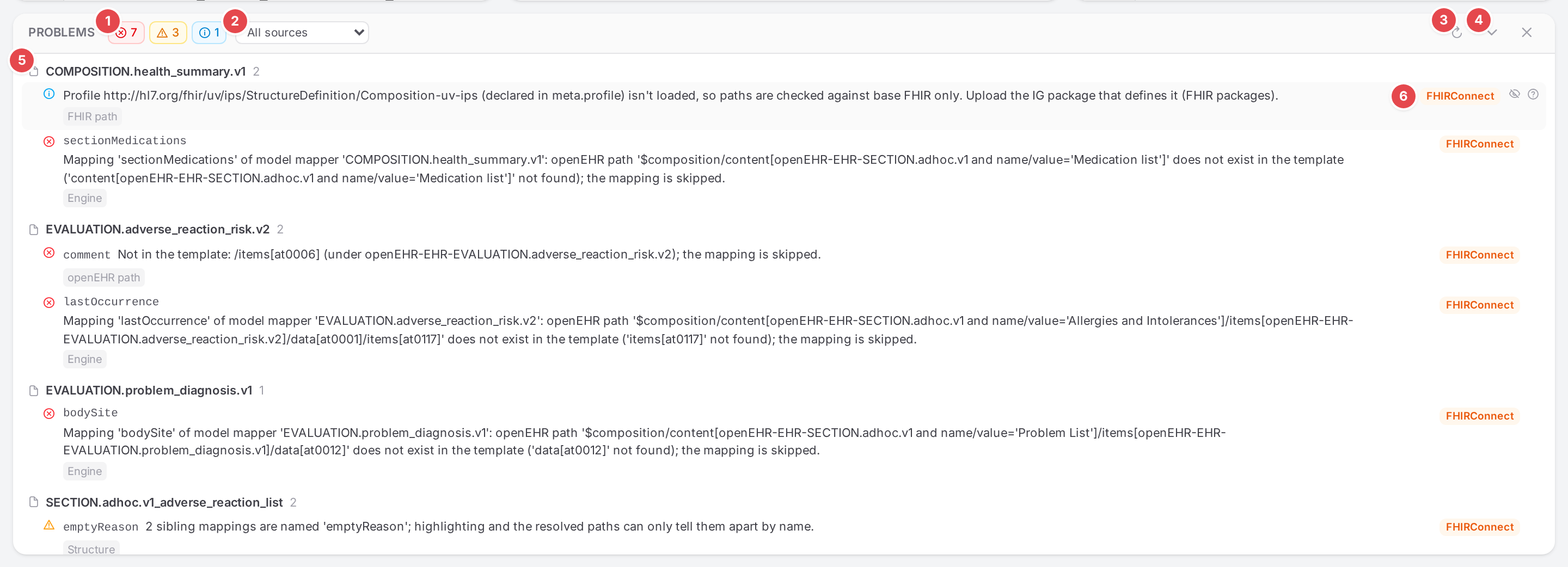
The Problems dock of the demo template “International Patient Summary”.
Before you start
Open a template in the Workspace. The problems button in the top bar shows its error and warning counts; click it to open the dock under the three panes. Click it again to close the dock.
Atlas checks the template in two ways (see Live and saved checks): the saved state on the server, and the open model’s unsaved edits in your browser.
Steps
1. Narrow the list down
The numbers match the screenshot above.
- 1 Severity toggles
One per severity with its count: errors, warnings, infos. Click one to hide that severity (it shows struck through); click again to show it.
- 2 Source filter
All sources, or one of Engine, FHIR path, openEHR path, Structure, Context, Schema, FHIR validation.
- 3 Refresh
“Re-check the saved mappings”. Saving a model re-checks by itself; use it after changes made elsewhere (another user, an upload).
- 4 Minimize to a strip
Folds the dock into one line with the counts and the worst problem; click the strip (“Show all”) to open it again. × next to it closes the dock.

The dock minimized to a strip.
- 5 A model group
Problems are grouped by model, in a fixed order that never changes when you open a model. The open model’s group is tinted and marked Open in the editor.
- 6 Where a click lands
FHIRConnect: the mapping editor. FHIR: the element in the FHIR example pane.
Drag the gutter above the dock to make it taller (double-click resets it).
2. Scope the dock to one mapping
On the editing sheet, a mapping with problems shows a status chip next to + Property, for
example 1 error or 3 problems. Click it: the dock opens with only that mapping’s problems and
those of the mappings below it. The filter chip shows the mapping; its × (“Show all problems”)
removes the scope. Opening another model removes it too.
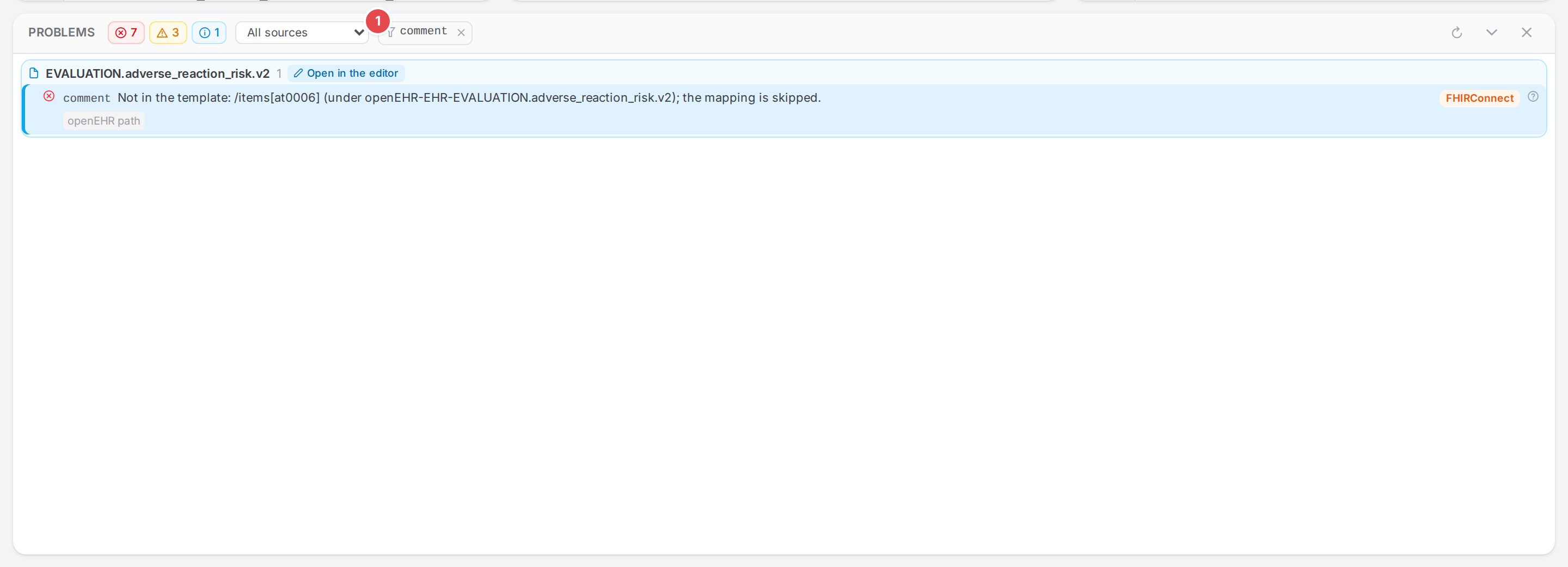
Scoped to comment 1 from its status chip.
3. Read a row
Each row shows the mapping (names from the top-level mapping down, joined by ›), the message and
labels below it:
the source (Engine, FHIR path, …);
×N: found at N places, because the model is slotted in N times;unsaved: found in your unsaved edits;from last save: an engine check of the open model, from its last save; it is re-run when you save;for FHIR validation issues, the element’s location and go to mapping (Validate against FHIR profiles).
Hover a row for the ? icon, “What this problem means and how to fix it”: it opens the problem’s section in Problems.
4. Click the problem
Clicking a row takes you to the cause:
A problem of a mapping: Atlas opens its model (asking first if another model has unsaved edits), selects the mapping in the visual editor and puts the cursor in the field at fault: the FHIR path, the openEHR path, the name, Slot archetype, the Reference type or the Terminology type. The row stays marked until you select another mapping.
A problem of a model as a whole (no mapping named): Atlas opens the model.
A problem of the context (group Context mapper): Atlas opens the context mapper of the template.
A FHIR validation issue: the FHIR pane switches to Example and selects the element.
The rows of the mapping selected in the editor carry a blue bar, so you see at a glance which problems belong to what you are editing.
5. Fix it and check
Fix the field, then save (or let auto-save do it). The open model’s problems update while you type; the rest update after the save. A fixed problem disappears from the dock and from the mapping’s status chip.
Code |
Source |
What it is about |
|---|---|---|
Engine |
|
|
Engine |
A slot context that can’t be entered |
|
Engine |
The model’s hierarchy path |
|
Engine |
Any other engine message |
|
FHIR path |
A FHIR path that isn’t an element |
|
FHIR path |
An element the profile forbids |
|
FHIR path |
No slice matches |
|
FHIR path |
The model’s profile isn’t loaded |
|
openEHR path, Engine |
An openEHR path the template doesn’t have |
|
Structure |
No |
|
Structure |
No path at all |
|
Structure |
A mapping without a name |
|
Structure |
Siblings with the same name |
|
Structure, Engine |
A slot naming no model of the context |
|
Structure |
A reference without a resource type |
|
Structure |
A reference type FHIR doesn’t know |
|
Structure |
A |
|
Structure |
A ConceptMap the engine doesn’t have |
|
Structure |
An extension built without its url |
|
Structure, Engine |
A model with no mappings |
|
Context |
The context names a model that doesn’t exist |
|
Context |
The start model doesn’t exist |
|
Context |
A model’s archetype isn’t in the template |
|
Context |
A model nothing slots in |
|
Schema |
The YAML breaks the FhirConnect schema |
|
Schema |
The YAML doesn’t parse |
|
FHIR validation |
Issues of the FHIR example (Validate against FHIR profiles) |
Live and saved checks
The server checks the saved state of the whole template: every model, the context and the
engine’s resolved mapping tree. While the open model has unsaved edits, your browser re-checks its
YAML as you type (schema, structure, FHIR paths, openEHR paths) and these live results replace the
saved ones of that model. The dock then says “Live for unsaved, and the open model’s engine checks are marked from last save.
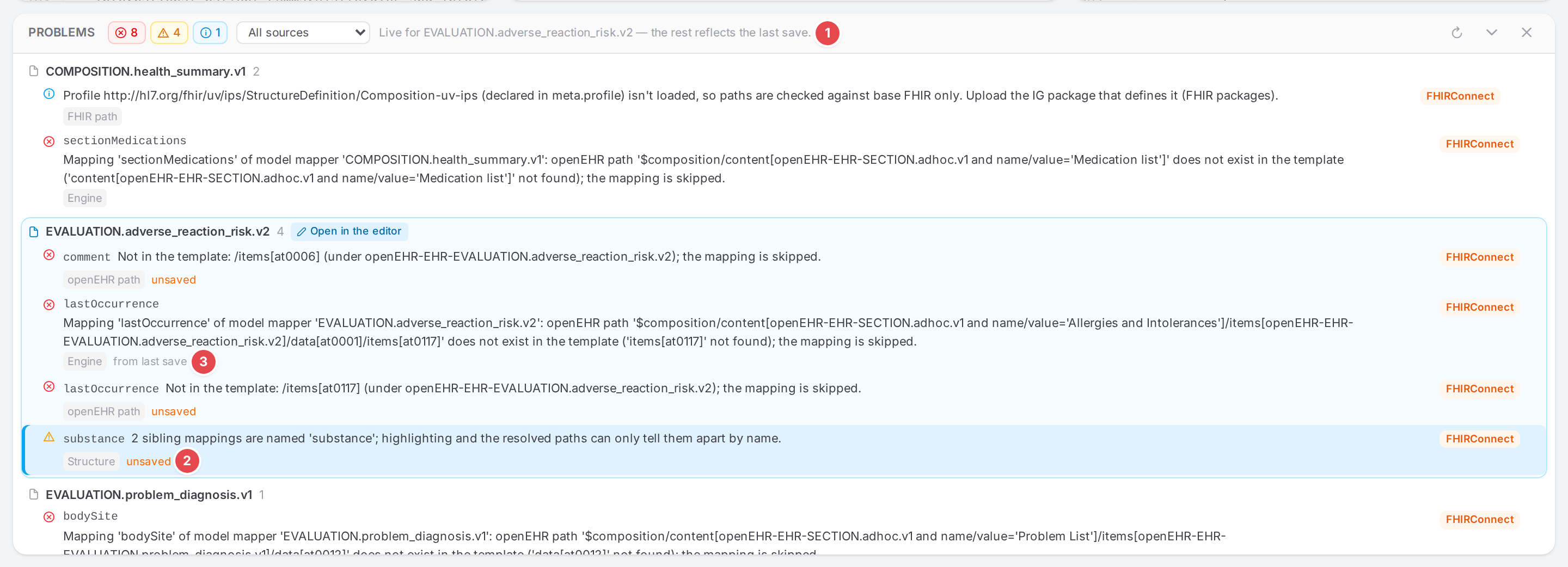
category renamed to substance without saving: the duplicate name is found live.
1 The live note. 2 A live problem. 3 An engine check of the open model from its last save.
Tips
Tip
Infos can be dismissed: hover an info row and click the eye icon (“Dismiss”). It stays hidden for this template. Errors and warnings can’t be dismissed; fix them.

Dismiss on an info.
Tip
Fix errors first: an error usually means the engine skips the mapping, and problems below it often come from the same cause.
Watch out
Warning
Live checks cover only the open model. Everything else in the dock reflects the last save: a fix in another model shows once that model is saved.
Warning
Dismissed infos and ignored validation issues are kept in this browser. Your teammates still see them, and so do you in another browser.
If something goes wrong
“The engine’s helper tree couldn’t be read, so its checks are missing:
”: the dock shows only the checks Atlas could run itself. See Banners. “Failed to load problems”: the saved checks couldn’t be loaded; Refresh.
“No problems match the filters.”: show the hidden severities or pick All sources.