History, blame and restoring
What you’ll do
You find out what changed in a mapping, who changed it and when, compare an old version with the current one, and bring an older version back if a change was a mistake. You also name your changes with a checkpoint before they are pushed.
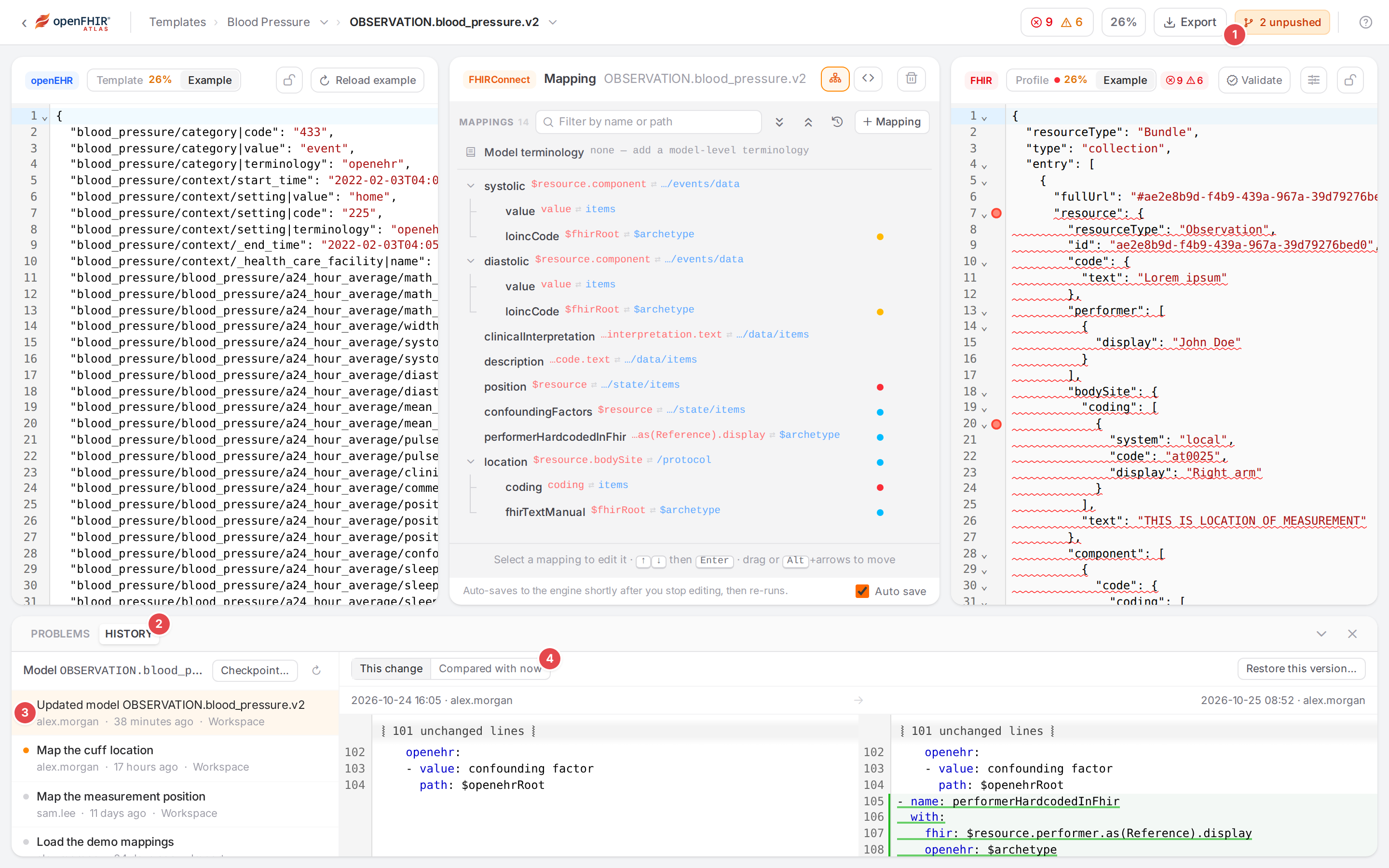
The History tab of the Workspace dock, opened from the versioning badge.
Before you start
Versioning must be available: see When is versioning available. The history is recorded even before a Git repository is connected; restoring from a release or commit needs one.
Restoring changes the engine, so it needs write access to the mappings as well as
versioning.w.
Steps
See the history of what you are editing
Open a model in the Workspace.
Click the versioning badge in the top bar 1 (it reads, for example, 2 unpushed), or the History tab of the dock 2 when the dock is open.
The left side lists the recorded changes of the open model, newest first 3. With no model open, it lists all changes (All changes). Each row shows:
a dot: grey when the change is pushed, orange when it isn’t, blue while it is in an open review (hover the dot for the commit or review);
the checkpoint message, or what happened (Updated model …, Created context …);
who, when (hover for the exact time) and where the change came from: Workspace, State (the Engine state page), Import (an upload), and others;
a chip in review, approved, changes requested or review closed when the change is part of a review (see Submit for review).
Click a change. The right side shows the diff.
This change (default): the version before this change on the left, this change on the right. The first recorded version of a file is compared with Before (did not exist).
Compared with now 4: this change on the left, the engine’s current text (Now (engine)) on the right.
Unchanged stretches are folded (101 unchanged lines); added lines are green, removed ones red. Load older at the bottom of the list fetches the next 50 changes; the round arrow reloads.
The same history is on the History tab of the Versioning page (all changes of the tenant), and on the Engine state page: select a template and click History for the changes of its OPT, its context and each of its models, one tab each.
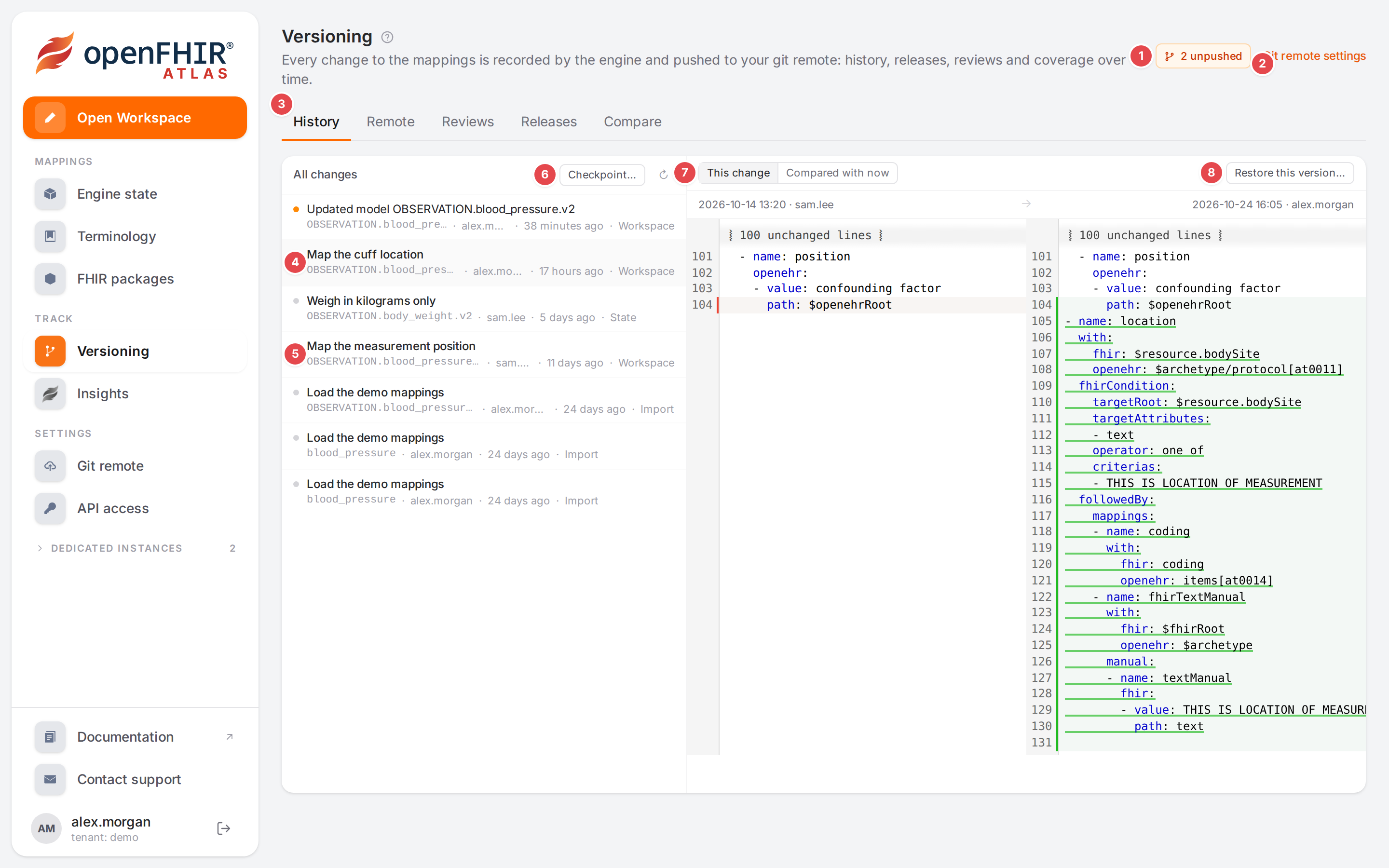
The History tab of the Versioning page.
1 |
The versioning badge; here it opens the Remote tab. |
2 |
Git remote settings. |
3 |
The History tab. |
4 |
A change not pushed yet (orange dot) with its checkpoint message. |
5 |
A pushed change (grey dot). |
6 |
Checkpoint…: name the unpushed changes. With the review workflow, Submit for review… sits next to it. |
7 |
This change / Compared with now. |
8 |
Restore this version… (not offered on a change that deleted the file). |
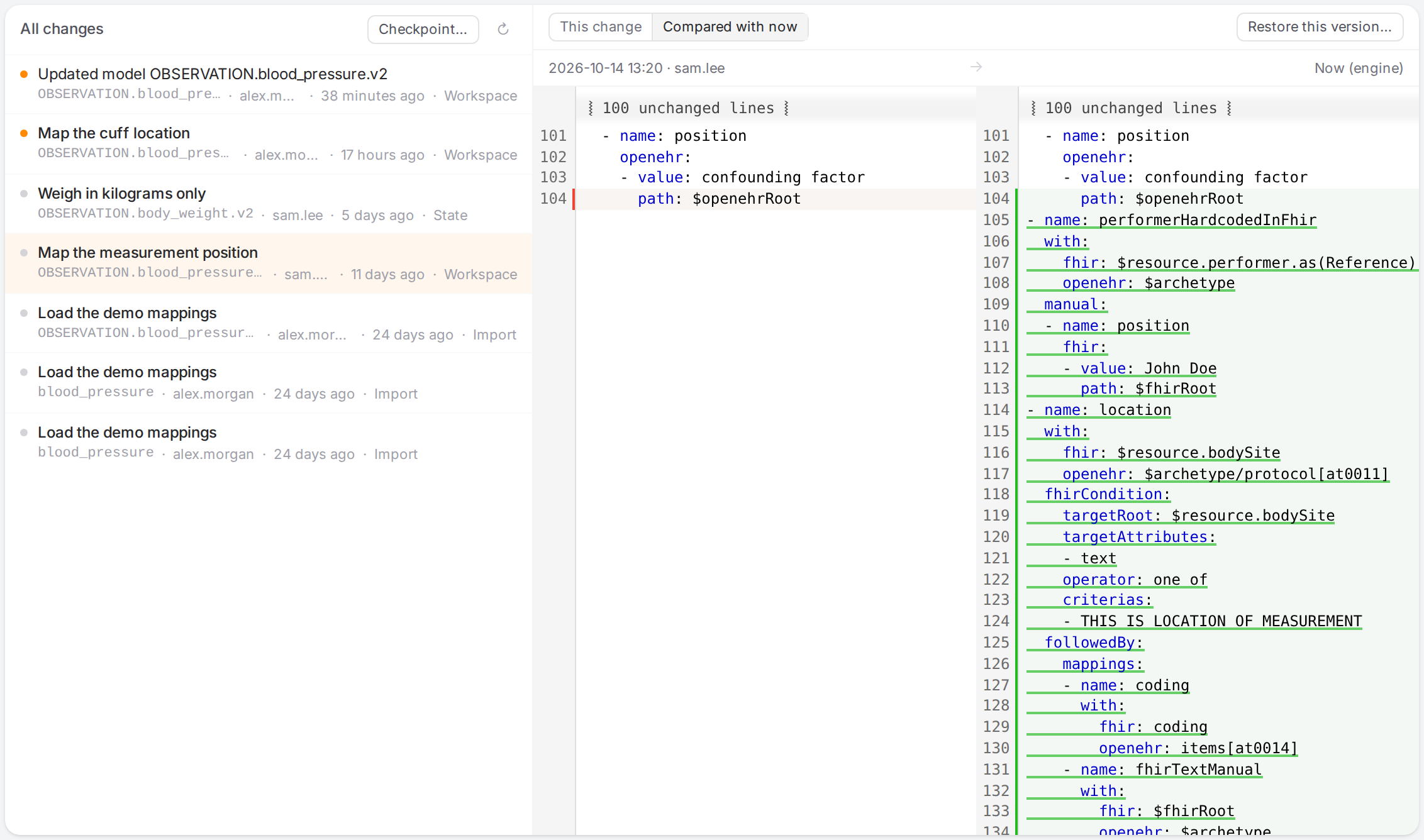
Compared with now: everything changed since sam.lee mapped the measurement position.
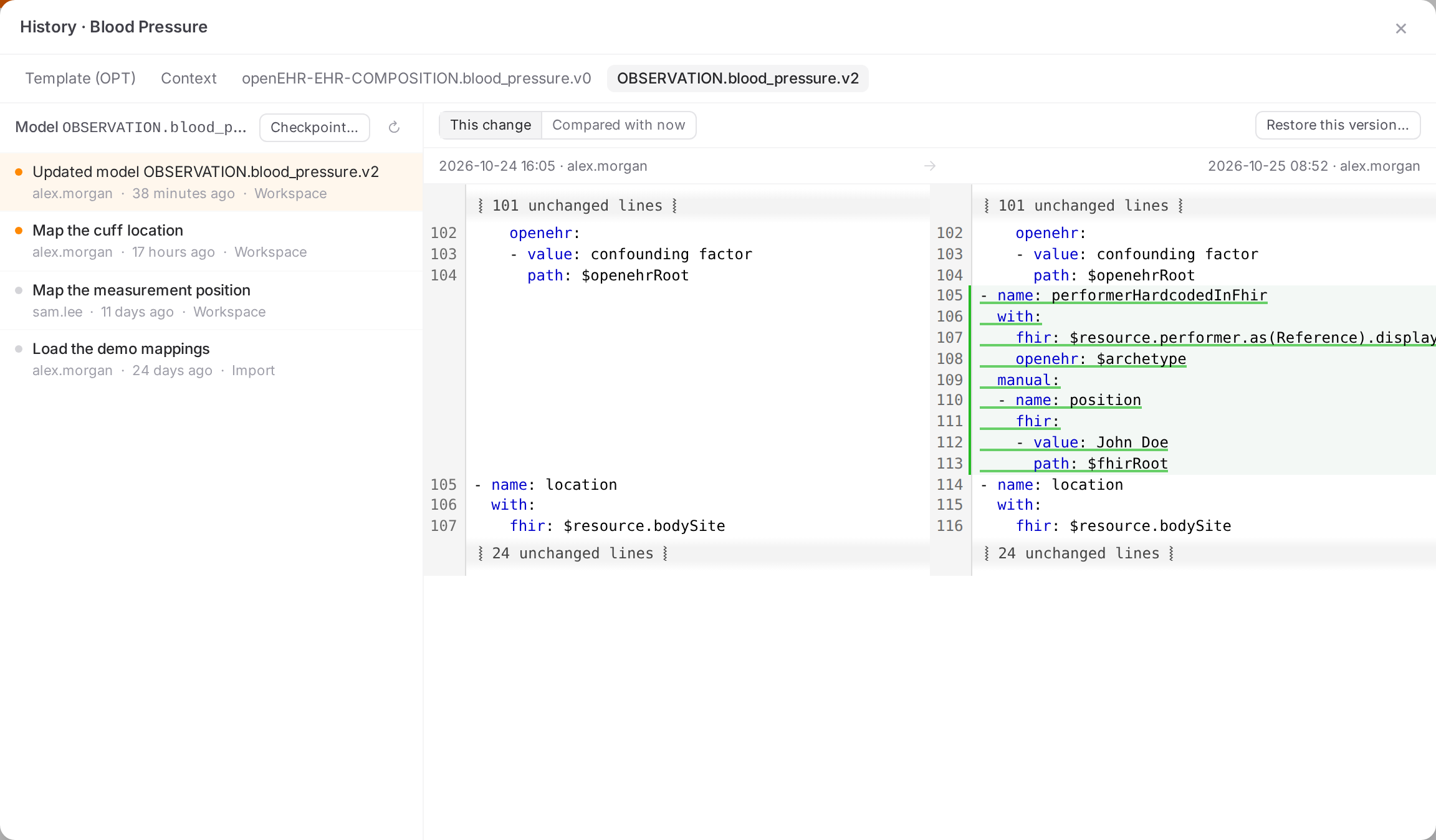
History of a template on the Engine state page.
See who changed a mapping
In the Workspace, select a mapping. Under its name the inspector shows who changed it last 1:
Last changed by alex.morgan · 17 hours ago · Map the cuff location: the person, when, and the checkpoint message if there was one. Hover it for the exact time, where the change came from, how many changes by whom, and when the mapping was first recorded.
Unsaved changes · before that …: you edited the mapping and the edit isn’t recorded yet.
New — not recorded yet: the mapping didn’t exist in the recorded version.
Click the line. The History footer tab 2 opens with the number of changes, their authors and when the mapping was first recorded, and one row per change behind the mapping’s lines 3.
Click a row to open that change in the History tab of the dock, scrolled to the mapping. On the Engine state page, where there is no dock, the row opens the Versioning page instead.
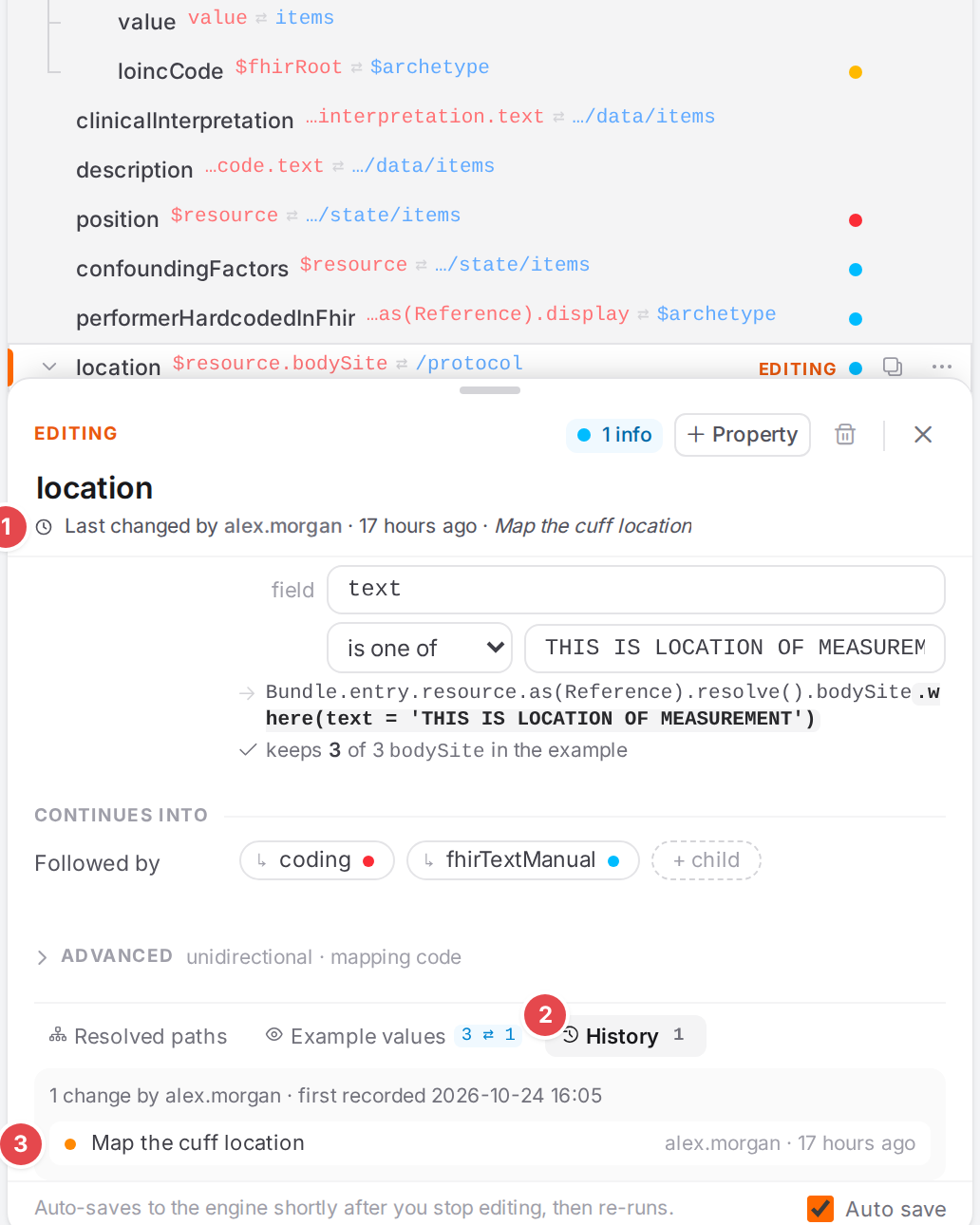
The blame line and the History footer tab of a mapping.
To see it for every mapping at once, click the clock button in the outline toolbar 1 (Show who changed each mapping last). Each row then shows who changed it and when 2. Without the column, hovering a row shows the same in its tooltip.
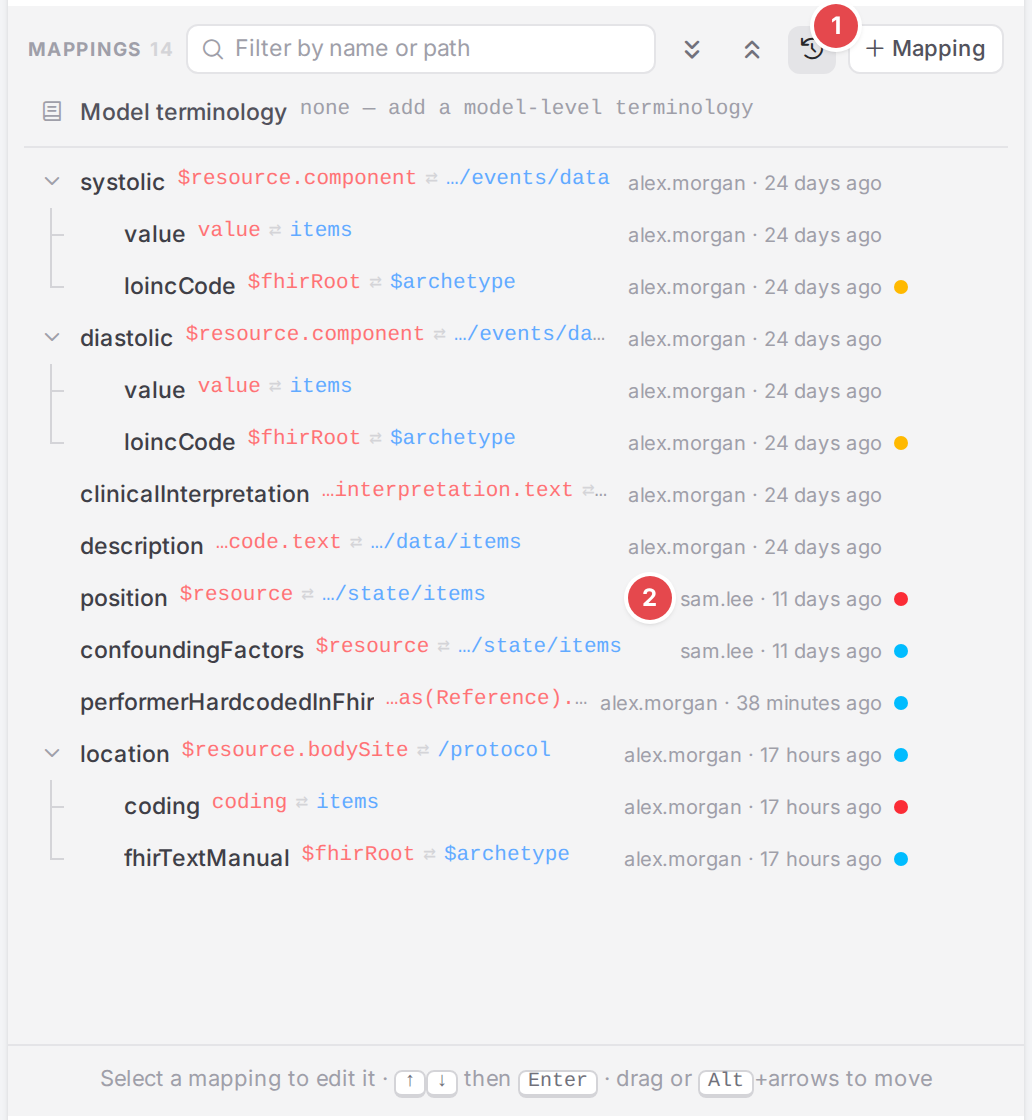
The outline with the blame column on.
Restore an older version of one file
In a history (the dock, the Versioning page or a template’s History), click the change you want to go back to.
Click Restore this version….
Atlas works out what restoring would do and shows the plan 1: one row per file with its action (create, update, delete). Click Diff 2 on a row to compare Now (engine) with This version.
Click Restore 3. The dialog says Restored. with what changed.
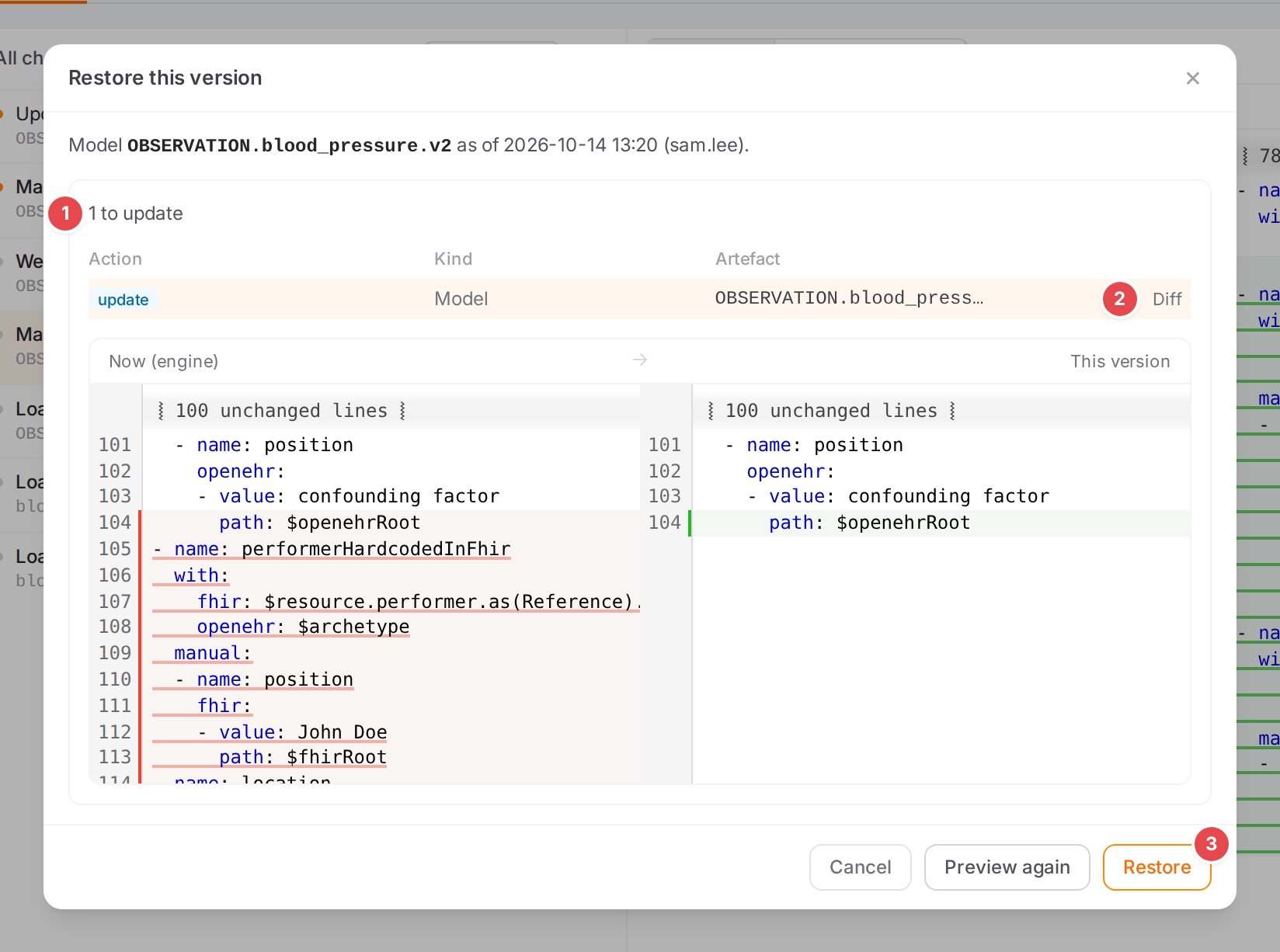
Restoring the blood pressure model to sam.lee’s version: the later mappings go away.
Restoring is itself a recorded change (its source is restore), so you can undo it the same way.
Restore a template from a release, commit or branch
On the Engine state page, select the template, open ⋯ and choose Restore from revision…. On the Versioning page, Restore engine to this… on a release opens the same dialog for that release (limited to its template for a template release), and Restore… on a commit of the Remote tab opens it for that commit, for all templates.
Pick where to restore from 1: Release, Commit or Branch or ref, then the release, commit or ref 2.
Choose how 3:
Merge — update and add, keep what’s only in the engine;
Mirror — also delete what the ref doesn’t have.
From the template’s menu the dialog adds Only template … is restored.
The plan appears by itself. Show N unchanged 4 lists the files that stay as they are. Click Restore.
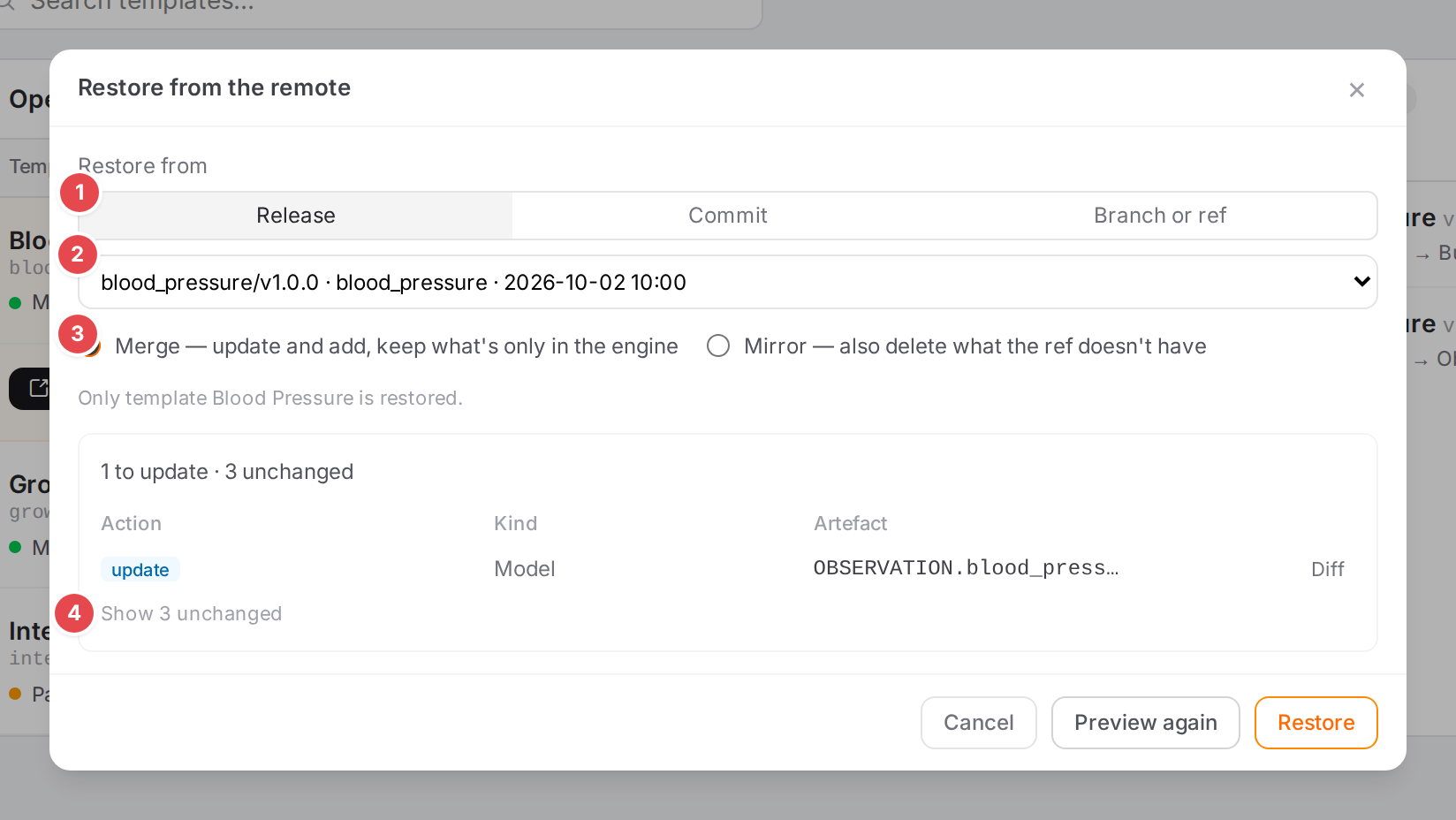
Restoring the Blood Pressure template as it was in release blood_pressure/v1.0.0.
Name your changes with a checkpoint
Every save is recorded without a message. A checkpoint gives the changes since the last checkpoint a name, which becomes the message of their commit.
Click Checkpoint… in a history or on the Remote tab.
Type the message.
With the direct workflow, tick Push to main now to push right away. With the review workflow the commit reaches the branch in the review you submit it in.
Click Checkpoint (or Checkpoint and push).
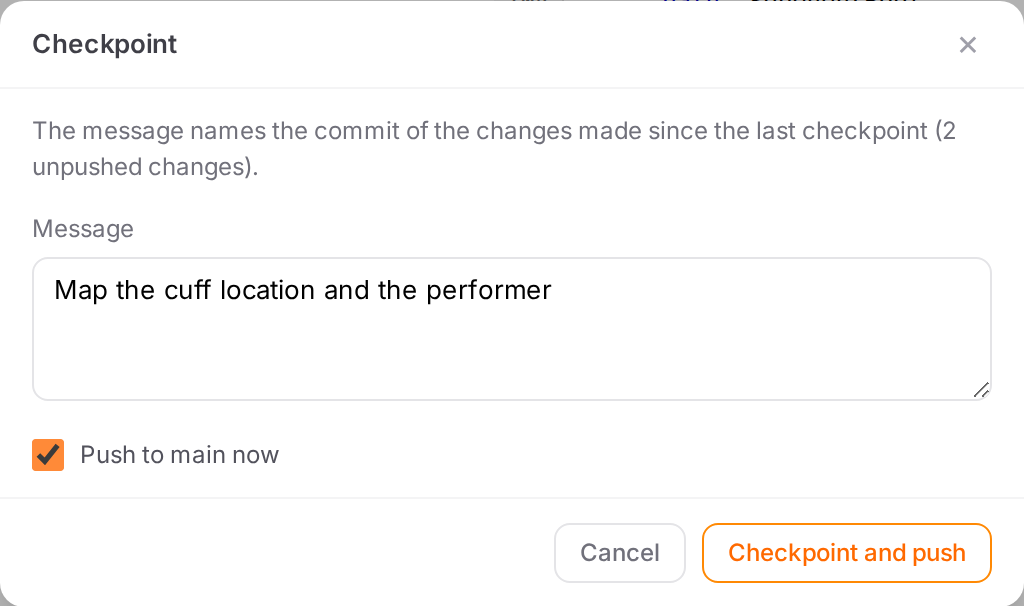
A checkpoint that also pushes.
Check it worked
After a restore, the history has a new change on top, and the Workspace shows the restored text.
After a checkpoint with Push to main now, the Remote tab lists a new commit named by your message.
Tips
Tip
The badge and the History tab only appear when the engine versions mappings. Without them, look at When is versioning available.
Tip
The blame column is remembered in this browser. See What Atlas remembers.
Tip
Compared with now answers “what has happened since?” faster than stepping through every change.
Watch out
Warning
Restoring reloads the open model from the engine. If it has unsaved edits, the dialog warns: The open model has unsaved edits. Restoring reloads it from the engine and discards them. Save first if you want to keep them.
Warning
Mirror deletes from the engine whatever the release, commit or branch doesn’t have, within the scope of the restore. Use Merge unless you want exactly the old state.
Warning
The plan is applied only as you saw it. If someone changes the mappings in between, Atlas shows The engine changed since the preview. This is the new plan — review it before restoring. Read it and click Restore again.
If something goes wrong
Message |
What to do |
|---|---|
No recorded changes yet. |
Nothing was saved since versioning was turned on. |
Could not load the history / Could not load the diff |
Reload with the round arrow; if it persists, see Messages and notices A–Z. |
Nothing to restore: the engine already matches this version. |
The engine already holds that text; Restore stays disabled. |
There are no changes since the last checkpoint. |
Everything is already named. Tick Push to main now to push anyway. |
Another versioning operation is running. Try again in a moment. |
Someone else is pushing, pulling or restoring. Wait and try again. |
When the engine explains an error itself, Atlas shows its explanation instead of these words.