Problems
Atlas checks a template’s mappings and lists everything it finds in the Problems dock at the bottom of the Workspace. This page explains every problem it can show: what the message means, what it does to conversions, how to fix it, and where clicking the problem takes you.
The question-mark icon at the end of each row (shown on hover, tooltip “What this problem means and how to fix it”) opens this page at that problem’s section.
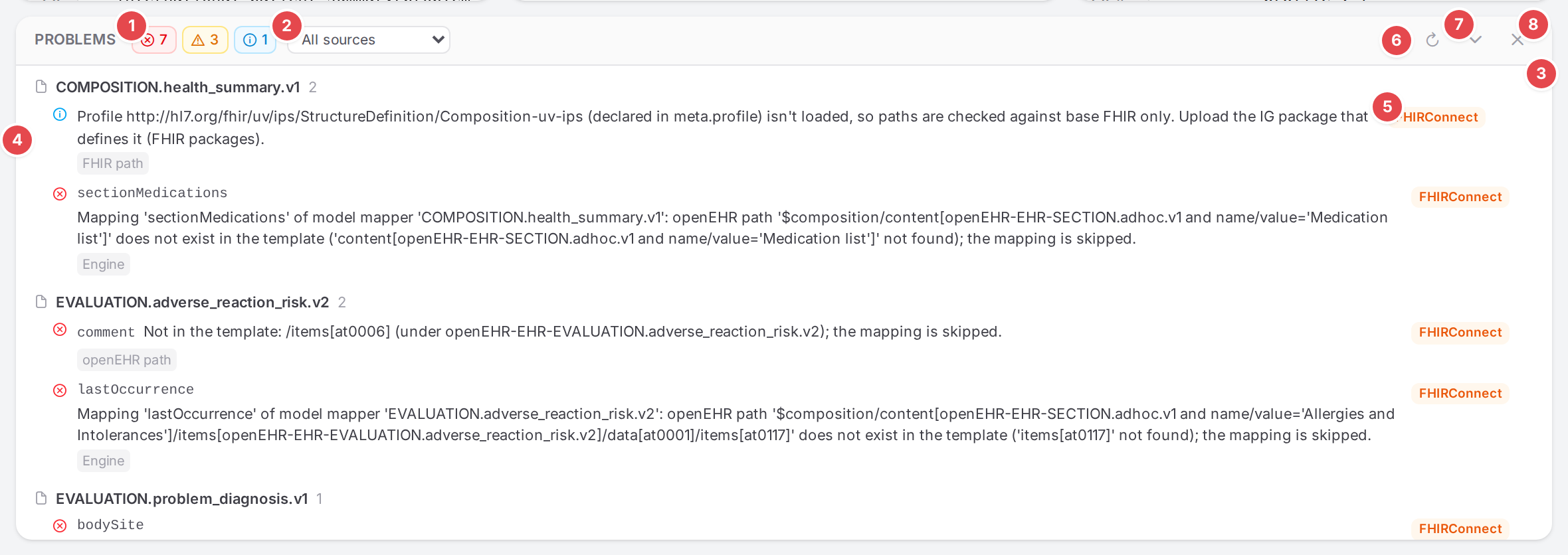
The Problems dock of the demo template “International Patient Summary”.
1 Severity toggles. One button per severity (errors, warnings, infos), each with its count. Click one to hide that severity (it shows struck through); click again to show it.
2 Source filter. All sources, or one of Engine, FHIR path, openEHR path, Structure, Context, Schema, FHIR validation. The sections below follow the same grouping.
3 A model group. Problems are grouped by model, in a fixed order (by model name; problems of the context mapper come after the models, and FHIR validation issues that couldn’t be traced to a mapping come last). The number after the model name is how many problems the group holds. The list never reorders when you open a model: the open model’s group is tinted in place and marked Open in the editor.
4 A problem row. Its severity icon, the mapping it is on (names from the top-level
mapping down, joined by ›; an unnamed mapping shows as (unnamed)), the message, and
labels below it (see Reading a row). Click the row to go to the problem.
5 Where clicking lands. FHIRConnect: the row opens the mapping editor (the middle pane). FHIR: the row shows the element in the FHIR example pane.
6 Refresh (“Re-check the saved mappings”). Runs the saved-state checks again.
7 Minimize to a strip. Folds the dock into one line (see The collapsed strip).
8 Close. Hides the dock. The problems button in the top bar opens it again.
All problems at a glance
Code |
Severity |
Source |
In one line |
|---|---|---|---|
error |
Engine |
A mapping has both |
|
error |
Engine |
A |
|
warning |
Engine |
The model’s hierarchy path doesn’t fully resolve against the template. |
|
warning |
Engine |
Any other issue the engine reported while building the mapping tree. |
|
error / warning |
FHIR path |
The FHIR path isn’t an element of the resource it lands in. |
|
error |
FHIR path |
The profile forbids the element (max 0). |
|
warning |
FHIR path |
No slice of the profile matches what the mapping selects. |
|
info |
FHIR path |
The model’s profile isn’t loaded; paths are checked against base FHIR only. |
|
error |
openEHR path, Engine |
The openEHR path isn’t in the template; the mapping is skipped. |
|
error |
Structure |
A mapping has no |
|
warning |
Structure |
A mapping has neither a FHIR nor an openEHR path. |
|
warning |
Structure |
A mapping has no name. |
|
warning |
Structure |
Two or more sibling mappings share a name. |
|
error |
Structure, Engine |
|
|
warning |
Structure |
The slotted model maps another resource; the engine skips the slot. |
|
error |
Structure |
A reference has no |
|
error |
Structure |
A reference’s |
|
warning |
Structure |
Local terminology without a ConceptMap. |
|
warning |
Structure |
The ConceptMap isn’t known to the engine. |
|
warning |
Structure |
openEHR→FHIR won’t set the extension’s |
|
warning |
Structure, Engine |
The model has no mappings. |
|
error |
Context |
The context lists a model that doesn’t exist. |
|
error |
Context |
The context’s start names no model. |
|
warning |
Context |
The model maps an archetype the template doesn’t contain. |
|
warning |
Context |
Nothing slots the model in from the start; it never runs. |
|
error |
Schema |
The model breaks the FHIRConnect schema; the engine would reject it. |
|
error |
Schema |
The model’s YAML doesn’t parse. |
|
any |
FHIR validation |
The validator’s findings on the FHIR example. |
Using the Problems dock
Opening it
The problems button in the Workspace top bar (tooltip “Problems of this template’s mappings”) shows the template’s error and warning counts. Click it to open or close the dock. Infos are counted in the dock only.
The validation chip in the FHIR pane header opens the dock too.
The status chip in the editing sheet of a mapping (for example 1 error or 2 problems; hover it for the list, ending in “Click to show it in the Problems panel”) opens the dock scoped to that mapping: a filter chip with the mapping’s name path appears next to the source filter, and only that mapping’s problems and those of the mappings below it are listed. The × on the chip (“Show all problems”) removes the scope. Closing the dock or opening another model removes it too.
The line above the dock is a resize handle (“Drag to resize · double-click to reset”). Atlas remembers the height in this browser.
When the engine keeps a version history, the dock has a second tab, History; see History, blame and restoring.
Reading a row

A problem found at both places a model is slotted.
1 Source label: which check found it (the Source filter names).
2 ×N: the same problem was found at N places, because the model is slotted in more than once (tooltip “Found at N places the model is slotted”). Fixing it once fixes all of them.
3 FHIRConnect or FHIR: which pane clicking the row opens.
4 Docs link: opens this page at the problem’s section.
Two more labels can appear after the source label:
unsaved(orange)The problem comes from the live check of the model you are editing; your edits aren’t saved yet. It disappears or changes as you edit.
from last save(tooltip “Recomputed on save”)An engine problem of the model you are editing. The engine only checks what is saved, so this one reflects the last save and may already be fixed (or broken differently) by your edits.
Validation issues also show the element’s location in the produced FHIR (for example
Bundle.entry[0].resource.meta.profile[0]) and, when Atlas traced the element to a mapping, a
go to mapping link.
Saved checks and live checks
Two sets of checks fill the dock:
Saved-state checks run in Atlas over what the engine has saved: the context mapper, every model of the template, the engine’s mapping tree (its own construction issues), the template (OPT), the engine’s ConceptMaps and the loaded FHIR profiles. They run when you open the template, after every save, and when you click Refresh.
Live checks run in your browser over the model you are editing, shortly after each edit. They cover the Schema, Structure, FHIR path and openEHR path problems of that model. Engine and Context problems can only come from a save.
While the open model has unsaved edits, its live problems replace its saved ones, and the dock header says:
Live for <model> — the rest reflects the last save.
Everything else in the dock (other models, the context mapper, the engine’s findings for the open model) still shows the last saved state until you save.
The release wizard (Release a template) checks the same saved-state problems before a release, and the Engine state page’s mapping detail lists a mapping’s problems under its status chip.
What clicking a problem does
Problem |
Where it takes you |
|---|---|
On a mapping (the row shows a mapping name path) |
Opens the model, selects the mapping in the outline, opens its editing sheet and puts the cursor in the field at fault (see each code below). If the problem names no particular field, the cursor goes to the mapping’s name. |
On a whole model (no mapping name path: |
Opens the model; no mapping is selected. |
On the context mapper (group Context mapper) |
Goes to the template overview and opens the context mapper’s YAML in the middle pane. |
FHIR validation |
Scrolls the FHIR example pane to the element and marks it. go to mapping opens the mapping that produced it, with the cursor in its FHIR path. |
With auto-save off, opening another model while the current one has unsaved edits asks first (Leave without saving?). With auto-save on, your edits are saved on the way.
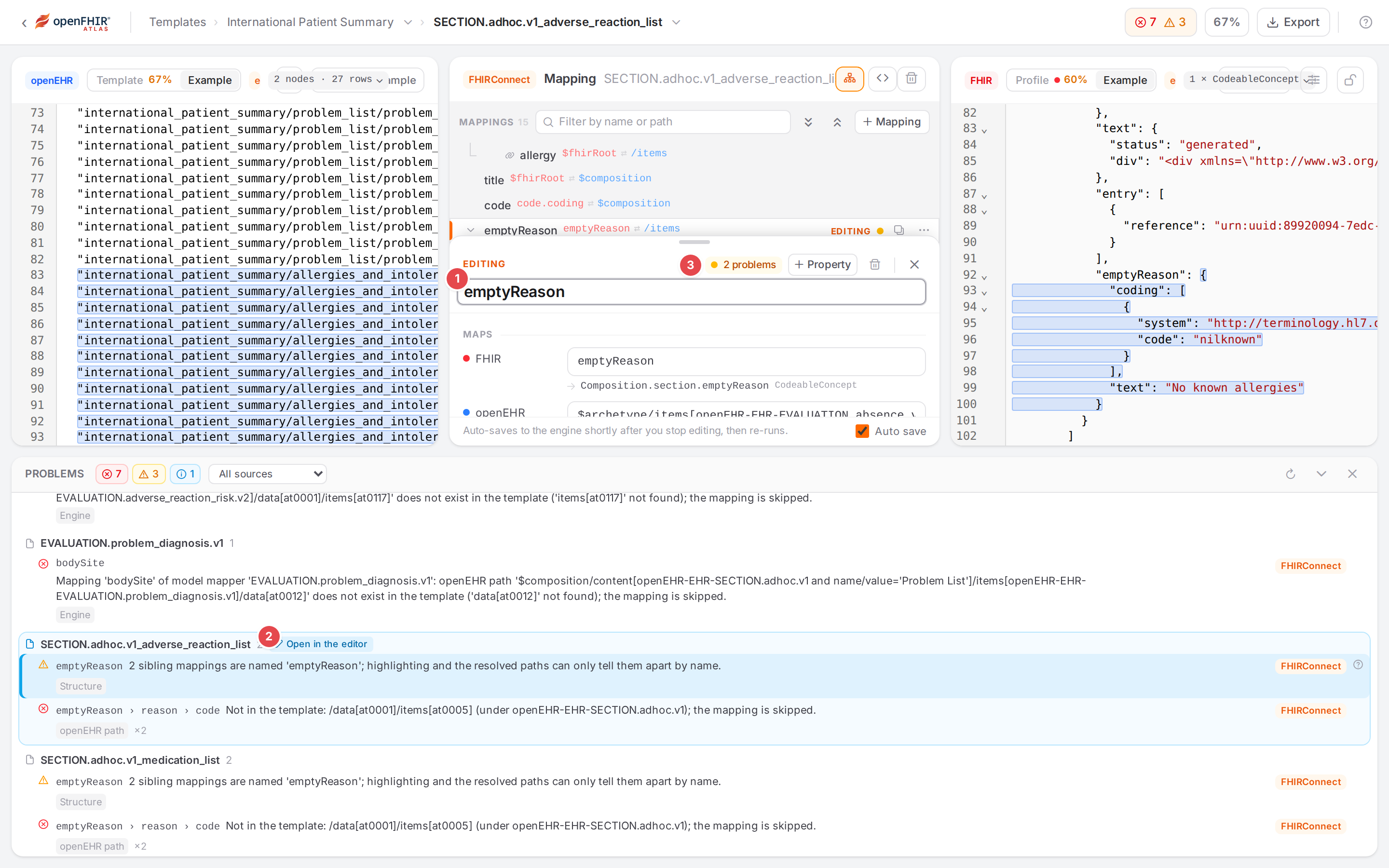
After clicking the mapping-name-duplicate problem of the adverse reaction list.
1 The mapping is selected and the field at fault (here the name) has the cursor.
2 The model’s group in the dock is marked Open in the editor; the row of the mapping selected in the editor gets an accent bar.
3 The status chip of the mapping shows its problems; click it to scope the dock to this mapping.
Quick actions
Quick actions appear when you hover a row.

The Dismiss icon of an info.
- Dismiss (eye icon, infos only)
Hides that info for this template. The counts drop with it. A dismissed info comes back only when it changes (another message, another mapping) or when you clear this site’s data in your browser; there is no button to bring it back.

A FHIR validation issue traced to the mapping that produced the element.
1 The source label FHIR validation and the element’s location.
2 go to mapping (“Open the mapping that produces this element”).
3 FHIR: clicking the row shows the element in the FHIR example pane.
Ignore (eye icon, framed; FHIR validation issues only, tooltip “Ignore this kind of issue here for this template”) : Hides this kind of issue (the same validator message id, at the same element, whatever the index) for this template, now and in later validations. The ignored issues are listed under Ignored for this template (N) in the validation settings (the sliders button next to Validate); the × there (“Stop ignoring”) brings them back.
Warning
Dismissals and ignores are kept in this browser only. They aren’t saved with the mappings or shared with your team: a colleague, another browser or a private window still shows them.
The collapsed strip

The dock minimized to one line.
The strip shows the counts per severity and the first of the most severe problems. Click anywhere on it (Show all) to open the dock again.
Engine
The engine reports these while it builds its mapping tree for the saved template (its “helpers”). The message is the engine’s own wording. Each one is a place where the engine will not convert what you meant it to. See FHIR Connect for the FHIRConnect format the engine reads.
The engine also reports openehr-not-in-template,
slot-target-missing and
model-without-mappings; those are explained with Atlas’s own
checks of the same kind. When the engine and an Atlas check find the same problem on the same
mapping, the dock shows it once, in the engine’s wording.
slot-conflict: slotArchetype and slotContext together
error · Source Engine
Mapping ‘<mapping>’ of model mapper ‘<model>’ declares both slotArchetype and slotContext, which are mutually exclusive; the slot is not mapped.
- What it means
The mapping says both “continue in this model” (
slotArchetype) and “continue in this sub-context” (slotContext). A slot can only go one way.- Why it matters
The engine maps neither: nothing below this slot is converted.
- How to fix it
Click the problem: the mapping opens with the cursor in Slot archetype.
Decide which one you mean. To keep the model slot, leave Slot archetype and remove
slotContextin the Code view (slotContextisn’t shown in the visual editor). To keep the sub-context, remove the Slot archetype row with its ×.Save.
slot-context: a sub-context that can’t be entered
error · Source Engine
Mapping ‘<mapping>’: slotContext ‘<context>’ is not listed under the context’s contexts; the slot is not mapped.
Mapping ‘<mapping>’: no model mapper found for the start archetype of slotContext ‘<context>’; the slot is not mapped.
- What it means
The mapping continues in another context (
slotContext), but either the template’s context mapper doesn’t declare that sub-context, or the sub-context has no model for its start archetype.- Why it matters
Nothing below this slot is converted.
- How to fix it
For the first message: open the context mapper (the code icon “Edit the context mapper YAML” in the middle pane header of the template overview) and add the sub-context to its
contextslist. Save.For the second: make sure the sub-context’s start model exists and is saved.
If the name is a typo, fix
slotContextin the model’s Code view.
- Clicking it
Opens the model and selects the mapping (cursor in its name).
hierarchy-unresolved: hierarchy path not resolved
warning · Source Engine
Hierarchy path ‘<path>’ of model mapper ‘<model>’ could not be fully resolved against the template; resolved to ‘<flat path>’. Check that the model mapper matches the uploaded operational template.
- What it means
The model’s
preprocessor.hierarchypath points at nodes the template doesn’t have, and what is left of it no longer repeats.- Why it matters
The engine uses the hierarchy to split repeating entries. When it resolves to a node that doesn’t repeat, repeating entries below it can end up sharing one index in the openEHR output.
- How to fix it
Check that the model was written for this template (the same archetype ids and node ids).
Correct the hierarchy path in the model’s Code view, or bring in the template the model was written for (Bring your material in).
Save and check the problem is gone.
- Clicking it
Opens the model; the problem is about the model as a whole.
engine-issue: other engine findings
warning · Source Engine
<the engine’s message>
- What it means
The engine reported something while building its mapping tree that Atlas has no specific code for. The message says what and where.
- Why it matters
Read the message: it usually says what the engine skipped.
- How to fix it
Follow the message. Different messages on the same mapping are listed separately. If you can’t tell what it means, contact support with the template id, the model name and the message (Support).
- Clicking it
Opens the model and selects the mapping the engine attached it to.
FHIR path
Atlas checks each mapping’s FHIR path where it lands in the resource: against the model’s profile when its IG package is loaded (Use FHIR profiles and IG packages), otherwise against base FHIR. The saved check uses the paths the engine resolved, once per place the model is slotted in; the live check uses the same estimate the editing sheet shows. Children of a broken path aren’t reported again. How to write paths: Write FHIR and openEHR paths.
fhir-path-unknown: not an element
error (base FHIR or loaded profile) · warning (the model has a profile that isn’t loaded) · Source FHIR path
Can’t resolve ‘<segment>’: not an element of <type> (<resource>.<path>, base FHIR <version>)
Can’t resolve ‘<segment>’: not an element of <type> (<resource>.<path>, base FHIR <version>; the model’s profile may allow it, its package isn’t loaded)
Can’t resolve ‘<segment>’: not an element of <type> (<resource>.<path>, profile <profile>)
Example: Can't resolve 'txt': not an element of CodeableConcept (Condition.code.txt, base FHIR R4).
- What it means
A step of the FHIR path names an element the resource (or data type) doesn’t have: usually a typo, a step from another FHIR version, or an element that only a profile or extension adds. The part in brackets is the full path the step landed in.
- Why it matters
The mapping can’t carry data through an element that doesn’t exist: reading FHIR, nothing is found there; producing FHIR, the output wouldn’t be valid FHIR. Its children build on it, so they are broken too.
- How to fix it
Click the problem: the mapping opens with the cursor in FHIR.
Press Ctrl+Space to see the elements that exist at that point and pick one.
If it’s the warning variant, the profile may define the element: load its IG package on FHIR packages (Use FHIR profiles and IG packages). The check then runs against the profile and either passes or becomes an error.
Save.
fhir-path-prohibited: forbidden by the profile
error · Source FHIR path
‘<element>’ is prohibited by the profile (max 0); the engine output will not conform (<resource>.<path>, profile <profile>)
- What it means
The model’s profile sets this element’s maximum cardinality to 0: conforming resources must not have it.
- Why it matters
The engine still writes the element, so the FHIR it produces won’t conform to the profile and fails validation against it.
- How to fix it
Click the problem: the mapping opens with the cursor in FHIR.
Map the value to an element the profile allows (Ctrl+Space lists them), or delete the mapping if the profile deliberately leaves the data out.
Save.
fhir-slice-unknown: no matching slice
warning · Source FHIR path
No slice of the profile matches <selector> (<resource>.<path>, profile <profile>)
Example: No slice of the profile matches url = 'https://example.org/StructureDefinition/not-in-the-profile' (…).
- What it means
The mapping’s FHIR condition selects part of a sliced element (an extension url, a coding system…), and none of the profile’s slices matches that selection.
- Why it matters
The engine converts the data, but the element is not one the profile describes: validation against the profile may complain, and readers expecting the profile’s slice won’t find it.
- How to fix it
Click the problem: the mapping opens with the cursor in FHIR.
Pick the slice from the suggestions: choosing a slice or extension suggestion writes both the path and the matching condition (Map only when… (conditions)).
If the selection is right and the profile is open to it, you can leave the warning.
profile-not-loaded: the profile isn’t loaded
info · Source FHIR path
Profile <canonical url> isn’t loaded, so paths are checked against base FHIR only. Upload the IG package that defines it (FHIR packages).
Profile <canonical url> (declared in meta.profile) isn’t loaded, so paths are checked against base FHIR only. Upload the IG package that defines it (FHIR packages).
- What it means
The model names a profile (its
structureDefinition, or a constant it writes intometa.profile, the second message), but no loaded IG package defines it.- Why it matters
This info is about Atlas’s help, not about the conversion itself: path suggestions, the FHIR path checks, profile coverage and FHIR validation all fall back to base FHIR, so elements and slices the profile adds look unknown and its restrictions aren’t checked.
- How to fix it
Find the IG package that defines the profile (the canonical URL tells you which IG).
Add it on FHIR packages (Use FHIR profiles and IG packages).
Click Refresh in the dock. Or, if you can’t load it, Dismiss the info.
- Clicking it
Opens the model.
openEHR path
openehr-not-in-template: not in the template
error · Source openEHR path (Atlas’s check) or Engine
Atlas’s check:
Not in the template: <rest of the path> (under <archetype>); the mapping is skipped.
The engine’s check:
Mapping ‘<mapping>’ of model mapper ‘<model>’: openEHR path ‘<full path>’ does not exist in the template (‘<segment>’ not found); the mapping is skipped.
Older engines word it:
openEHR path ‘<full path>’ is not in the template; the mapping is skipped.
- What it means
The mapping’s openEHR path, combined with the paths of the mappings above it, names a node the template doesn’t have: a wrong node id, a node another template version has, or a node that was left out of this template. Or it pins an attribute through the element’s
valuethat none of the element’s data value types has (…/value/magnitudeon a coded text; see Leaf attribute spelling (openEHR)). A manual entry’s openEHR path is checked the same way. Atlas’s check composes the path itself, so it also covers models the engine never reaches; the engine’s check uses the full path from the composition root.- Why it matters
The engine skips the mapping, and every mapping below it, in both directions: that data is never converted.
- How to fix it
Click the problem: the mapping opens with the cursor in openEHR.
Press Ctrl+Space: the suggestions list the template’s nodes by name and offer whole paths. Pick the node you meant.
If the node really isn’t in the template, delete the mapping, or bring in the template version that has it.
Save. Only the topmost broken mapping is reported, so fixing it may reveal problems below it.
Structure
Structure problems are about how a model is put together. Atlas finds them both live (while you edit) and in the saved state, with the same wording.
with-missing: mapping without with
error · Source Structure
Mapping ‘<mapping>’ has no `with`; the engine needs one on every mapping.
- What it means
The mapping has no
withblock at all (no FHIR and no openEHR path). Extension models are exempt, since their mappings may only change another model’s mapping.- Why it matters
The engine needs
withon every mapping of a model.- How to fix it
Click the problem: the mapping opens with the cursor in FHIR.
Fill in the FHIR path, the openEHR path or both.
Save.
with-empty: no paths
warning · Source Structure
Mapping ‘<mapping>’ has neither a FHIR nor an openEHR path; it maps nothing.
- What it means
The mapping has a
with, but both paths are empty, and it doesn’t hand over to anything else (no slot, reference, child mappings, manual values or mapping code).- Why it matters
It converts nothing.
- How to fix it
Click the problem: the cursor is in FHIR.
Fill in a path, or delete the mapping if it is left over.
mapping-name-missing: unnamed mapping
warning · Source Structure
A mapping has no name; it can’t be highlighted or matched to the engine’s helpers.
- What it means
The mapping has no
name. In the dock and the outline it shows as(unnamed)/unnamed.- Why it matters
Atlas links a mapping to the engine’s mapping tree by its name. Without one, Atlas can’t highlight what it converts, show its resolved paths or example values, or put engine problems on it.
- How to fix it
Click the problem: the cursor is in the mapping’s name.
Type a name that is unique among its siblings.
Save.
mapping-name-duplicate: sibling mappings with the same name
warning · Source Structure
<N> sibling mappings are named ‘<name>’; highlighting and the resolved paths can only tell them apart by name.
The demo template “International Patient Summary” has this one three times (emptyReason).
- What it means
Two or more mappings directly under the same parent share a name. It is reported once, on the first of them.
- Why it matters
Atlas matches mappings to the engine’s tree by name, so for two equal names it picks the first: highlights, resolved paths, example values and problems of the second one land on the first.
- How to fix it
Click the problem: the first mapping with that name opens, with the cursor in its name.
Give one of them a different name (for example
emptyReasonText).Save.
slot-target-missing: slot to a model that isn’t there
error · Source Structure or Engine
slotArchetype ‘<name>’ names no model in this context; the slot is not mapped.
The engine’s wording:
Mapping ‘<mapping>’ of model mapper ‘<model>’: no model mapper found for slot archetype ‘<name>’; the slot is not mapped.
- What it means
The mapping’s Slot archetype names a model that isn’t one of the template’s models (the context mapper’s
archetypesandextensions). Often the model was never created, was renamed, or lives in another template.- Why it matters
The engine stops at this slot: nothing of the slotted archetype is converted.
- How to fix it
Click the problem: the mapping opens with the cursor in Slot archetype.
Pick a model from the suggestions: models of this template, models from elsewhere (picking one adds it to this template), or a new model created on the spot.
Save. See Connect models: slots, links, references.
slot-resource-mismatch: slot into a model of another resource
warning · Source Structure
slotArchetype ‘<name>’ maps <type>, but the resource here is <scope>: the engine skips a slot into another resource. Fix: … (as + Slot does).
The fix in the message depends on the resource in scope: from a Bundle, map $resource.entry (type <type>), followed by resource / $reference with reference.resourceType <type>, and slot it inside; from any other resource, map the Reference element with openehr $reference and reference.resourceType <type>, and slot it inside.
- What it means
The slotted model maps a FHIR resource (its structureDefinition or profile) other than the one in scope at the slot mapping: the model’s own, or inside a Reference its resource type. A model that maps a data type (a Dosage, an Identifier) or a BackboneElement maps an element of the resource in scope, so it isn’t reported. Nor is a model whose type isn’t known yet (a profile whose package isn’t loaded).
- Why it matters
The engine applies a slot only to a FHIR value of the slotted model’s type, and skips this one without an error: nothing of the slotted archetype is converted from FHIR. Building FHIR, only a reference makes the engine create the other resource and the Reference to it.
- How to fix it
Click the problem: the mapping opens with the cursor in Slot archetype.
Click Wrap in a reference to <type> under the field. Atlas rewrites the mapping into the reference + slot structure (one edit; Undo puts it back). From any other resource than a Bundle, fill in the FHIR path of the Reference element it follows (for example
$resource.requester).Save. See Connect models: slots, links, references.
reference-type-missing: reference without a resource type
error · Source Structure
Reference of mapping ‘<mapping>’ has no resourceType; its child mappings have no resource to map.
- What it means
The mapping has a Reference, but no resource type to create or follow.
- Why it matters
The mappings under the reference have no resource to map into or out of.
- How to fix it
Click the problem: the cursor is on the Reference row’s into list.
Choose the resource type.
Save.
reference-type-unknown: not a FHIR resource
error · Source Structure
Reference resourceType ‘<type>’ is not a FHIR <version> resource.
- What it means
The reference names a resource type that the model’s FHIR version doesn’t have: a typo (
Pateint) or a resource from another FHIR version.- Why it matters
The engine can’t create or follow such a resource; the mappings under the reference don’t convert.
- How to fix it
Click the problem: the cursor is on the Reference row’s into list.
Choose the right resource type (the list holds the resources of the model’s FHIR version).
Save.
terminology-conceptmap-missing: local terminology without a ConceptMap
warning · Source Structure
Local terminology without a conceptmap; no codes are translated.
- What it means
The model’s or the mapping’s terminology is set to
local, which means “translate with a ConceptMap”, but no ConceptMap is chosen.- Why it matters
Codes pass through untranslated.
- How to fix it
Click the problem. For a mapping, the cursor is in the Terminology row; for the model’s own terminology, the model opens.
Choose a ConceptMap, or switch the terminology type to inline rows or none.
Save. See Translate codes.
terminology-conceptmap-unknown: ConceptMap not known to the engine
warning · Source Structure
ConceptMap ‘<url>’ is not known to the engine; codes pass through untranslated.
- What it means
The terminology points at a ConceptMap URL that none of the engine’s ConceptMaps has.
- Why it matters
The engine finds nothing to translate with, so codes pass through untranslated.
- How to fix it
Upload the ConceptMap on the Terminology page (Manage ConceptMaps), or
click the problem and choose an existing ConceptMap in the Terminology row.
Save (or click Refresh after uploading).
extension-url-not-written: the extension’s url is never set
warning · Source Structure
openEHR→FHIR won’t set the extension url: nothing writes <url>. Fix: add a child mapping on $fhirRoot with a manual writing url (as + Map does).
- What it means
The mapping’s FHIR path ends in
extensionand its FHIR condition picks the extension byurl(urlis one of one URL). That condition selects the right extension when reading FHIR. But when the engine builds FHIR, it doesn’t apply conditions, and nothing in the mapping (or its direct children) writesurlas a manual value.- Why it matters
openEHR→FHIR conversions produce extensions without a
url, which aren’t valid FHIR and that nobody can interpret. FHIR→openEHR is unaffected (the problem doesn’t show for mappings that are unidirectionalfhir->openehr).- How to fix it
Click the problem: the mapping opens.
Add a child mapping with FHIR path
$fhirRootand a Manual FHIR valueurl= the extension’s URL.Save. The + Map action in the Profile tab adds extensions this way from the start; see Add a FHIR extension.
model-without-mappings: empty model
warning · Source Structure or Engine
Model ‘<model>’ has no mappings; nothing is mapped.
The engine’s wording:
Model mapper ‘<model>’ (id <id>) has no mappings where some were expected; nothing is mapped there.
- What it means
The model has no mappings. Extension models are exempt.
- Why it matters
Wherever the model is slotted in, nothing is converted. A model created with the wizard starts like this.
- How to fix it
Add mappings (+ Mapping in the outline, or + Map in the coverage tabs), or remove the model from the template if it isn’t needed.
- Clicking it
Opens the model.
Context
Context problems are about the template’s context mapper: which models belong to the template and where mapping starts. See Start mapping a template and Connect models: slots, links, references.
context-model-missing: listed model doesn’t exist
error · Source Context
The context lists model ‘<name>’, but no model has that name.
- What it means
The context mapper’s
archetypesorextensionslist names a model that the engine doesn’t have (deleted, renamed, or never uploaded).- Why it matters
Slots that lead to that name don’t convert.
- How to fix it
Click the problem: the template overview opens with the context mapper’s YAML.
Correct the name, or remove it from the list.
Save. Or create or upload the missing model.
start-model-missing: start names no model
error · Source Context
The context’s start ‘<name>’ names no model in this context; nothing is mapped.
- What it means
The context mapper’s
startnames a model that isn’t among the template’s models.- Why it matters
Conversion begins at the start model. Without it, nothing of the template is converted.
- How to fix it
Click the problem: the context mapper’s YAML opens.
Set
startto the name of the model for the template’s root archetype, and make sure it is listed underarchetypes.Save.
archetype-not-in-template: archetype not in the template
warning · Source Context
The model maps archetype ‘<archetype>’, which the template doesn’t contain.
- What it means
The model’s archetype (
spec.openEhrConfig.archetype, or that of the model it extends) doesn’t occur in the template (OPT).- Why it matters
There is nothing in compositions of this template for the model to map: it never converts anything here.
- How to fix it
If the archetype id is wrong (a version suffix like
.v1vs.v2), correct it in the model’s Code view and save.If the model belongs to another template, remove it from this one (Connect models: slots, links, references).
- Clicking it
Opens the model.
model-unreached: never reached from the start
warning · Source Context
Model ‘<model>’ is never reached from the start model ‘<start>’ (no slotArchetype leads to it), so it isn’t used in conversions.
- What it means
The model belongs to the template, but no chain of slots leads from the start model to it. An extension counts as reached when the model it extends is. The template overview shows the model card with Not linked · nothing slots it in from the start, so it never runs.
- Why it matters
The engine never runs its mappings.
- How to fix it
On the template overview, click Slot it in… on the model’s card. The dialog Slot <model> in opens.
Pick the place in the template where the archetype sits and click Add slot: Atlas adds the slot mapping to the model that encloses it.
Save (with auto-save on, this happens by itself). See Connect models: slots, links, references.
- Clicking it
Opens the model.
Schema
Schema problems come only from the live check of the model you are editing: they are what the engine would reject on save.
schema: breaks the FHIRConnect schema
error · Source Schema
<schema message> — the engine rejects the model on save.
- What it means
The model’s YAML doesn’t follow the FHIRConnect model schema: a misspelled key, a value of the wrong type, a value outside its allowed list. The message names the key. Up to 25 are listed at once.
- Why it matters
Saving fails: the engine refuses a model that breaks the schema, so the conversion keeps using the last saved version.
- How to fix it
Click the problem: the mapping the key belongs to opens (cursor in its name).
Correct the key or value; the Code view underlines schema errors and suggests keys.
Save.
yaml-syntax: YAML doesn’t parse
error · Source Schema
The YAML doesn’t parse: <parser message>
- What it means
The model’s text isn’t valid YAML (wrong indentation, a missing colon, an unclosed quote).
- Why it matters
Nothing else can be checked, the visual editor can’t show the model, and the engine can’t accept it.
- How to fix it
Open the model’s Code view (the visual editor switches to it by itself when the YAML doesn’t parse).
Fix the line the parser names.
Save.
FHIR validation
error · warning · info · Source FHIR validation
These are the findings of the FHIR validator on the FHIR example pane. Atlas validates the produced FHIR against base FHIR and the loaded profiles (after each conversion, or when you click Validate); the engine itself doesn’t validate. The validator’s “fatal” and “error” become errors, “warning” a warning, anything else an info. See Validate against FHIR profiles.
The message is the validator’s, for example:
Rule cmp-2: ‘A section can only have an emptyReason if it is empty’ Failed
Profile reference ‘<url>’ has not been checked because it is unknown
If a date has a time, it must have a timezone
When the issue comes from a profile, (profile <name>) is added. The row also shows the
element’s location (Bundle.entry[1].resource.onsetDateTime). The problem code is the
validator’s message id, so they all share this one section.
- What it means
The FHIR that the mappings produce for the example doesn’t conform to FHIR or to a profile at that element.
- Why it matters
Real conversions produce the same structure, so receivers that validate will reject or question it. Some issues come from the example data rather than from your mappings (an example date without a time zone, for instance).
- How to fix it
Click the row: the FHIR pane scrolls to the element and marks it.
If the row has go to mapping, click it to open the mapping that produced the element (the cursor is in its FHIR path). Issues Atlas couldn’t trace to a mapping are grouped under Produced FHIR (no mapping traced).
Fix the mapping (a missing required element often needs a new mapping or a manual value), save, and let the conversion and validation run again.
If the issue is expected for this template (an artefact of the example data), hover the row and click Ignore. Ignores are kept in this browser only.
Tip
“Profile reference … has not been checked because it is unknown” and “N profile(s) not loaded” mean the IG package isn’t loaded, so the result covers base FHIR only. Load the package on FHIR packages first (Use FHIR profiles and IG packages).
Validation issues don’t depend on saving: each validation replaces the previous list.