Your first mapping in 15 minutes
What you’ll do
You load the demo mappings into an empty engine, open the International Patient Summary (IPS) template in the Workspace, and fix two things the demo data gets wrong: a problem’s body site that never reaches FHIR, and two mappings with the same name. On the way you read a mapping in the editing sheet, pick a path from suggestions, watch the example convert, work from the Problems dock, and check what the template’s mappings cover.
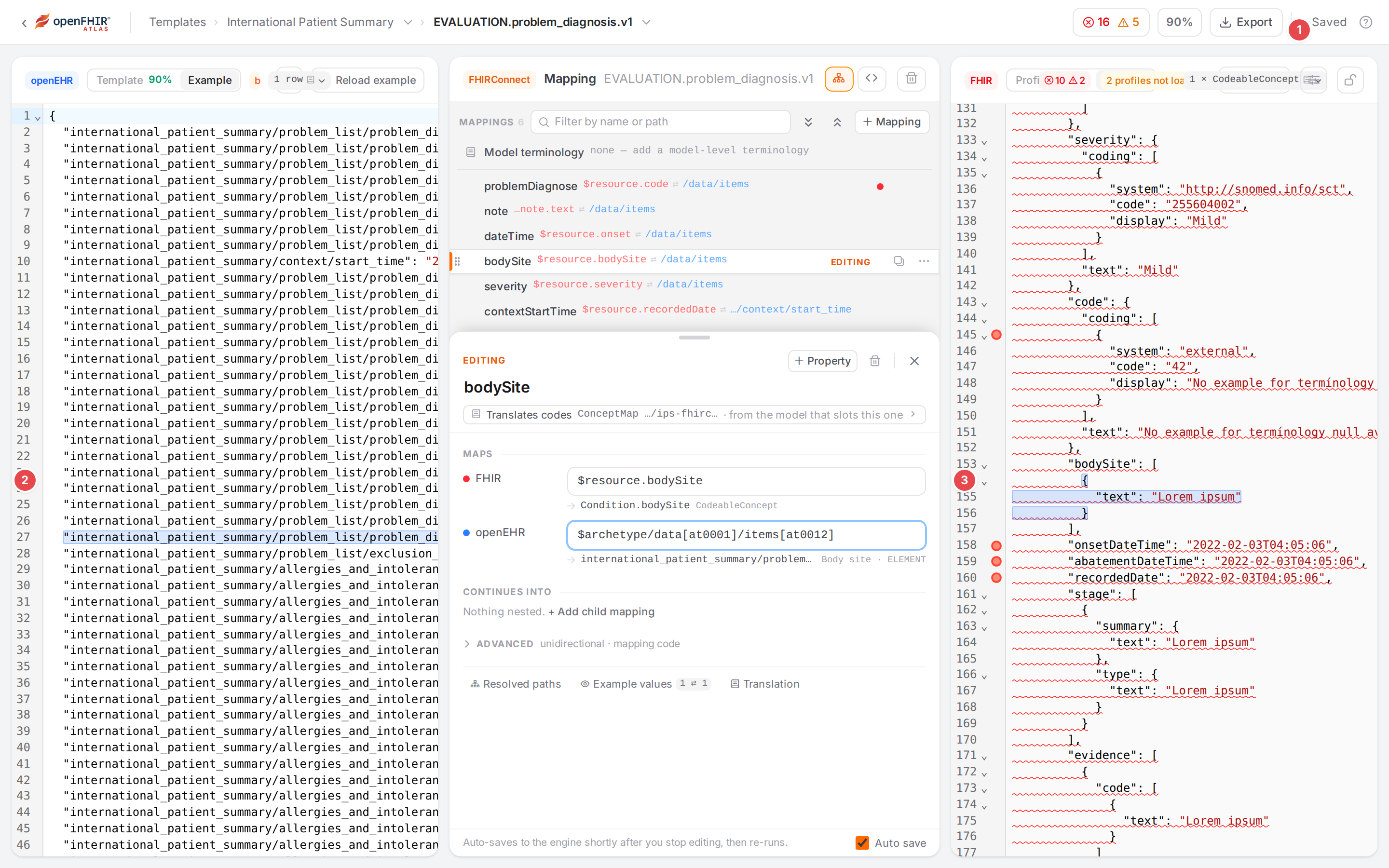
The end result of the first part: the problem’s body site now converts, and both example panes highlight it.
Before you start
You can sign in to Atlas (Before you start), in a window at least 768 pixels wide.
The engine has no templates yet, so Engine state offers the demo data. If it already has the demo templates (on the public demo it usually does), start at step 2.
The demo data is about to change: everything you edit is saved to the engine. Use an engine where that is fine, such as your sandbox.
Key ideas in plain words explains template, model, mapping and slot, if the words are new to you.
Steps
1. Load the demo mappings
Click Engine state in the sidebar. On an empty engine it shows a welcome card.
Click Load demo mappings 1.
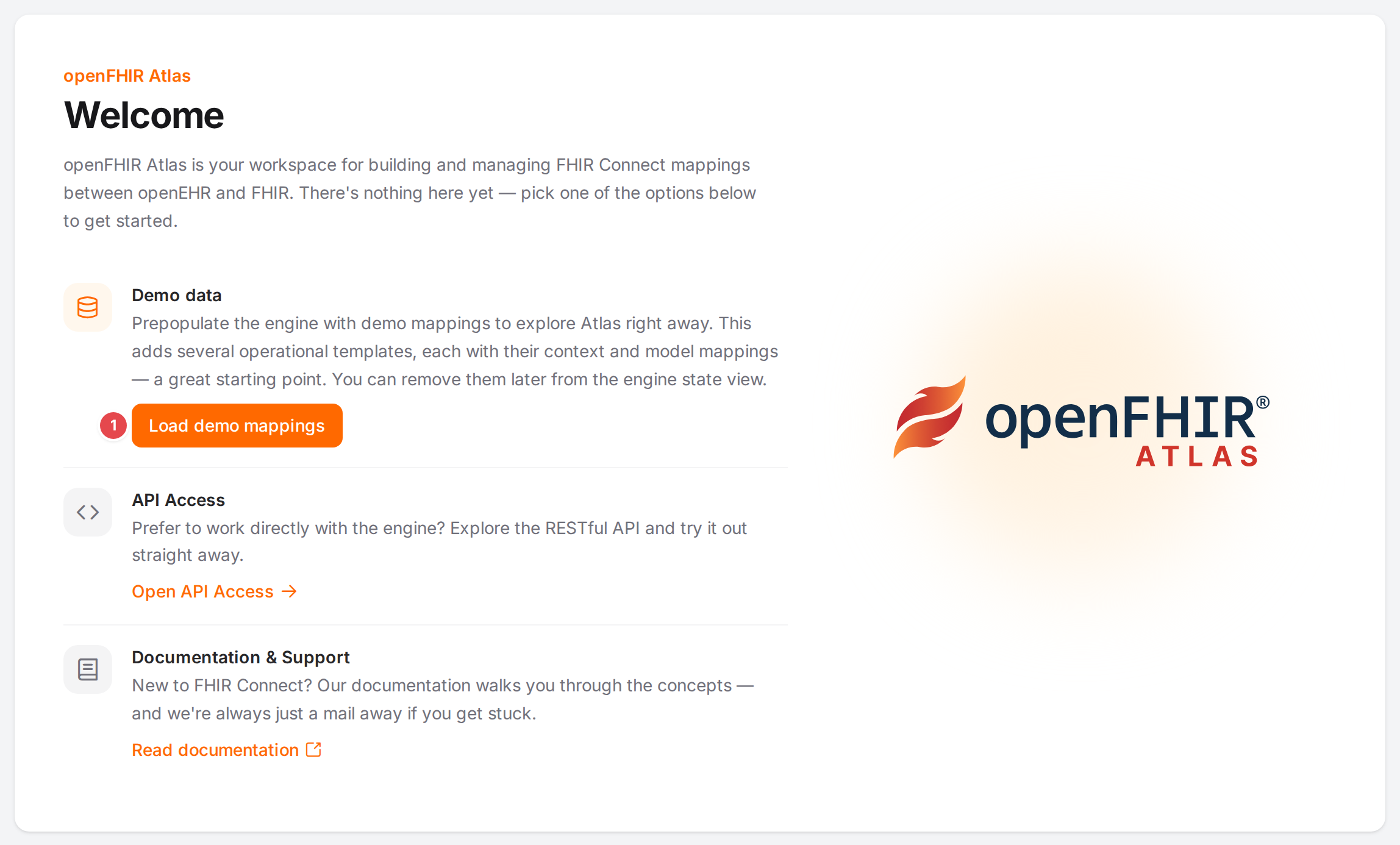
The welcome card of an empty engine, with Load demo mappings 1.
When the button stops spinning, Engine state lists three templates: Blood Pressure, Growth chart and International Patient Summary 1, and the model mappers they use. International Patient Summary says Partially mapped: the demo maps only part of it.
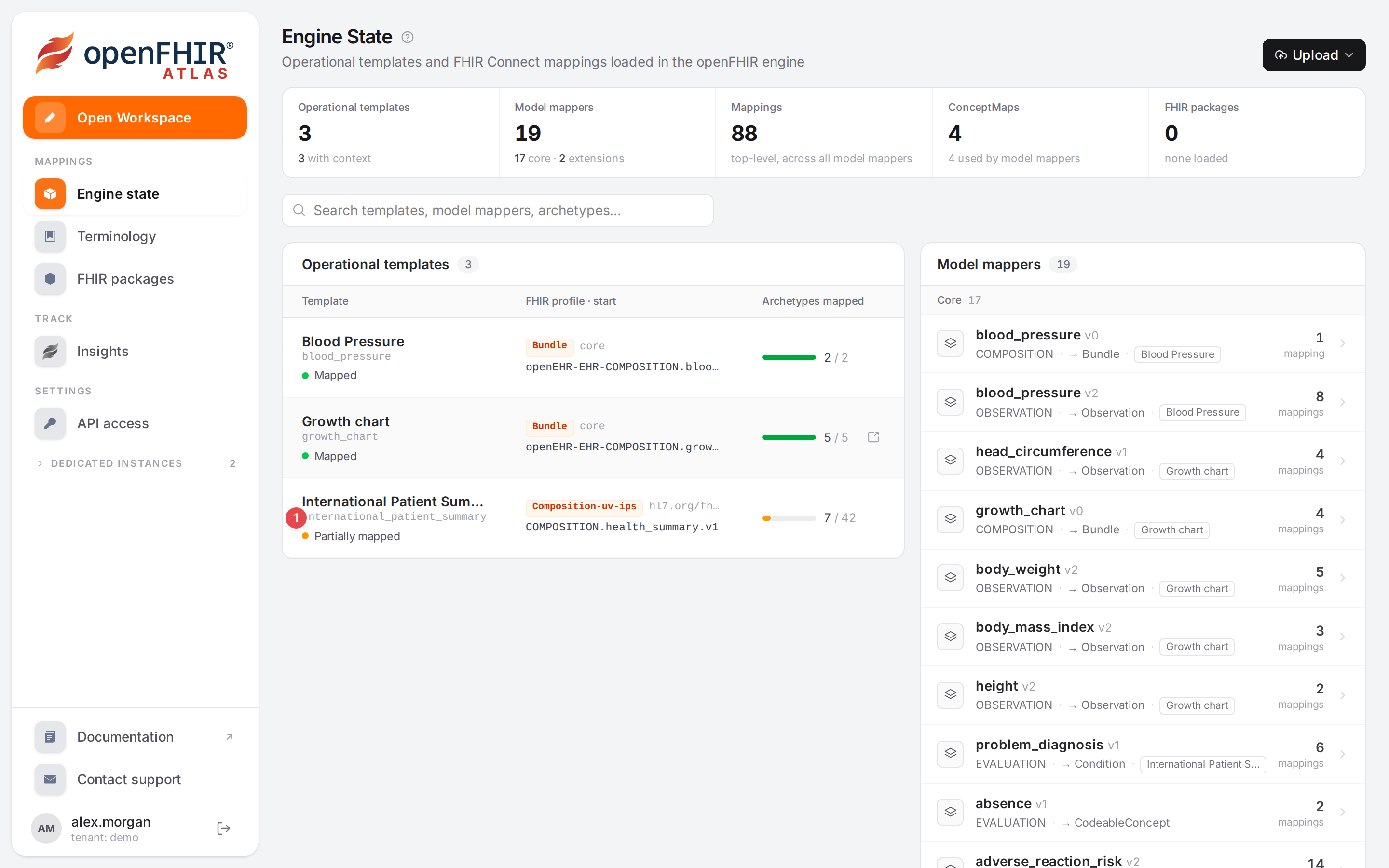
Engine state with the demo data. The IPS template 1.
2. Open the IPS template in the Workspace
Click the International Patient Summary row, then Open in workspace.
The Workspace opens on the template’s overview:
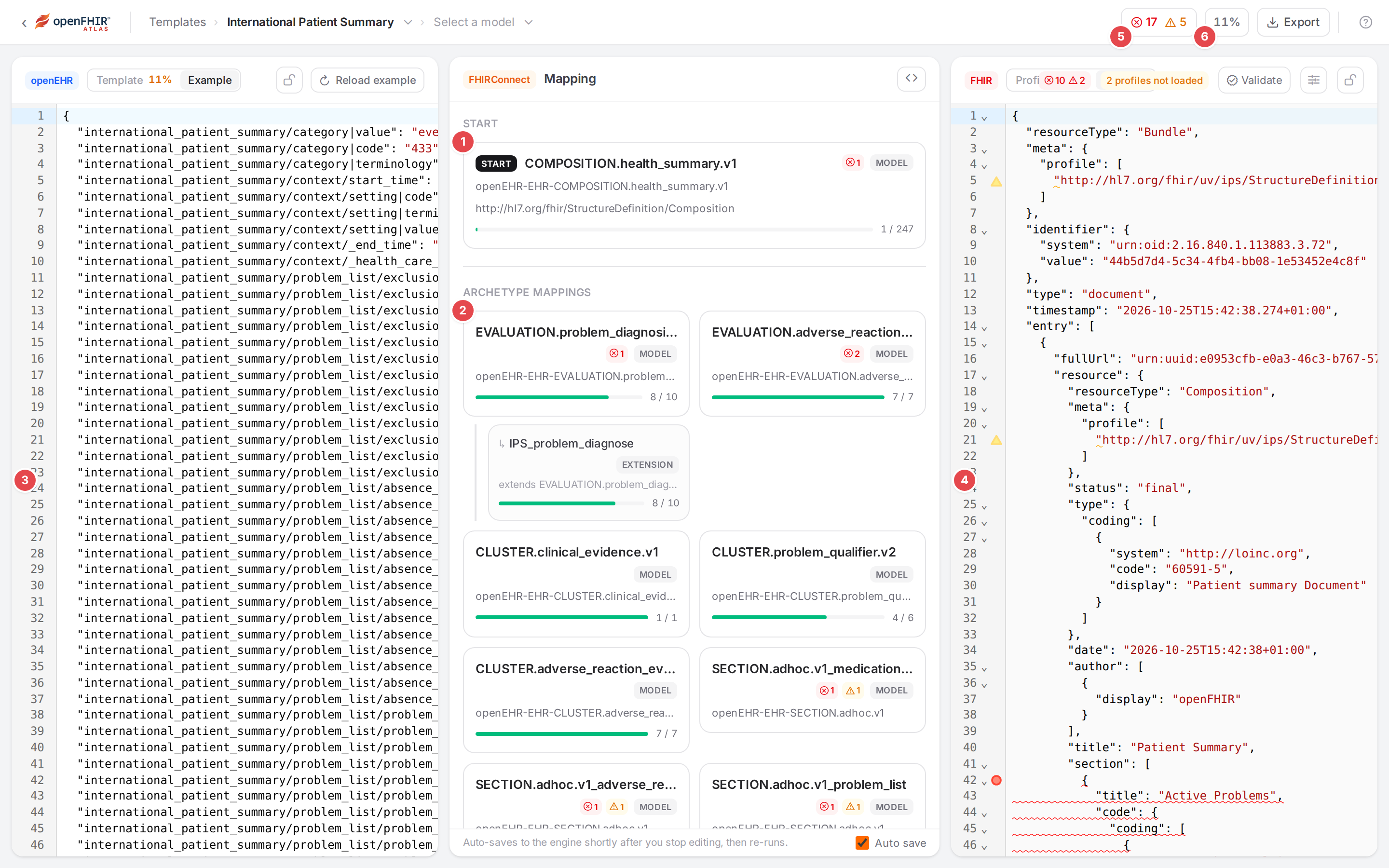
The IPS template in the Workspace.
- START 1
The start model,
COMPOSITION.health_summary.v1: every conversion begins here.- A model card 2
EVALUATION.problem_diagnosis.v1maps the problem/diagnosis archetype to a FHIRCondition. The red ⊗ 1 says it has one error; the bar at the bottom, how much of the archetype it maps (8 / 10).- The openEHR example 3
A composition Atlas generated from the template, in the flat format. The generated texts read “Lorem ipsum”.
- The FHIR example 4
The same composition converted to FHIR with the saved mappings: here a Bundle with the IPS Composition, a Condition and an AllergyIntolerance.
- The problem counts 5
The template’s errors and warnings. They include the findings of the FHIR validation that runs after each conversion, so they depend on which FHIR packages your engine has.
- The coverage 6
The share of the template’s elements that something maps.
3. Select a mapping and read the editing sheet
Click the
EVALUATION.problem_diagnosis.v1card. The middle pane shows the model’s mappings as an outline.Click the
bodySiterow 1. The editing sheet opens under the outline: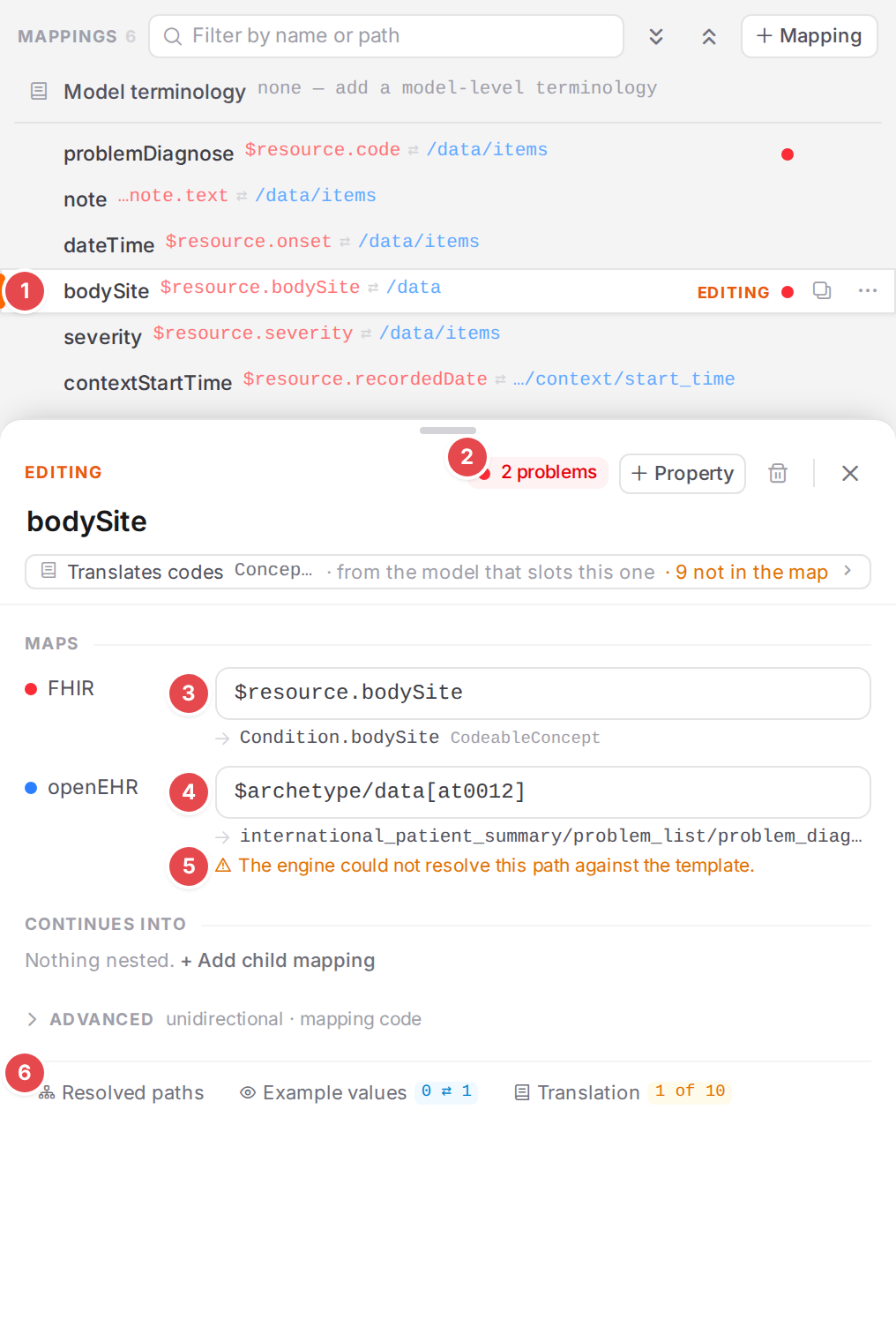
The
bodySitemapping in the editing sheet.- The selected row 1
Marked EDITING. The red dot at its end is its status: it has an error.
- The status 2
2 problems. Point at it to read them; click it to list them in the Problems dock. The first is the engine’s: “Mapping ‘bodySite’ of model mapper ‘EVALUATION.problem_diagnosis.v1’: openEHR path ‘…/data[at0012]’ does not exist in the template (‘data[at0012]’ not found); the mapping is skipped.” The second is a hint from the example: “The example has 0 FHIR values but 1 openEHR node for it — a missing [n] / iteration or a condition that selects too much or too little?”
- FHIR 3
$resource.bodySite: thebodySiteof the model’s resource. The line under it shows what that resolves to,Condition.bodySite, aCodeableConcept.- openEHR 4
$archetype/data[at0012]: a node of the problem/diagnosis archetype.- The warning 5
“The engine could not resolve this path against the template.” The archetype has no node
data[at0012]: Body site is the itemat0012insidedata[at0001].- The footer tabs 6
Resolved paths shows where the mapping lands in the whole conversion, Example values the values it moves in the example (
0 ⇄ 1: nothing on the FHIR side, one value on the openEHR side), Translation the code translation it uses.
4. Change the openEHR path with a suggestion
Click into the openEHR field, select its text and type
$archetype/body.Suggestions open below the field. openEHR suggestions match the names of the template’s nodes, so typing “body” finds Body site and offers its whole path.
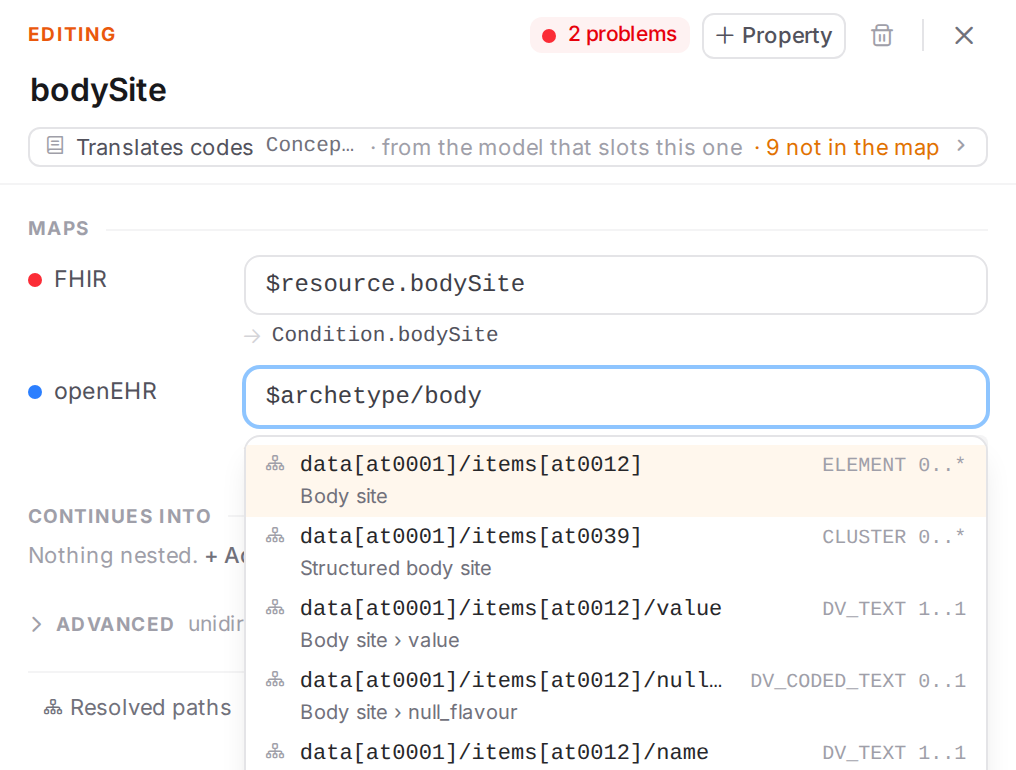
Suggestions for
$archetype/body.The first suggestion is
data[at0001]/items[at0012], Body site, anELEMENTthat may occur any number of times (0..*). Press Enter (or click it). The field now reads$archetype/data[at0001]/items[at0012], and the line under it ends in Body site · ELEMENT.
Use ↑ and ↓ to move through the suggestions, Enter or Tab to take one, and Esc to close the list. Ctrl+Space opens it without typing.
5. Watch both example panes update
With Auto save on (the check box at the bottom of the middle pane, on by default), Atlas saves shortly after you stop typing and converts the example again:
After the save: Saved 1, and the body site in the openEHR 2 and FHIR 3 examples.
The top bar shows Saving & running…, then Saved 1.
Atlas converts the openEHR example to FHIR, then the result back to openEHR, so both panes show what the mappings do now.
The FHIR pane 3 has a new element in the Condition, highlighted because
bodySiteis the selected mapping:"bodySite": [ { "text": "Lorem ipsum" } ],
The openEHR pane 2 highlights the body site the value came from.
The status of
bodySiteis gone from the editing sheet, the red dot from its row, and Example values reads1 ⇄ 1.
The red wavy underlines in the FHIR pane are findings of the FHIR validation, not of your edit; see Validate against FHIR profiles.
6. Read a problem and fix it from the dock
Click the problem counts in the top bar. The Problems dock opens under the three panes, its problems grouped by model.

The Problems dock.
- The severity toggles 1
The number of errors, warnings and infos. Click one to hide or show that severity.
- All sources 2
Shows only the problems of one kind of check: Engine, openEHR path, Structure, FHIR validation and so on.
- A problem 3
The mapping it concerns (
emptyReason), the message, the kind of check (Structure), and where clicking it takes you (FHIRConnect: the mapping editor). Pointing at a row shows a ? at its end (framed): it opens the problem’s explanation in this guide.
Under
SECTION.adhoc.v1_problem_list, read the warning: “2 sibling mappings are named ‘emptyReason’; highlighting and the resolved paths can only tell them apart by name.” The model has two mappings calledemptyReason, one for an absence of information entry and one for an exclusion entry.Click the warning. Atlas opens
SECTION.adhoc.v1_problem_list, selects the firstemptyReasonand puts the cursor in its name (framed):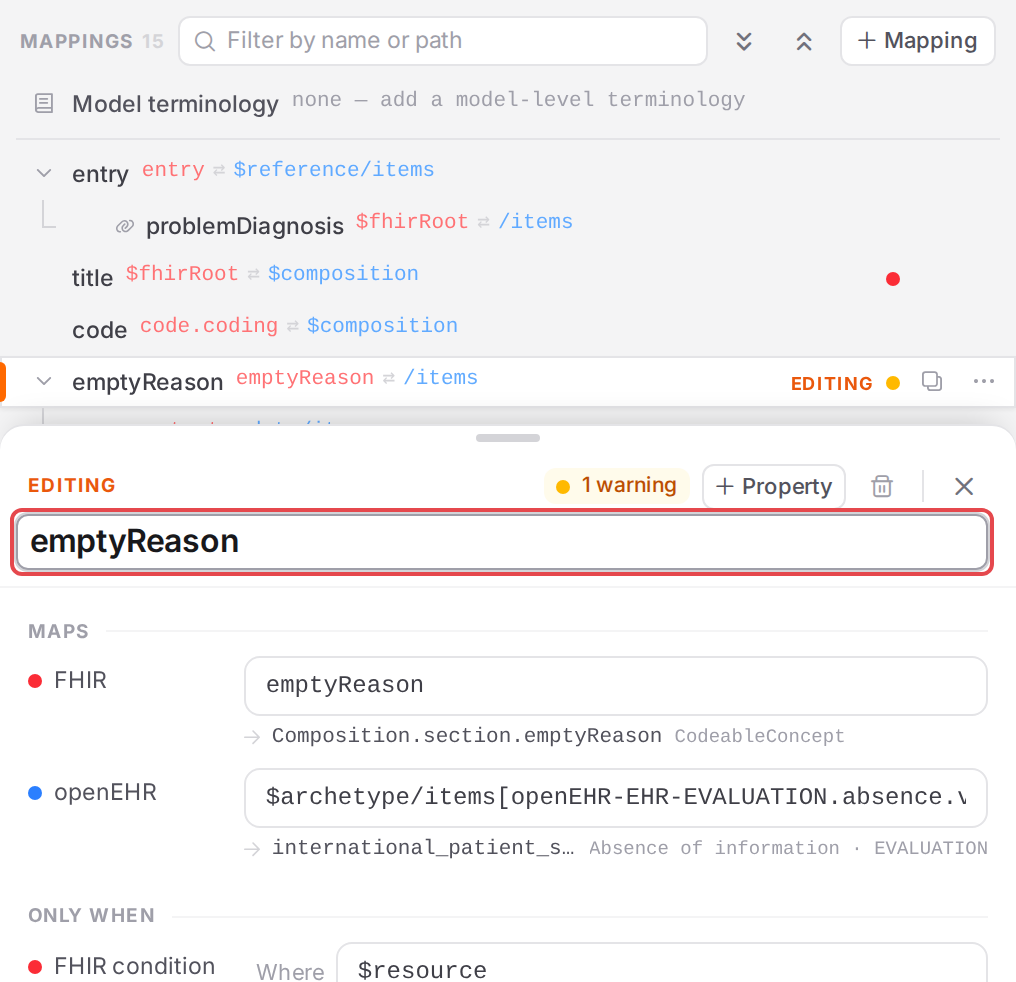
The mapping the warning is about, with its name ready to edit.
Type a name of its own,
emptyReasonAbsence. After the auto-save the warning is gone, and the model’s group in the dock, now marked Open in the editor, lists only its two remaining errors:
The problem list section’s problems after the rename (framed).
While you type, the dock checks your unsaved edit and marks the problems it finds unsaved.
7. Check coverage
In the top bar, open the model menu (▾ next to the model name) and choose
EVALUATION.problem_diagnosis.v1.Click the coverage percentage in the top bar. The openEHR pane switches to its Template tab: the template’s tree, with what is mapped.
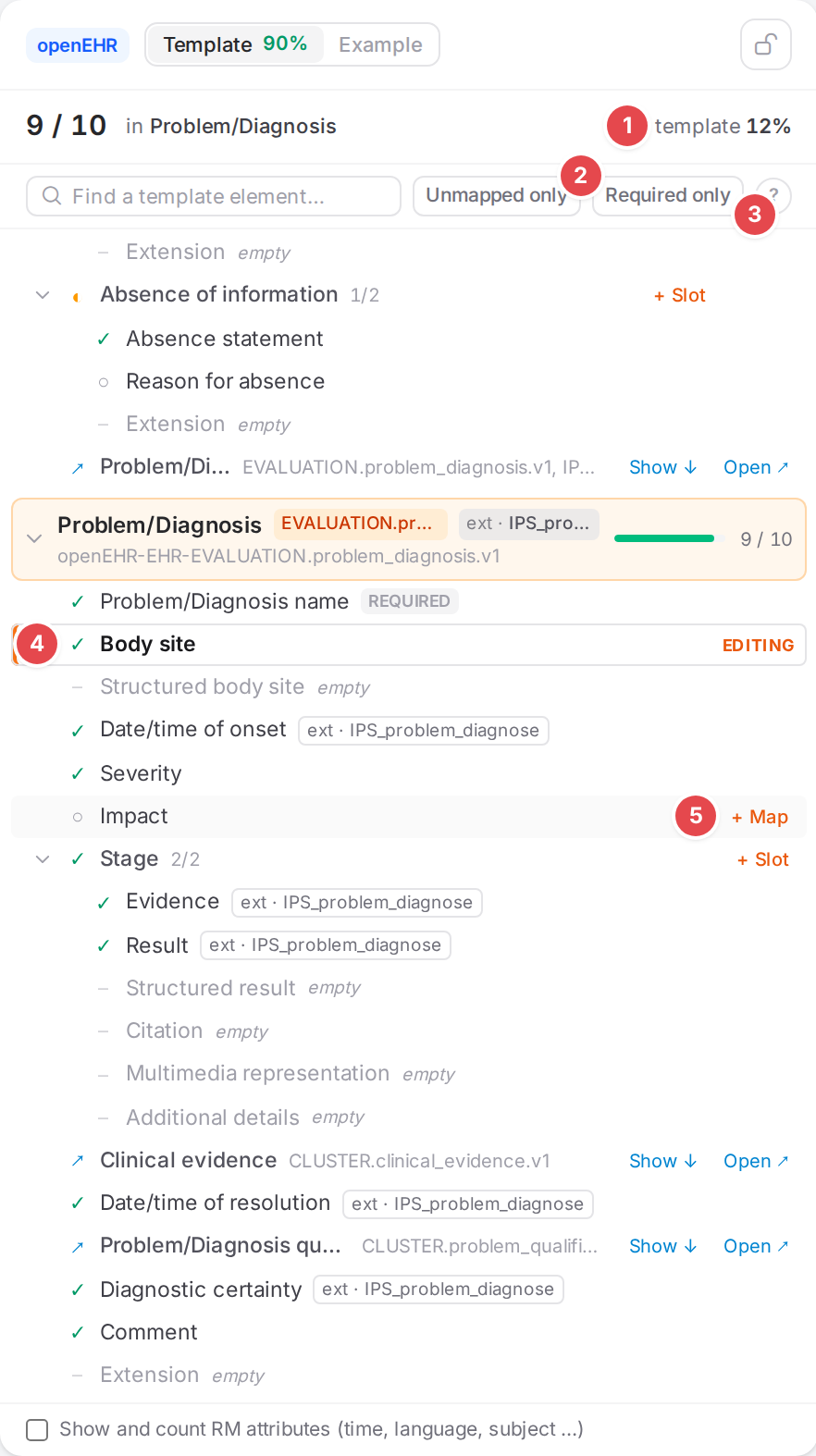
Coverage of the problem/diagnosis model.
- The totals 1
9 / 10 in Problem/Diagnosis: this model maps 9 of the archetype’s 10 elements. template 12% is the share of the whole template.- Unmapped only 2
Hides everything that is mapped. Required only next to it keeps only what must be present.
- The legend 3
Point at the ? to read the marks: ✓ mapped, a light ✓ covered by its cluster’s mapping, ◐ partly mapped, ○ not mapped, ↗ mapped by its own model, – empty in this template.
- Body site 4
Mapped now (✓), and marked EDITING because
bodySiteis the selected mapping.- + Map 5
Point at an element that isn’t mapped, such as Impact, to add a mapping for it.
Check it worked
The
bodySitemapping has no status in the editing sheet, and theEVALUATION.problem_diagnosis.v1card on the overview has no error.The FHIR example’s Condition has
bodySite.The Problems dock has no
mapping-name-duplicatewarning forSECTION.adhoc.v1_problem_list.The Template tab shows Body site as mapped, and the model’s count went from 8 to 9 of 10.
Tips
Tip
Point at a mapping’s status, a problem or a coverage mark before you click: the tooltip usually says what is wrong and what a click will do.
Tip
Clicking a problem selects the mapping and puts the cursor in the field it is about: the name for a duplicate name, the openEHR path for a path that isn’t in the template. Fix it there and the auto-save does the rest.
Tip
The other errors of the demo are good practice. The emptyReason › reason › code mappings, for
example, point at data[at0001]/items[at0005], which isn’t in the template; the suggestions show
what is.
Watch out
Warning
Every edit is saved to the engine a moment after you stop typing, and from then on every conversion of the engine uses it. To try something without saving it, clear Auto save at the bottom of the middle pane first; Atlas turns it on again each time you open the Workspace.
Warning
To start over with the original demo data, delete the three demo templates on Engine state (select a template, ⋯, Delete template…) with Also delete all archetypes (model mappers) in the context mapper tied to this template. checked. When the engine has no templates left, Load demo mappings is offered again.
If something goes wrong
- The welcome card stays after Load demo mappings
The engine didn’t take the demo data, or Atlas couldn’t read the engine. Reload the page; if the card is still there, check that the engine is running. See the welcome message.
- “Couldn’t load the engine state”
The Workspace couldn’t read the engine. Click Retry (explained here).
- “Open the Workspace on a larger screen”
Your window is narrower than 768 pixels (explained here).
- Save failed in the top bar
The engine refused the edit; the message under the editor says why (explained here).
- “Exception trying to convert due to: …” above a pane
The engine couldn’t convert the example (explained here).
- The problems of this tutorial
openehr-not-in-template (the body site path), mapping-name-duplicate (the two
emptyReasonmappings), and FHIR validation (the wavy underlines in the FHIR pane).