Manage ConceptMaps
What you’ll do
You keep the FHIR ConceptMaps the engine translates codes with: see which models use each one, upload ConceptMap files, create and edit maps (groups, elements, targets, equivalence, the rule for unlisted codes) and delete the ones nobody needs. Models refer to a ConceptMap by its canonical url (Translate codes).
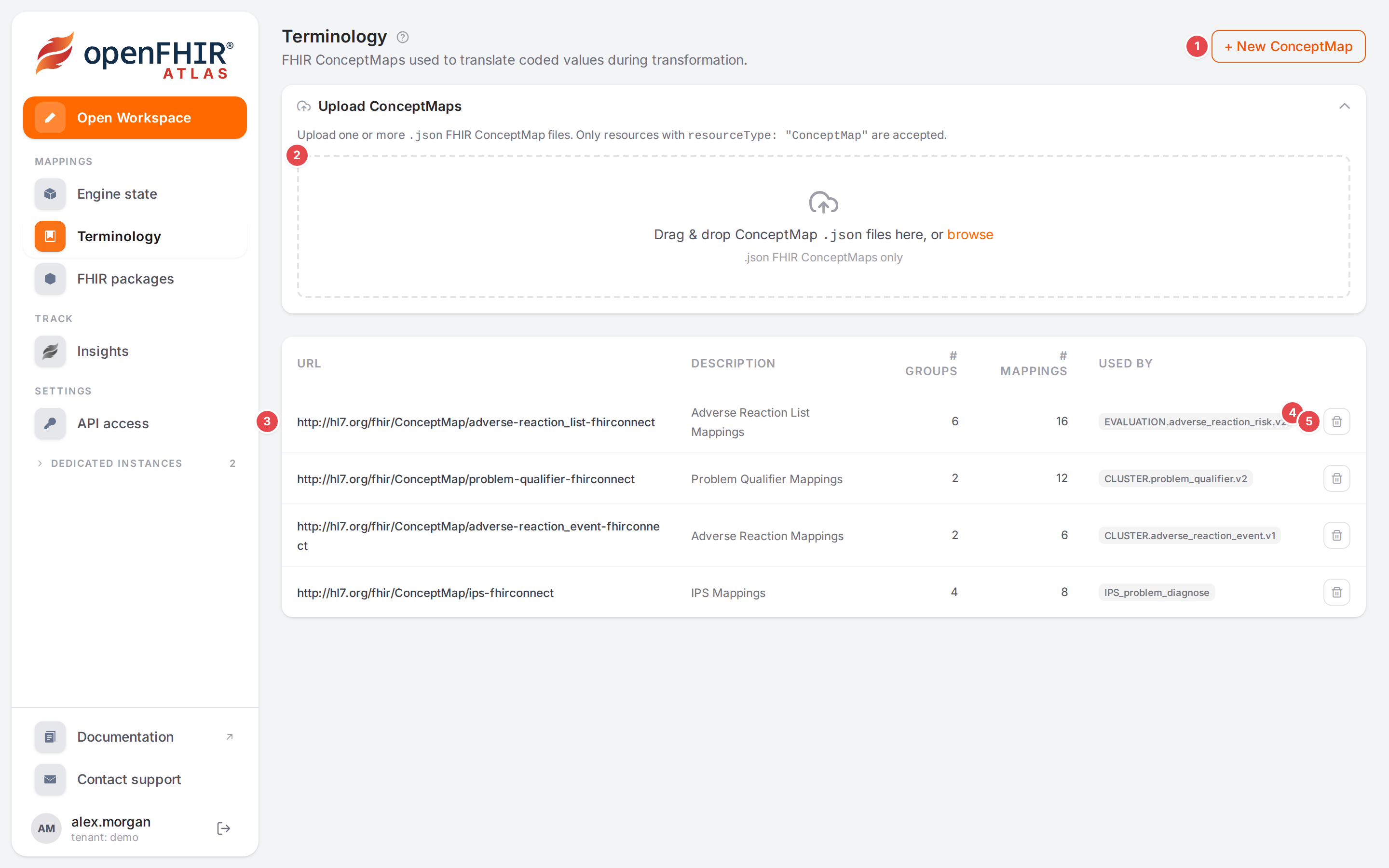
The Terminology page with the demo data’s ConceptMaps.
Before you start
Open Terminology in the sidebar (under Mappings).
ConceptMaps are stored in the engine: everyone using this engine (tenant) sees the same list.
Steps
1. Read the list
The numbers match the screenshot above.
1 + New ConceptMap: opens an empty map in the editor.
2 Upload ConceptMaps: click the header to open the panel, then drop files or click browse (see step 2).
3 A ConceptMap: its URL (the canonical url models refer to), Description, # groups, and # mappings (the number of source codes, counted over all groups). Click the row to open it in the editor.
4 Used by: the models whose terminology names this url, in their own block or in a
mapping’s. — when no model uses it.
5 Delete ConceptMap (step 5).
Without ConceptMaps the page says “No ConceptMaps yet.”
2. Upload ConceptMaps
Open Upload ConceptMaps and drop one or more .json files on the area, or click browse.
Only FHIR resources with resourceType: "ConceptMap" are accepted; anything else is skipped with a
reason. While it runs, the panel says “Uploading and validating…”. Then it lists each file with its
result and a summary: “N uploaded · N skipped · N failed”. Clear removes the result; clicking
the header closes the panel.
You can also bring ConceptMaps in with the rest of a template on the Engine state page (Bring your material in).
3. Edit a ConceptMap
Click a row (or + New ConceptMap). The editor opens on the right.
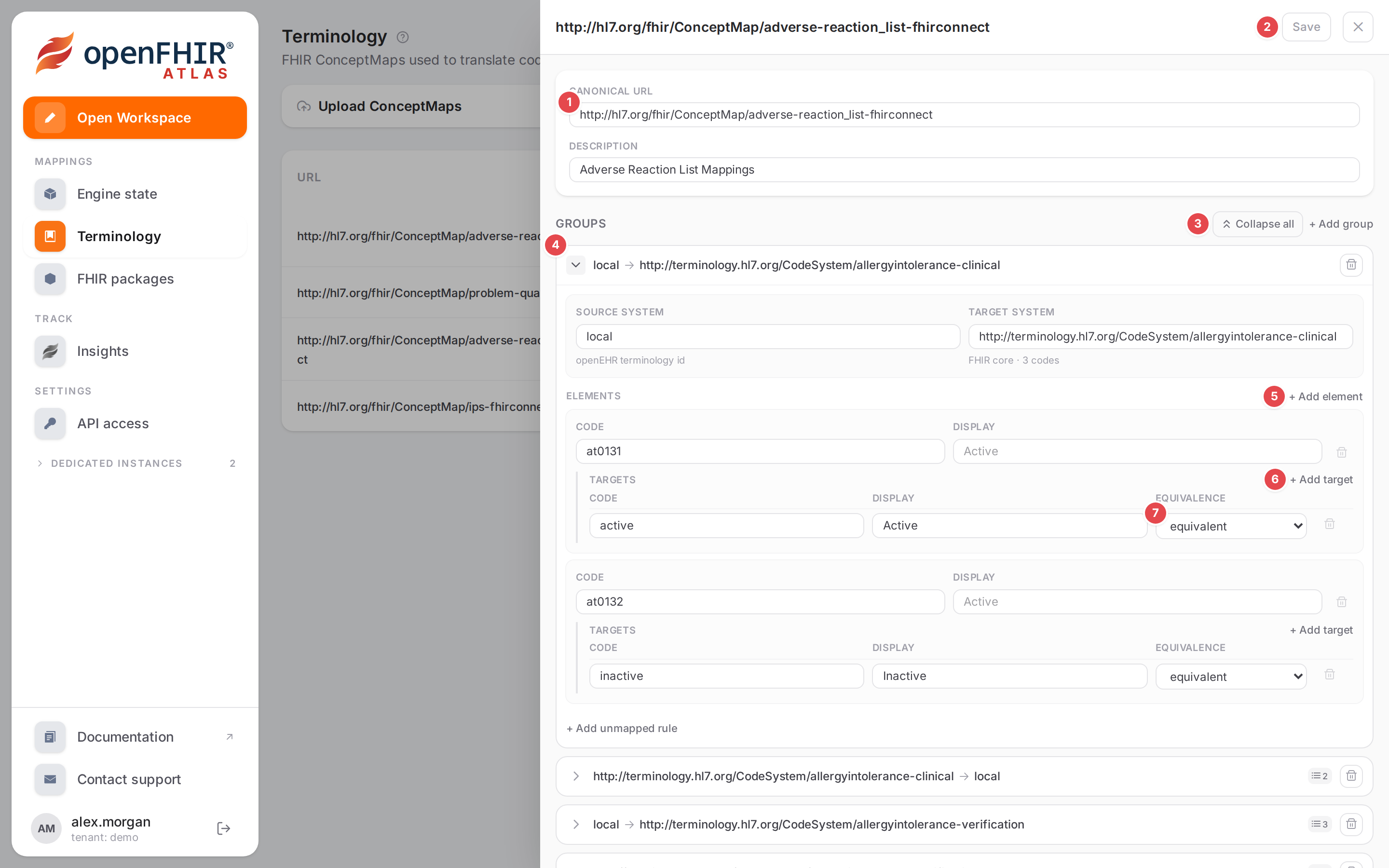
The adverse reaction ConceptMap in the editor, its first group expanded.
1 Canonical URL and Description. Models refer to the map by this url: change it and every model that uses the old url loses the map.
2 Save: enabled once something changed. The status next to it says Unsaved changes, Saving…, Saved or Save failed.
3 Collapse all / Expand all: groups open folded; + Add group adds an empty one, already open.
4 A group: the header shows source → target (the code systems); click the chevron
to open it, the trash icon (“Remove group”) deletes it. A folded group shows how many elements it
holds. Inside: Source system and Target system, each with a line saying where the system
comes from (see below).
5 + Add element: a source code (Code, Display) to translate, a code of the source system.
6 + Add target: what the element translates to (Code, Display, Equivalence), a code of the target system. An element can have several targets.
7 Equivalence: relatedto, equivalent, equal, wider, subsumes, narrower, specializes, inexact, unmatched or disjoint.
Close the editor with × or by clicking beside it. With unsaved changes, Atlas asks first: “Leave without saving?” (Leave / Keep editing).
Suggested systems and codes
The engine matches a group’s systems and codes letter for letter, so a typo quietly stops the translation. The fields suggest what the tenant’s FHIR packages (Use FHIR profiles and IG packages) and core FHIR know; you can still type anything.
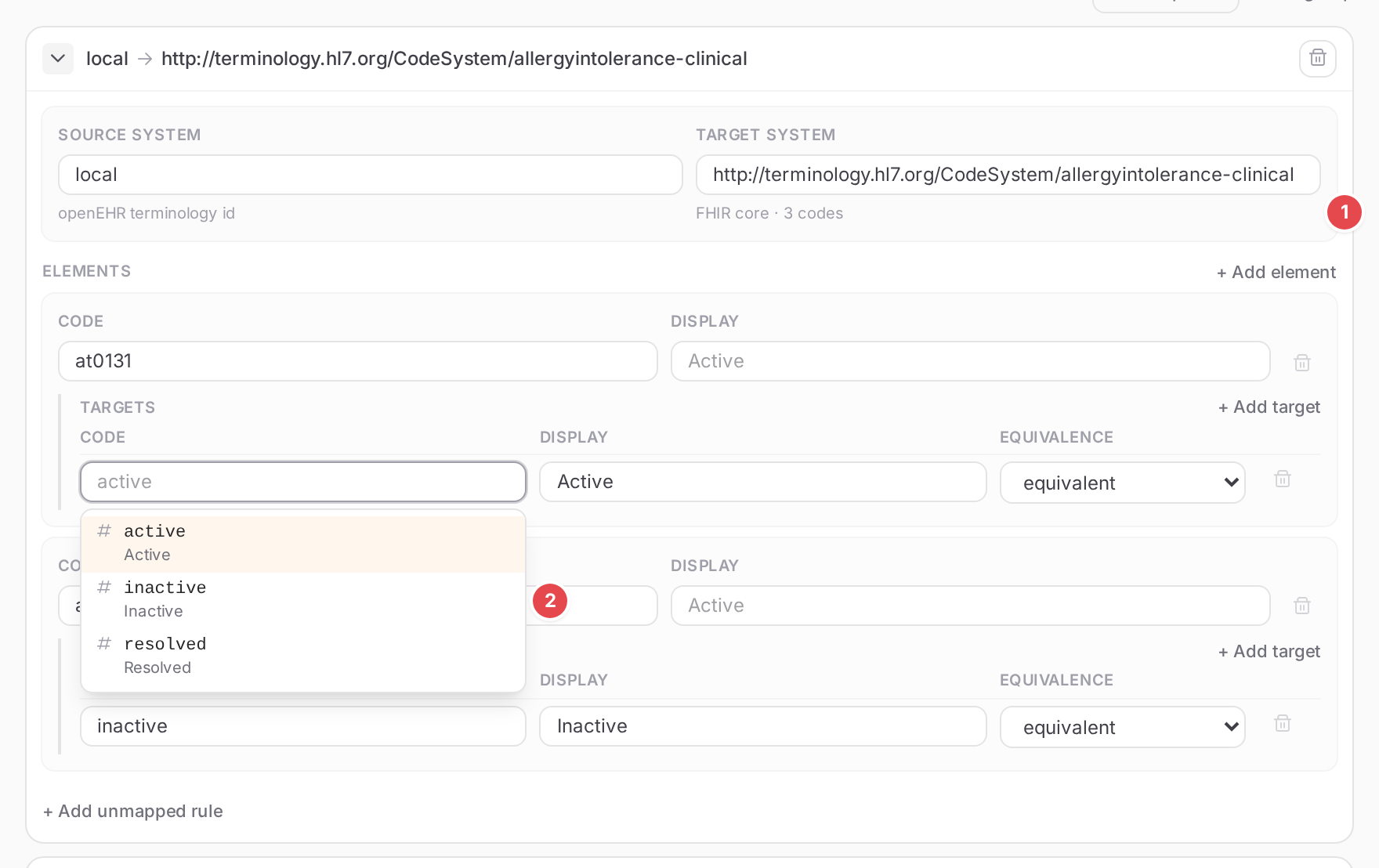
The target codes of the clinical status group, suggested from its target system.
1 Where the system comes from: “From package · 12 codes”, “FHIR core · 3 codes”, or
“… · 25 codes known” when the packages don’t hold all its codes (SNOMED CT, LOINC: only the codes
the packages’ ValueSets list). Not in any loaded package warns of a url no package knows (a typo,
or a package still to upload); Packages still loading… goes away once they are read. An openEHR
terminology id such as local (the openEHR side of a map) says openEHR terminology id.
2 The suggestions: in a system field, the systems this ConceptMap already uses
(in use), then those of the loaded packages, then core FHIR’s (core); typing narrows them by url
or title. In a code or display field, the codes of the group’s source system (element) or target
system (targets, unmapped code), with their display. Picking a code fills an empty Display,
picking a display fills an empty Code; neither overwrites what you typed. inactive marks a
retired code.
A line at the bottom says when the list isn’t all: “Showing 50 of 812: keep typing”, or that not every code of the system is in the packages.
Atlas suggests a system’s url, never a ValueSet’s: a ValueSet only contributes the codes it lists to
its systems. ValueSets defined by a filter (is-a …) add no codes; Atlas has no terminology server.
4. Decide what happens to unlisted codes
At the end of a group, + Add unmapped rule adds the group’s unmapped rule: Mode
(provided, fixed, other-map), Code and Display (for fixed: a code of the
target system, suggested like the targets). Mode other-map adds Other map: the ConceptMap to
look unlisted codes up in, picked from the engine’s ConceptMaps.
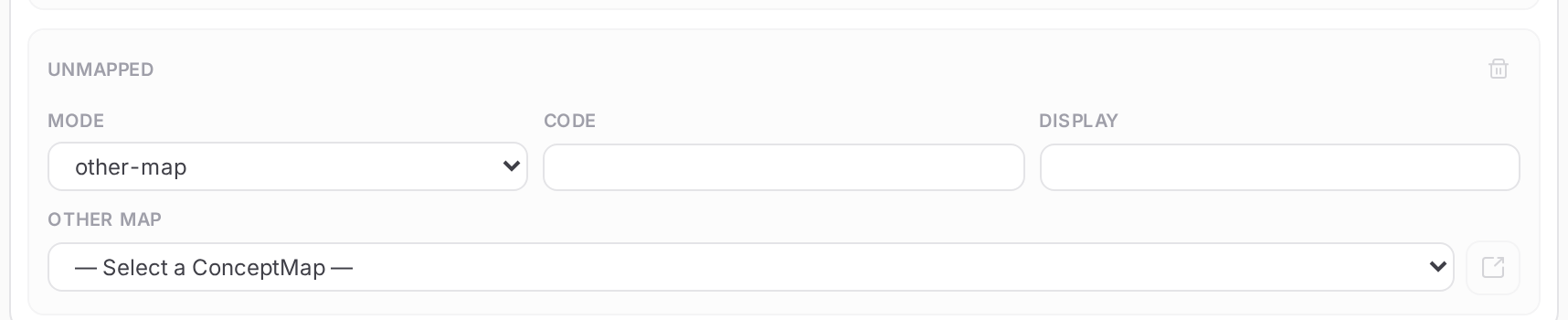
An unmapped rule that looks unlisted codes up in another ConceptMap.
In the Workspace, the map peek describes the rule of each group: “Codes not listed are kept as they
are.”, “Codes not listed become .” (fixed) or “Codes not listed are looked up in
5. Delete a ConceptMap
Click the trash icon of its row. Atlas asks first:
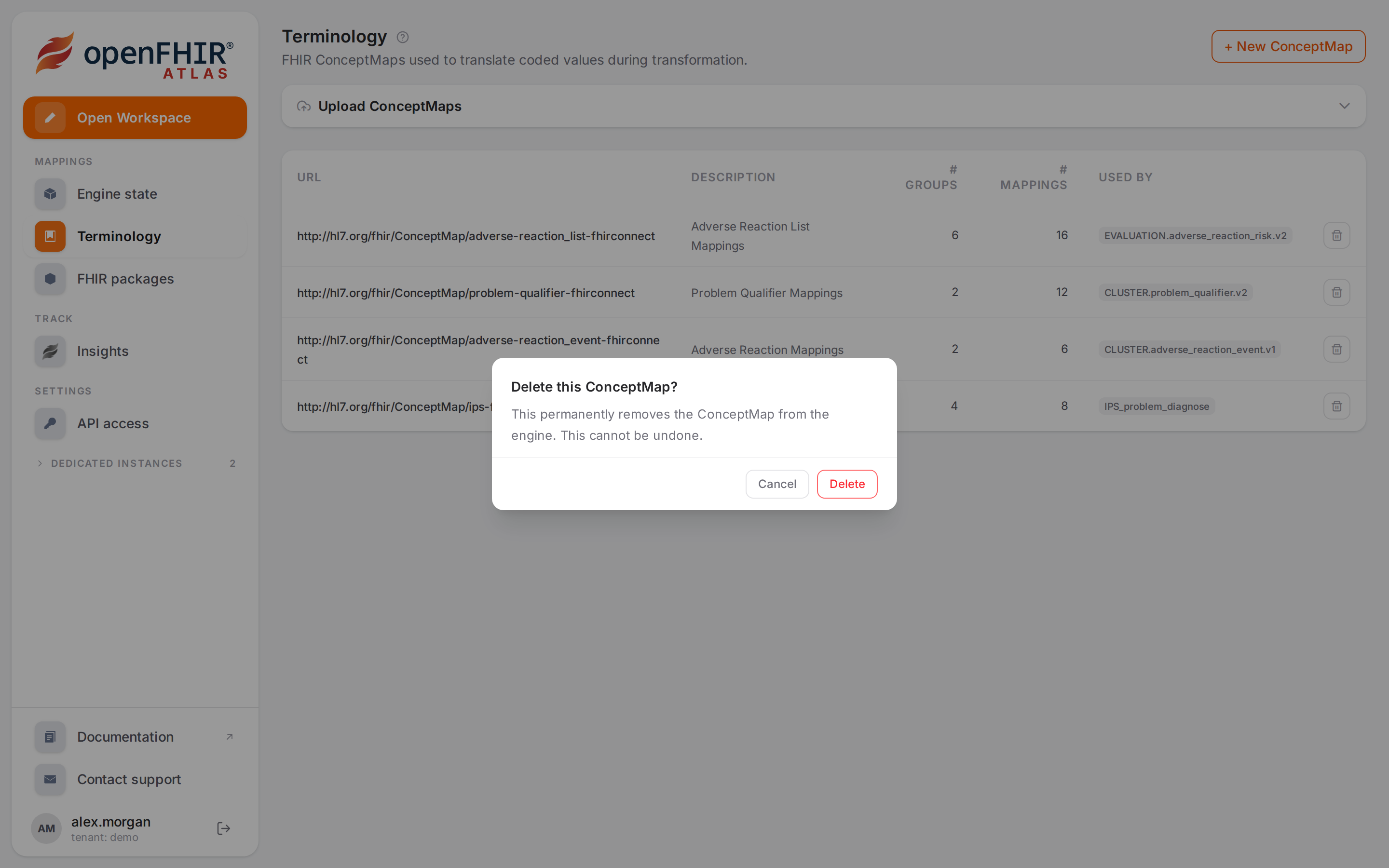
“This permanently removes the ConceptMap from the engine. This cannot be undone.”
6. Link straight to a ConceptMap
/terminology?conceptmap=<canonical url> opens the page with that map in the editor. The Workspace
uses it for its open-in-new-tab buttons; you can share such a link too (Links you can share).
Check it worked
The list shows the map with its counts. In the Workspace, the model’s Translation tab traces the example’s codes through it (Translate codes).
Tips
Tip
Check Used by before you change a url or delete a map: those models stop translating.
Tip
A code with no row is kept as it is. If that is not what you want, add an unmapped rule with mode fixed and the code to use.
Watch out
Warning
Deleting a ConceptMap that a model still names breaks that model’s translation: the engine keeps the codes as they are and the Problems dock reports terminology-conceptmap-unknown.
If something goes wrong
“Only .json FHIR ConceptMap files are accepted.” You dropped files of another type.
“No ConceptMap found for url:
”: a link named a url the engine doesn’t have. “Could not open this ConceptMap.” / “This ConceptMap has no id and cannot be opened.”: the engine didn’t return the map.
A save the engine rejects shows its message under the header, for example
resourceType must be "ConceptMap".