Connect models: slots, links, references
What you’ll do
You make sure the engine reaches every model of a template: you slot a model in where its archetype sits, pick slot targets from suggestions, follow a slot into the slotted model and back, remove a model from a template, and edit the template’s context mapper.
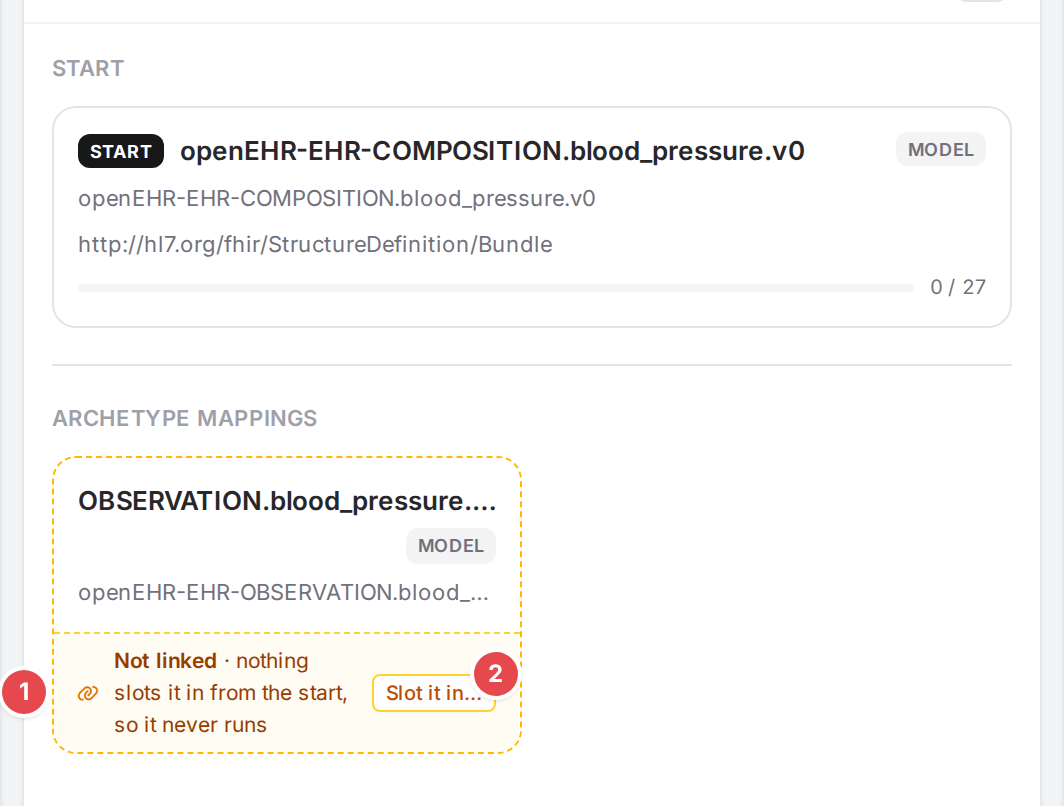
A model nothing slots in: it never runs until you link it.
Before you start
The template is open in the Workspace (Start mapping a template).
How models reach each other
A conversion begins with the template’s start model. From there the engine follows:
- Slots
A mapping with a Slot archetype hands the openEHR node at its path over to another model (named by its
metadata.name), and places that model’s FHIR resource or element at the mapping’s FHIR path. This is how a COMPOSITION model reaches the models of the archetypes inside it.- Followed by
Child mappings inside one model, continuing from their parent’s FHIR element and openEHR node.
- References
A mapping with a Reference continues in another FHIR resource (its into resource type), for example from a Bundle entry into the Observation it holds. Its openEHR path is usually
$reference, and its child mappings (the + mapping chips) run inside that resource.
A model that no chain of slots reaches from the start model is never run.
Steps
Slot in a model nothing links to
On the template’s overview, a model nothing slots in has a dashed amber card with Not linked · nothing slots it in from the start, so it never runs 1. Hover it for the full explanation.
The Not linked strip 1 and Slot it in… 2.
An extension model whose core isn’t linked says Not linked · runs only with
, which nothing slots in . It has no button: slot in the core model instead.Click Slot it in… 2. The dialog Slot
in lists, under Slot into, every place in the template where the model’s archetype occurs, with the model that will hold the slot mapping and its openEHR path 1. Under FHIR resource it asks whether the model maps the same resource or enters a new one; see Slot a model that maps another resource.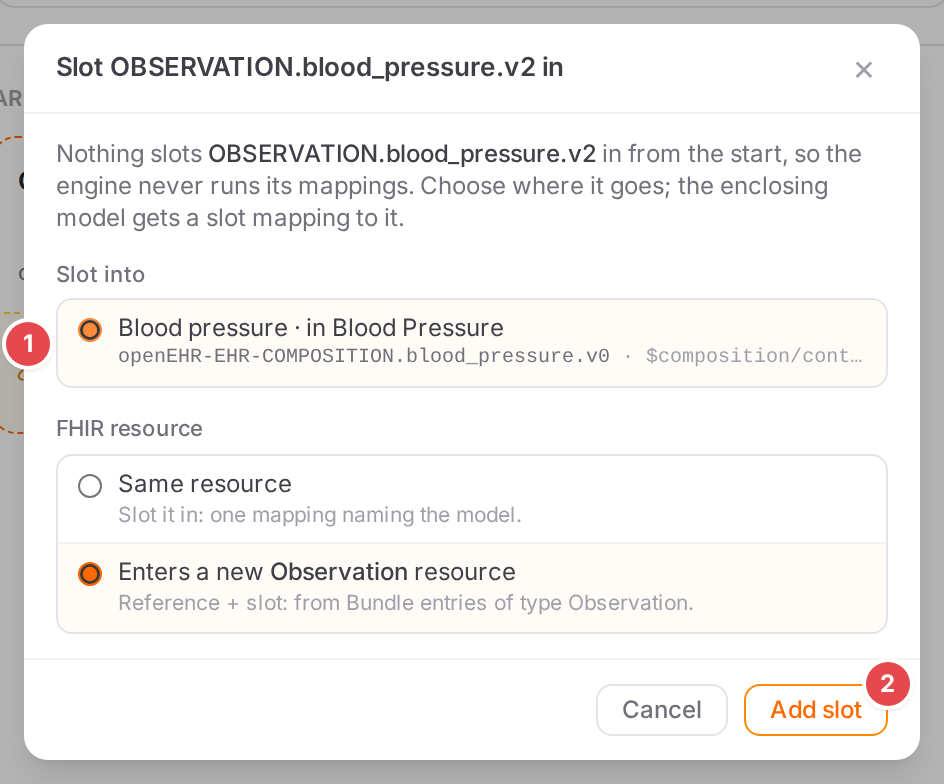
The place 1 and Add slot 2.
Choose the place and click Add slot 2. Atlas adds a slot mapping, named after the place, to the enclosing model and opens that model on it, with the FHIR path focused (or, for a model of another resource, the mapping that needs a path).
Fill in the FHIR path: where the slotted model’s resource or element goes. See Write FHIR and openEHR paths.
The same Slot into list appears when you add a model from NOT YET MAPPED or reuse one (Start mapping a template); there it also offers Don’t slot it now (The model is added to the context, but nothing runs it until a slot links it.).
A place can’t be chosen when the archetype around it has no model yet. It says
<archetype> has no model to hold the slot — choose a start / map it first. Nor when the
enclosing model already maps elements inside it (an archetype mapped inline through
$composition/…, say): <model> already maps elements inside <occurrence> — a model slotted in would map them twice. The coverage tree offers no + Slot there either. A mapping that only
leads into a slot there (a reference + slot, see
Slot a model that maps another resource) doesn’t count: it maps nothing
of the occurrence itself.
Slot a model that maps another resource
A slot only runs when the FHIR value reaching it has the slotted model’s type. A model that maps another resource than the holder (an Organization model slotted from a Bundle, a Practitioner model from a MedicationRequest) needs a Reference around the slot: the engine follows it into that resource, and building FHIR it creates the resource and the Reference to it.
Every way of slotting a model in asks this under FHIR resource: Slot
- Same resource
Slot it in: one mapping naming the model. One mapping with the Slot archetype. Right for a model of the holder’s resource, a data type (a Dosage, an Identifier) or a BackboneElement.
- Enters a new <type> resource
Reference + slot. Atlas writes the structure the engine needs. The default when the model maps another resource than the holder. When the model’s type isn’t known yet (its profile’s package isn’t loaded), pick the resource type in the list.
If you pick Same resource for a model of another resource, the dialog says The engine only applies a slot whose model maps <holder type>; this one maps <type>. It lets you go ahead (a hand-written follow-up is fine), and the Problems dock reports slot-resource-mismatch until the slot sits inside a reference.
From a Bundle (From Bundle entries of type <type>), every path is filled in and the slot mapping inside is selected:
- name: vardgivare
  with:
    fhir: $resource.entry
    openehr: $composition/content[openEHR-EHR-CLUSTER.organisation.v1]
  fhirCondition:
    targetRoot: $resource.entry
    targetAttributes: [resource]
    operator: type
    criterias: [Organization]
  followedBy:
    mappings:
    - name: iterateOrganization
      with: { fhir: resource, openehr: $reference }
      reference:
        resourceType: Organization
        mappings:
        - name: vardgivareSlot
          with: { fhir: $fhirRoot, openehr: $composition/content[openEHR-EHR-CLUSTER.organisation.v1] }
          slotArchetype: CLUSTER.organisation.v1_vårdgivare
From any other resource (through a Reference element you name next), the mapping follows a
Reference element of the holder’s resource. Atlas focuses its FHIR path; fill in the element,
for example $resource.requester:
- name: prescriber
  with:
    fhir: $resource.requester
    openehr: $reference
  reference:
    resourceType: Practitioner
    mappings:
    - name: prescriberSlot
      with: { fhir: $fhirRoot, openehr: $archetype/protocol[at0005] }
      slotArchetype: CLUSTER.person.v1-eha
A slot mapping you already have (typed in, or picked in Slot archetype) gets the same offer: when its model maps another resource, the field says <model> maps <type>, not <scope>. with Wrap in a reference to <type>. That rewrites the mapping into the structure above as one edit, keeping its openEHR path for the slot inside; Undo in the toast puts it back.
Pick a slot target from suggestions
To point an existing mapping at a model yourself, select the mapping, add Slot archetype with + Property if it has none, and click into the Slot archetype field. Press Ctrl+Space to see the suggestions.
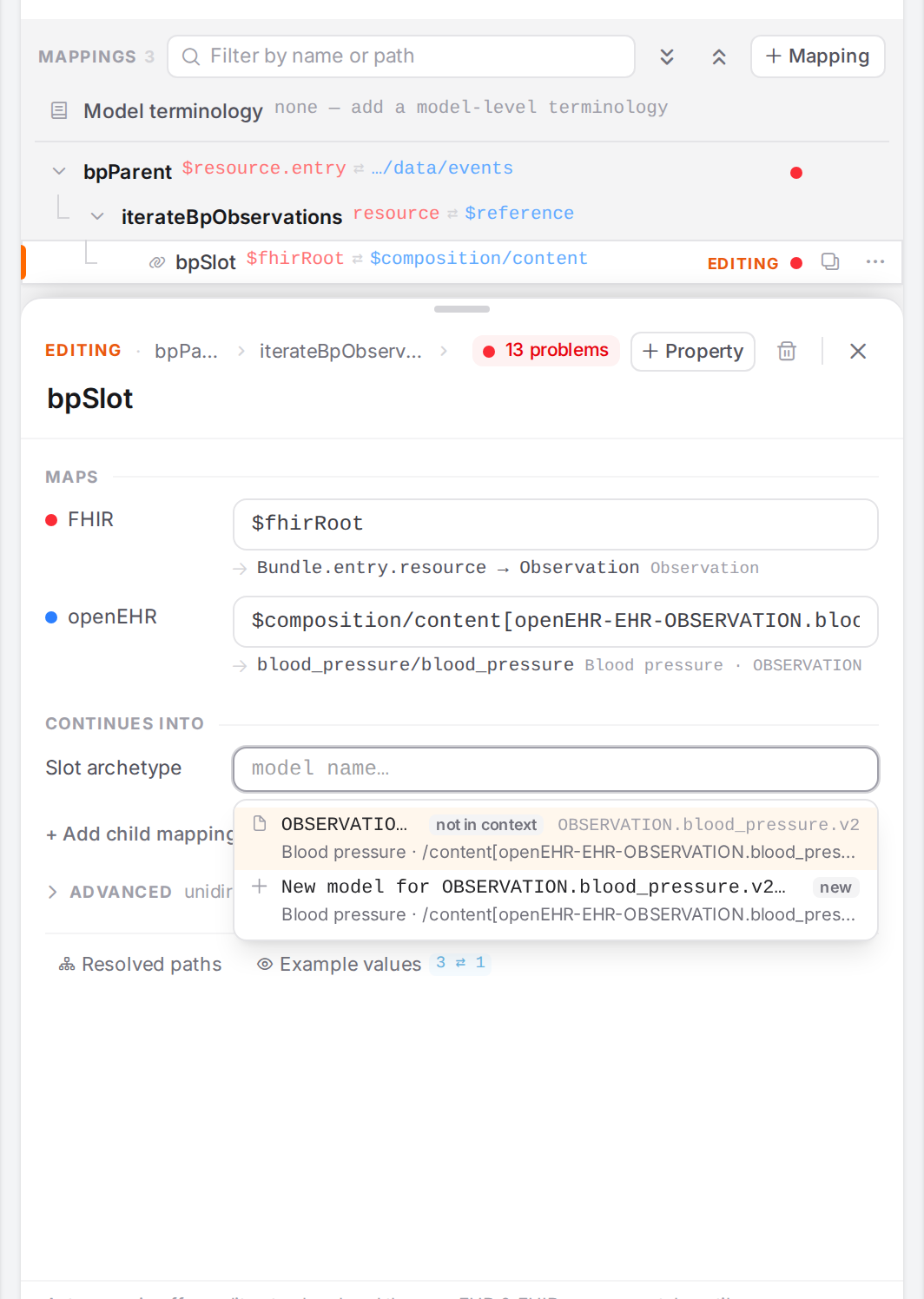
A model of the right archetype that exists in the engine but not in this template, then a new one.
The suggestions are the models of the archetypes that occur at or below the mapping’s openEHR path, most relevant first. For each archetype:
- In this context
The template’s own models of that archetype, with the place it occurs (its name and path).
- Elsewhere
Models of that archetype from other templates, marked not in context, with the hint
… — picking it adds it to this context. Picking one adds it to this template’s context (Adding <model> to this context…) and fills it in.- New model
After the existing ones: New model for
… (marked new). Picking it opens the New model mapping wizard (Start mapping a template); the new model becomes this mapping’s slot target. If you type a name nothing matches, the suggestion is Create “” for .…
These are the same choices, in the same order, as + Slot in the template coverage offers.
After them come the context’s other models, with the hint Not below this mapping’s openEHR path.
A model suggestion is accepted with Enter, Tab or a click; a create suggestion only
with Enter or a click, so tabbing out of the field never starts the wizard.
Follow a slot, and come back
Select a mapping that has a Slot archetype. When it names a model of this template, the ↗ button next to the field (Open this slot’s model) 1 opens that model.

Open this slot’s model 1.
In the slotted model, the header of the middle pane shows a back button with ← and the name of the model you came from 1. Its tooltip names the mapping too (
Back to <model> › <mapping>). Click it to return to that model with the same mapping selected. The browser’s back and forward buttons move between the models the same way.
The back button 1 to the model you came from.
Remove a model from a template
Open the model and click the bin button (Delete or unreference this model) at the right of the middle pane’s header. The Delete model dialog offers:
- Remove from this template only 1
Unreference the model from this context. The model itself is kept and stays usable elsewhere.
- Delete the model permanently 2
Delete the model from the engine and unreference it here. This cannot be undone.
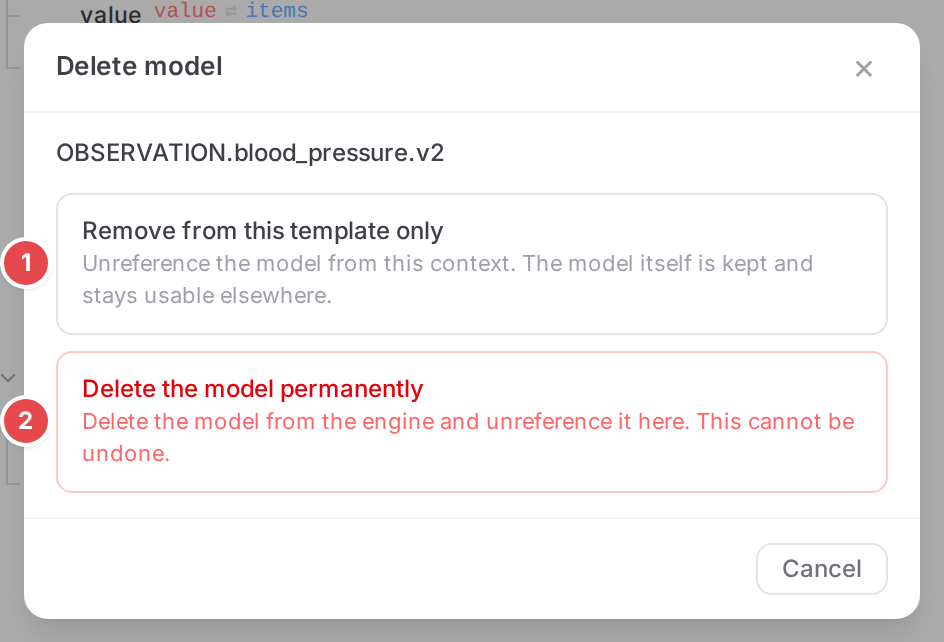
Remove it from this template 1, or delete it for good 2.
Cancel closes the dialog without changing anything.
Edit the context mapper
The context mapper lists the template’s models (archetypes), its extension models, its start
and its FHIR profile. Atlas keeps it up to date when you add, reuse or remove models; edit it by
hand only for what the dialogs don’t cover.
On the template’s overview (no model open), click <> (Edit the context mapper YAML) 1 in the middle pane’s header. The pane shows Context mapper and the template id, with the YAML in an editor.
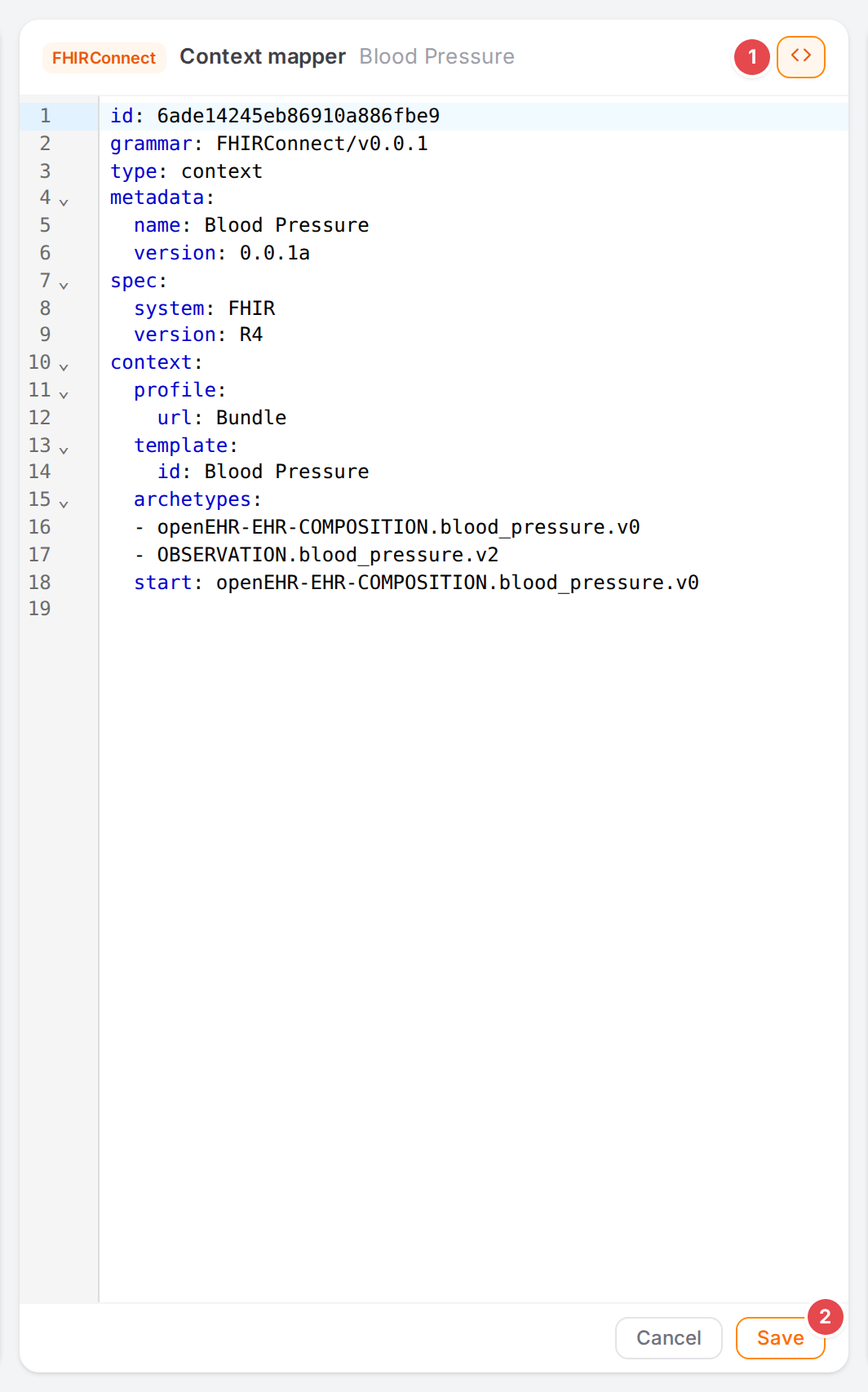
The context mapper button 1 and Save 2.
Edit the YAML and click Save 2, or Cancel to go back to the overview without saving. Clicking <> again (Back to mapping overview) also closes it.
Check it worked
The model’s card no longer shows Not linked, and its coverage bar fills as the engine reaches its mappings.
With the slot mapping selected, the side panes highlight the slotted part of the example (See your mapping in action).
The model-unreached problem is gone from the Problems dock.
Tips
Tip
A model that isn’t linked never runs. Check the overview for Not linked cards after adding models with Don’t slot it now or editing slot mappings.
Tip
When an archetype occurs inside another one, add the slot rather than mapping the same elements a second time in the enclosing model. One model per archetype keeps the mapping in one place.
Tip
Picking a model from Elsewhere in the slot suggestions adds it to the context: you don’t need to reference it first.
Watch out
Warning
Delete the model permanently deletes it from the engine, so every other template that uses it loses it too. Use Remove from this template only unless you are sure.
Warning
Saving the context mapper by hand replaces it as a whole. A model name that doesn’t exist, or a start that names no model, breaks the template’s conversions until fixed.
If something goes wrong
What you see |
What it means and what to do |
|---|---|
|
The template doesn’t contain the model’s archetype anywhere, so nothing can slot it in. Remove the model from this template. |
|
The slot mapping couldn’t be added; nothing changed. Try again; see Messages and notices A–Z. |
|
Referencing a model from another template into this one failed; nothing changed. Try again, or pick another model. |
|
Referencing the picked model into the template failed. The field still names it; the slot only works once the model is in the context. |
|
The engine refused the delete or unreference. The rest of the message is its reason. |
|
The context mapper couldn’t be read. Close it with <> and try again. |
|
The YAML wasn’t accepted. Fix it and save again. |
Problems about slots and links show in the Problems dock (Fix problems): model-unreached, slot-target-missing, slot-resource-mismatch, slot-context, slot-conflict, context-model-missing, start-model-missing and reference-type-missing.