Before you start
Note
Atlas requires openFHIR Enterprise, with a license that includes Atlas. Atlas reads and writes the mappings of an openFHIR Enterprise engine, and its Workspace, problem checks and coverage use engine functions that only openFHIR Enterprise has. To try Atlas without an installation of your own, use the public demo or a sandbox account (Ways to use openFHIR and Atlas).
What you need
- An openFHIR engine to work on
One of:
your own openFHIR Enterprise engine with a license that includes Atlas, and Atlas installed next to it. Installing both is described in the engine documentation (Installation);
the sandbox: a free engine and Atlas of your own at sandbox.open-fhir.com/atlas, after you sign up (Public sandbox);
the public demo at open-fhir.com/portal, shared by everyone who opens it.
- An account
Atlas signs you in through the openFHIR sign-in service (Keycloak). Your administrator creates the account on your own installation; on the sandbox you create it with Sign up.
- A desktop or laptop screen
The Workspace, where you edit mappings, shows three panes side by side and needs a window at least 768 pixels wide (see below).
- Some background
You don’t need to know the FHIR Connect file format to start: Atlas writes it for you. You do need to know what your openEHR template and your FHIR resources contain. Key ideas in plain words explains the words Atlas uses.
Sign in
Open the address of your Atlas. When you aren’t signed in, Atlas sends you to the sign-in page.
Sign in. Atlas opens Engine state: the templates and mappings loaded in the engine.
Atlas always opens Engine state after you sign in, also when you started from a link to another page. Open the link again once you are signed in.
Your name and tenant are at the bottom of the sidebar 1. The button next to them 2 (Sign out) signs you out of Atlas and of the sign-in service.
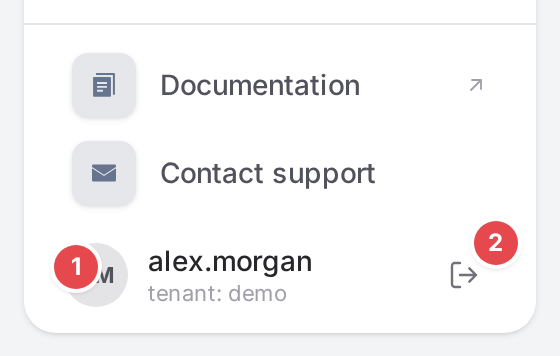
The bottom of the sidebar: who is signed in 1 and Sign out 2.
Atlas keeps your sign-in with the engine fresh while you work. When your session ends (it expired, your openFHIR sign-in ended, or you signed out in another tab), the next thing you do sends you to the sign-in page again.
Demo user or your own account
When you use Atlas without signing in, as on the public demo, the bottom of the sidebar says:
You’re exploring openFHIR Atlas as a demo user. Sign up for individual access to unlock additional features.
with two buttons:
- Login
Opens the sign-in page.
- Sign up
Opens the sign-up page of the openFHIR sign-in service, where you ask for an account of your own.
As a demo user you share the engine with everyone else on the demo, and some features aren’t available, for example versioning. With your own account (on the sandbox or on your own installation) your work is yours, and it is recorded under your name when the engine keeps a history. Access and permissions lists what each kind of user can do.
Why some items are missing
The sidebar and the pages show only what your engine, your account and your Atlas offer. If you don’t see something this guide describes, one of these is why:
You don’t see |
Because |
|---|---|
Versioning and Git remote in the sidebar, the Versions button on Engine state, the History tab and the history in the Workspace |
The engine doesn’t version the mappings, your account may not read the version history, the engine can’t be reached, or you’re on the public demo. The Versioning page tells you which one; see Ship: versions, reviews, releases. |
Admin under Settings |
It is for administrators only: accounts with the |
Integrations and Multitenancy |
They are folded under Dedicated instances in the sidebar: click the heading to show them. They describe features of dedicated openFHIR instances (Dedicated instances). |
Documentation links, and the ? next to page titles |
Your Atlas was installed with links to the documentation turned off. |
The template list on Engine state |
The engine has no templates yet. Atlas shows a welcome card with Load demo mappings instead (Your first mapping in 15 minutes). |
Screen size
The Workspace needs a window at least 768 pixels wide. In a narrower window, for example on a phone, Atlas shows this instead, with ‹ Back to Atlas to return to Engine state:
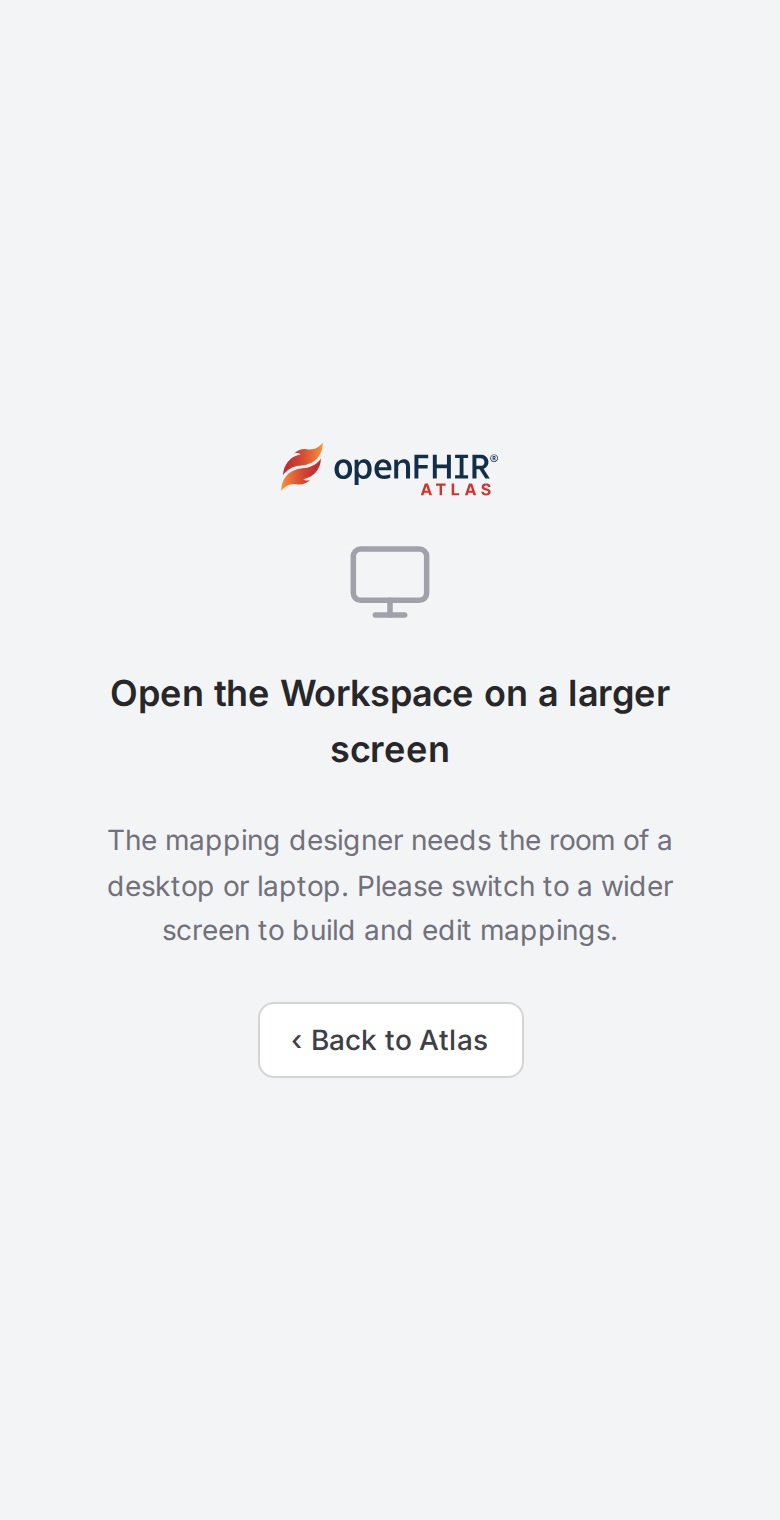
The Workspace on a phone-sized screen.
The other pages work on small screens too. The sidebar then moves behind a menu button at the top left, and Engine state shows: “This page is best viewed on a wider screen. Some tables and panels may overflow on small displays.”