A tour of Atlas
Atlas has two kinds of screens: the pages with the sidebar on the left (Engine state, Terminology, FHIR packages and the others), and the Workspace, a full-screen editor without the sidebar where you build and check mappings. This page shows where everything is and how the screens lead into each other.
The sidebar
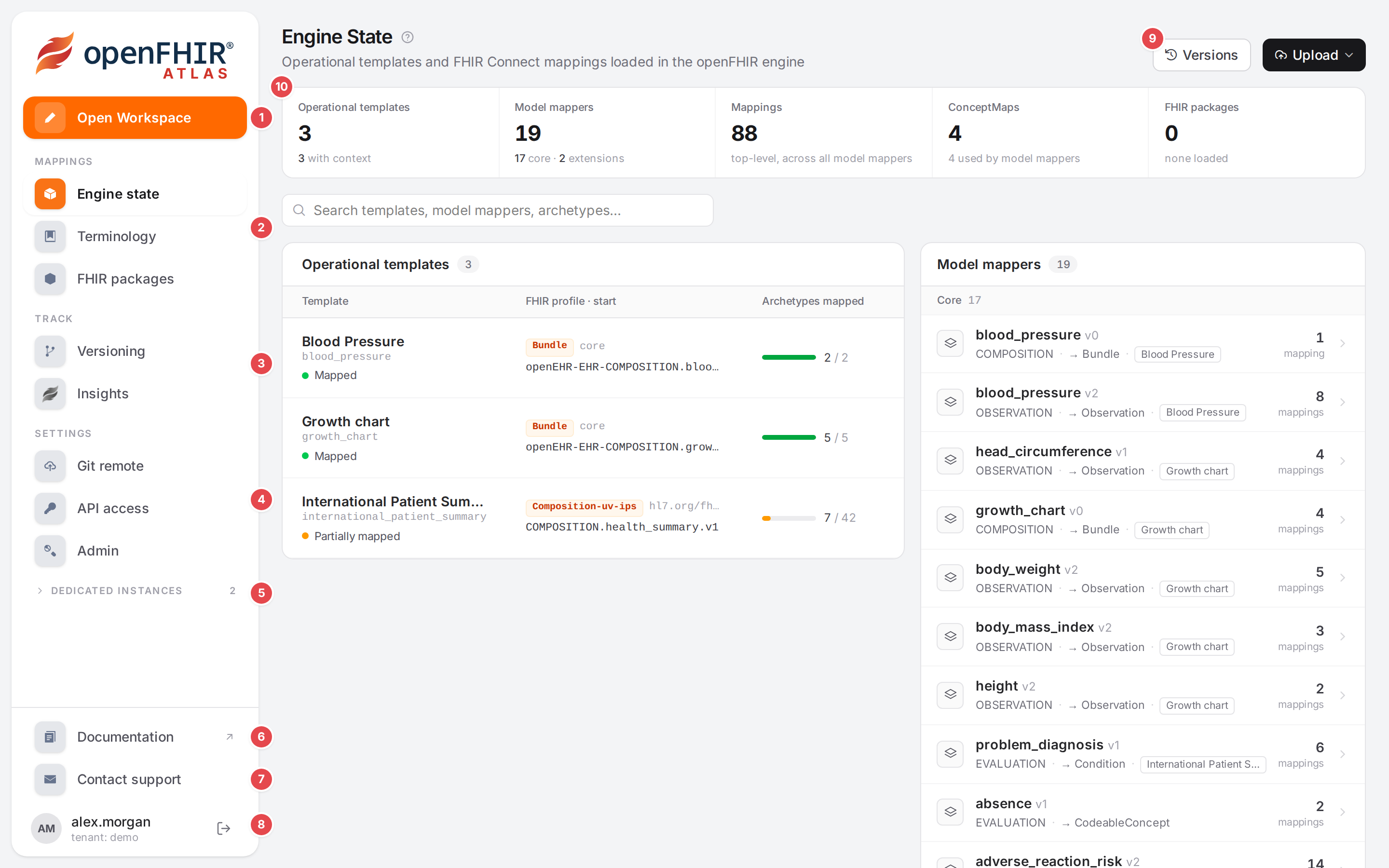
Atlas as an administrator sees it, on an engine that versions the mappings. Your sidebar can have fewer items (Why some items are missing).
- Open Workspace 1
Opens the Workspace, the full-screen mapping editor, on its list of templates. Pick a template there to start. From a page you can also open the Workspace right on a template or a model (see below).
- MAPPINGS 2
What the engine converts with:
Engine state: the templates (OPTs) and model mappers loaded in the engine; upload, export and delete them here. Atlas opens this page after you sign in, and the logo at the top of the sidebar leads back to it.
Terminology: the ConceptMaps that translate codes during a conversion (Manage ConceptMaps).
FHIR packages: the implementation guide packages whose profiles Atlas uses for path suggestions, checks and validation (Use FHIR profiles and IG packages).
- TRACK 3
How the mappings change and how they run:
Versioning: the history of every change, releases, reviews and comparisons (Ship: versions, reviews, releases). The number next to it counts the open reviews. It is listed only when the engine versions your mappings.
Insights: the conversions the engine ran, with what each mapping did (Understand a conversion (Insights)).
- SETTINGS 4
Settings of your tenant:
Git remote: the git repository the engine pushes the history to (Connect a Git repository). Listed with Versioning.
API access: clients and tokens for calling the engine from your own systems (Connect your system to the API).
Admin: only for administrators (Access and permissions).
- DEDICATED INSTANCES 5
Folded by default; the number says how many items it holds. Click the heading to show Integrations and Multitenancy. Both carry a lock: they describe features that dedicated openFHIR instances have (Dedicated instances).
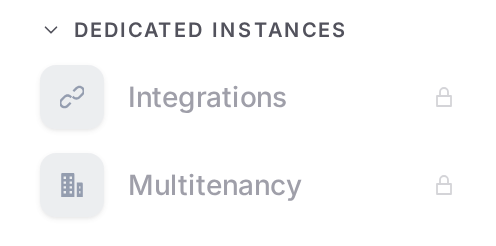
DEDICATED INSTANCES, unfolded.
- Documentation 6
Opens this guide in a new tab, in the version that matches your Atlas.
- Contact support 7
Writes an e-mail to
info@open-fhir.com. Support says what to put in it.- Your account 8
Your name and tenant, and Sign out (Before you start). On the public demo this place shows Login and Sign up instead.
On a narrow screen the sidebar is hidden behind a menu button at the top left.
On every page
Most pages have the same top: a title with a ? next to it that opens the page’s description in this guide, a line saying what the page is for, and the page’s actions on the right. On Engine state these are:
- Versions 9
Opens Versioning: the history, releases and reviews of the mappings. Shown when the engine versions the mappings.
- The summary 10
Counts of what the engine holds: Operational templates, Model mappers, Mappings, ConceptMaps and FHIR packages. The last two open the Terminology and FHIR packages pages.
Screens describes every page control by control.
The Workspace
The Workspace has no sidebar: it uses the whole window for three panes side by side.
openEHR on the left: an example composition of the template, or the template’s tree with what is mapped (Template).
FHIRConnect in the middle: the open template’s models, or the mappings of the open model.
FHIR on the right: the example converted to FHIR, or the profile’s elements with what is mapped (Profile).
Under the panes, the Problems dock lists what is wrong. The top bar names the open template and model, and holds the problem counts, the coverage percentage, Export, the save status, and a ? that opens the Workspace’s description in this guide. The logo at its left (Exit workspace) returns to Engine state.
The Workspace needs a window at least 768 pixels wide (Screen size). Your first mapping in 15 minutes walks through it on the demo data; Workspace describes every part.
How the screens lead into each other
You rarely need the sidebar to get from one task to the next. Selecting a template on Engine state shows its actions, and Open in workspace opens the Workspace on it:
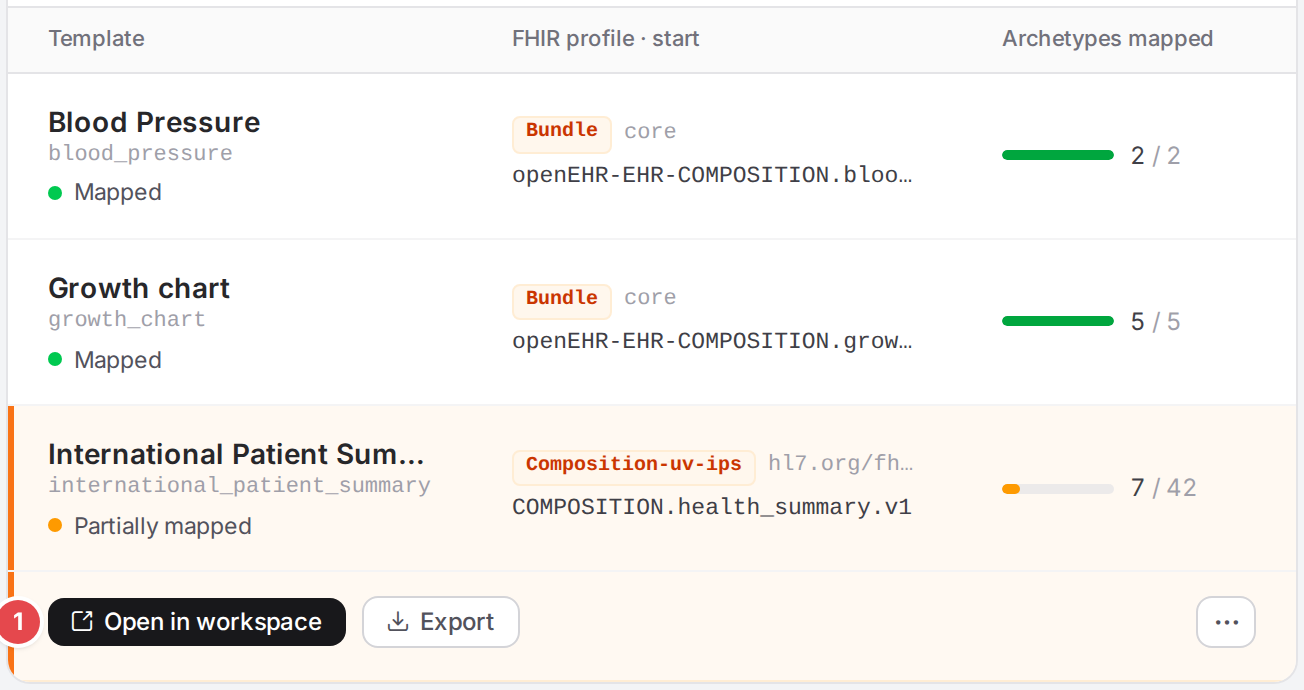
A selected template on Engine state, with Open in workspace 1.
From |
Click |
You get |
|---|---|---|
Sidebar |
Open Workspace |
The Workspace’s list of templates. |
Engine state, a selected template |
Open in workspace |
The Workspace on that template. |
Engine state, a template row |
the open icon at the end of the row (Open in workspace, on hover) |
The same, without selecting the template first. |
Engine state, a template without a context mapper |
Start mapping → |
The Workspace on that template, ready to choose its start (Start mapping a template). |
Engine state, a model mapper’s mappings |
Edit in workspace |
The Workspace on that template, with that model open. |
Engine state |
Versions |
Versioning. |
Engine state summary |
ConceptMaps, FHIR packages |
Terminology, FHIR packages. |
Workspace |
the logo at the left of the top bar (Exit workspace) |
Engine state. |
Workspace, a mapping or model that translates codes |
the open button next to its ConceptMap (Open this ConceptMap in the Terminology view (new tab)) |
Terminology in a new tab, with that ConceptMap open. |
Workspace, FHIR pane |
“N profiles not loaded” |
FHIR packages, to load the missing package. |
Versioning, Compare tab |
Open next to a change |
The Workspace on that template and model. |
Versioning |
Git remote settings |
Git remote. |
A page title, the Workspace top bar, a problem row, the coverage legend |
? |
The matching page of this guide. |
The Workspace, Engine state, Versioning and Insights keep what you selected in the address, so you can bookmark it, share it, and use the browser’s back and forward buttons: a Workspace address names the template, the model and the mapping; an Insights address the conversion. An address can also open Terminology on one ConceptMap. Links you can share lists the formats.