Workspace
The Workspace (/workspace) is where you build and edit mappings. It fills the whole window and
has no sidebar. Open it with Open Workspace in the sidebar, or with Open in workspace on a
template of the Engine state page.
It is laid out in five parts:
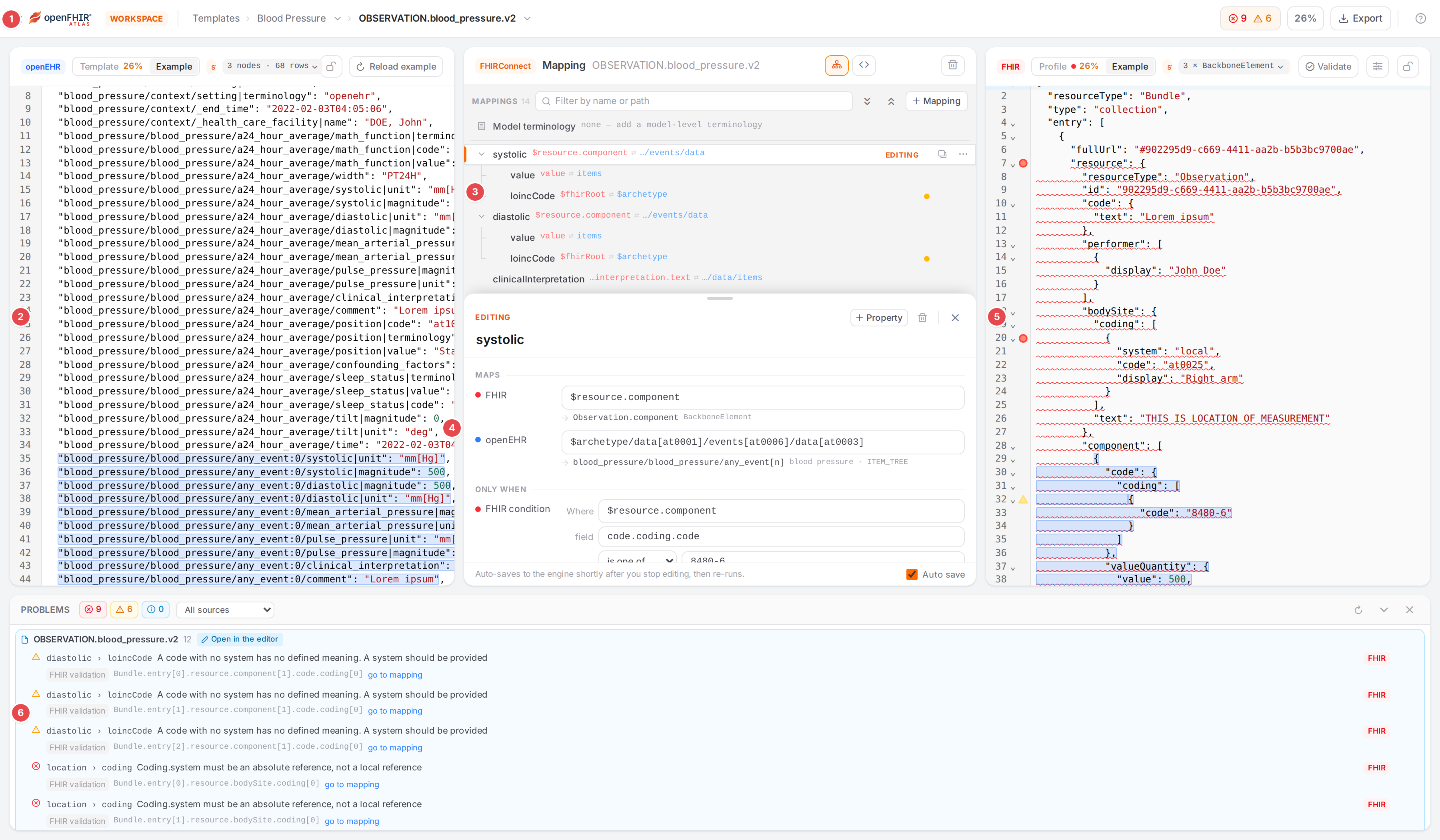
The Blood Pressure template with the OBSERVATION.blood_pressure.v2 model open.
- 1 Top bar
Where you are (template, model), the template’s problems and coverage, export, save state.
- 2 openEHR pane
The template’s coverage (Template) or an example composition (Example).
- 3 Mapping pane: outline
The open model’s mappings, one line each.
- 4 Mapping pane: editing sheet
The selected mapping as a form.
- 5 FHIR pane
The FHIR profiles’ coverage (Profile) or the example converted to FHIR (Example).
- 6 Problems dock
Everything wrong with the template’s mappings. It opens with the problems button in the top bar and spans all three panes.
The Workspace needs a desktop-sized window. On a small screen it shows Open the Workspace on a larger screen with ‹ Back to Atlas instead.
Top bar

The top bar with a model open, unsaved edits, auto-save off and versioning on.
- 1 Exit (‹ and the logo)
Leaves the Workspace for the Engine state page. With unsaved edits it asks first.
- 2 Templates
Back to the template gallery. On narrow windows it is a grid icon.
- 3 Template
The open template. Click it to close the model and go back to the template’s overview.
- 4 Template switcher (▾)
Pick another template.
- 5 Model
The open model (or Select a model on the overview; Context mapper while you edit the context mapper).
- 6 Model switcher (▾)
Pick another model of the template. The start model is listed under Start, the rest under Models.
- 7 Problems
The template’s errors and warnings, including the live checks of the open model’s unsaved edits. Click to open or close the Problems dock.
- 8 Coverage
The share of template elements the open model maps (the whole template’s, when no model is open), as on the openEHR pane’s Template tab. Click it to show that tab. It shows – while there is nothing to count.
- 9 Export
Downloads the template’s FHIR Connect mappings, OPT, linked FHIR packages and ConceptMaps as a ZIP. See Export and move mappings.
- 10 Versioning badge
Only when the engine versions mappings. It reads Up to date, “N unpushed”, “N in review”, “N to pull”, Remote changed, Not synced, Not versioned, Versioning error or Status unavailable. Click it to open the History tab of the dock. See History, blame and restoring.
- 11 Save status
A dot and a word: Saving & running…, Unsaved changes, Saved or Save failed. On narrow windows only the dot shows; point at it for the word.
- 12 Save
Only while auto-save is off. Saves the open model (Ctrl+S, Cmd+S on a Mac). With nothing to save, Ctrl+S briefly says No unsaved changes; with auto-save on it says Auto-save is on — edits save automatically.
- 13 A tour of the Workspace
Opens this page.
While edits aren’t saved, both side panes are washed out with Out of date with your edits: “This pane won’t reflect your mapping changes until you save.” Save & refresh saves and converts again.
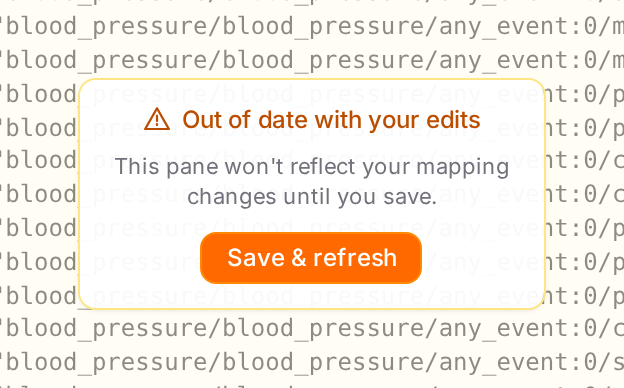
The notice over a side pane while auto-save is off and edits are pending.
Template gallery
With no template open, the mapping pane lists the engine’s templates.
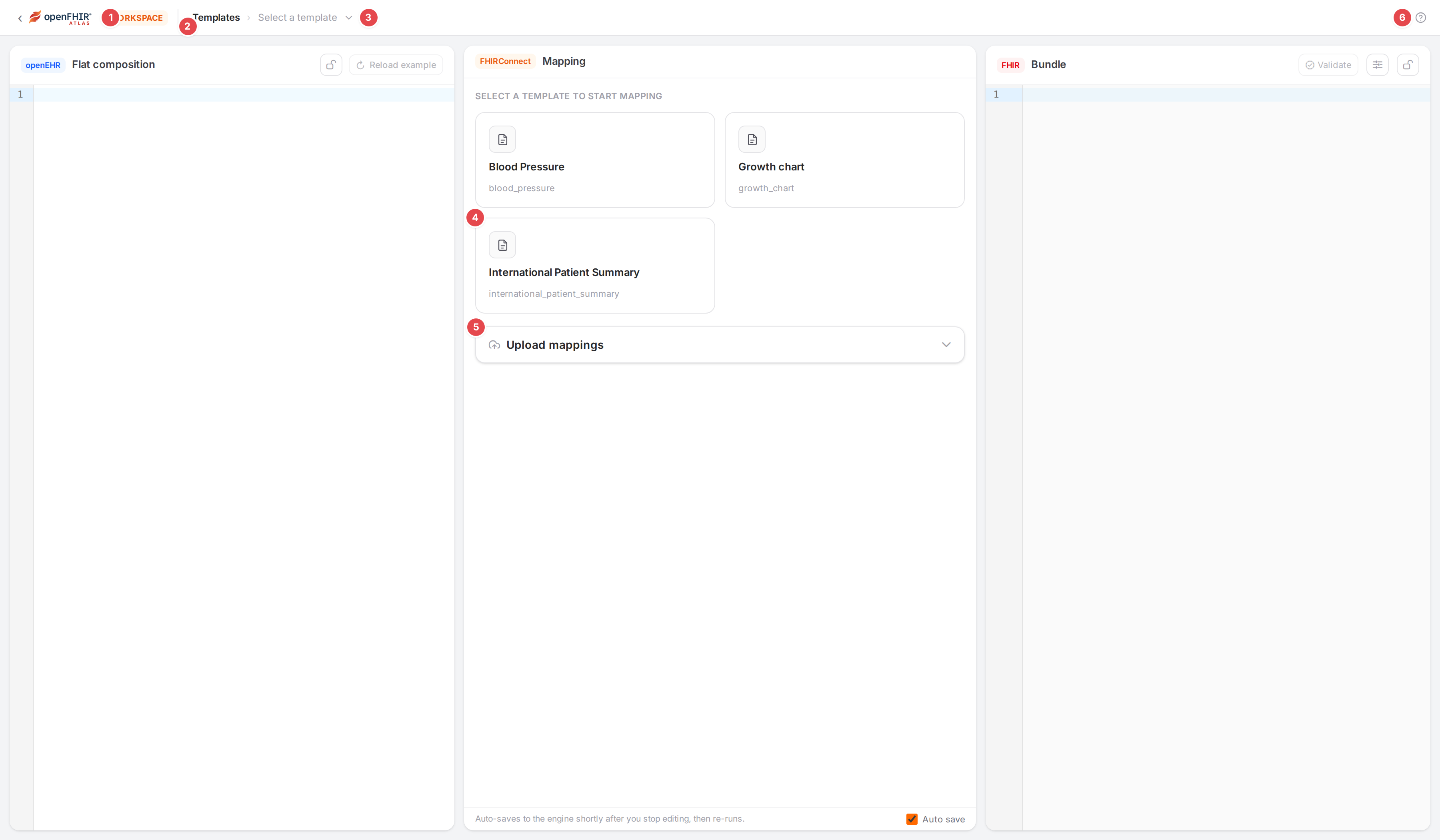
The gallery.
- 1 Exit
Back to the Engine state page.
- 2 Templates
The current level: the gallery.
- 3 Select a template (▾)
The template switcher.
- 4 Template card
The template’s name and id. Click it to open the template.
- 5 Upload mappings
The same upload panel as on the Engine state page, so you can add an OPT or FHIR Connect files without leaving the Workspace. See Bring your material in.
- 6 Help
Opens this page.
With an empty engine the gallery says No templates available yet. Upload one below to get started.
Template overview
With a template open and no model, the mapping pane shows the template’s models.
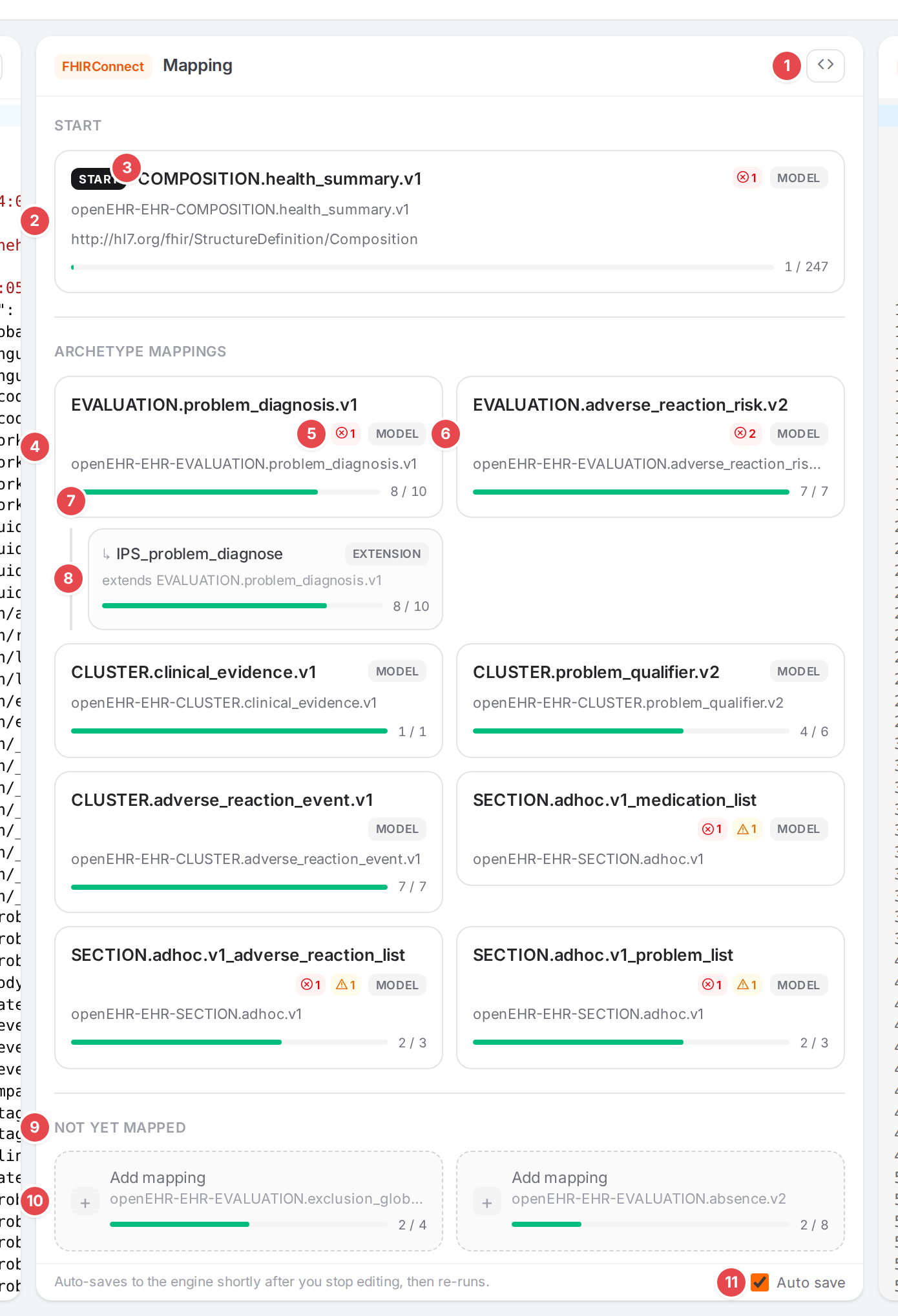
The overview of the International Patient Summary template.
- 1 Context mapper (<>)
Edits the template’s context mapper as YAML (the pane header then reads Context mapper). Click it again to go back to the overview. See Connect models: slots, links, references.
- 2 Start card
The start model: where every conversion of this template begins. It names the archetype and the FHIR structure definition. Without one, the card reads Choose a start archetype for this template; see Start mapping a template.
- 3 start
Marks the start model.
- 4 Model card
One model of the template under Archetype mappings: its name and archetype (or FHIR type). Click it to open the model.
- 5 Problem counts
The model’s errors and warnings. Point at them for the totals; they are listed in the Problems dock.
- 6 Type
model, or extension for an extension model.
- 7 Coverage bar
Mapped data elements of the model’s archetype out of all of them (“8 / 10”). A red “N required” chip counts required elements nothing maps.
- 8 Extension card
An extension model, indented under the core model it extends (“extends core”). An extension whose core isn’t in this template stands on its own.
- 9 Not yet mapped
Archetypes of the template that no model maps.
- 10 Add mapping
Starts a model for that archetype: reuse an existing model, or name a new one and create it. The bar shows what the archetype holds. See Start mapping a template.
- 11 Auto save
On by default, at every visit: edits are saved to the engine shortly after you stop typing, and the example is converted again. Turn it off to collect edits and save them with Save. The line next to it says which mode you are in. See Edit mappings in the Workspace.
A model that no slot leads to from the start model never runs. Its card gets a dashed amber border and a strip:
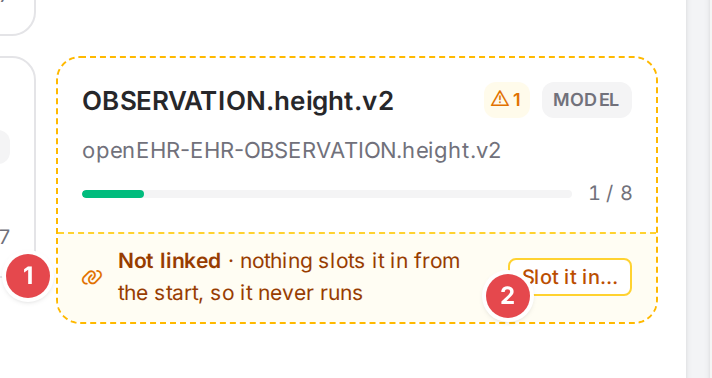
A model nothing slots in.
- 1 Not linked
“nothing slots it in from the start, so it never runs”. For an extension whose core isn’t linked: “runs only with core, which nothing slots in”.
- 2 Slot it in…
Opens Slot
in : Slot into picks where to add the slot mapping that links the model, and FHIR resource whether the model maps the same resource (Same resource) or enters a new one (Enters a newresource , the reference + slot structure). See Connect models: slots, links, references.
Mapping pane
Header

The mapping pane header with a model open.
- 1 FHIRConnect · Mapping
The open model’s name. When you got here by following a slot, a ← button with the previous model’s name goes back to it (the same as the browser’s back button).
- 2 Visual editor
The outline and editing sheet described below. This is the default view.
- 3 Code
The model as YAML, with completion from the FHIR Connect schema. Comments in the YAML are kept. If the YAML can’t be read by the visual editor, Atlas shows the code with Couldn’t parse the YAML for the visual editor — showing raw code.
- 4 Delete
Opens Delete model: Remove from this template only (the model is kept and stays usable elsewhere) or Delete the model permanently. See Connect models: slots, links, references.
Outline
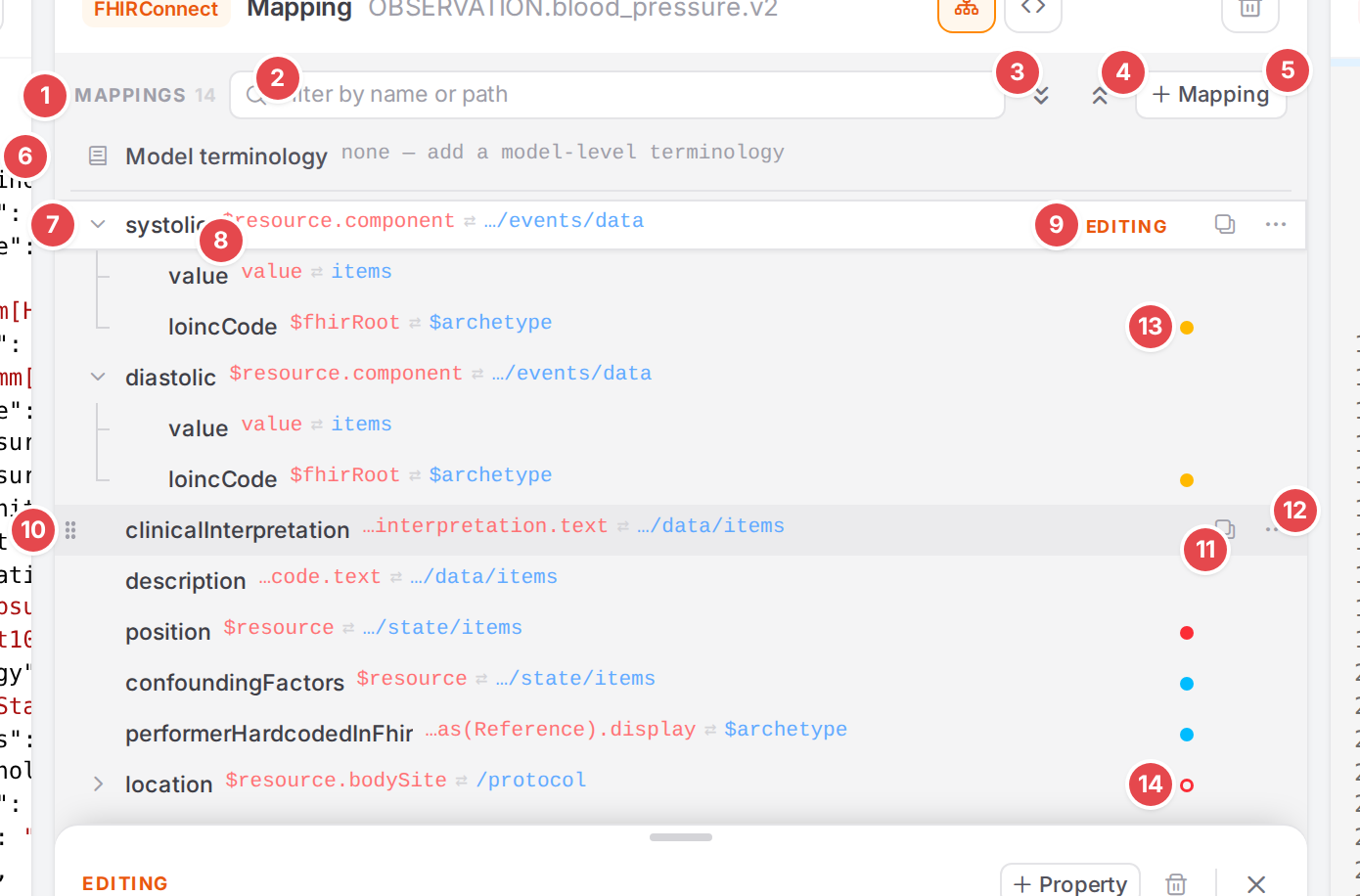
The outline, with the pointer on clinicalInterpretation.
- 1 Mappings
How many mappings the model has, nested ones included.
- 2 Filter
Filter by name or path: shows matching mappings with their parents. Esc clears it, ↓ moves into the outline. Moving mappings is off while you filter.
3 Expand all
4 Collapse all
- 5 + Mapping
Adds a top-level mapping. An empty model shows No mappings yet. with + Add mapping.
- 6 Model terminology
The model-level terminology (or “none — add a model-level terminology”). Click it to edit it in the sheet below. See Translate codes.
- 7 Expand / collapse
Shows or hides a mapping’s children.
- 8 Paths
The ends of the FHIR path (red) and the openEHR path (blue). Point at them for the full paths.
- 9 EDITING
The mapping open in the sheet. Its row is white with an orange bar; its parents’ names are bold.
- 10 Drag handle
Appears when you point at a row. Drag the row before, after or into another mapping (it then becomes a followed-by child). See Edit mappings in the Workspace.
- 11 Duplicate
Copies the mapping next to it (Ctrl+D).
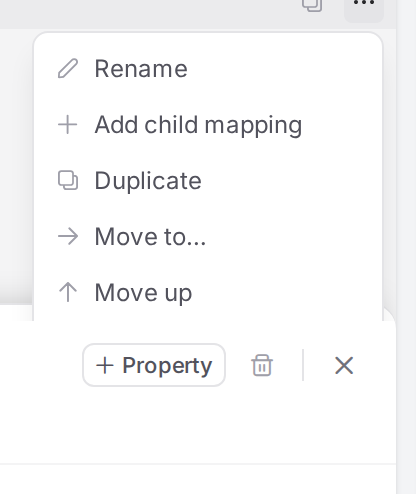
- 12 More (⋯)
Rename, Add child mapping, Duplicate, Move to…, Move up, Move down and Delete.
- 13 Status dot
The mapping’s worst problem: red for an error, amber for a warning, blue for information. Point at it for the messages.
- 14 Ring
On a collapsed mapping, a ring says a mapping below it has a problem.
A row can also show a link icon (a reference mapping, which continues in the referenced resource), a book icon (its codes are translated) and, with versioning, who changed it last. Under the outline, when nothing is selected: “Select a mapping to edit it · ↑ ↓ then Enter · drag or Alt+arrows to move”. All keys are in Keyboard shortcuts.
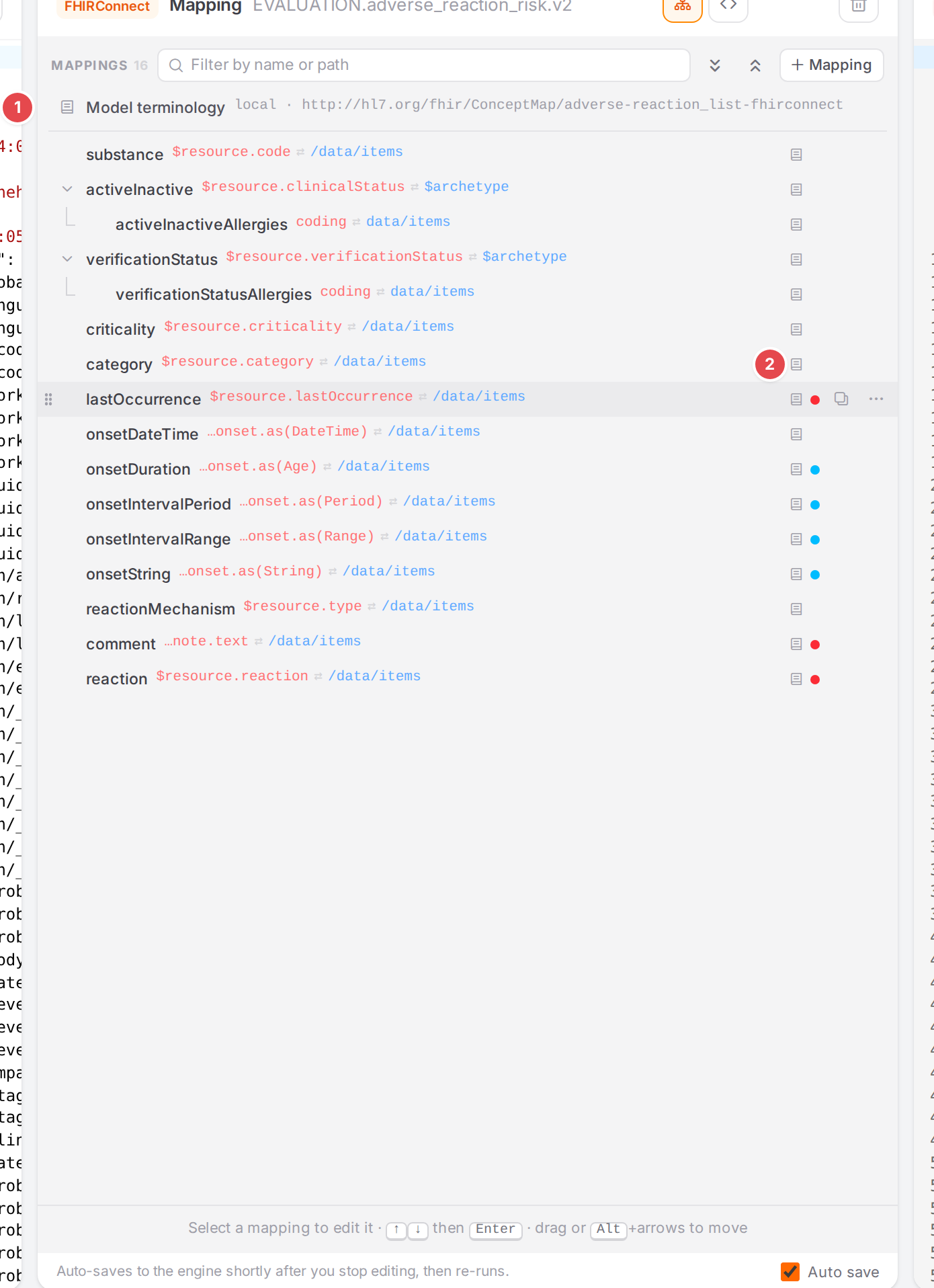
A model that translates codes.
- 1 Model terminology
Here a local ConceptMap (“local · http://hl7.org/fhir/ConceptMap/…”).
- 2 Book icon
“Codes translated via terminology”: this mapping’s codes go through a terminology.
After a delete, move or duplicate, a toast at the bottom of the pane says what happened, with Undo. Undo covers the last of these actions only.
With versioning, a history button next to Collapse all shows a column with who changed each mapping last (“Show who changed each mapping last”).
Editing sheet
Select a mapping and the editing sheet slides up below the outline. Drag its handle to share the height between the two; double-click the handle to reset it. Esc or ✕ closes it.
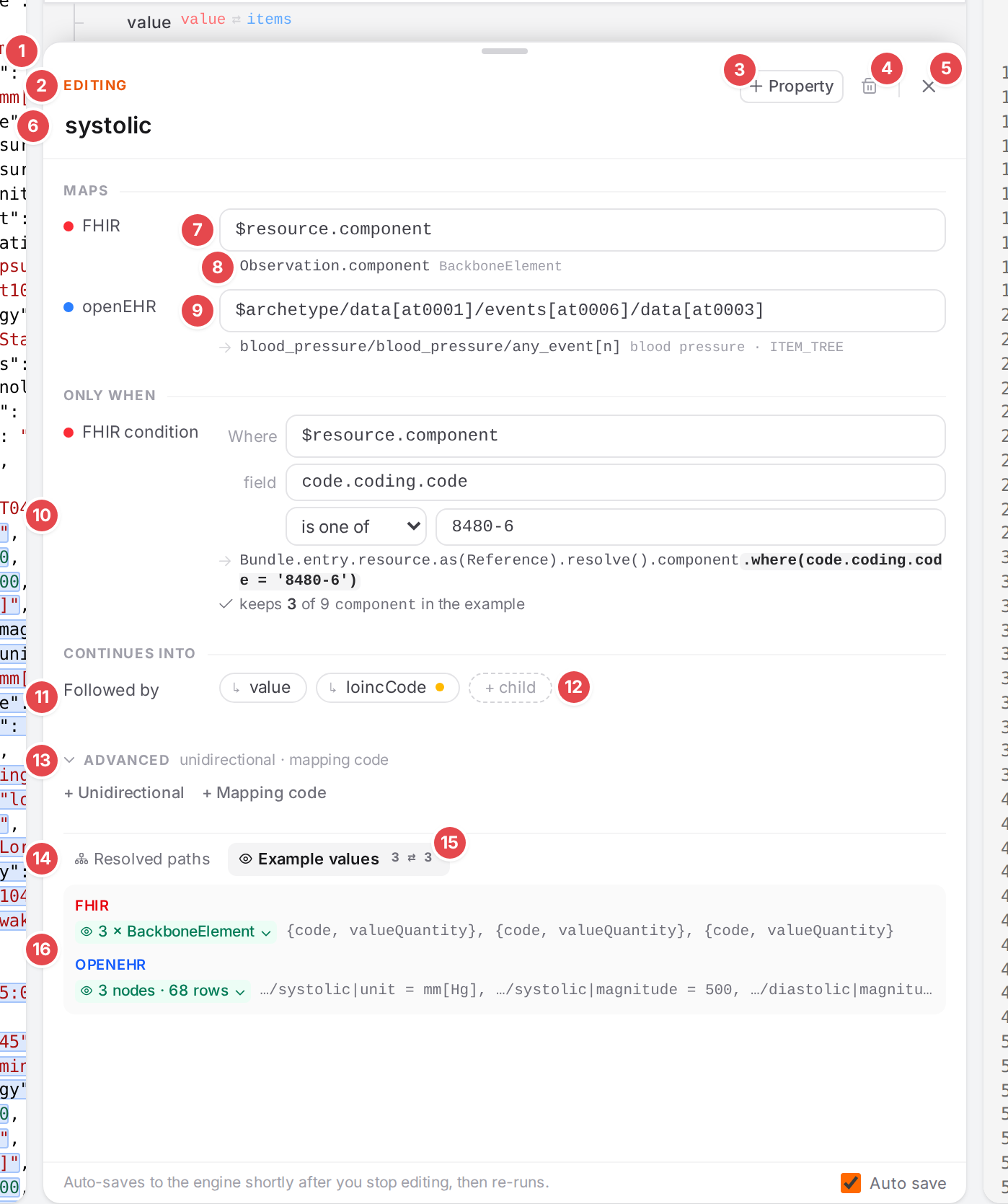
The systolic mapping, with the sheet dragged up and Example values open.
- 1 Handle
Drag to resize; double-click to reset.
- 2 EDITING
Followed by the mapping’s parents, when it has any. Click a parent to edit it. When the mapping has problems, a status chip follows: “1 error”, “1 warning”, “1 info” or “N problems”. Point at it for the messages; click it to open the Problems dock filtered to this mapping and the ones below it. (
systolichas none here; its childloincCodedoes, which is the dot on its chip.)- 3 + Property
Adds an optional property, grouped by where it lands: FHIR condition, openEHR condition, Manual, Terminology, Followed by, Reference, Slot archetype, Unidirectional, Mapping code and, in extension models, Append to and Extension. Only the ones not set yet are offered; the button disappears when every property is present.
- 4 Delete mapping
Same as Delete in the outline. The toast offers Undo.
- 5 Close
Closes the sheet (Esc).
- 6 Name
The mapping’s name. Edit it in place.
- 7 FHIR
The FHIR path, with suggestions (Ctrl+Space). See Write FHIR and openEHR paths.
- 8 Resolved path
What the path resolves to, and its type. “unsaved” marks an estimate from your edits, before the engine has resolved it. Warnings and errors about the path show below it.
- 9 openEHR
The openEHR path, with suggestions from the template, and its resolved flat path below.
- 10 Only when
The mapping’s FHIR and openEHR conditions: Where, field, the operator (is one of, is none of, is of type, is empty, has a value) and the criteria, then the resulting FHIRPath and how many elements of the example it keeps (“keeps 3 of 9 component in the example”). remove drops the condition. See Map only when… (conditions).
- 11 Continues into · Followed by
The child mappings as chips, each with its status dot. Click a chip to edit that child. A reference shows Reference with the resource type and its mappings; a slot shows Slot archetype with suggestions and a button to open the slotted model. See Connect models: slots, links, references.
- 12 + child
Adds a followed-by child. Without children: “Nothing nested.” and + Add child mapping.
- 13 Advanced
Unidirectional, Mapping code and, in extension models, Append to and Extension. The line lists those set (or those you can add). See Fixed values, codes and manual pairs.
- 14 Resolved paths
Per place the model is used: the FHIR resource hops, the conditions on the way, the engine path, the openEHR flat and aql paths with copy buttons, and the mappings it’s reached through (“via …”).
- 15 Example values
What this mapping picks from the example on each side, with the count “FHIR ⇄ openEHR” (blue when the two sides differ).
- 16 Values
The values, side by side. Click a value to jump to it in its pane. See See your mapping in action.
The choice of footer tab carries over from one mapping to the next. With versioning there is also a History tab (how often the mapping changed, and the changes) and a line under the name saying who changed it last.
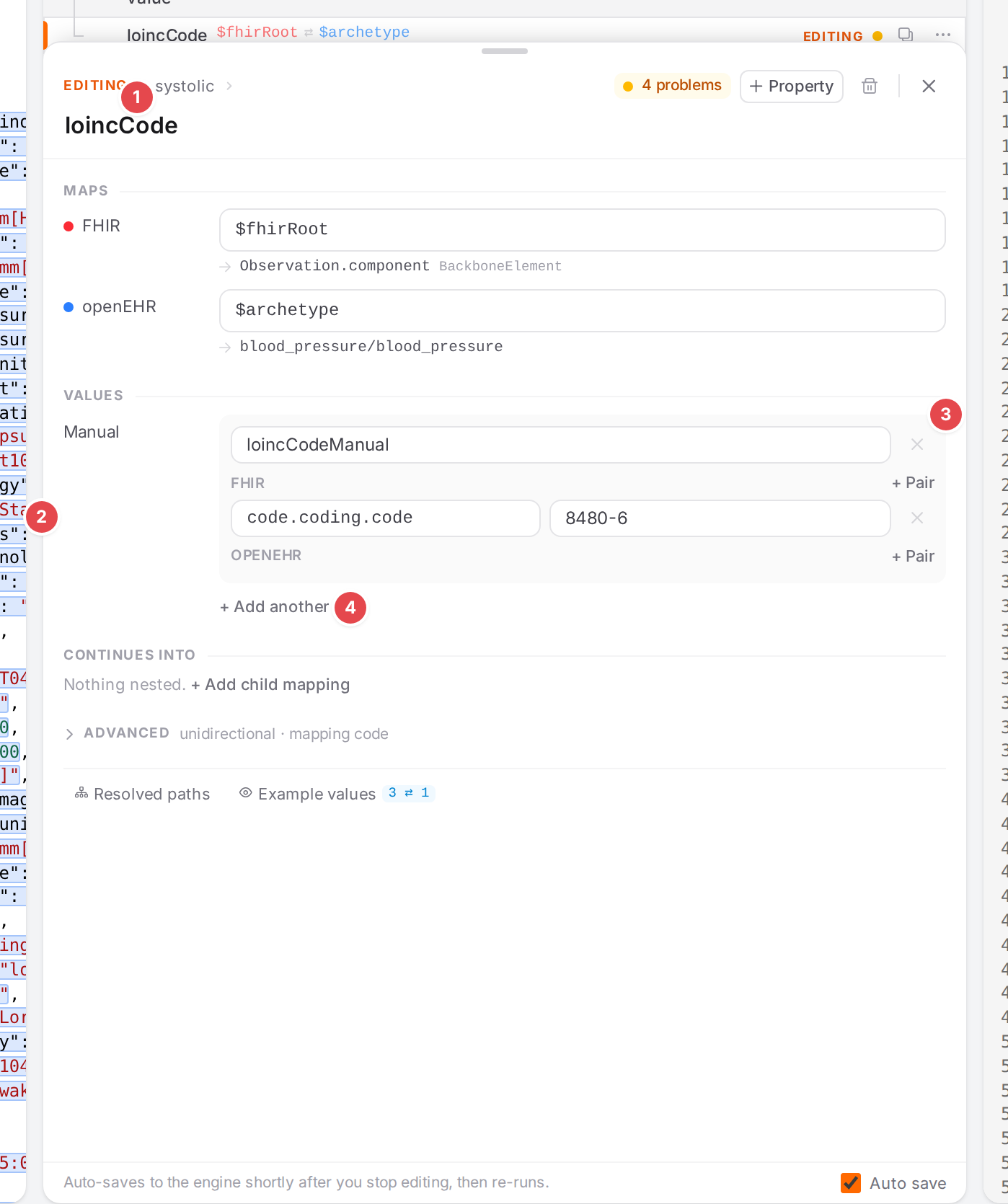
A child mapping with manual values.
- 1 Parents
systolic ›: click to go up.- 2 Manual
Fixed values the mapping writes, under Values. remove drops them all.
- 3 Manual entry
A name and FHIR and openEHR path/value pairs, relative to the mapping.
- 4 + Add another
Adds another manual entry. See Fixed values, codes and manual pairs.
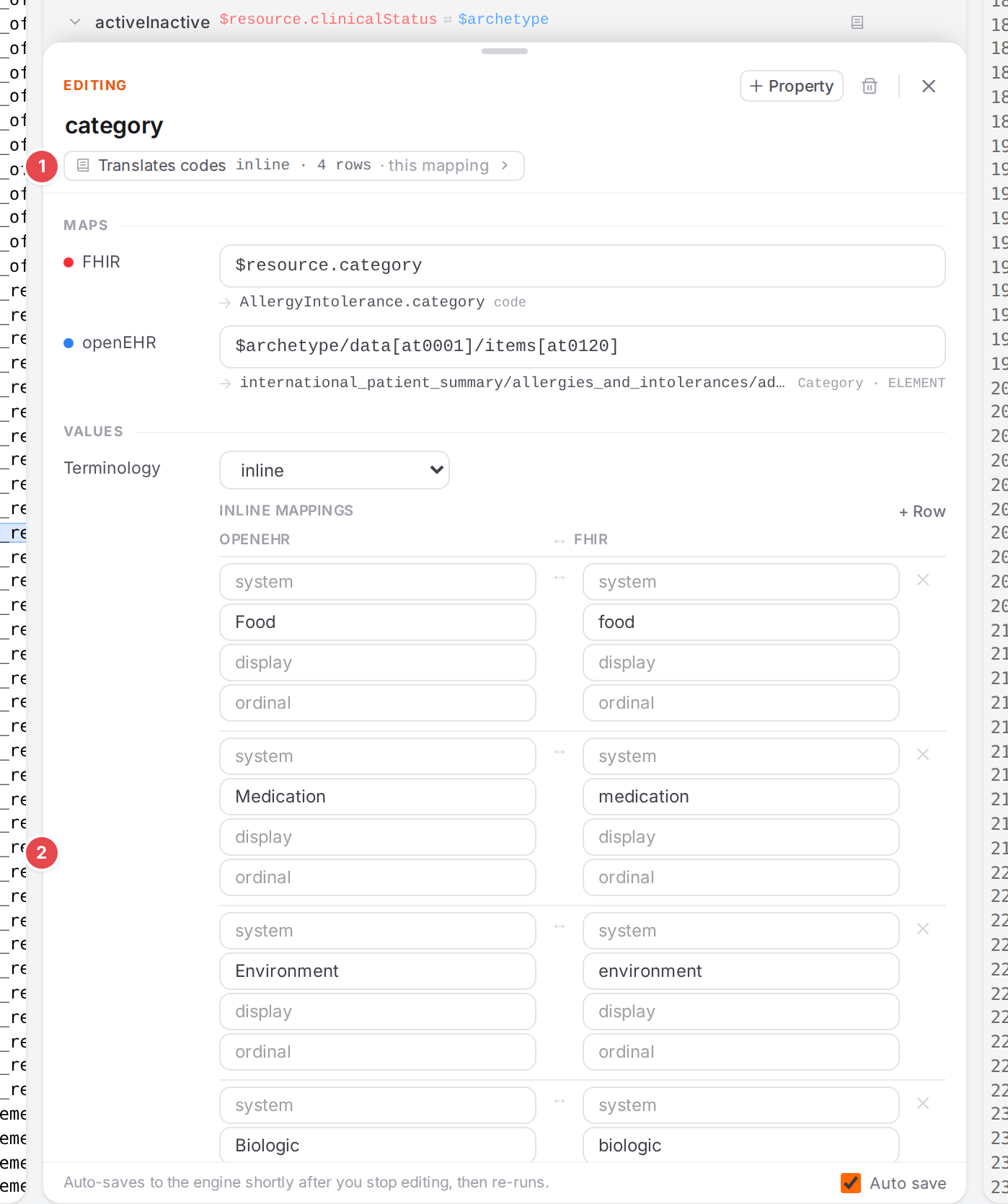
A mapping with its own code translations.
- 1 Translates codes
Which terminology translates this mapping’s codes and where it comes from (“this mapping”, the model, or a parent). Click it to open the Translation tab.
- 2 Terminology
The mapping’s own terminology: inline code pairs, or a ConceptMap. See Translate codes.
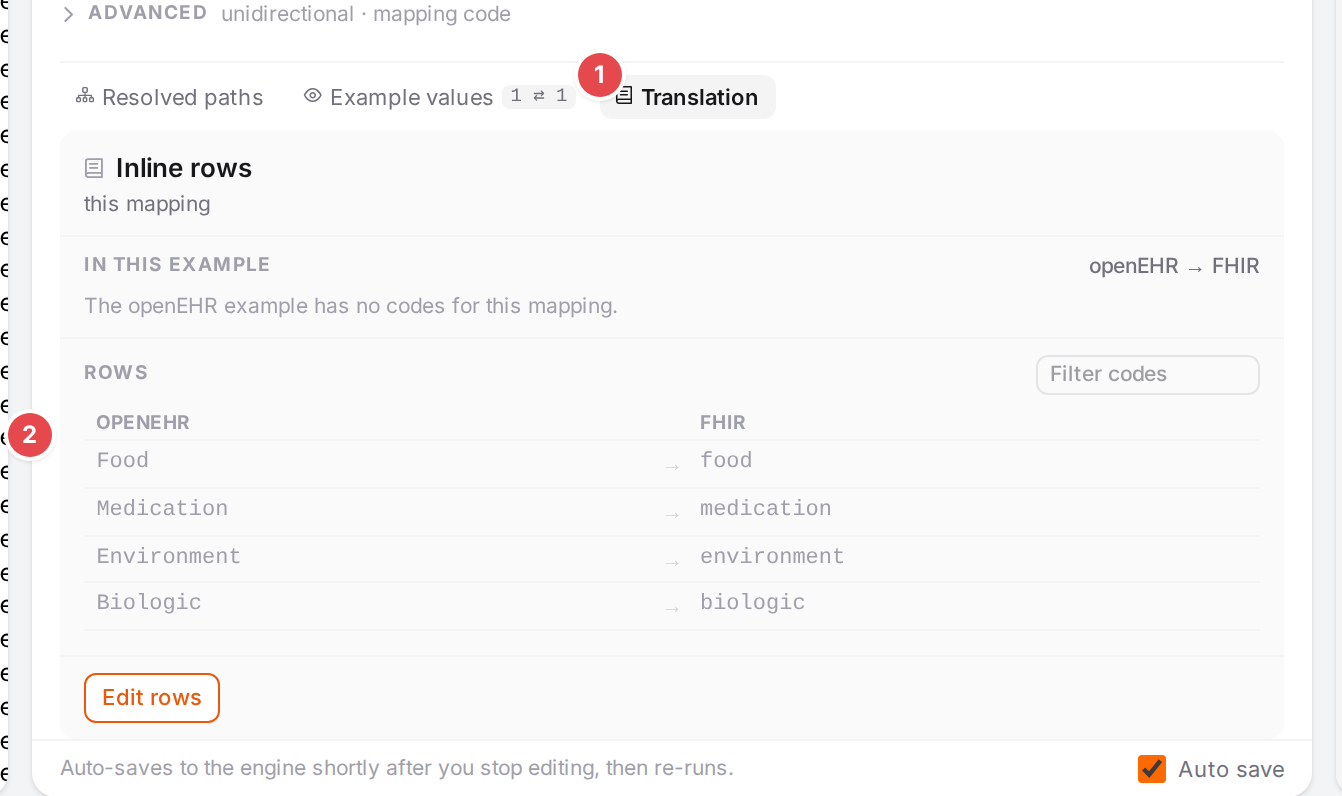
The Translation tab.
- 1 Translation
With the count of the example’s codes it translated (”N of M”).
- 2 Translation trace
Each code of the example and what it becomes, with the rows of the terminology. See Translate codes.
Side panes
Each side pane has two tabs: a structure view (Template, Profile) and the example (Example). Atlas remembers your choice per pane in this browser.
Pane headers

The openEHR pane header, with the title mapping selected.
1 openEHR
- 2 Template
The template’s coverage; its badge is the share of elements mapped (green from 80 %, amber below; a red dot when required elements are unmapped).
- 3 Example
The example as a flat composition.
- 4 Highlight chip
The mapping whose values are highlighted in the example. Instead of a name it can say Save to update highlights, Updates after auto-save, “No data in example for mapping” or Mapping not in engine tree. See See your mapping in action.
- 5 Values chip
How much of the example the selected mapping picks (“1 node · 1151 rows”). Click it for the values; click a value to jump to it.
- 6 Lock
Locks openEHR as the conversion source: it is never overwritten, and every mapping change converts openEHR → FHIR. Click again to unlock.
- 7 Reload example
Generates a fresh openEHR example from the template and converts it. Disabled while FHIR is locked (“Unlock FHIR to reload the openEHR example”).

The FHIR pane header.
- 1 Profile and Example
The profiles’ coverage, or the example converted to a FHIR Bundle.
- 2 Highlight chip
As on the openEHR side.
- 3 Values chip
As on the openEHR side (“1 × Composition”).
- 4 Validation result
The errors and warnings of the last validation; click to open the Problems dock. Other states: Validator starting…, Validating…, valid, Validation failed, Validation timed out, Not FHIR, Validator busy. See Validate against FHIR profiles.
- 5 “N profiles not loaded”
The FHIR was validated without these profiles. Click to open FHIR packages.
- 6 Validate
Validates the FHIR against base FHIR and the loaded profiles.
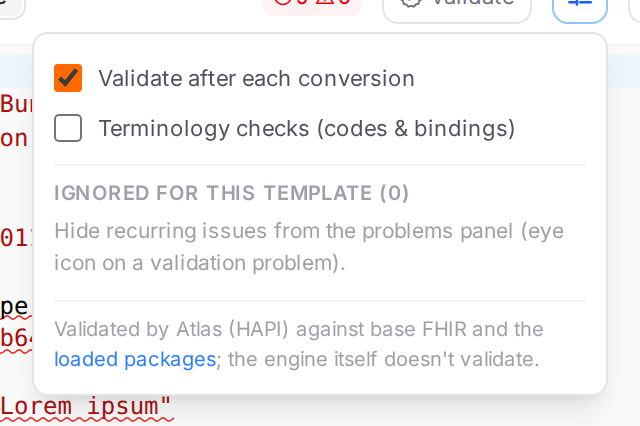
- 7 Validation settings
Validate after each conversion, Terminology checks (codes & bindings), and the issues ignored for this template (“Ignored for this template (N)”), each with a ✕ to stop ignoring it. Validation runs in Atlas, not in the engine.
- 8 Lock
Locks FHIR as the conversion source: every mapping change converts FHIR → openEHR.
Click inside the read-only pane to make it the source. A failed conversion shows its error above the example; while a pane is converted it shows Converting to openEHR… or Converting to FHIR….
Template tab
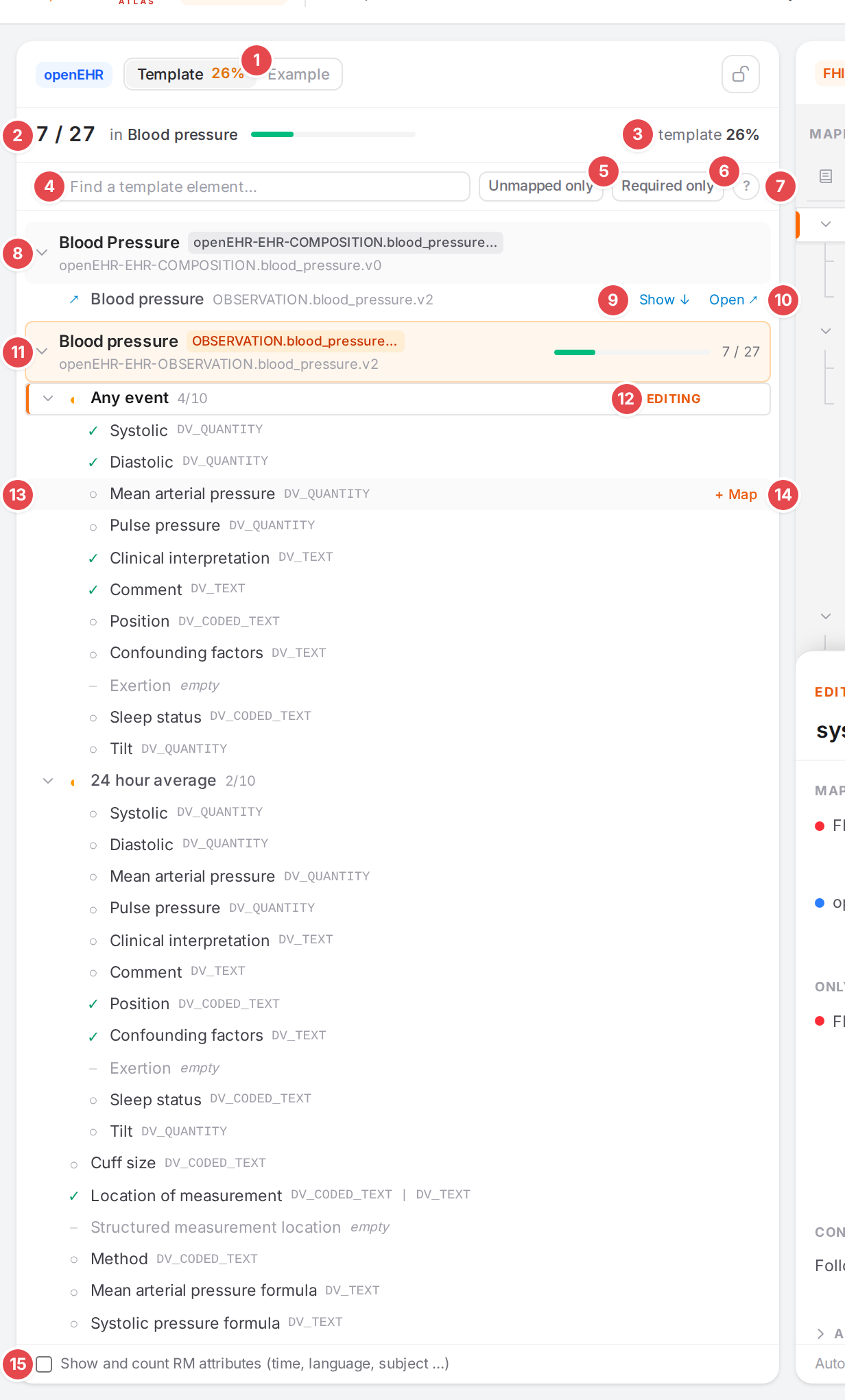
The Template tab with the blood pressure model open and the pointer on “Mean arterial pressure”.
- 1 Template tab
With the coverage badge.
- 2 Model coverage
Elements mapped by the open model, out of its archetype’s elements, and a “N required” chip for required ones nothing maps. Without a model open: the whole template, split into mapped, not mapped in modelled archetypes and not modelled.
- 3 template %
The whole template’s share.
4 Find a template element…
- 5 Unmapped only
Only what nothing maps yet.
- 6 Required only
Only elements that must be present (min ≥ 1).
- 7 Legend (?)
Point at it for the symbols:
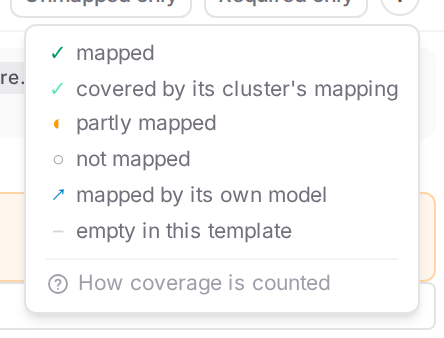
With versioning, a Compare with… list next to it marks what changed since a release or commit.
- 8 Archetype
One occurrence of an archetype in the template, with the model(s) that map it and its location. Click to fold it. One without a model offers + model.
- 9 Show ↓
On an element mapped by its own model: jumps to that archetype’s section.
- 10 Open ↗
Opens the model that maps it.
- 11 Open model’s archetype
Tinted orange.
- 12 Editing
The element the selected mapping maps.
- 13 Element
Its status symbol, name, required, data types, and “mapped / total” for groups. Click a mapped element to go to its mapping.
- 14 + Map
Shows when you point at an unmapped element: adds a mapping for it to the model. Other actions that appear here: Go to mapping, + Slot (link a model into an archetype occurrence the enclosing model doesn’t map inline; opens Use an existing mapping? with the archetype’s models, or the name prompt and the create wizard for a new one, each asking under FHIR resource) and Open ↗.
- 15 Show and count RM attributes (time, language, subject …)
Includes the RM attributes in the tree and the counts.
How coverage is counted, and every symbol, is explained in Find what isn’t mapped yet.
Profile tab
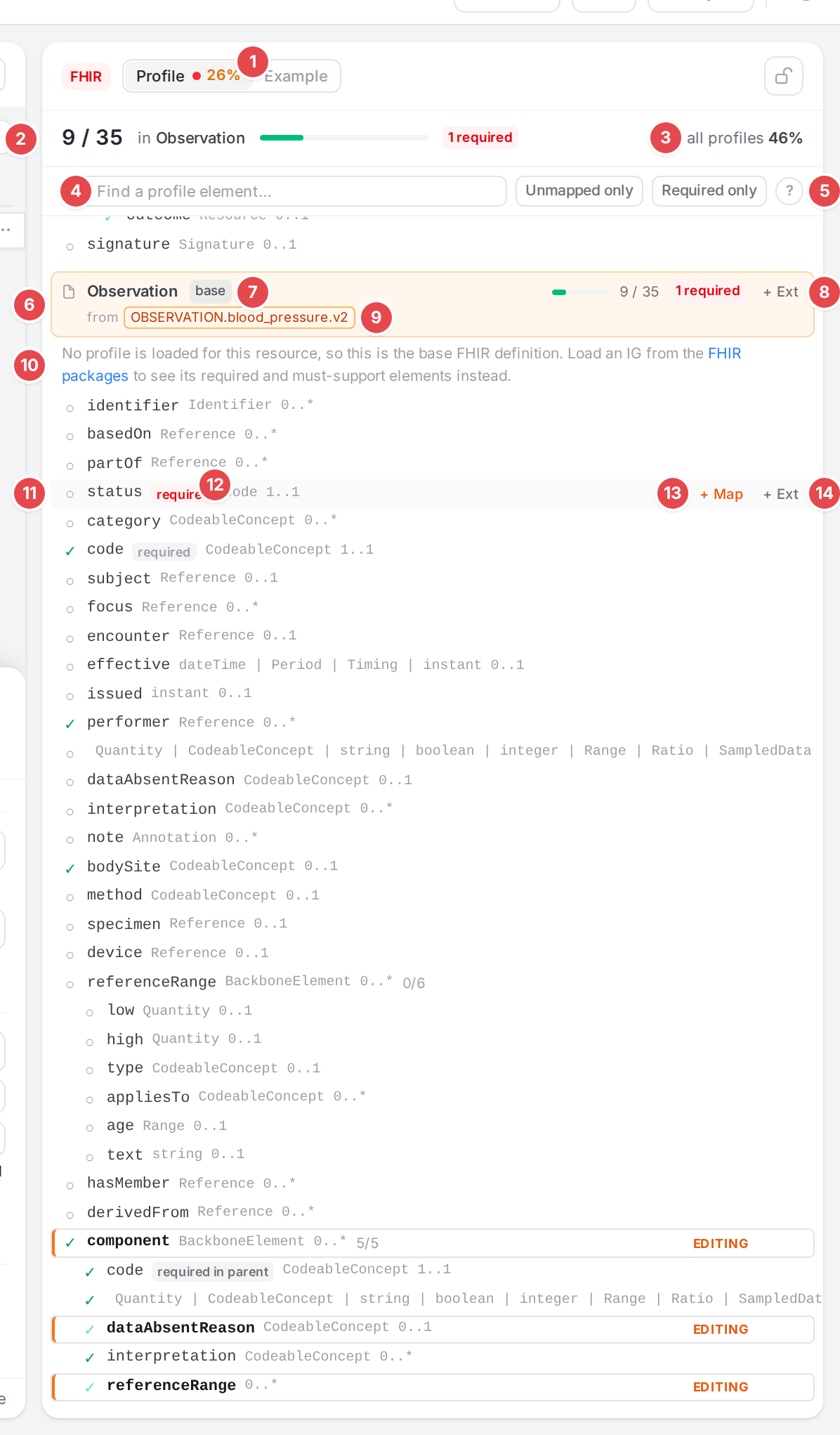
The Profile tab with the pointer on status.
- 1 Profile tab
Its badge counts required and must-support elements.
- 2 Model coverage
The open model’s profiles: elements mapped out of the counted ones.
- 3 all profiles %
All profiles of the template together.
- 4 Find a profile element…
Followed by Unmapped only and Required only, as on the Template tab.
5 Legend (?)
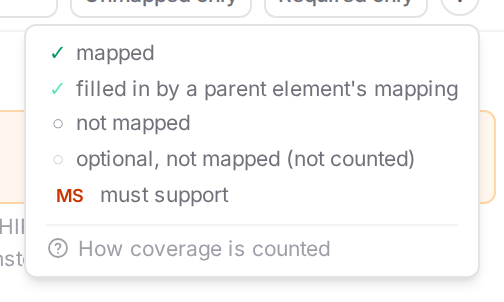
- 6 Profile
A profile (or resource) the template’s models produce, with its coverage. The open model’s profile is tinted orange.
- 7 base
No profile is loaded for this resource: the base FHIR definition, with all its elements.
- 8 + Ext (on the profile)
Adds an extension to the resource itself. See Add a FHIR extension.
- 9 from
The models producing it. “· not linked” marks a model nothing slots in.
- 10 Base FHIR notice
“No profile is loaded for this resource, so this is the base FHIR definition. Load an IG from the FHIR packages to see its required and must-support elements instead.”
- 11 Element
Status symbol, name, required / required in parent / MS, type and cardinality.
- 12 required
Red while unmapped.
- 13 + Map
Adds a mapping that produces this element.
- 14 + Ext
Adds an extension under this element.
Problems dock
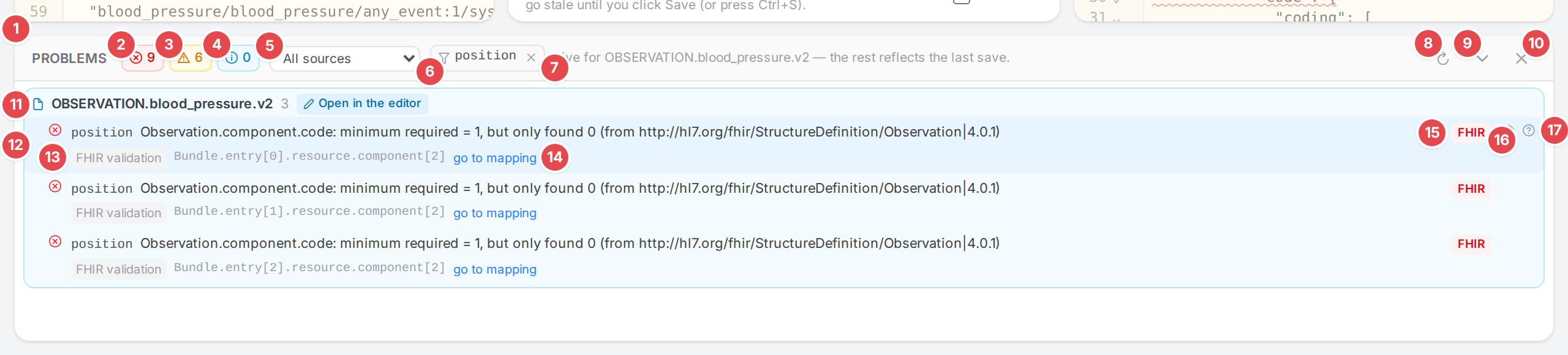
The dock, filtered to the position mapping, with unsaved edits in the open model.
- 1 Handle
Drag to change the dock’s height; double-click to reset it.
- 2 Errors
Count and filter: click to hide or show errors.
3 Warnings
4 Information
- 5 All sources
Only one source: Engine, FHIR path, openEHR path, Structure, Context, Schema, FHIR validation.
- 6 Mapping filter
Only this mapping and the ones below it (set from a mapping’s status chip). ✕ shows all problems again.
- 7 “Live for model — the rest reflects the last save.”
Shown while the open model has unsaved edits. See Fix problems.
- 8 Refresh
Re-checks the saved mappings.
- 9 Minimize
Folds the dock into a one-line strip.
10 Close
- 11 Group
One model (or Context mapper, or Produced FHIR (no mapping traced)) and its count. The open model’s group is tinted, with Open in the editor.
- 12 Problem
The mapping path and the message. Click it to open the mapping with the field at fault (or, for FHIR validation, the element in the FHIR pane).
- 13 Source
Followed, when it applies, by “×N” (found at N places the model is slotted), unsaved (from your edits) or from last save, and the FHIR element path.
- 14 go to mapping
On FHIR validation problems: opens the mapping that produces the element.
- 15 Where it opens
FHIRConnect (the mapping pane) or FHIR (the FHIR pane).
- 16 Ignore / Dismiss
On a FHIR validation problem: “Ignore this kind of issue here for this template”. On an information: Dismiss. Both are kept in this browser only.
- 17 Help
“What this problem means and how to fix it”: opens the problem in Problems.

Minimized: the counts, the worst problem and Show all.
The dock may also say “The engine’s helper tree couldn’t be read, so its checks are missing: …”, No problems found. or No problems match the filters. With versioning, the dock has a History tab: the open model’s changes (or all changes), with the diff of each. See History, blame and restoring.