Versioning
Versioning (/versioning) shows what the engine recorded about every change to the mappings,
and what it pushed to your Git repository: the history, the remote branch, reviews, releases, and the
coverage of a template between two versions. Each tab is a link of its own
(/versioning?tab=remote, see Links you can share).
The sidebar lists Versioning only when versioning is available: the engine versions mappings, your account may read the history, and you aren’t on the public demo. See When is versioning available. Opened anyway, the page says why it can’t show anything:

The page on an engine without versioning.
The other reasons read “Versioning is not available in the public demo.”, “Your account may not read the version history (scope versioning.r).” and “The openFHIR engine could not be reached.”
Until a Git remote is connected, every tab but History says “No git remote is connected yet. Connect one to push the history, make releases and compare versions.” See Git remote.
History tab
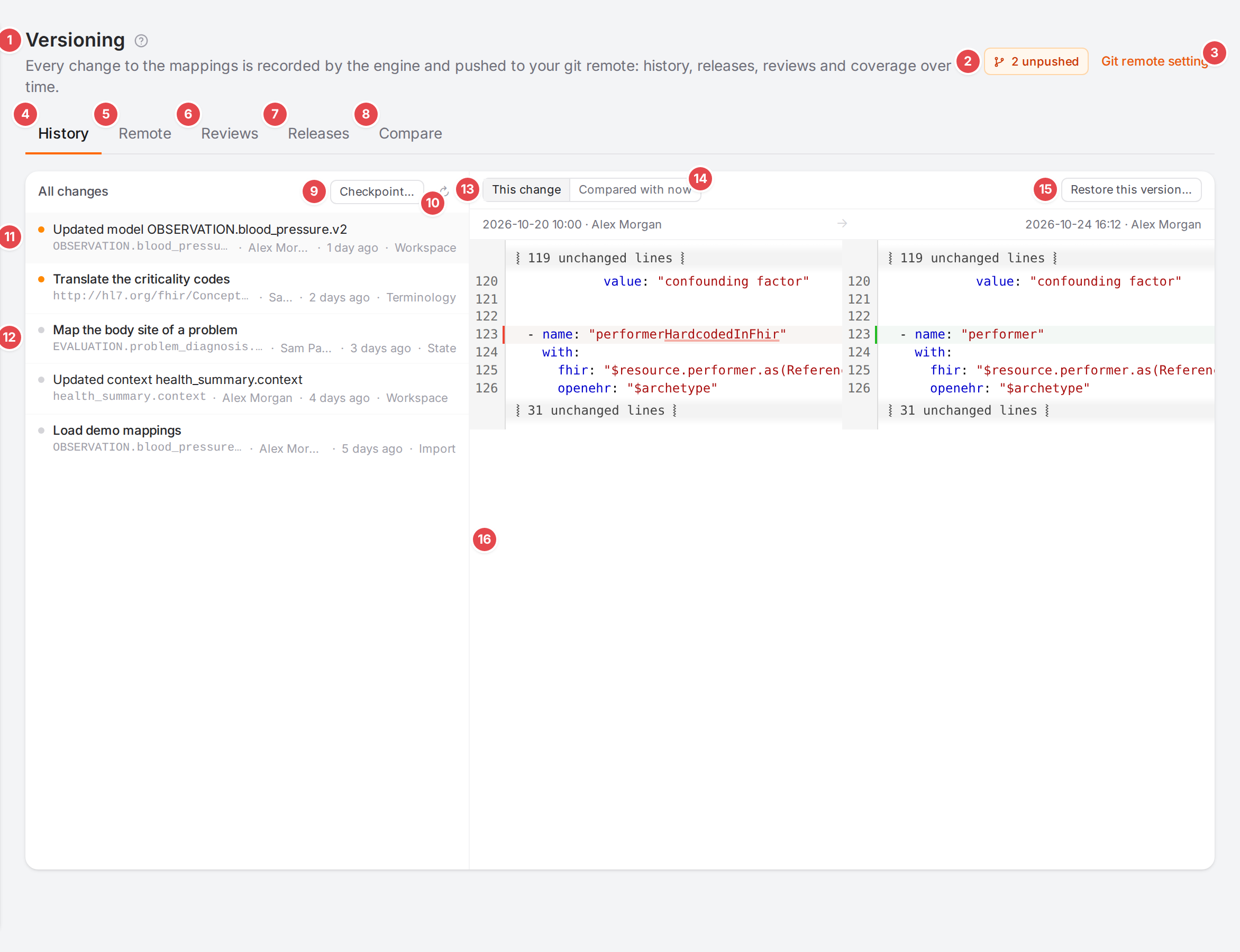
The History tab with the newest change selected.
- 1 Versioning
The page title, with its help link.
- 2 Versioning badge
The state at a glance: Up to date, “N unpushed”, “N in review”, “N to pull”, Remote changed, Not synced, Not versioned, Versioning error or Status unavailable. Point at it for the details; click it to open the Remote tab.
- 3 Git remote settings
Opens Git remote.
- 4 History
Every change the engine recorded, newest first.
- 5 Remote
The branch on the Git remote.
- 6 Reviews
Pull requests, with the number of open ones.
- 7 Releases
Tagged releases.
- 8 Compare
A template’s coverage between two versions.
- 9 Checkpoint…
Records a named checkpoint of the unpushed changes, and can push it right away. With the review workflow, a Submit for review… button follows it. See History, blame and restoring.
10 Reload
- 11 Change not pushed yet
An orange dot. Each row gives the change’s message (or what it did, “Updated model name”), the artefact, who made it, when, and where it came from (Workspace, State, Terminology, Import…). A chip says when the change is in review, approved, changes requested or in a review closed without merging.
- 12 Pushed change
A grey dot. Point at the dot for the commit it was pushed in. Load older at the end of the list fetches more.
- 13 This change
The diff of the selected change against the version before it.
- 14 Compared with now
The diff of the selected version against what the engine has now.
- 15 Restore this version…
Previews what bringing this version back would change, then applies exactly that. See History, blame and restoring.
- 16 Diff
Before and after, side by side, with the unchanged lines folded.
The same history, limited to the open model, is the History tab of the Workspace’s Problems dock.
Remote tab
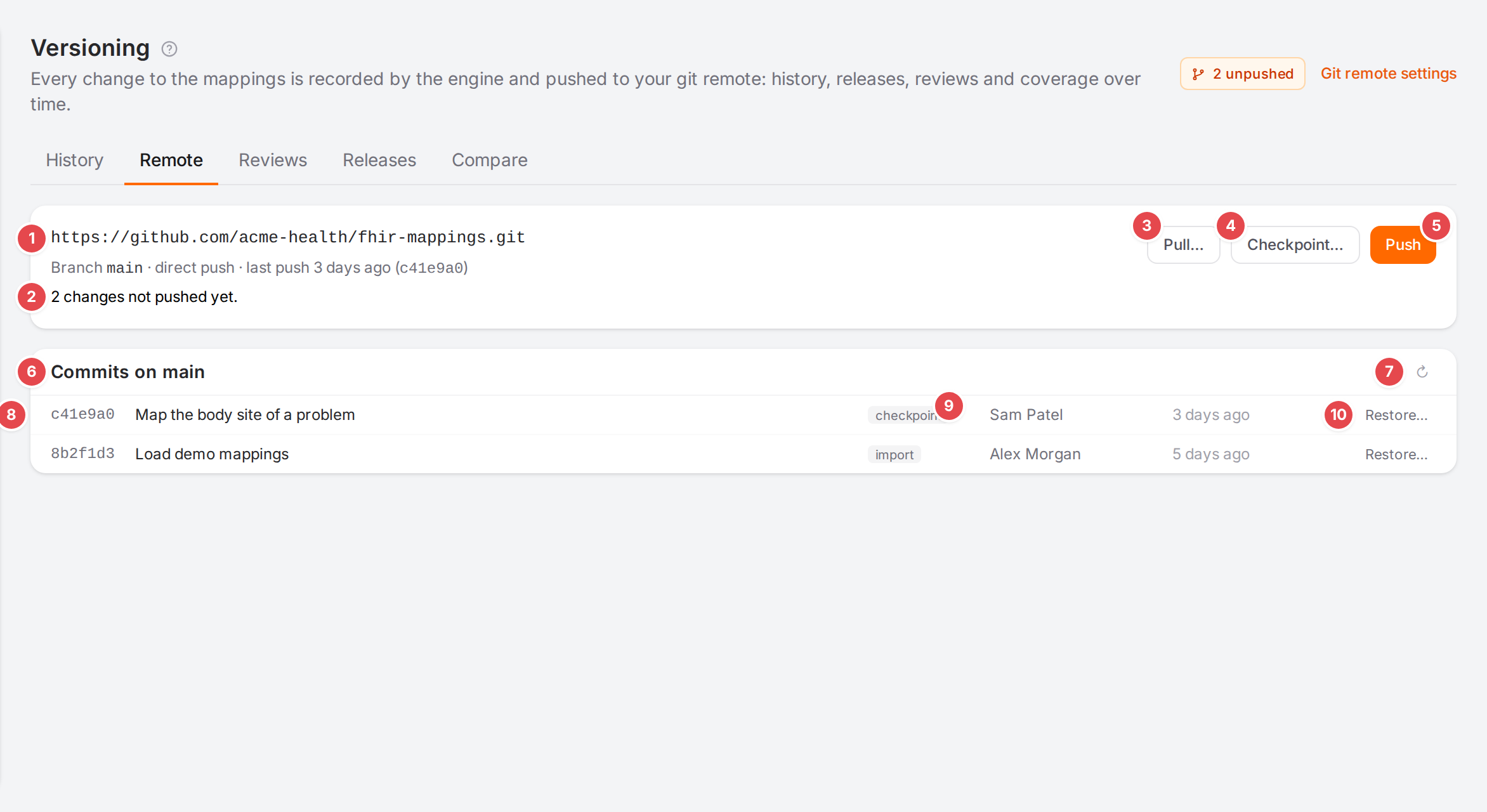
The Remote tab of a repository with the direct workflow.
- 1 Repository
The remote’s URL, with “Checking the remote…” while Atlas asks it.
- 2 State
“Branch main · direct push” (or “review workflow”), the last push and its commit, then “N changes not pushed yet.” or “Everything is pushed.” When the remote has moved on its own, an amber sentence says how, for example “main has 2 commits the engine hasn’t pulled yet.” Errors show in red below.
- 3 Pull…
Previews and applies the remote’s changes to the engine. Orange when the remote has changes. See Push, pull and conflicts.
- 4 Checkpoint…
As on the History tab.
- 5 Push
Pushes the unpushed changes (“Pushing…” while it runs, then “Pushed N commits”). With the review workflow, this is Submit for review… instead. If the remote changed the same files, Atlas asks which side wins: Keep the engine’s version (overwrite the remote) or Take the remote’s version (update the engine). A push never takes the remote’s other changes into the engine: when the branch has changes the engine hasn’t pulled, or it was rewritten, Atlas says why, “Pull first, then push.”, with a Pull… button. On a branch the engine never synced with, it says “Connect the engine to it, or pull first, then push.” and offers Git remote settings before Pull…. On a branch without commits it says “branch has no commits (never connected, or deleted).” with a link to the Git remote settings, where Connect is.
- 6 Commits on branch
The latest commits on the remote branch.
7 Reload
- 8 Commit
Short hash, subject, author and when.
- 9 Kind
How the commit was made (for example checkpoint, import); ordinary automatic commits have no chip.
- 10 Restore…
Brings the engine back to this commit, after a preview.
Reviews tab
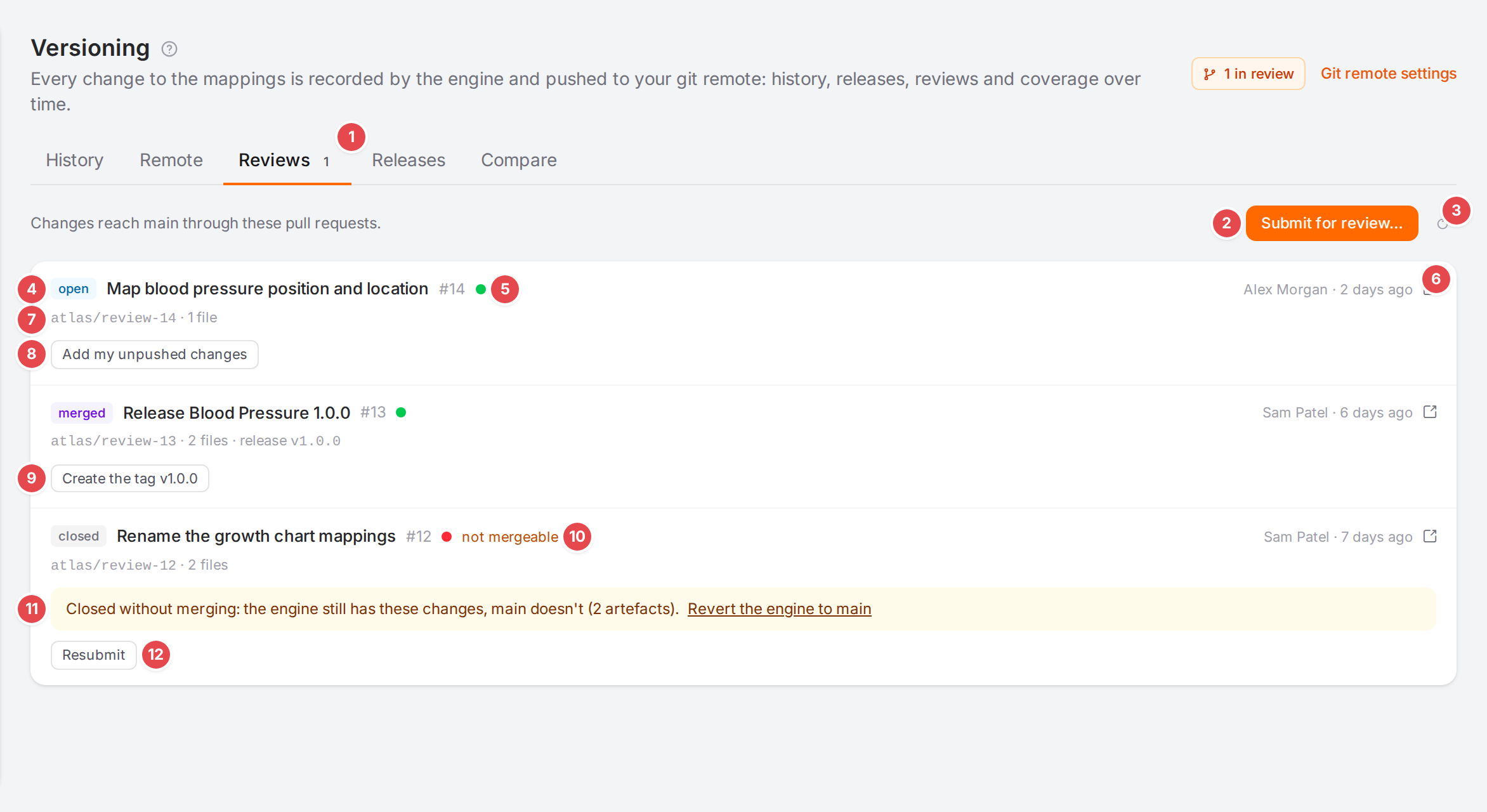
The Reviews tab with the review workflow.
- 1 Reviews
The count of open reviews.
- 2 Submit for review…
Opens a pull request with your unpushed changes. Only with the review workflow; with the direct workflow the tab says “The remote uses the direct workflow; reviews are listed for reference.” See Submit for review.
3 Reload
- 4 State
open, approved, changes requested, merged or closed, then the title and the pull request number.
- 5 Checks
Green when the checks passed, red when they failed, amber while they run. Point at it for the result.
- 6 Open on the provider
Opens the pull request on GitHub, GitLab or Gitea.
- 7 Branch and files
The review branch and how many files it changes, and the release it belongs to, if any.
- 8 Add my unpushed changes
Adds your newer changes to this open review.
- 9 “Create the tag v1.0.0”
On a merged release review: creates the release tag.
- 10 not mergeable
The provider can’t merge the pull request as it is.
- 11 Closed without merging
“Closed without merging: the engine still has these changes, main doesn’t (N artefacts).” with Revert the engine to main, which asks before undoing them in the engine.
- 12 Resubmit
On a review closed without merging: opens a new pull request with the same changes. If the provider says the pull request is open or merged after all, the engine refuses and the reason shows above the list.
When the merged result differs from the engine, a review says “The merged result differs from the engine for N files” with Take the merged version and Keep the engine’s.
Releases tab
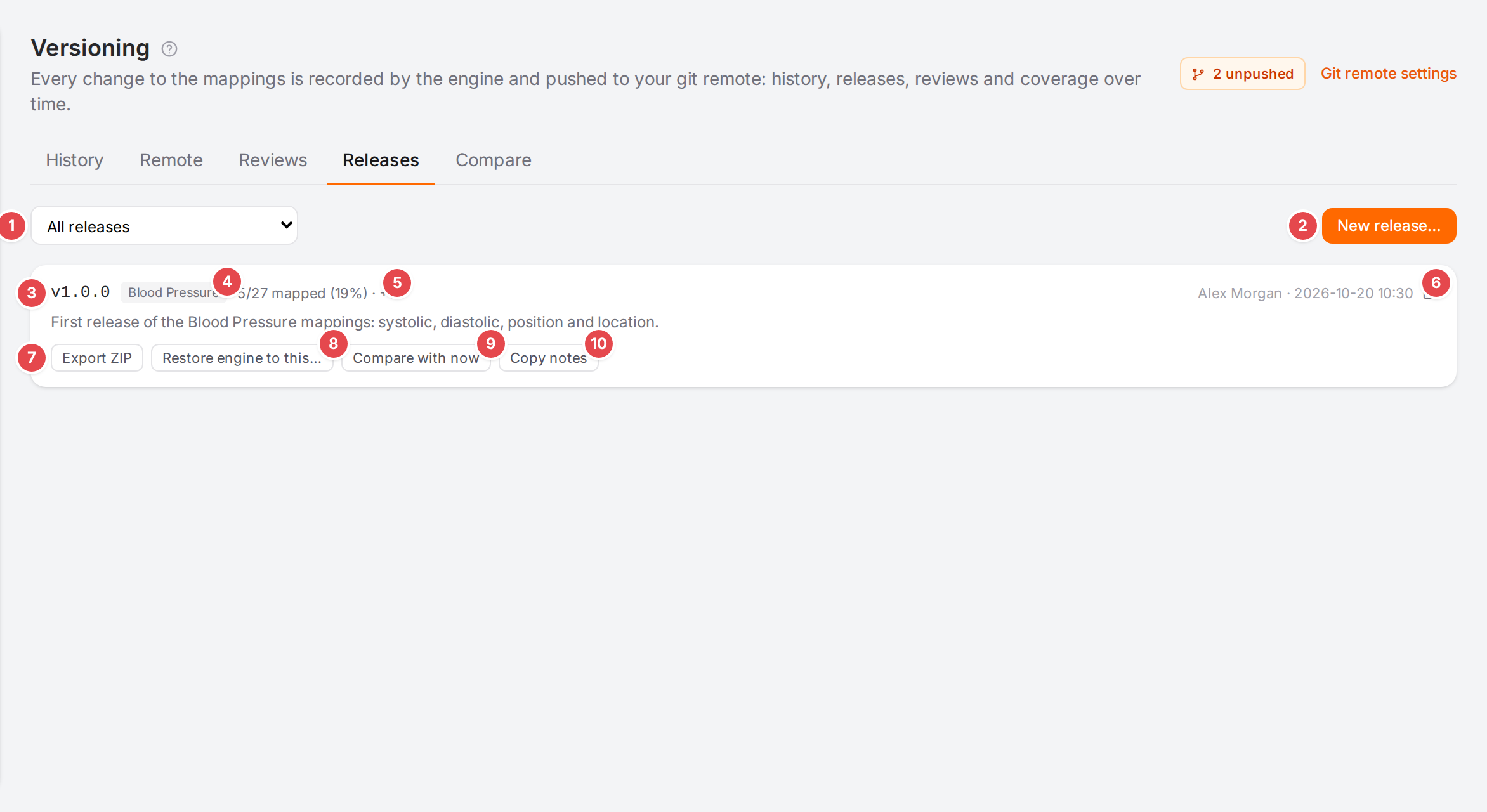
The Releases tab.
- 1 Scope
All releases, Whole tenant, or one template’s releases.
- 2 New release…
Opens the release wizard for the chosen scope: version, pre-checks, notes and the coverage change. See Release a template.
- 3 Tag
The release’s Git tag.
- 4 Scope
The template it releases, or whole tenant.
- 5 Coverage
How much of the template was mapped at this release, and how many elements were newly mapped since the one before (“5/27 mapped (19%) · +5”).
- 6 Open on the provider
Next to who made the release and when.
- 7 Export ZIP
Downloads the template as it was at this release.
- 8 Restore engine to this…
Brings the engine back to this release, after a preview.
- 9 Compare with now
Opens the Compare tab with this release and the engine.
- 10 Copy notes
Copies the release notes (the button then says Copied).
Compare tab
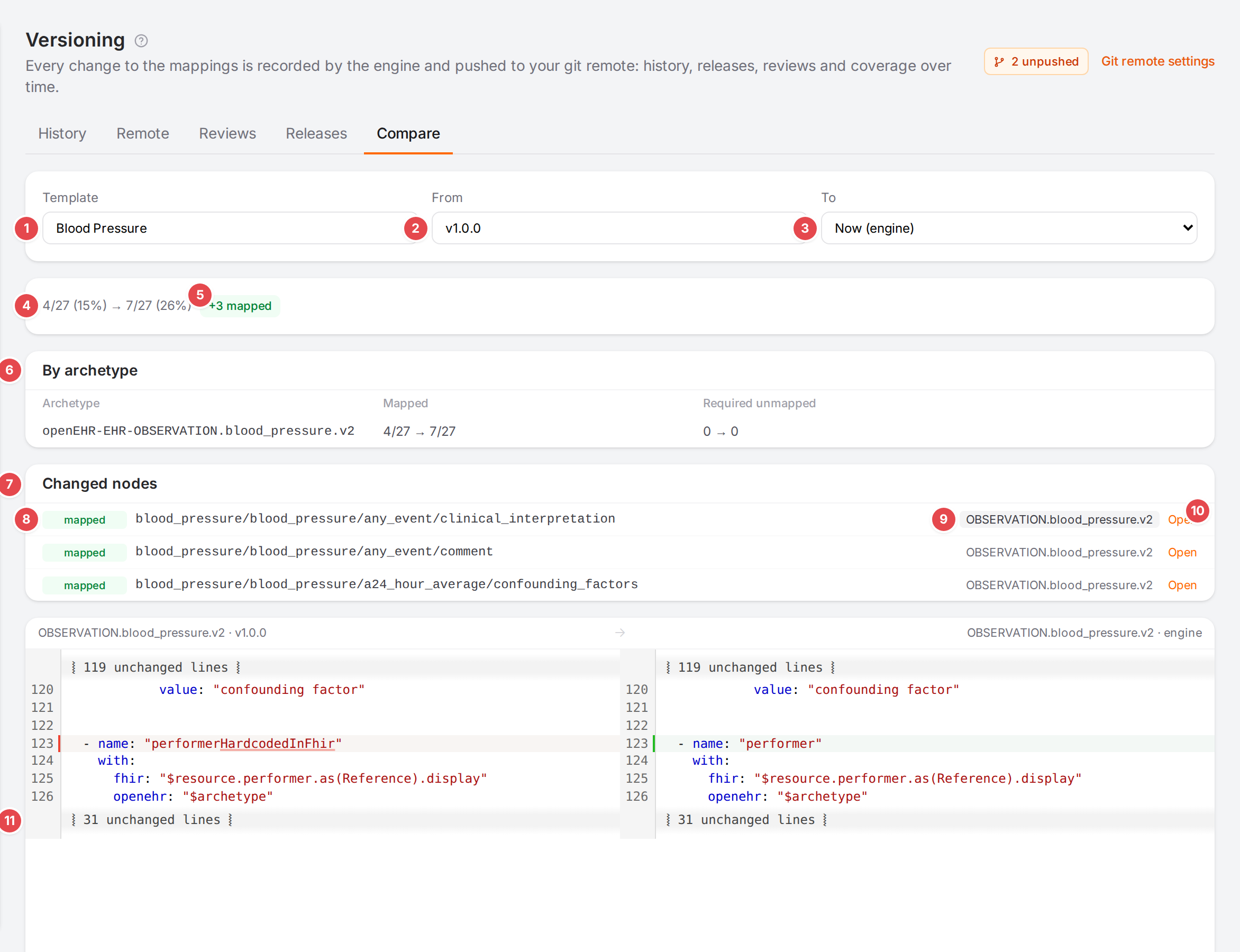
Blood Pressure between release v1.0.0 and the engine now.
- 1 Template
The template to compare.
- 2 From
Now (engine), a release, a recent commit, or Other ref… to type a branch, tag or commit.
- 3 To
The same choices.
- 4 Summary
Mapped template elements before and after (“4/27 (15%) → 7/27 (26%)”), or No coverage changes.
- 5 Changes
Chips such as “+3 mapped”, “−1 lost”, “required unmapped 2 → 0”, “not modelled 5 → 3” and “N template nodes added” or “removed”.
- 6 By archetype
Mapped and Required unmapped per archetype, before → after.
- 7 Changed nodes
Every template element whose coverage changed.
- 8 Change
mapped, lost, changed, new node or node gone, then the element and required where it applies.
- 9 Model
The model that maps it: click it to see what changed in that model.
- 10 Open
Opens the template and model in the Workspace.
- 11 Model diff
The model at From and at To, side by side.
FHIR profiles aren’t versioned, so the comparison covers the openEHR template side. See Compare two versions.