Bring your material in
What you’ll do
You load operational templates (OPTs), FHIR Connect mappings, ConceptMaps and FHIR packages into the engine, check what the upload will change before it changes anything, and read what happened to each file. You also replace a template’s OPT and delete a template you no longer need.

The preview of an upload: one model will be updated, two files change nothing.
Before you start
You need the files to upload: a ZIP archive, or single
.opt,.yaml,.yml,.jsonor.tgzfiles. A ZIP exported from Atlas (Export and move mappings) works as it is.Uploading changes the engine for everyone who works on it. If your engine keeps a history of the mappings, you can go back to an earlier version afterwards (History, blame and restoring).
Steps
Upload files
Open Engine state in the sidebar and click Upload 1 at the top right. The Upload mappings panel opens.
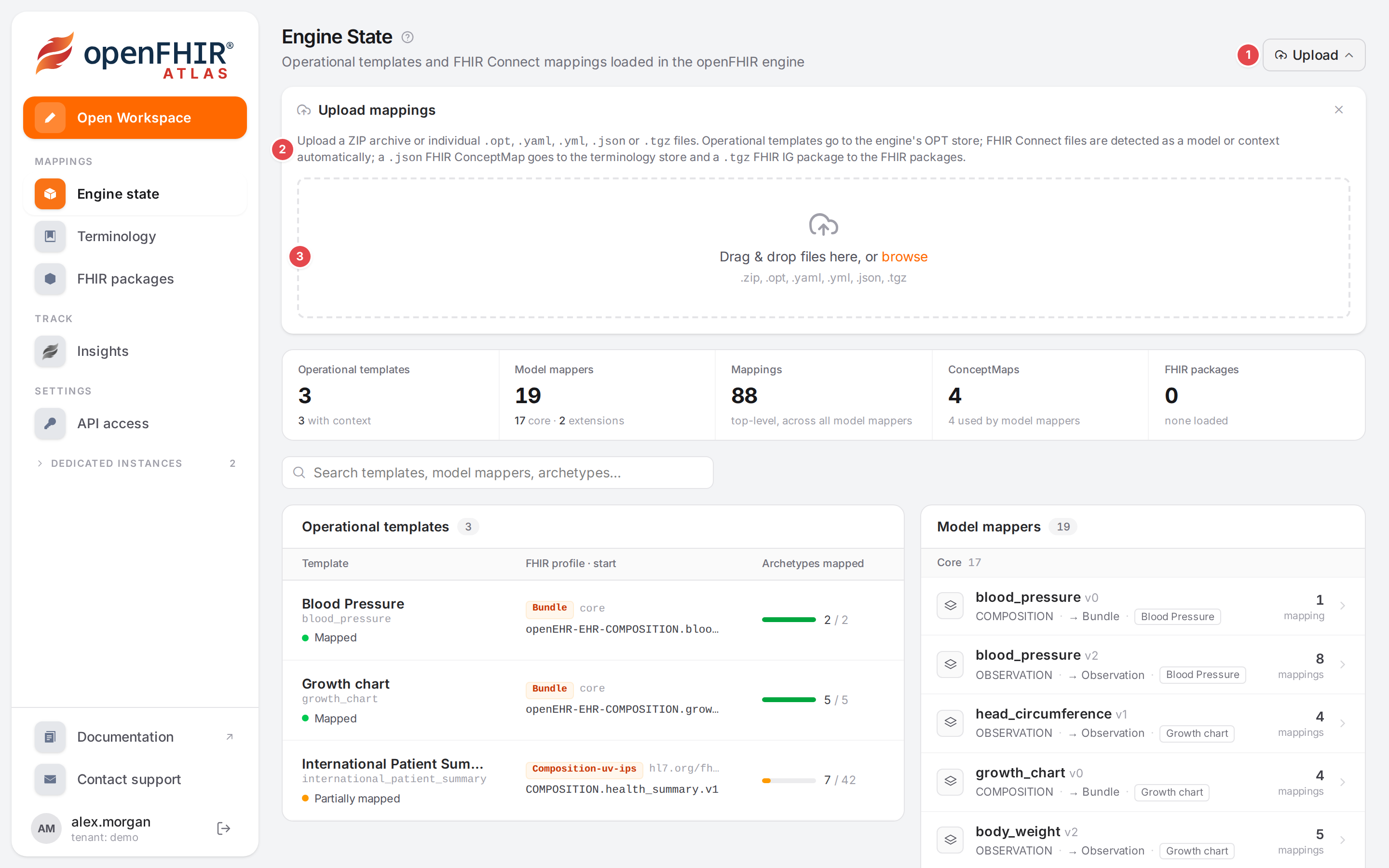
The Upload button 1, what goes where 2, and the drop zone 3.
Drag your files onto the drop zone 3, or click browse and pick them. You can pick several files at once. Atlas reads each one by its content, not by its name:
File
Where it goes
.optThe engine’s store of operational templates.
.yaml/.ymlA FHIR Connect file: Atlas detects whether it is a context mapper (a top-level
context:ortype: context) or a model mapper (a top-levelmappings:ortype: model/extension). A file that is neither is skipped with a reason..jsonA FHIR ConceptMap (
"resourceType": "ConceptMap") goes to the terminology store. StructureDefinitions, ValueSets and CodeSystems (also in a Bundle) are stored together as one package in the FHIR packages, named after the ZIP they came in (local.<zip name>), else after the first profile (Use FHIR profiles and IG packages); a Bundle’s ConceptMaps go to the terminology store. Any other JSON is skipped..tgzA FHIR IG package goes to the FHIR packages (Use FHIR profiles and IG packages).
.zipEvery supported file inside is handled as above.
The Upload button on the Engine state page and the same panel under the template gallery of the Workspace do the same thing.
Check the preview
Atlas shows Checking what the upload changes…, then a Preview. Nothing has been written yet.
The summary 1, the mode 2, one row per item 3, and Apply 4.
The summary 1 counts what happens:
N new,N updated,N deleted,N unchangedandN packages. Nothing to import means the upload changes nothing.Each row 3 shows the action (create, update, delete, unchanged, or package for a FHIR package), the kind (OPT, MODEL, CONTEXT, CONCEPTMAP, FHIR PACKAGE), the name, and what will happen (Will be created, Will be updated, Will be deleted, Unchanged; a package says Stored when the upload is applied, and a
.jsonfile Atlas packages says Packaged as <package>. Stored when the upload is applied).Errors the engine finds in the plan are listed in red, warnings in amber. While there is an error, Apply stays disabled.
Choose the mode 2:
- Merge
Creates what is new and updates what changed. Everything else in the engine stays as it is. This is the default.
- Mirror
Also deletes every template, model, context and ConceptMap the upload doesn’t contain, so the engine ends up holding exactly what you uploaded. Atlas recomputes the preview when you switch, and the button becomes Apply (mirror).
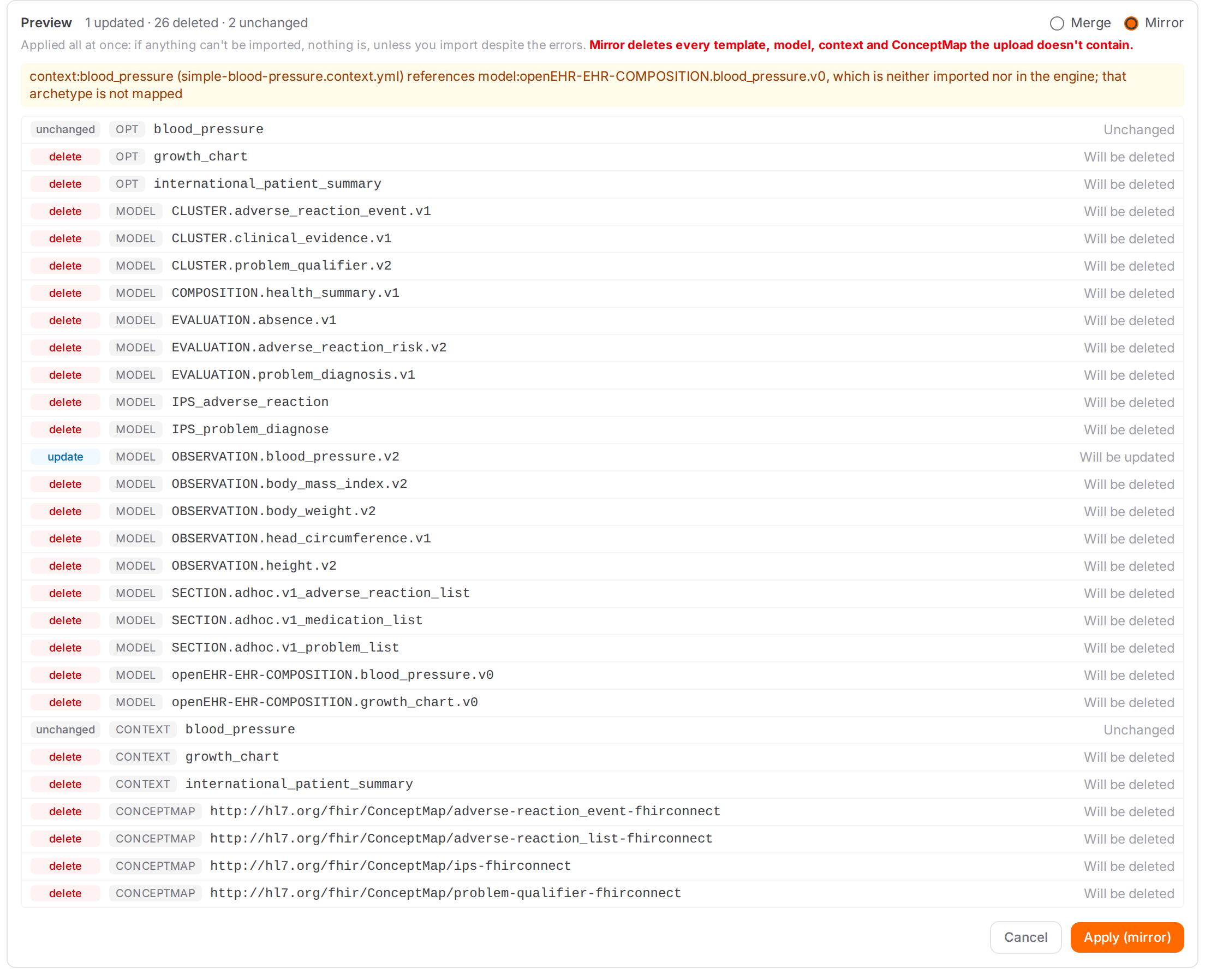
The same three Blood Pressure files as a mirror: every other template, model, context and ConceptMap would be deleted. The engine also warns that the context names a model the upload doesn’t contain.
Click Apply 4. The upload is Applied all at once: if anything can’t be imported, nothing is, unless you import despite the errors. Click Cancel to drop the upload without changing anything.
If the engine found errors in the plan (a model that extends one that is neither uploaded nor in the engine, say), they are listed in red and Apply stays disabled until you tick Import despite these errors. The engine then imports what it can store, broken references included, and leaves out the files it can’t store, marked Won’t be imported in the preview. Leave the box unticked to fix the files and upload them again instead.
Read the result
After the upload, the panel lists every file with its result, under a summary such as
1 uploaded · 2 skipped · 0 failed. A green check is a file that was stored, an amber circle a file that was skipped (unchanged, or not something Atlas uploads), a red cross a file that failed, with the reason under it. Clear removes the list.
One model updated, the OPT and the context unchanged.
The Engine state page reloads, so the new or changed templates and models show at once.
Note
Some engines can’t import an upload as a whole. With them Atlas skips the preview: it uploads the files one by one as soon as you drop them, and lists the per-file result straight away. There is no Merge / Mirror choice then, and a file that fails doesn’t stop the others.
Replace a template’s OPT
Use this when a new version of the operational template arrives and the mappings should stay.
On Engine state, click the template in Operational templates to select it.
Click the ⋯ button (More actions) 1 at the end of its action row, then Replace OPT… 2.
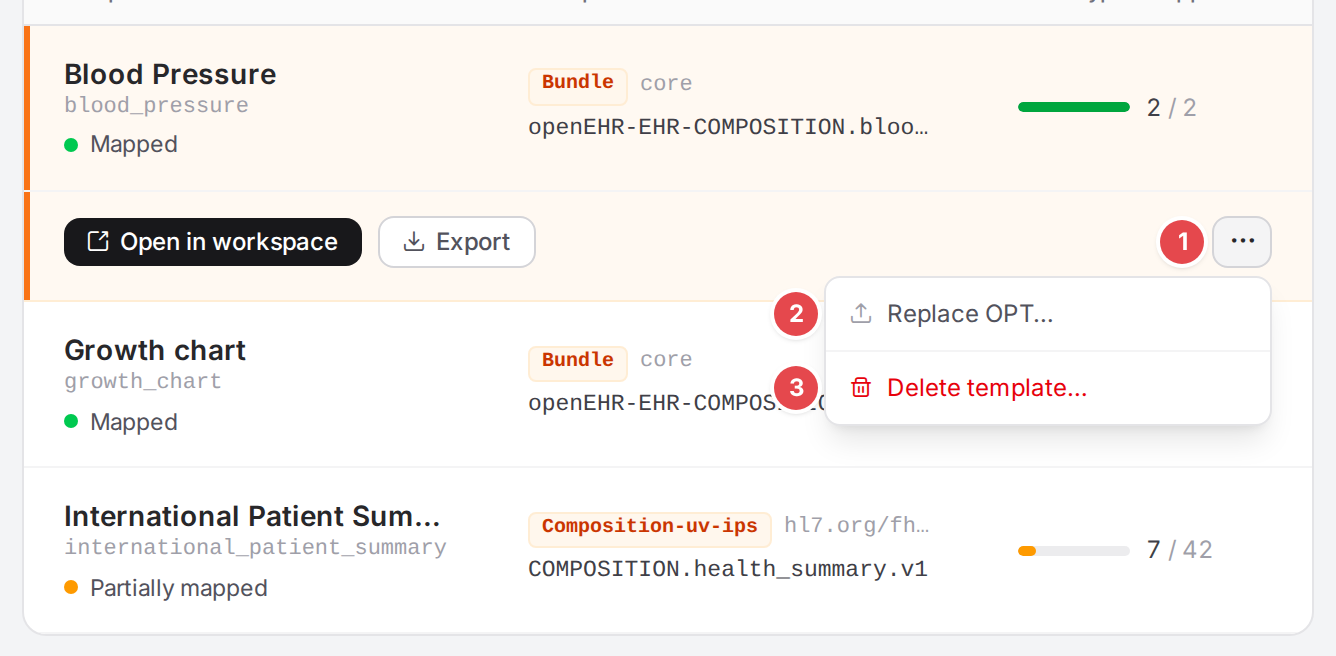
More actions 1, Replace OPT… 2 and Delete template… 3.
In Update operational template, drop the new
.optfile or click browse. Only an.optis taken. The file name appears under the drop zone; the × next to it removes it again.Click Update template. The context mapper and model mappers tied to the template are left untouched.
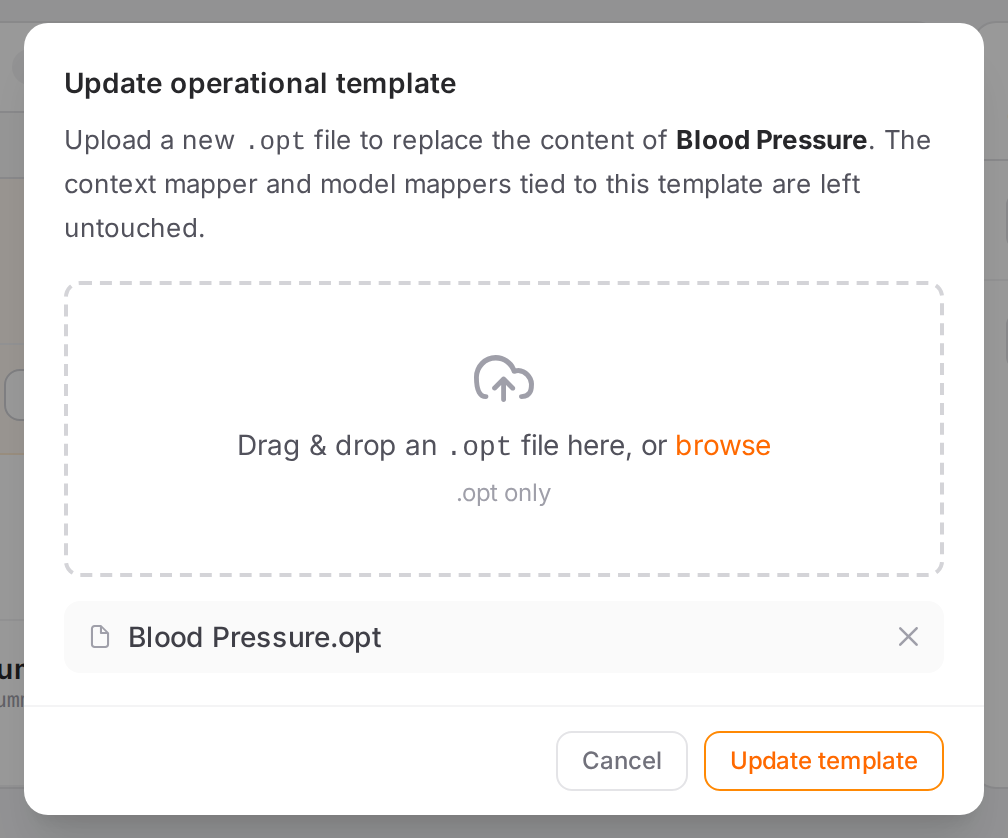
The new OPT is chosen and ready to upload.
Delete a template
Select the template, open ⋯ (More actions) and click Delete template… 3.
Decide what else goes with it. With the box unticked (the default), the engine deletes only the OPT and its context mapper; the model mappers are left untouched. Tick Also delete all archetypes (model mappers) in the context mapper tied to this template. 1 to delete those models too.
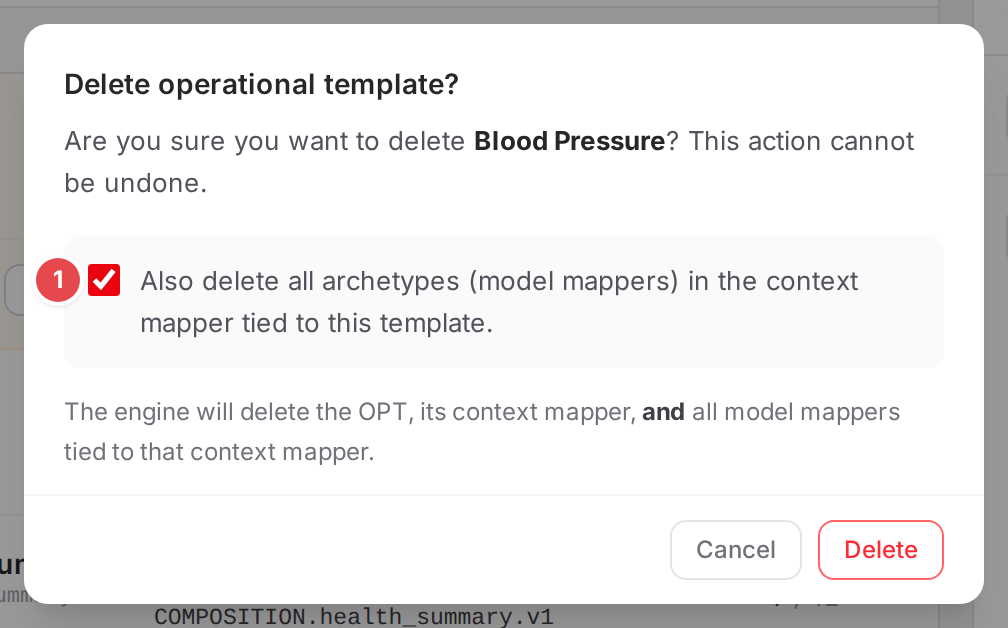
With the box ticked, the models tied to the context mapper go as well.
Click Delete. As the dialog says: This action cannot be undone.
Check it worked
The upload result says
N uploadedwith no failures, and the template or model shows in Operational templates or Model mappers on the Engine state page.Open the template in the Workspace (Start mapping a template) to see its models and what isn’t mapped yet.
Tips
Tip
A ZIP exported from Atlas (Export and move mappings) uploads as it is, including the .tgz FHIR
packages and ConceptMaps it carries. Use it to move a template with everything it needs from one
engine to another.
Tip
Not sure what a file will do? Drop it and read the preview, then Cancel. Nothing is written until you click Apply.
Tip
Upload a model that is still being worked on with Merge: the rest of the engine stays as it is.
Watch out
Warning
Mirror deletes everything the upload doesn’t contain: every other template, model, context and ConceptMap in the engine. Use it only with a complete set, for example a full export, and read the delete rows of the preview before you apply.
Warning
If the panel says The engine changed since the preview. This is the new plan — check it and apply again., someone (or something) changed the engine between your preview and your click. Atlas shows the new plan instead of applying the old one. Read it again before you click Apply.
Warning
Deleting a template with its model mappers also deletes models other templates may use. Without the box ticked, those models stay in the engine.
If something goes wrong
What you see |
What it means and what to do |
|---|---|
|
None of the dropped files has a supported extension. Rename or pick the right files. |
|
The upload request itself failed (for example the engine can’t be reached). Nothing was applied. Try again; see Messages and notices A–Z. |
A red list in the preview, Apply disabled |
The engine found errors in the plan, such as a model that extends one that is neither uploaded nor in the engine. Fix the files and upload again, or tick Import despite these errors. |
|
See Watch out above. |
A file row |
The file isn’t one Atlas uploads. |
|
The YAML has neither a top-level |
|
The file doesn’t parse. The message says where. |
|
The |
|
The engine refused the file; the rest of the message is the engine’s reason. |
|
The ZIP is too big. Split it into smaller uploads. |
|
Pick an |
After an upload, the Workspace checks the new mappings. Problems such as a context that names a missing model, a start that names no model or a model for an archetype the template doesn’t contain show in the Problems dock (Fix problems).