See your mapping in action
What you’ll do
While you edit a model, the Workspace converts an example both ways: the openEHR pane on the left holds a flat composition, the FHIR pane on the right holds the Bundle the mappings make of it. You select a mapping and both panes highlight what it reads and writes, show how many values it selects, and let you jump to each one. You decide which pane is the source of the conversion.
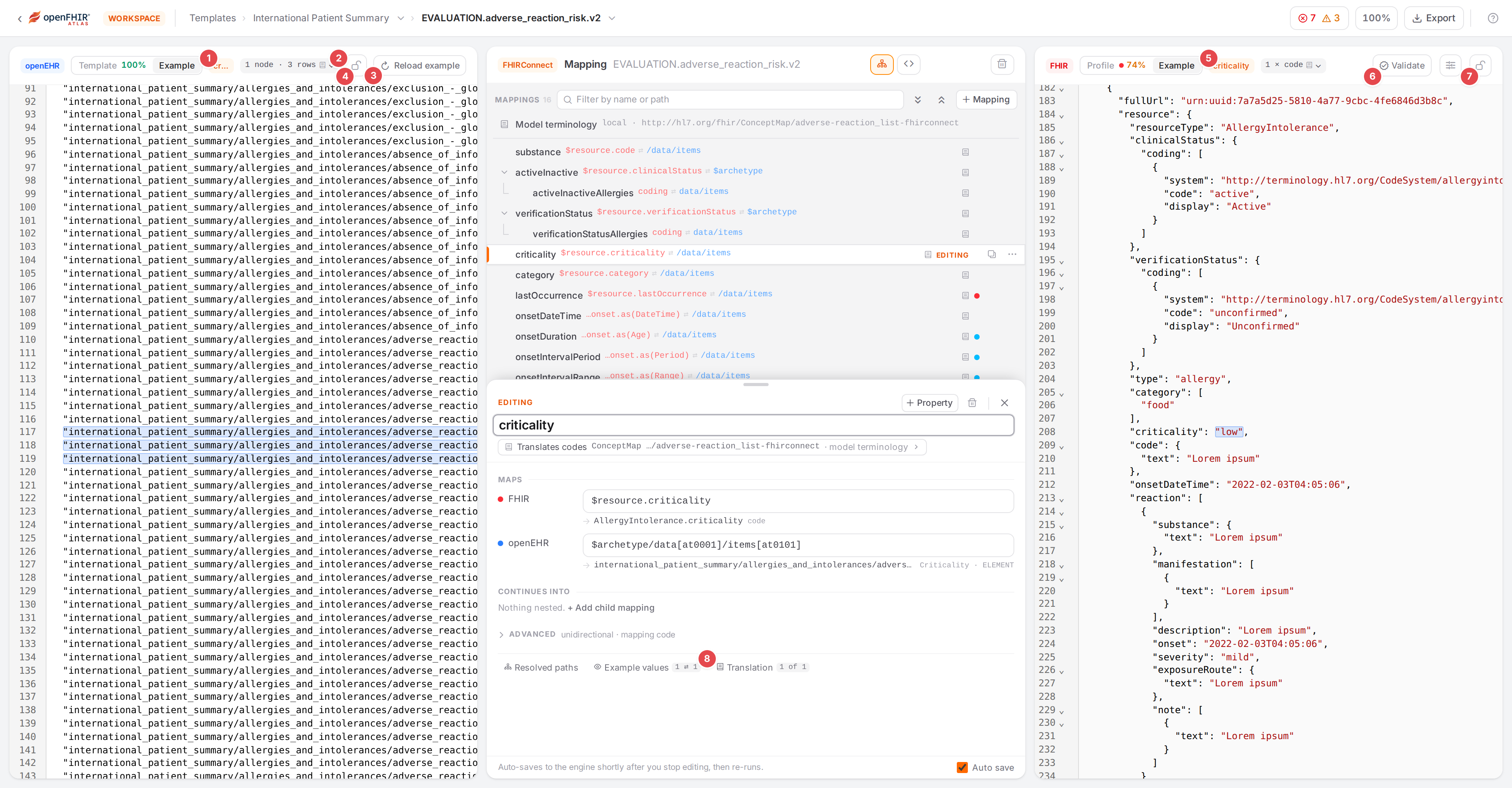
The criticality mapping of the allergy model, highlighted in both example panes.
Before you start
Open a template and one of its models in the Workspace (Edit mappings in the Workspace).
Each side pane has two tabs. This page is about Example; the other tab (Template on the openEHR side, Profile on the FHIR side) is coverage, explained in Find what isn’t mapped yet.
The example is generated from the template when you open it. Highlights come from the engine’s resolved mapping tree, which reflects the last save of the model.
Steps
1. Read the two panes
Select a mapping in the outline (or put the caret in it in the Code view). The numbers match the screenshot above.
- 1 Highlight chip (openEHR)
Names the mapping the highlights belong to (parent names joined by
›). It is cut short when the pane is narrow; hover it for the full name. Other states are listed in The highlight chip below.- 2 Values chip (openEHR)
How much of the example the selected mapping selects on this side, for example
2 rowsor1 node · 3 rows(a node’s|code,|valueand|terminologyare rows of their own). A book icon on the chip means a terminology translates the codes. Click it for the values (step 3).- 3 Reload example
Generates a fresh openEHR example from the template (“Generating example…”), makes openEHR the source and converts it again.
- 4 Lock openEHR as the source
The lock icon of the openEHR pane (see step 2).
- 5 Highlight chip (FHIR)
The same chip for the FHIR pane, followed by the FHIR values chip, for example
1 × codeor3 values.- 6 Validate
Validation of the FHIR pane, explained in Validate against FHIR profiles.
- 7 Lock FHIR as the source
The lock icon of the FHIR pane.
- 8 Example values tab
At the bottom of the editing sheet: the values on both sides, with the count
FHIR ⇄ openEHR(step 4).
Both panes mark the ranges the mapping covers. The panes scroll to the first highlight when you select another mapping, never while you type or while a conversion runs.
2. Choose the source
The conversion always runs from one pane, the source, to the other. The source pane is editable; the other one is read-only output.
Type in the source pane to try other data. 0.8 seconds after you stop typing, Atlas converts it into the other pane.
Click the read-only pane to make it the source. The next edit there converts the other way.
Lock a pane as the source with its lock icon. A locked pane stays the source, is never overwritten, and every mapping change converts from it. Its tooltip says so: “Lock FHIR as the source: its value is always used and never overwritten — every mapping change converts FHIR→openEHR.” Locking one pane unlocks the other; click the lock again to unlock. Atlas doesn’t remember the lock: each visit to the Workspace starts unlocked, with openEHR as the source.
When you save a mapping edit and no pane is locked, Atlas converts in both directions: from the source into the other pane, then back into the source pane. If a mapping only works one way, the source pane can change after the round trip; that is the preview of what the engine does with it. With a locked pane, Atlas converts only from the locked pane.
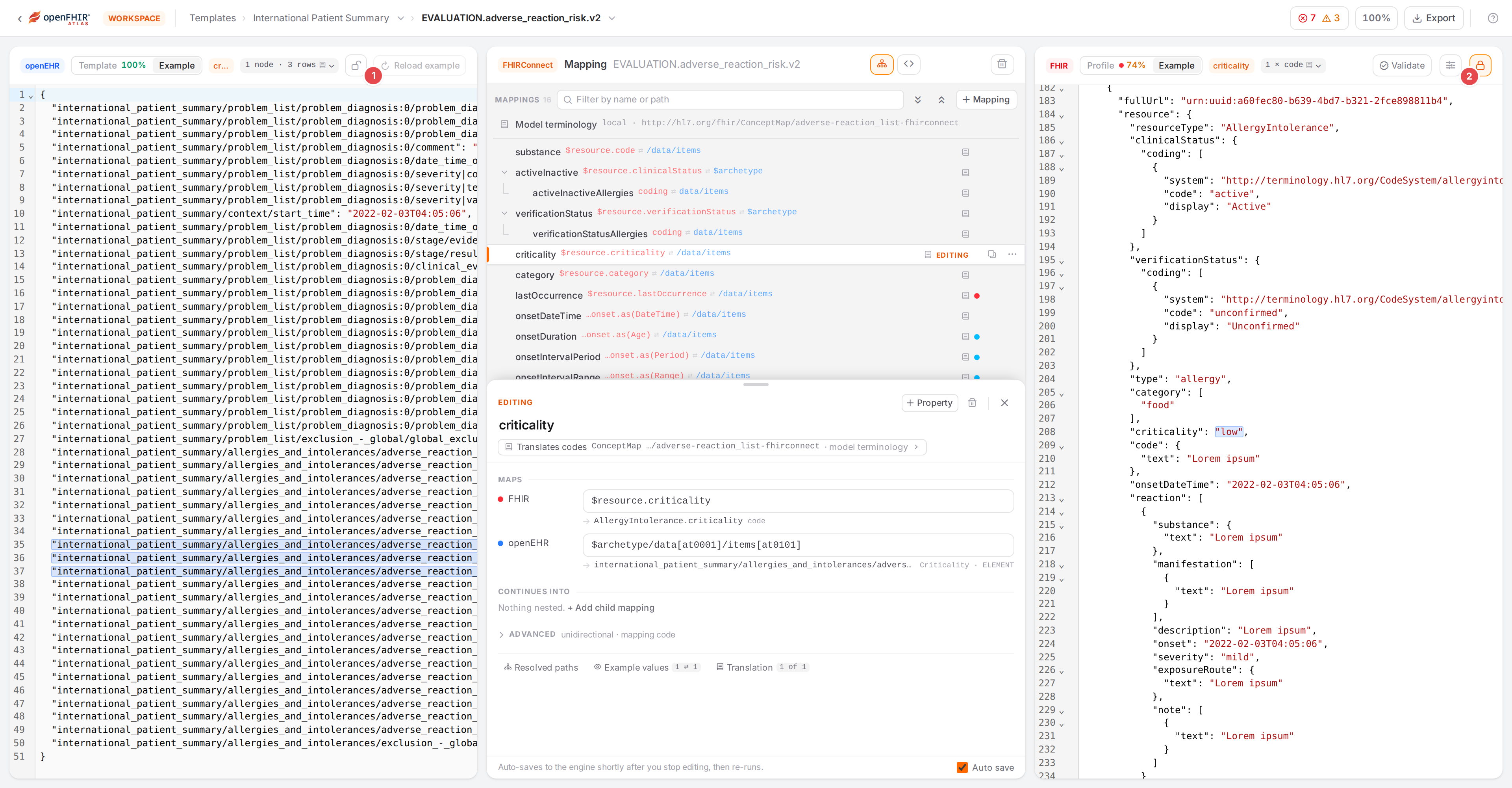
FHIR is locked as the source 2, so Reload example is disabled 1.
3. Look at the values
Click a pane’s values chip. The popover lists every value the mapping selects on that side.
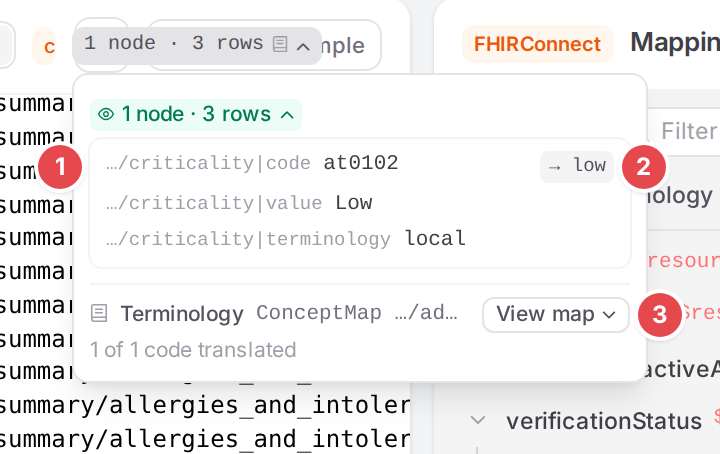
The openEHR values of criticality: the |code row translates to low through the ConceptMap.
- 1 A value
Click it to select and flash it in its pane (the pane switches to Example if it showed coverage). Values the pane can’t place are greyed out. When the model is slotted in more than once, the values are grouped as Context 1, Context 2 …; a long list ends with
+N more.- 2 Translation chip
On the source side, each coded value shows what the terminology made of it:
→ low(translated),→ other map, or not in map / not in rows (no row matched, so the code was kept as it is). Click it to open the map at that code.- 3 Terminology note
Which terminology translated the codes and how many: “1 of 1 code translated”. View map (or View rows for inline rows) opens the ConceptMap peek right in the popover. See Translate codes.
While the mapping has unsaved edits, or the last conversion failed, the values carry a stale label: “Values reflect the last save — Save to re-run the conversion.” or “The last conversion failed — values reflect the panes as they are.”
4. Compare the counts
Open the Example values tab at the bottom of the editing sheet. It shows the same values for both
sides, and the tab carries FHIR ⇄ openEHR: how many values the mapping selects in the FHIR
example and how many nodes in the openEHR example.
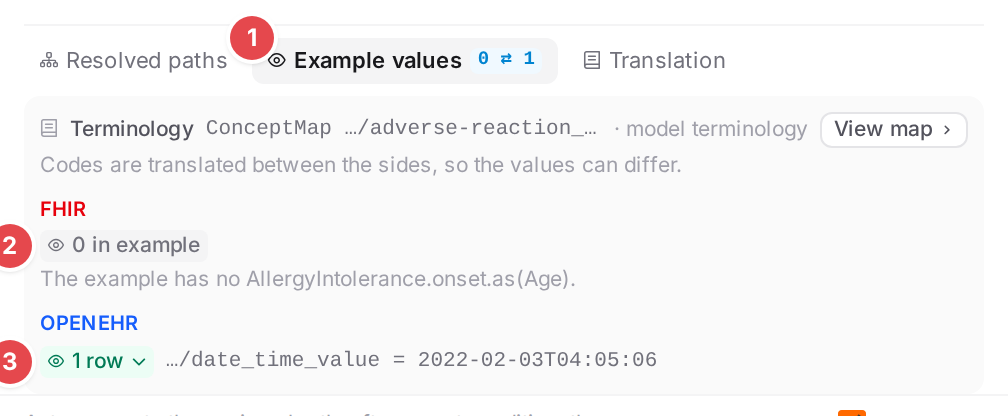
onsetDuration selects nothing in FHIR and one node in openEHR.
- 1 The count
Blue when the two numbers differ. Hover it: “A mismatch often means a missing [n] / iteration or a condition that selects too much or too little.”
- 2 FHIR values
0 in examplewith the reason below it (“The example has no AllergyIntolerance.onset.as(Age).”).- 3 openEHR values
Click the chip to list them; click a value to show it in the pane.
A mismatch also gives the mapping an info status in the outline and on the sheet: “The example has N FHIR values but M openEHR nodes for it — a missing [n] / iteration or a condition that selects too much or too little?” This hint is not listed in the Problems dock; clicking the status chip opens the Example values tab instead.
If the tab says “Not in the engine tree yet — Save to preview its values.”, the mapping is new or renamed: save it first.
Check it worked
The highlight chip tells you whether the highlights are current:
Chip |
Meaning |
What to do |
|---|---|---|
The mapping’s name (orange) |
The panes highlight this mapping. |
Nothing. |
Save to update highlights |
The mapping is new or renamed and you save by hand. The engine’s tree still has the last save. |
Save (Ctrl+S). |
Updates after auto-save |
The same, with auto-save on: it updates by itself in a moment. |
Wait. |
Mapping not in engine tree |
The saved model has no mapping of that name. |
Check the name, then save. |
No data in example for |
The mapping matched, but the example has nothing at its path. |
Normal for data the example lacks (see below); otherwise check the path. |
No chip |
No mapping is selected, or the last conversion failed. |
Select a mapping, or read the conversion error. |
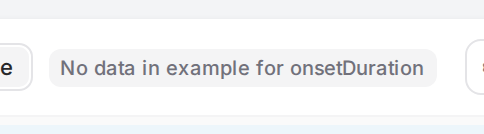
The FHIR example has an onset date-time, not an age, so onsetDuration finds nothing.
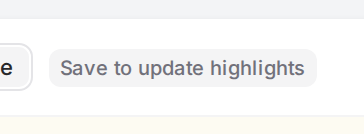
After renaming criticality with auto-save off.
Tips
Tip
Reload example is disabled while FHIR is locked as the source: the openEHR pane is then output, and a fresh openEHR example would contradict the lock. Unlock FHIR first.
Tip
A different code on each side is often a translation, not an error. When a terminology applies, the values chip shows a book icon and the popover names the ConceptMap or inline rows; check the translation chip next to the value before you change the path.
Tip
To test a case the generated example doesn’t have, type it into the source pane. To get the template’s example back, use Reload example.
Watch out
Warning
With auto-save off, unsaved mapping edits don’t reach the panes. Both panes are washed amber with “Out of date with your edits” and Save & refresh; the highlights and values still show the last save.
Warning
After a save, an unlocked source pane is rewritten by the round trip. If you typed test data you want to keep, lock that pane before you edit mappings.
If something goes wrong
A red line under a pane’s header is the conversion error the engine returned; the other pane isn’t updated. See Exception trying to convert due to: <message>.
Highlight chip texts: Save to update highlights.
“Out of date with your edits”: Out of date with your edits.