Understand a conversion (Insights)
What you’ll do
You look up a conversion the engine made for one of your systems, read what came in and what went out, and see mapping by mapping which values were taken from where and where they were written. That is how you answer “why is this field empty?” for a real message.
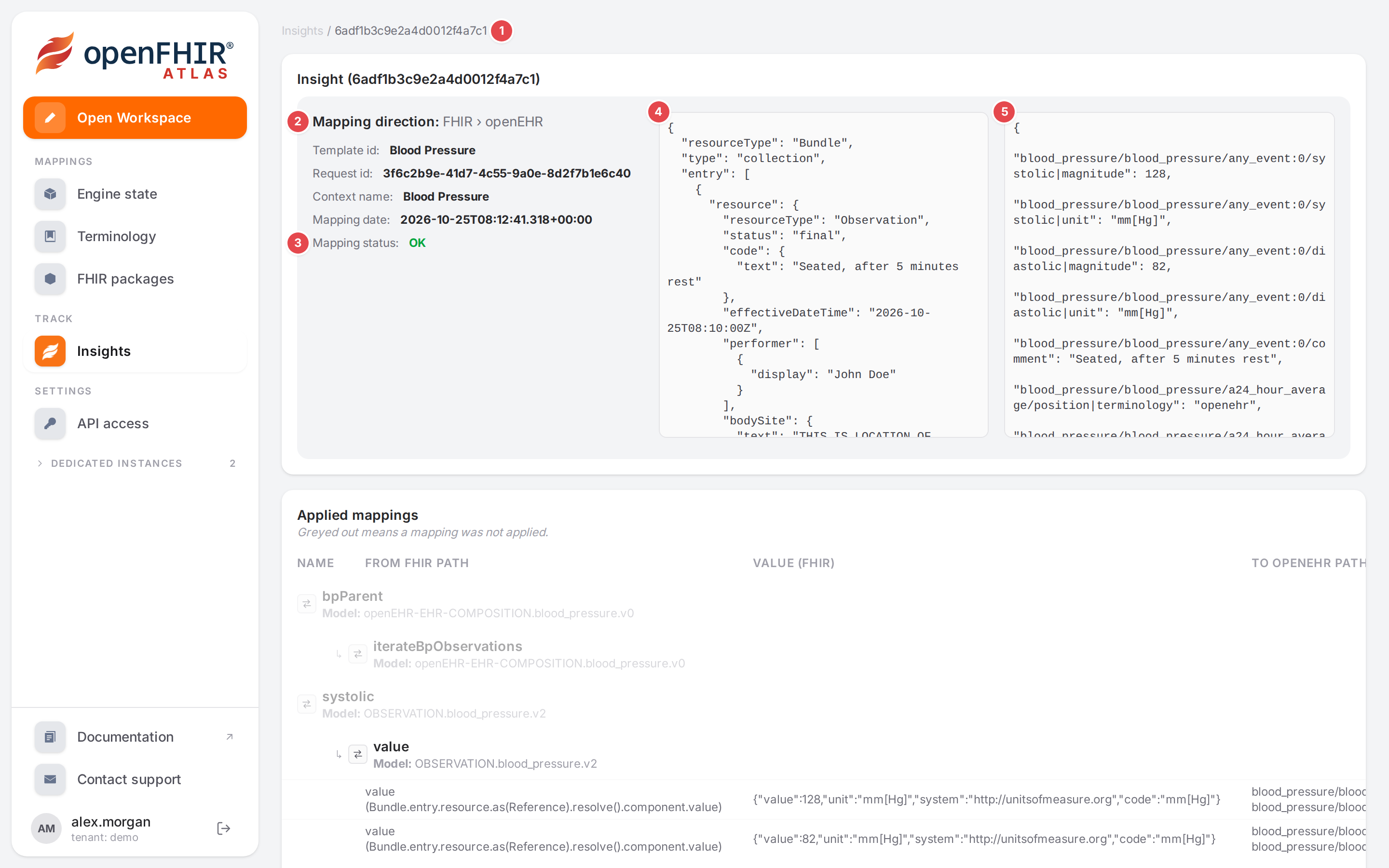
A blood pressure Observation converted to openEHR: the request and the response side by side.
Before you start
The engine records insights only when it is set up to:
openfhir.insights.enabledturns the recording on,openfhir.insights.store-payloadalso keeps the request and the response. See Mapping insights.Insights cover every conversion the engine makes: REST calls from your systems and messages from a queue (see Queue support).
Warning
With store-payload on, the engine keeps the request and the response as they are, which means
clinical data. The engine documentation advises against it in production.
Steps
Find the conversion
In the sidebar, under Track, click Insights.
The list shows the newest conversions first, ten per page:
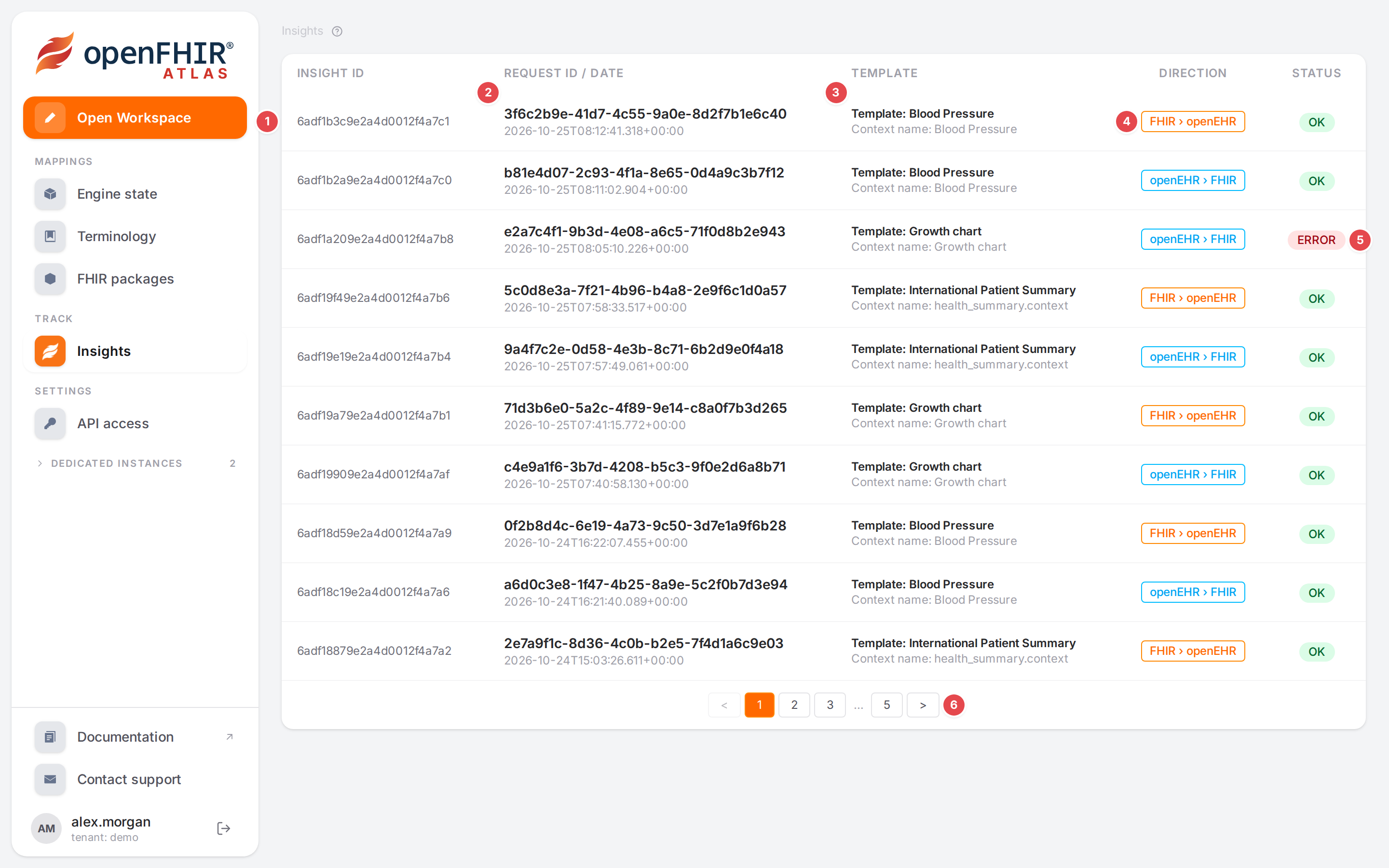
The Insights list.
Column
1
Insight ID
The engine’s id of this record.
2
Request ID / Date
The id of the request the engine recorded, and when it converted it. For queue messages it is the
openfhir-request-idheader, or the subscription, topic, partition and offset.3
Template
Template: the template the conversion used, Context name: its context mapper.
4
Direction
FHIR › openEHR (
$toopenehr) or openEHR › FHIR ($tofhir).5
Status
OK, or ERROR when the conversion failed.
6
Pages
<, the page numbers and > step through older conversions.
Click a row to open it.
The address of the page says which page and which conversion is open (/insights?page=2&insightId=…;
pages count from 0). Send it to a colleague, or use the browser’s back and forward buttons. See
Links you can share.
Read the conversion
The detail view shows:
Mapping direction 2, Template id, Request id, Context name and Mapping date;
Mapping status 3: OK or ERROR; for an error, Message: with the engine’s reason;
the request 4 and the response 5. Click Load request and Load response to fetch them; JSON is shown indented. No request or No response means the engine didn’t keep it (payloads aren’t stored, or a failed conversion has no response).
To go back to the list, click the insight id in the breadcrumb at the top 1, or use the browser’s back button.
Read the applied mappings
Below, Applied mappings lists every mapping of the template’s models, model by model, children indented under their parent with ↳. Each mapping row names the mapping and its Model:. Under a mapping that was applied, one row per value it carried:
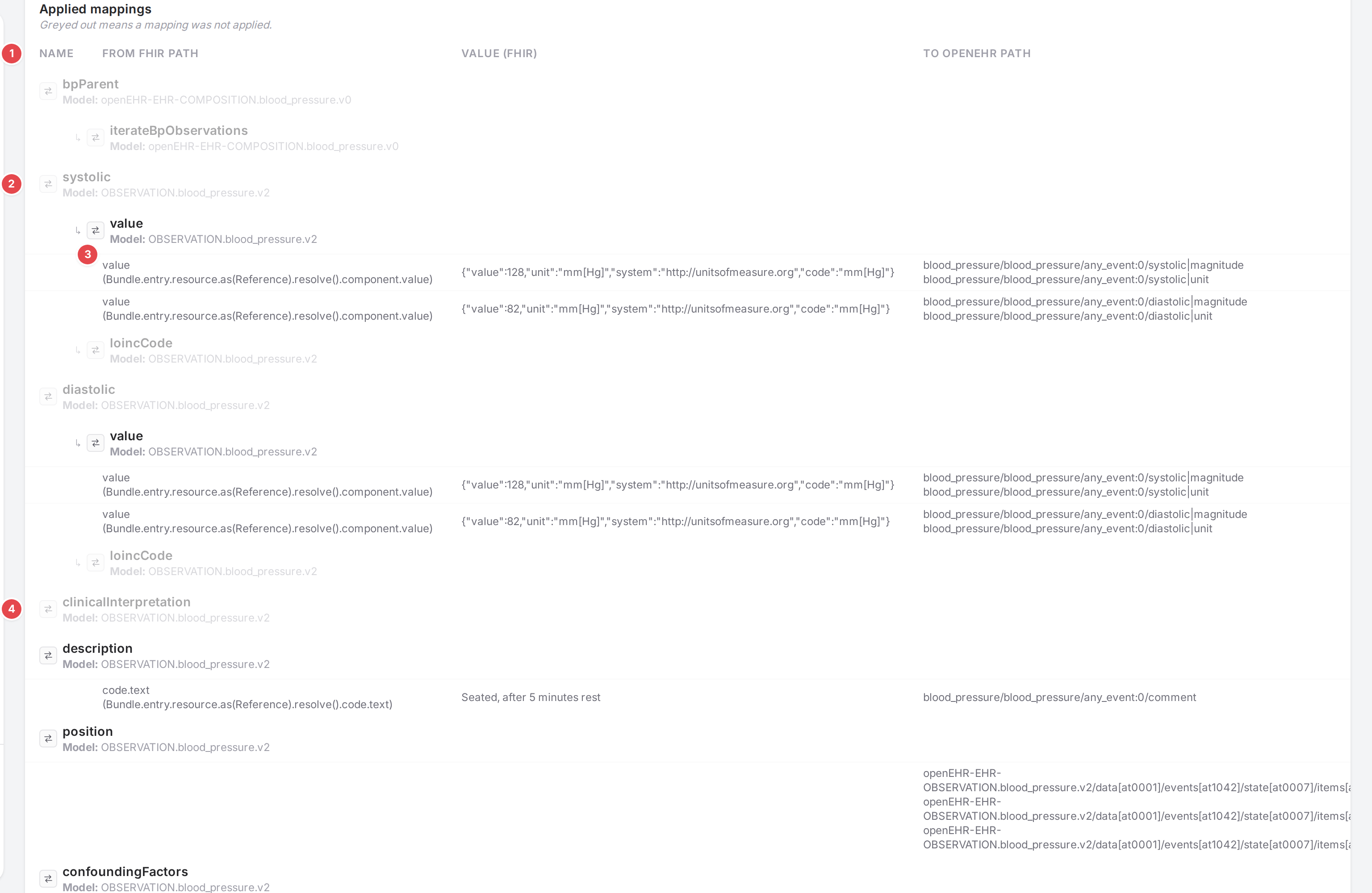
The applied mappings of the blood pressure conversion.
1 |
The columns follow the direction. For FHIR › openEHR: From FHIR path, Value (FHIR), To openEHR path, Result value (openEHR); for openEHR › FHIR the other way round. |
2 |
A greyed mapping: Greyed out means a mapping was not applied. No value was carried by this mapping itself. |
3 |
A value the mapping carried. The FHIR path reads as the mapping’s own path, then the full path in brackets ( |
4 |
|
Fixed values of a mapping (its manual entries) appear as rows without a “from” side: the full paths
they write and the values.
A failed conversion has no applied mappings: the table stays empty.

A blood pressure composition sent with the Growth chart template: the engine couldn’t use its parts.
Find out why a field is empty
Find the conversion by its date, template and request id, and open it.
If the status is ERROR, read the Message: the conversion stopped, nothing was written. Typical causes are the wrong template for the input (as in the screenshot above) or an input that doesn’t parse.
Load the request and check that the data is there at all, at the place your mapping expects it.
Find the mapping of the field in Applied mappings:
Greyed: the mapping didn’t carry a value. Either the input had nothing at its path, or a condition of the mapping (or of its parent) didn’t match. Compare the path and the condition with the request.
Applied, but the result is wrong: compare From … path and the value with what you expected; then check the target path and the result value.
Reproduce it in the Workspace: open the template, paste the request into the example pane of its side and watch the other side (see See your mapping in action). Fix the mapping there and check again.
Check it worked
After your fix is saved, send the message again. The new conversion is at the top of the list, and the mapping that was greyed now carries a value.
Tips
Tip
The response pane holds exactly what the engine returned, so you can copy it as a test input for the opposite direction.
Watch out
Warning
The Applied mappings table is built from the template’s models as they are now, not as they were when the message was converted. If someone changed the mappings since, rows can be missing, extra, or named differently. Compare with the history of the model if in doubt (see History, blame and restoring).
Warning
Values are matched to mappings by the mapping’s name within its model. Two mappings with the same
name in one model (like the two value mappings under systolic and diastolic above) both list
the values of both. Read the paths to tell them apart.
If something goes wrong
What you see |
What to do |
|---|---|
The list is empty |
The engine records no insights, or none were made yet. Ask whoever runs the engine whether |
No request / No response |
Payloads aren’t kept ( |
ERROR with a Message |
The conversion failed; the message is the engine’s. See RESTful APIs for the conversion endpoints and their errors. |