Validate against FHIR profiles
What you’ll do
You check that the FHIR your mappings produce is valid: against base FHIR and against the profiles of the loaded IG packages. Atlas validates the FHIR example pane after each conversion, marks the issues in the pane, lists them in the Problems dock and links each one back to the mapping that produced the element.
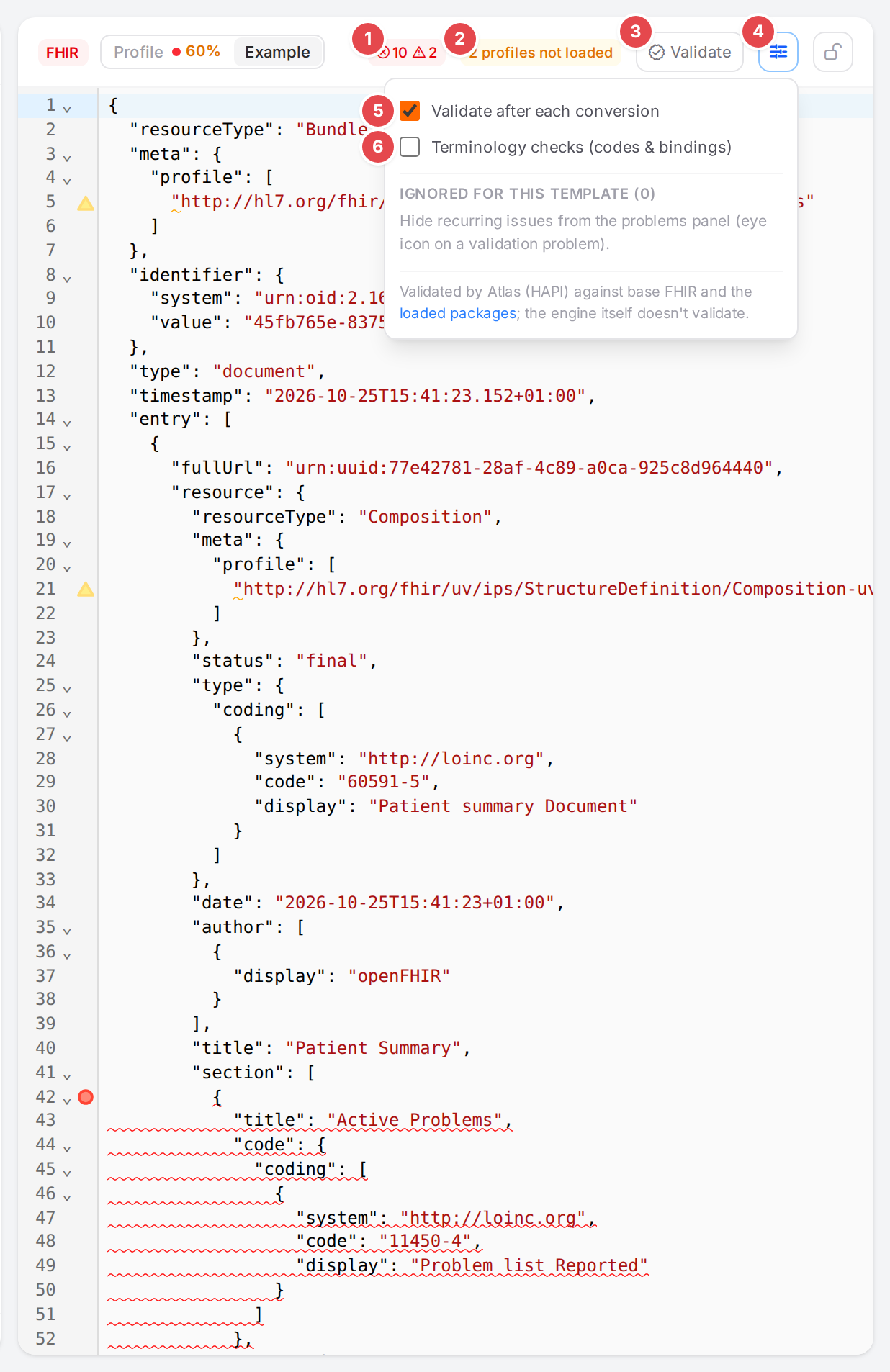
The validation controls of the FHIR pane, with the settings open.
Before you start
Open a template in the Workspace; the FHIR pane must show Example.
Load the IG packages that define your profiles (Use FHIR profiles and IG packages). Without them, the result is only checked against base FHIR.
Note
Validation runs in Atlas, with the HAPI FHIR validator, against base FHIR and the packages loaded for your tenant. The openFHIR engine itself doesn’t validate: a conversion succeeds whether or not its output is valid.
Steps
1. Read the validation chip
The controls sit in the header of the FHIR pane. The numbers match the screenshot above.
- 1 The validation chip
The result for the FHIR shown in the pane: the error and warning counts, or valid. Hover it: “Validated by Atlas against base FHIR +
in N ms.”, with how many issues were informational or ignored and which profiles weren’t loaded. Click it to open the Problems dock. - 2 N profile(s) not loaded
The FHIR declares or needs profiles no loaded package defines, so it was validated without them. Hover it for the profiles; click it to go to the FHIR packages page.
- 3 Validate
Validates the FHIR now, against base FHIR and the loaded profiles. Disabled while the pane is empty or a validation runs.
- 4 Validation settings
Opens the settings below.
- 5 Validate after each conversion
On by default: every conversion, and every edit of the FHIR pane as the source, is validated 0.6 seconds later. Turn it off to validate only with Validate.
- 6 Terminology checks (codes & bindings)
Off by default: also checks codes against their ValueSets (in memory; code systems the validator doesn’t know are reported). Expect more issues with it on.
Each resource is also checked against the profile of the model that produced it, even when the
resource doesn’t name the profile in meta.profile. Atlas remembers both settings in this browser.
The chip can also say:
Chip |
Meaning |
|---|---|
Validator starting… |
The validator loads the FHIR definitions, once, which takes a few seconds; Atlas retries by itself. |
Validating… |
A validation is running. |
Validator busy |
Too many validations at once; run it again shortly. |
Validation timed out |
The validation took too long; hover for details. |
Not FHIR |
The pane doesn’t hold FHIR JSON the validator can read; hover for the parser’s message. |
Validation failed |
Atlas couldn’t validate; hover for the reason. |
2. Find the issues
Issues are underlined in the FHIR pane (hover one for its message, the profile and the mapping) and listed in the Problems dock with the source FHIR validation. Pick that source to see only them.
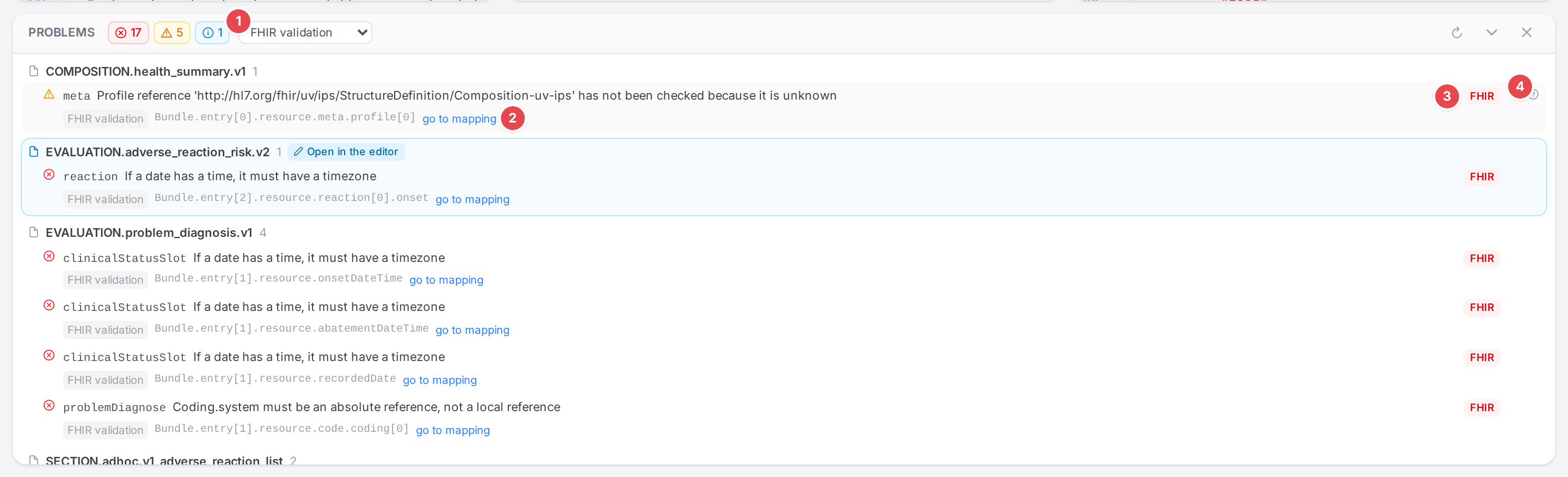
Validation issues of the IPS example, grouped by the model that produced them.
1 FHIR validation: the source filter. 2 go to mapping: opens the mapping that produces the element, with the cursor in its FHIR path. 3 FHIR: clicking the row selects the element in the FHIR pane. 4 Ignore this kind of issue here for this template (the eye icon, on hover).
Issues Atlas can trace to a mapping are grouped under that mapping’s model; the others are grouped as Produced FHIR (no mapping traced). Each issue’s ? opens FHIR validation issues.
3. Ignore a recurring issue
Some issues are expected, for example a profile you don’t load on purpose. Hover the issue and click the eye icon: Atlas hides every issue with the same message id at the same place (list indexes don’t matter) for this template. The settings list the ignored kinds under Ignored for this template (N); × (“Stop ignoring”) shows them again.
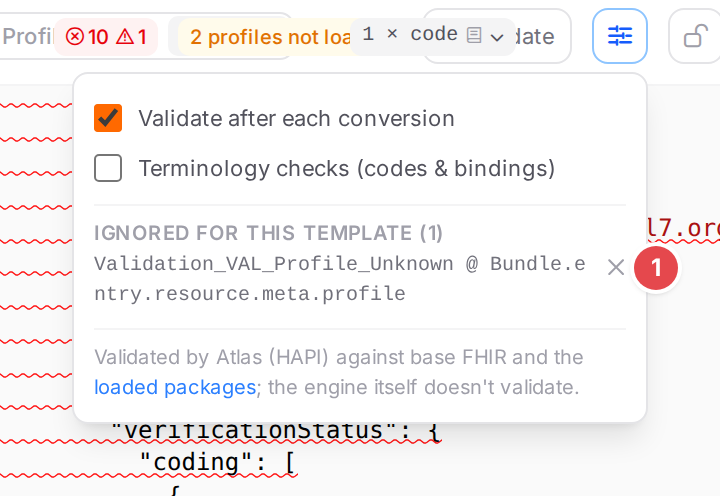
One ignored kind of issue; Stop ignoring 1 brings it back.
Check it worked
The chip shows valid, or only the issues you expect. After you fix a mapping and save, the conversion runs again and so does the validation.
Tips
Tip
Load the IG package first. Without it, the result is only checked against base FHIR, and the chip says which profiles were missing (N profile(s) not loaded).
Tip
Use go to mapping rather than the row: the row shows where in the FHIR the issue is, go to mapping shows which mapping wrote it.
Watch out
Warning
Validation runs in Atlas, not in the engine. Nothing stops the engine from producing invalid FHIR for your systems; validate before you release.
Warning
Ignored issues are kept in this browser, per template. Your teammates don’t share them.
If something goes wrong
Validation chip states: Validator starting….
N profile(s) not loaded: <n> profile(s) not loaded.
Each FHIR validation issue: FHIR validation issues.