Edit mappings in the Workspace
What you’ll do
You edit a model’s mappings in the Workspace’s visual editor: find a mapping in the outline, change it on the editing sheet, add, rename, move, duplicate and delete mappings, switch to the YAML when you need it, and decide when your edits are saved.
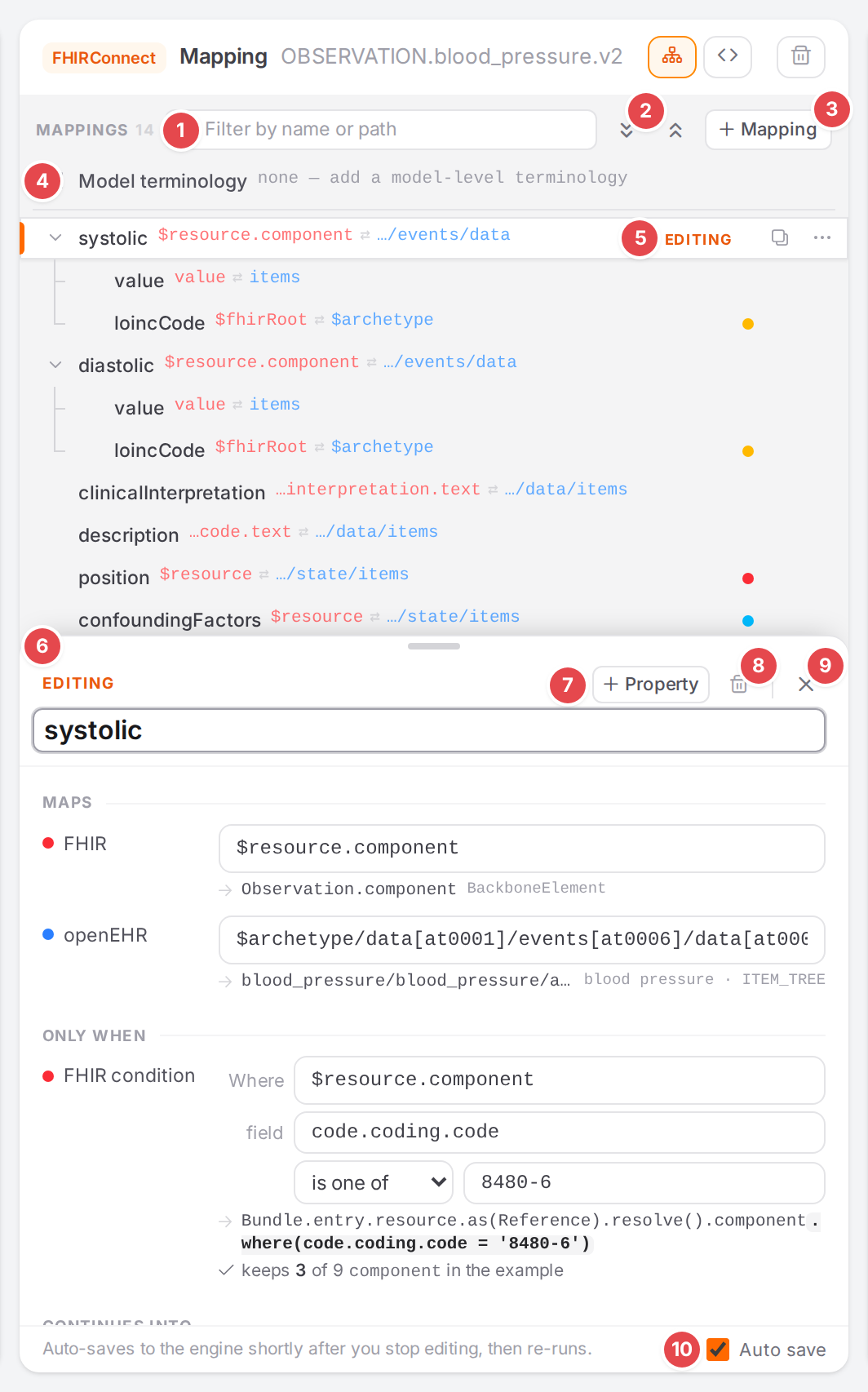
The outline of the blood pressure observation model, with systolic on the editing sheet.
Before you start
Open the template and the model in the Workspace (Start mapping a template): click the model’s card on the overview, or pick it from the model crumb in the top bar.
Write FHIR and openEHR paths and Map only when… (conditions) explain the fields on the sheet.
Steps
Find your way around
The middle pane shows the model in the visual editor: the outline (grey) on top, the editing sheet (white) below it while a mapping is selected.
The editor’s controls.
- 1 Filter by name or path
Shows only the mappings whose name or path matches, with their parents for context; matches are highlighted. Esc clears it, ↓ moves into the outline.
- 2 Expand all / Collapse all
Opens or folds every mapping that has children. The chevron on a row does it for one.
- 3 + Mapping
Adds a top-level mapping (see below).
- 4 Model terminology
The model’s own terminology block, always first. See Set the model terminology below.
- 5 The selected row
Turns white with an orange bar and EDITING; its parents’ names turn bold. Each row shows the mapping’s name and the ends of its FHIR (red) and openEHR (blue) paths; hover a row for the full paths. A book icon means the mapping’s codes are translated. The dot at the end is the mapping’s worst problem (red error, amber warning, blue info); a ring on a folded row means a problem somewhere below it.
- 6 The grab handle
Drag it to give the outline or the sheet more room; double-click resets it. Atlas remembers the split in this browser.
- 7 + Property
Adds a property the mapping doesn’t have yet: FHIR condition, openEHR condition, Manual, Terminology, Followed by, Reference, Slot archetype, Unidirectional, Mapping code (and, in extension models, Append to and Extension).
- 8 Delete
Deletes the mapping (see below).
- 9 Close
Closes the sheet (Esc does the same). The outline takes the full height and the side panes stop highlighting.
- 10 Auto save
Whether edits are saved to the engine by themselves (see Save your edits).
The sheet shows the mapping’s name in large type (click it to rename) and its properties in groups:
Maps (the FHIR and openEHR paths), Only when (conditions), Values (manual values and
terminology), Continues into (child mappings as chips, a reference, a slot), Advanced
(folded unless set), then the tabs Resolved paths and Example values. A status chip such as
1 error next to + Property shows the mapping’s problems; click it to see them in the Problems
dock.
Use the keyboard in the outline (click a row first):
Key |
Does |
|---|---|
↑ / ↓ |
Select the previous / next row |
← / → |
Fold / unfold the row, or go to its parent / first child |
Home / End |
Select the first / last row |
Enter |
Edit the selected mapping’s name |
Delete or Backspace |
Delete the selected mapping |
Ctrl+D (Cmd+D on a Mac) |
Duplicate the selected mapping |
Alt+↑ / Alt+↓ |
Move it up / down among its siblings |
Alt+→ |
Move it into the mapping above it, as its last child |
Alt+← |
Move it out of its parent, right after it |
Add a mapping
Click + Mapping for a top-level mapping. For a child, open the parent’s ⋯ menu and click Add child mapping, or click + Add child mapping (or + child) on the parent’s sheet.
The new mapping is selected with its name field focused. Type the name, then fill in the FHIR and openEHR paths (Write FHIR and openEHR paths).
A model without mappings shows No mappings yet. and an + Add mapping button.
Rename a mapping
Select the row and press Enter, or open its ⋯ menu and click Rename. The name field on the sheet is focused with the name selected; type the new one.
Use the row menu
Hover a row to see its buttons.
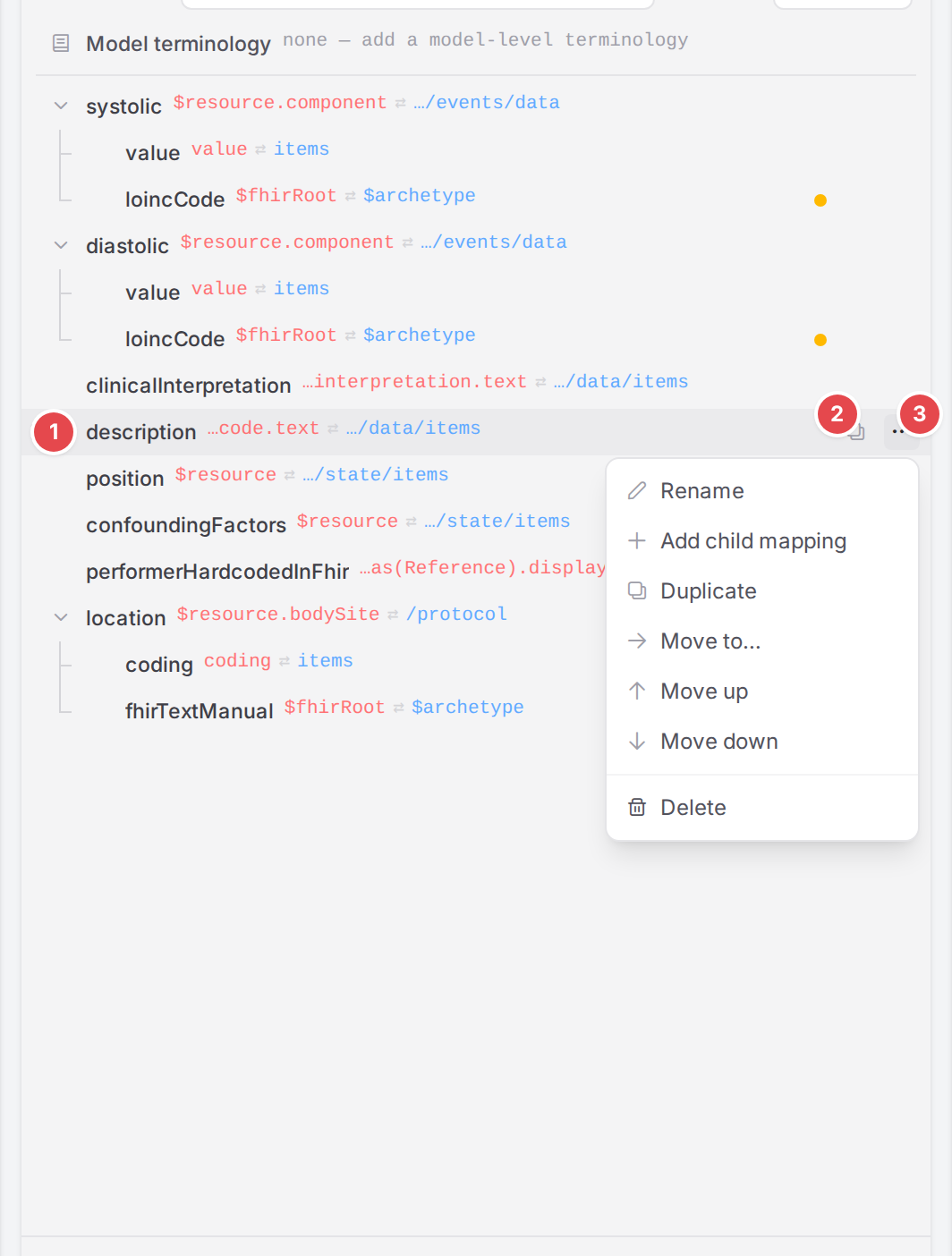
The grip for dragging 1, Duplicate (Ctrl+D) 2, and the ⋯ menu 3.
The ⋯ menu holds Rename, Add child mapping, Duplicate, Move to…, Move up, Move down and Delete.
Move a mapping
Moving changes where a mapping sits: its order, or its parent. Atlas rewrites the mapping’s relative paths for the new parent where it can.
Drag and drop. Drag a row by its grip (the dotted handle at its left edge) and hold it over another row:
over the middle of a row: the row gets an orange frame and → followed by. Dropping makes the mapping that row’s last child.
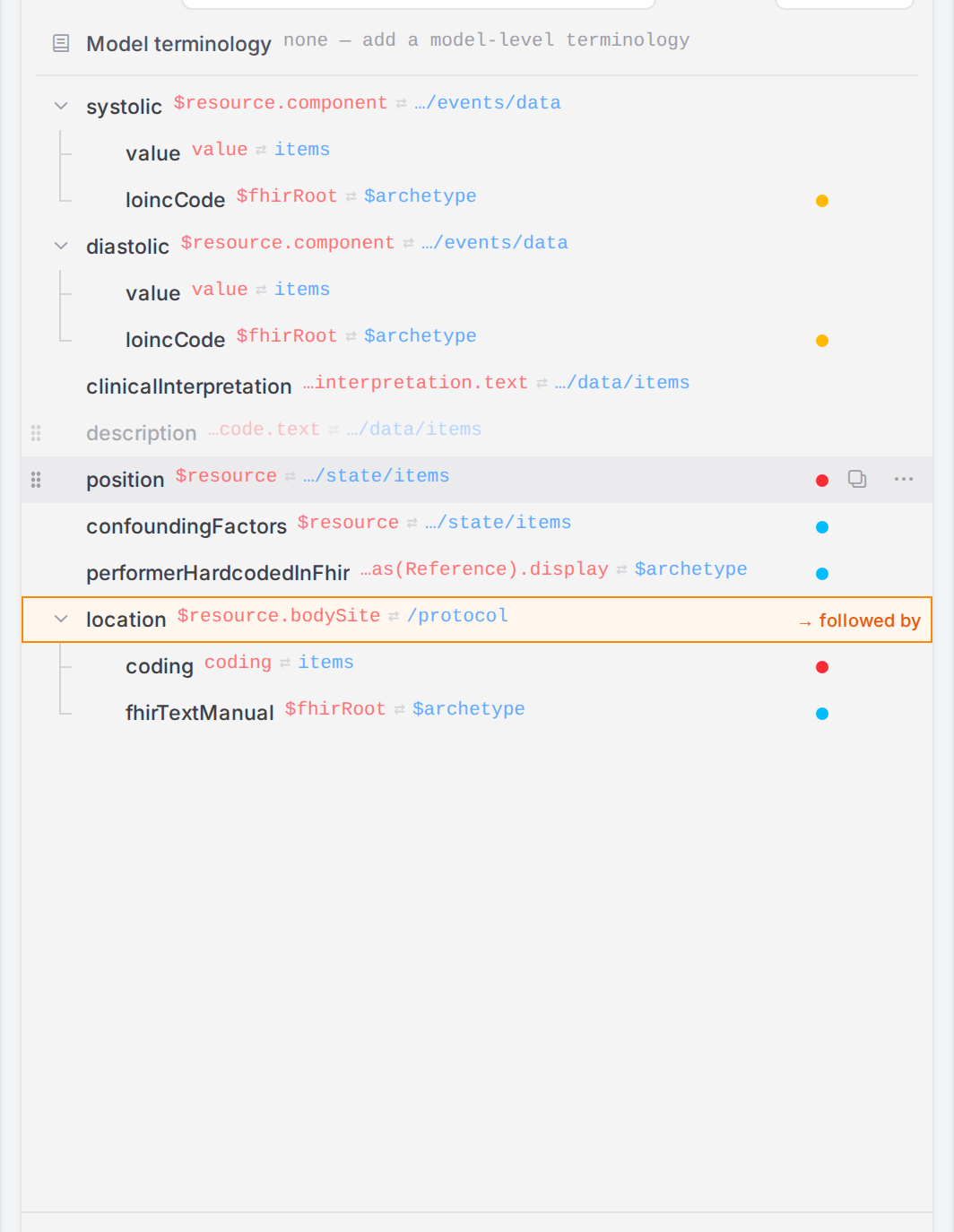
descriptionheld over the middle oflocation: it would become its child.near the top or bottom edge of a row: an orange line shows where it lands, before or after that row. Where several levels end at the same spot, move the pointer left or right to choose the depth: the line’s indent follows it.
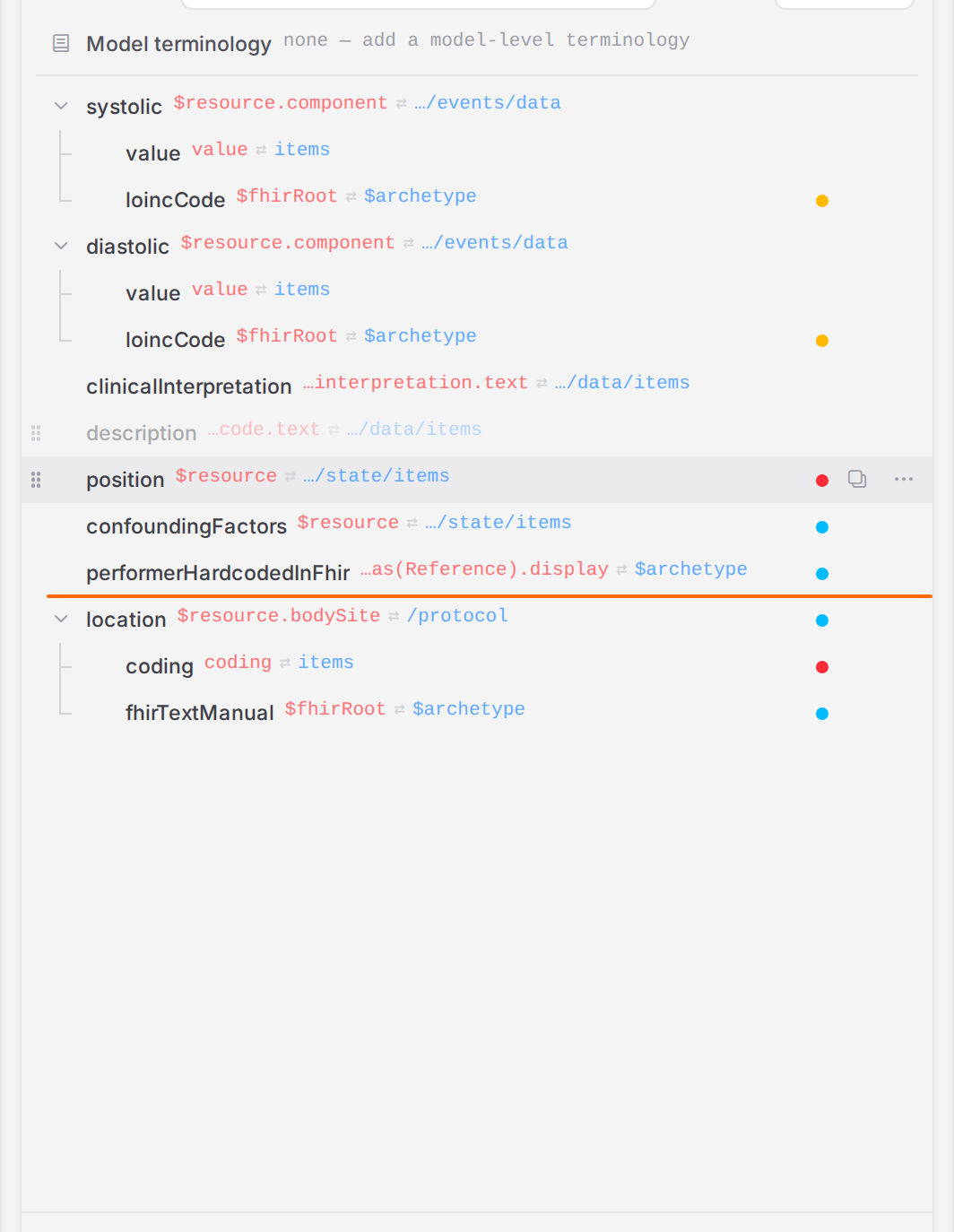
Held near the top edge of
location: it would land just before it.
Holding a dragged row over the middle of a folded row opens it after a moment, so you can drop deeper.
Keyboard. Select the row and use Alt with the arrow keys (see the table above), or Move up / Move down in the ⋯ menu.
Move to…. Open the row’s ⋯ menu and click Move to…. Type in Filter by name or path 1 to find the destination: Top level or another mapping (the moved mapping becomes its last child). Destinations that can’t take it are greyed out; hover one for the reason. The line at the bottom 2 previews how the paths change. Use ↑ / ↓ and Enter, or click; Esc goes back to the menu.
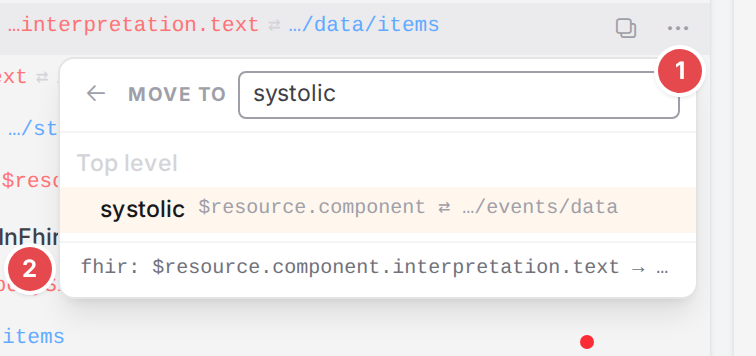
Moving clinicalInterpretation under systolic: its FHIR path becomes relative.
Duplicate or delete a mapping
Duplicate (the copy button on the row, Ctrl+D, or ⋯ › Duplicate) puts a copy of the mapping, with all its children, right after it, and selects the copy’s name so you can rename it.
Delete (the bin on the sheet, Delete in the outline, or ⋯ › Delete) removes the mapping with all its children. There is no confirmation: undo it instead.
Undo the last change
After a delete, a move or a duplicate, a dark toast at the bottom of the editor says what happened
(Deleted “<name>”, Moved “<name>” under “<parent>”, Moved “<name>” to the top level,
Duplicated “<name>” …) with Undo 1. It disappears after a few seconds, and stays a
little longer when it carries notes.
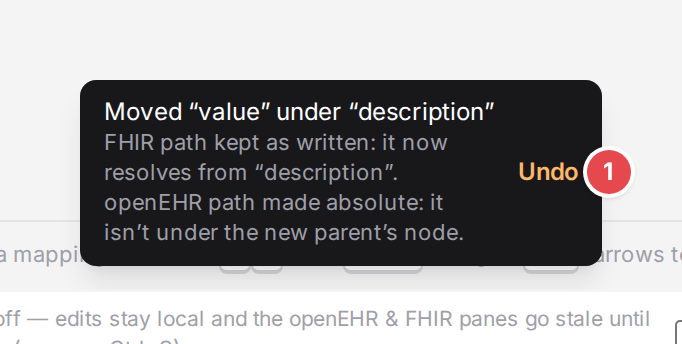
A move whose paths couldn’t follow the new parent, and Undo 1.
The notes tell you what to check after a move:
Note |
What to do |
|---|---|
|
The relative FHIR path couldn’t be rewritten for the new parent and now means something else there. Check it. |
|
The same for the openEHR path. |
|
Atlas rewrote the openEHR path from the archetype root, because the new parent’s node doesn’t contain it. |
|
The mapping’s FHIR condition still names the old place. See Map only when… (conditions). |
|
Two siblings share a name now. Rename one: problems and highlights pick the first. |
Work in the YAML (Code view)
The two buttons in the middle pane’s header switch views: the tree button (Visual mapping editor) 1 and <> (Raw YAML editor) 2.
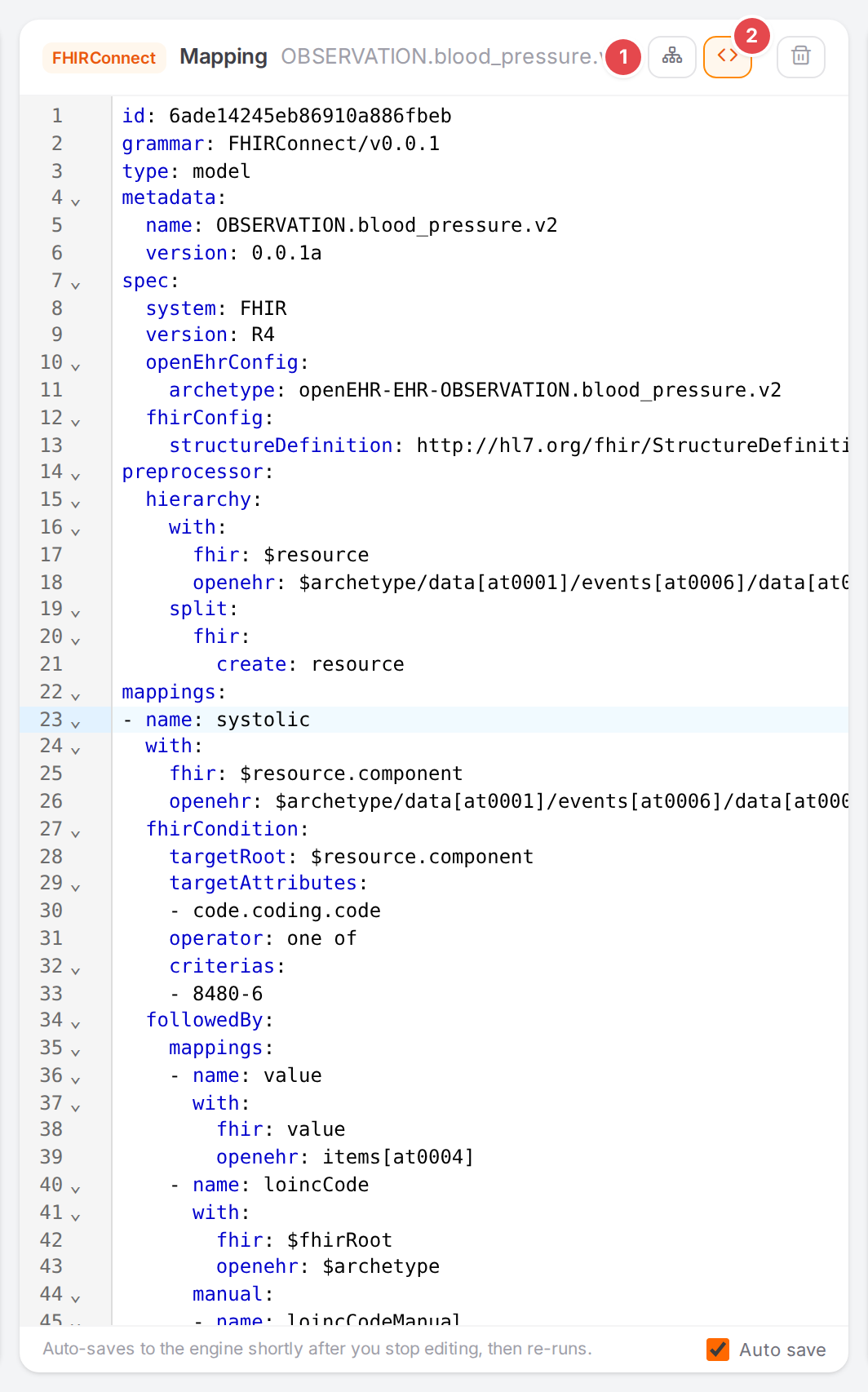
The same model in the Code view.
The Code view is the model’s FHIR Connect YAML. It suggests keys and values from the FHIR Connect schema as you type (Ctrl+Space asks for them), marks schema errors in the gutter, and indents with spaces when you press Tab. The caret selects the mapping it is in: the side panes highlight it, and the visual editor opens on it when you switch back. Saving works the same in both views.
If the YAML doesn’t parse, the visual editor can’t show it. The pane switches to the code and says
Couldn't parse the YAML for the visual editor — showing raw code. with the parser’s message. Fix
the YAML there.
Save your edits
Auto save (on by default) saves the model to the engine shortly after you stop editing, then re-runs the example conversion, so the side panes follow your edits. The footer says Auto-saves to the engine shortly after you stop editing, then re-runs.
To collect several edits before they reach the engine, untick Auto save in the footer 4. Then:
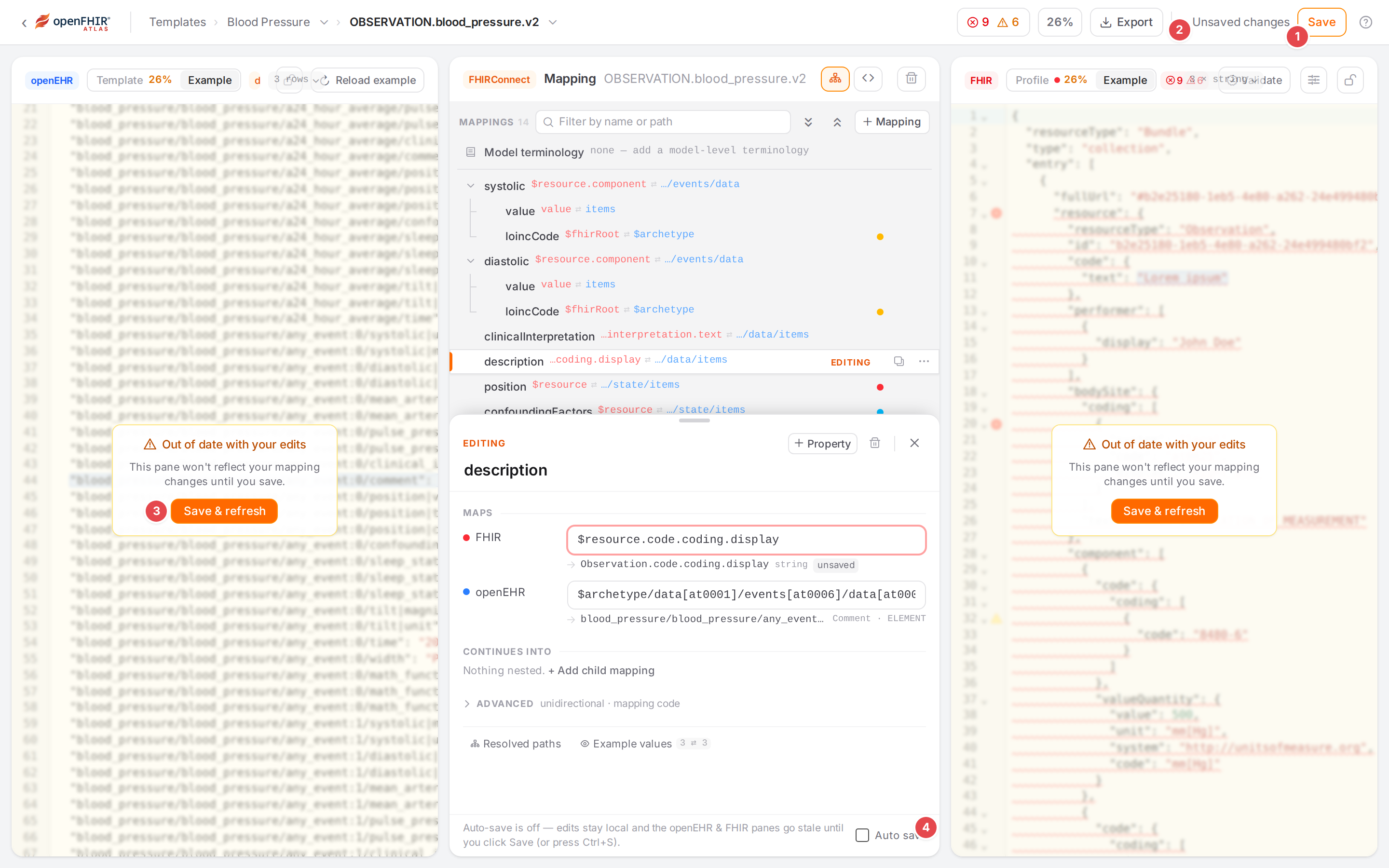
Saving by hand: Save 1, the save status 2, a stale pane’s Save & refresh 3, and Auto save switched off 4.
Edits stay in the browser. The top bar shows Unsaved changes 2 and a Save button 1.
Both example panes are dimmed with Out of date with your edits — This pane won’t reflect your mapping changes until you save. Their Save & refresh 3 saves and re-runs.
Click Save or press Ctrl+S (Cmd+S) to save. The status shows Saving & running…, then Saved.
With Auto save on, Ctrl+S saves a pending edit right away and briefly says Auto-save is on — edits save automatically. With it off and nothing to save, it says No unsaved changes. Ticking Auto save again saves any unsaved edits at once.
Leaving with unsaved edits. Switching template or model, going back, or leaving the Workspace with unsaved edits asks Leave without saving? — You have unsaved changes to this mapping. If you leave now they will be lost. Leave anyway? Click Stay to keep editing, Leave to drop the edits. Closing or reloading the browser tab asks through the browser’s own prompt.
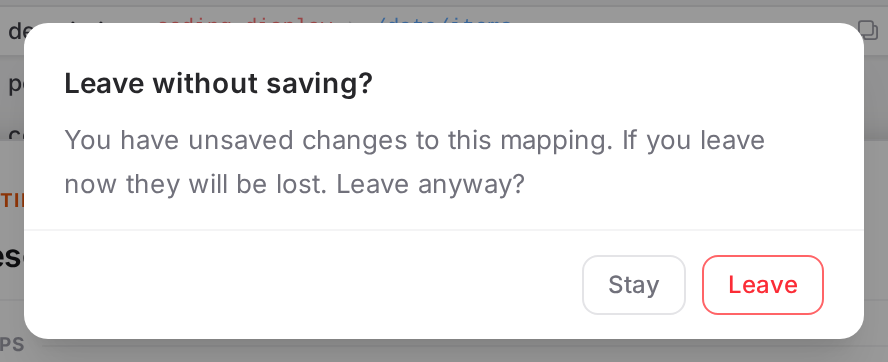
The prompt before unsaved edits are dropped.
Set the model terminology
Click Model terminology 1 at the top of the outline. The sheet shows EDITING ·
model header and the model’s Terminology block: its Type 2 (none,
inline, local or external) and, by type, the ConceptMap, the server or the inline rows. A
model without one shows Add terminology. The row itself summarises the block, or says
none — add a model-level terminology.
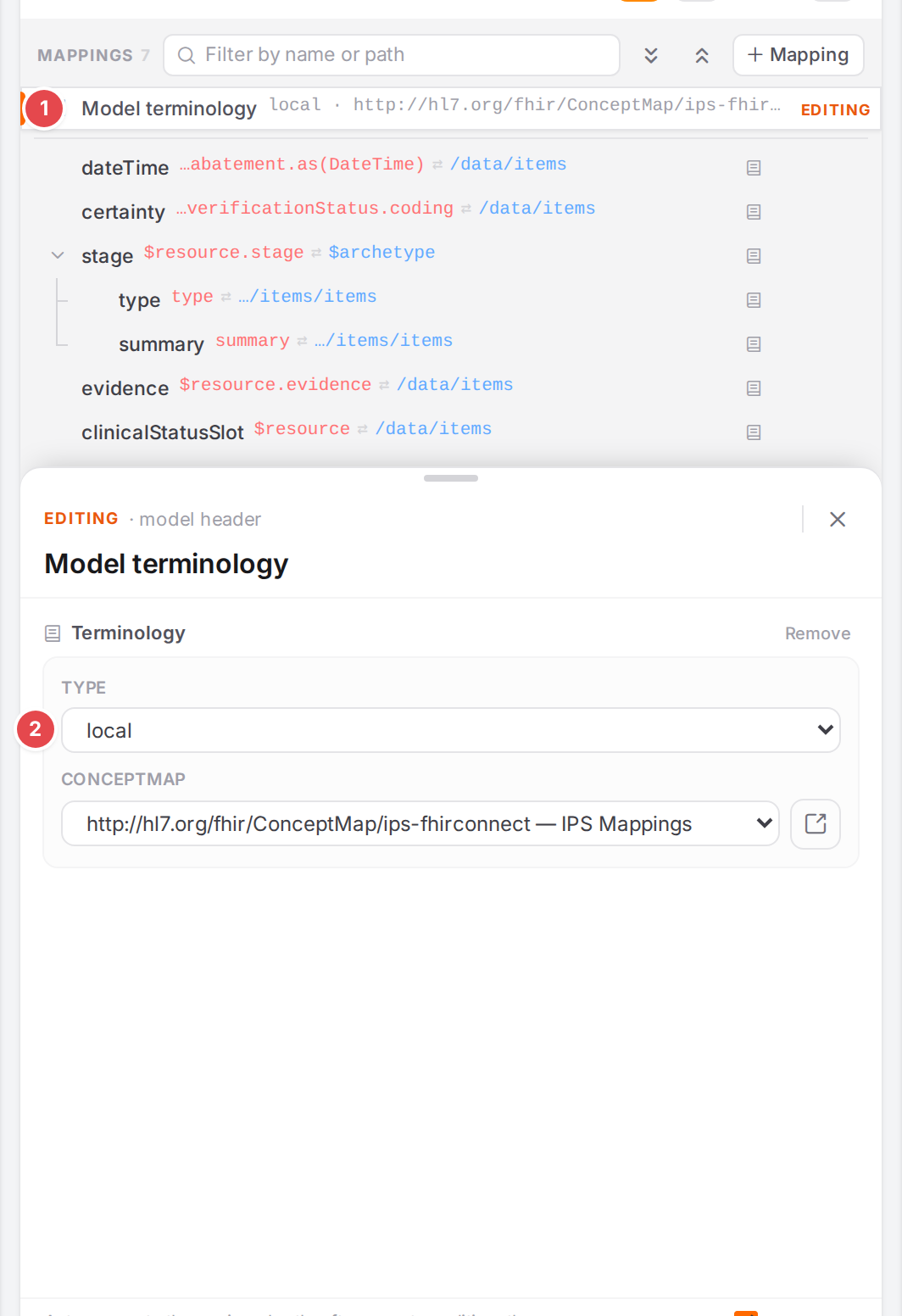
The model terminology row 1 and its type 2.
Translate codes explains which setting to use.
Check it worked
The top bar’s save status shows Saved (or nothing) and no Unsaved changes.
The side panes show the example converted with your mapping (See your mapping in action).
The row’s status dot and the Problems dock show no new problems (Fix problems).
Tips
Tip
Press Esc to close the sheet and get the whole outline back; ↑ / ↓ open it again on the next mapping.
Tip
Filter, then click: the filter finds a mapping by any part of its name or paths (loinc,
bodySite, at0004).
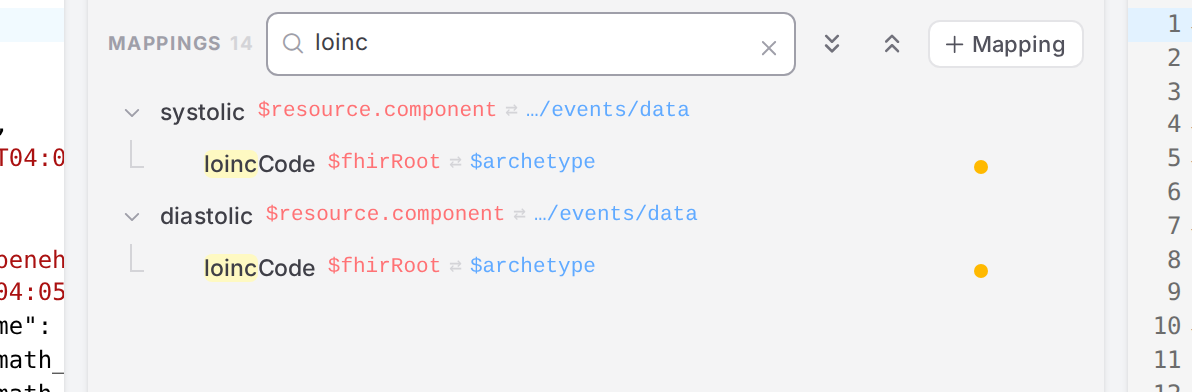
The Blood Pressure outline filtered by loinc.
Tip
Duplicate a mapping to start a similar one, such as diastolic from systolic: the copy keeps the
conditions and children, so you only change what differs.
Watch out
Warning
Auto save turns back on every time you open the Workspace. Atlas doesn’t remember that you switched it off. If you rely on saving by hand, untick Auto save again at the start of each visit.
Warning
Moving is off while the outline is filtered. Rows can’t be dragged, and Alt + arrows and the move items of the ⋯ menu do nothing. Clear the filter to move mappings.
Warning
Undo covers only the last delete, move or duplicate, and only while its toast shows. Text you typed into fields isn’t part of it.
Warning
Esc closes the sheet only when no field has the focus. In a path field it closes the field’s suggestions instead; click a row of the outline first.
If something goes wrong
What you see |
What it means and what to do |
|---|---|
Save failed in the top bar, with the reason in red in the footer |
The engine didn’t accept the model. Your edits stay in the editor; fix what the message says and save again. Leaving now asks Leave without saving?. |
|
The engine returned the model without an id, so Atlas can’t save changes to it. |
|
See Work in the YAML above. |
|
Nothing matches the filter. Clear it with Esc. |
Problems about single mappings, such as
a mapping without a name,
two mappings with the same name,
a mapping without with or
a mapping without paths,
show on the row and in the Problems dock. Every other notice is in Messages and notices A–Z.