Export and move mappings
What you’ll do
You download one template with everything it needs as a single ZIP: its FHIR Connect mappings, its OPT, the IG packages of its FHIR profiles and the ConceptMaps it translates codes with. You then upload that ZIP into another Atlas or engine, for example from a test tenant to production.
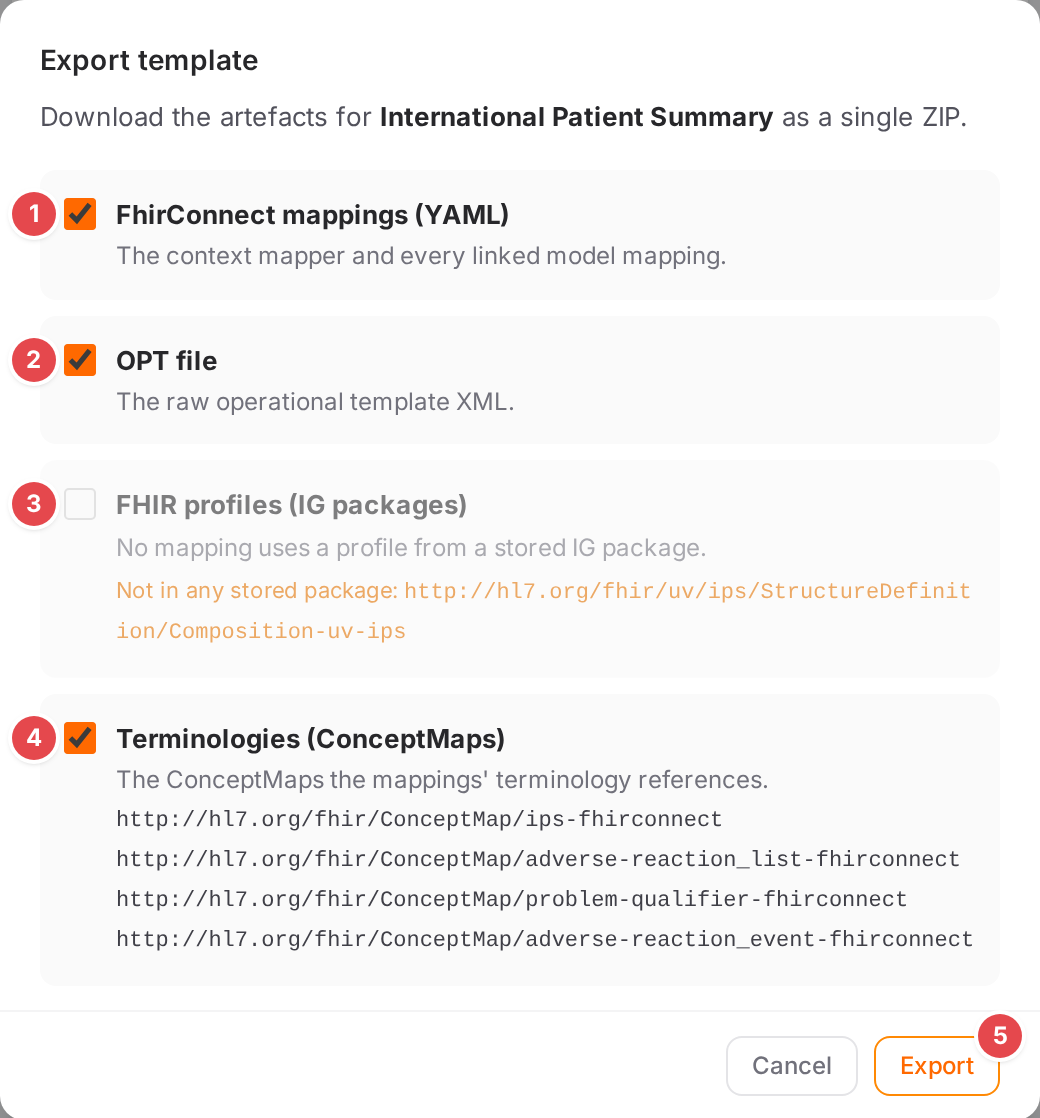
Exporting the International Patient Summary template of the demo.
Before you start
Export works with or without versioning. Exporting a release needs versioning and a connected Git repository (see Release a template).
To upload elsewhere you need write access to the mappings there.
Steps
Export a template
Open the export dialog from one of these places:
the Workspace top bar, Export (only the icon on narrower screens), for the open template;
the Engine state page: select the template and click Export in its action row.

Export in the Workspace top bar.
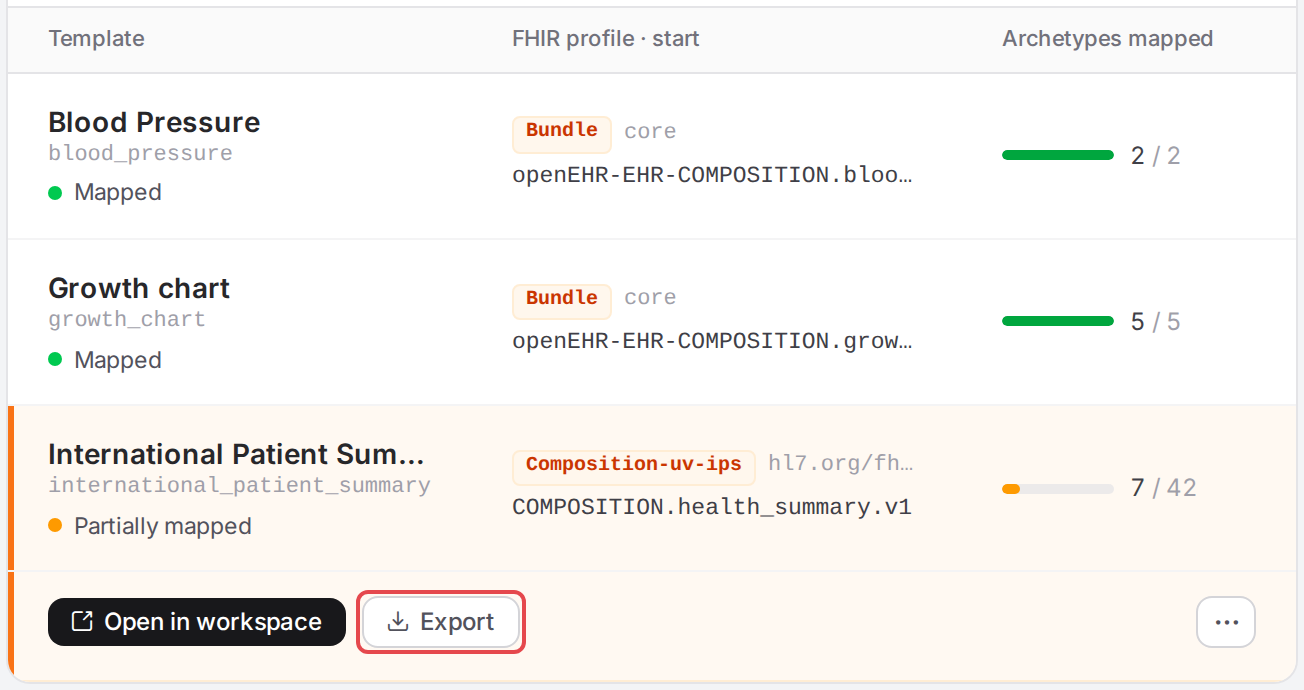
Export on the Engine state page.
Choose what goes into the ZIP. Atlas looks up the linked profiles and ConceptMaps when the dialog opens and ticks those that exist.
Option
Contents
1
FhirConnect mappings (YAML)
The context mapper and every linked model mapping. Disabled when the template has no context mapper.
2
OPT file
The raw operational template XML.
3
FHIR profiles (IG packages)
The stored IG packages that provide the models’ profiles, plus their stored dependencies, each with its size and number of profiles. Disabled with No mapping uses a profile from a stored IG package. when there are none.
4
Terminologies (ConceptMaps)
The ConceptMaps the mappings’ terminology references, listed by URL. Disabled with No mapping references a stored ConceptMap. when there are none.
Amber lines name what the template refers to but the engine doesn’t have: Not in any stored package: for profiles, Not found in the engine: for ConceptMaps. Those can’t be in the ZIP.
Click Export 5. The browser downloads the ZIP and the dialog closes.
On the Releases tab of the Versioning page, Export ZIP on a template release downloads the template as of that release, with its mappings, OPT and ConceptMaps (IG packages aren’t versioned).
What the ZIP contains
The engine builds the ZIP in the layout of its Git repository: templates/<template>/template.opt,
templates/<template>/context.yml, models/<model>.yml, conceptmaps/…, packages/… and a
small .openfhir/ folder that marks it as an export. The models a template extends come along. An
engine without this export gets a plain ZIP of the same files from Atlas. Either kind uploads as it
is.
Move it to another tenant or installation
Sign in to the target Atlas and open Engine state.
Click Upload and pick the ZIP.
Atlas previews what the upload would create, update and delete. Choose Merge to add and update only, or Mirror to make the engine hold exactly what the upload contains.
Apply the upload.
Bring your material in describes the upload, the preview and both modes in detail.
Check it worked
On the target, the Engine state page lists the template with its models, and the Workspace opens it with the same mappings.
FHIR packages lists the uploaded IG packages, and Terminology the ConceptMaps.
Tips
Tip
Load the IG packages before you export, and check that no amber Not in any stored package line is left: the ZIP then carries everything the target needs for suggestions, checks and validation.
Tip
An export of a release is a reproducible copy of exactly what you released.
Watch out
Warning
Mirror deletes every template, model, context and ConceptMap of the target tenant that the upload doesn’t contain, not only those of this template. Uploading one template with Mirror into a tenant that holds others removes the others. Use Merge unless you want the target to hold exactly this ZIP.
Warning
Leaving out FhirConnect mappings or the OPT file gives a ZIP that can’t recreate the template on its own. Leave them ticked when you move a template.
If something goes wrong
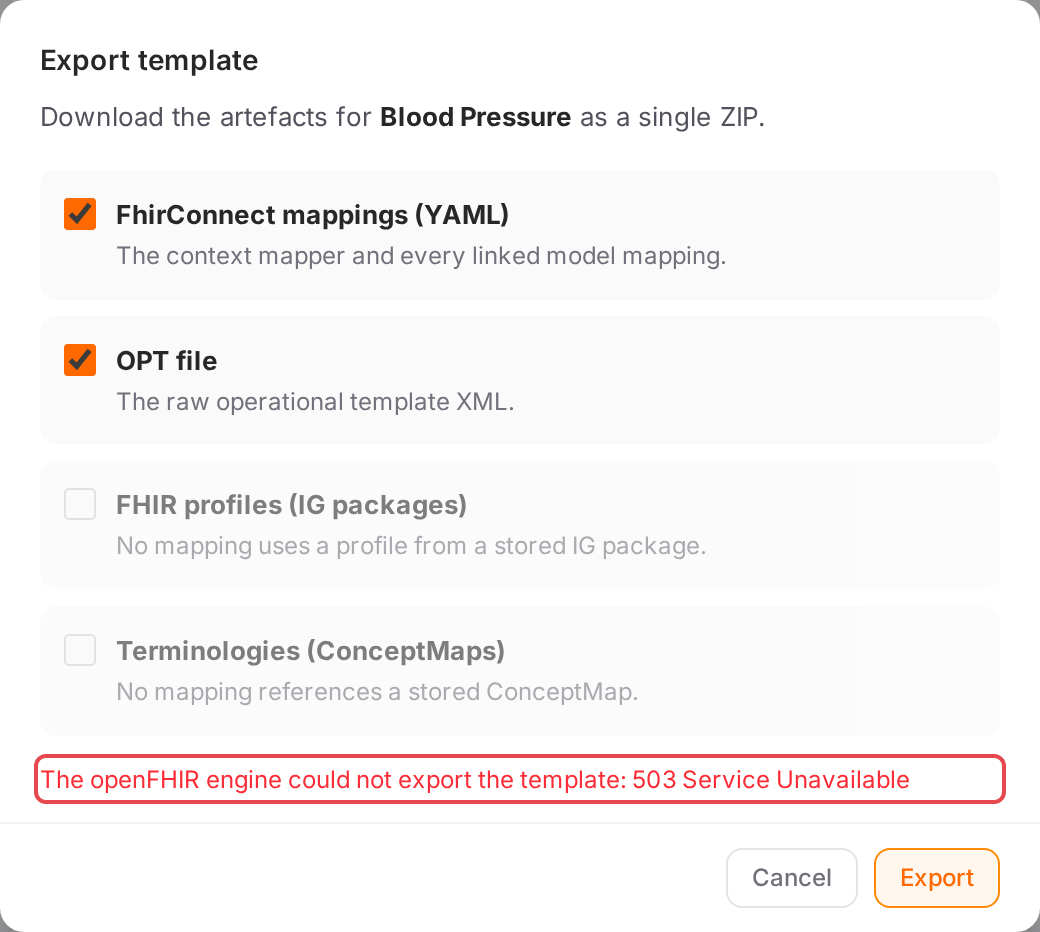
A failed export keeps the dialog open with the reason.
Message |
What to do |
|---|---|
Export failed, or the engine’s reason, under the options |
Nothing was downloaded. Try again; if it persists, see Messages and notices A–Z. |
Couldn’t look up linked profiles and terminologies |
The lookup failed; the profiles and ConceptMaps options stay unticked. The mappings and the OPT still export. |
FHIR packages are still loading — try again shortly. |
The engine is still reading its IG packages. Close the dialog and open it again in a moment. |
Could not export the release |
The release couldn’t be read from the remote; check the Connect a Git repository page. |