Start mapping a template
What you’ll do
You open a template in the Workspace, choose the archetype where every conversion starts, and add a model for each archetype the template contains, either by reusing a model that already exists or by creating a new one with the New model mapping wizard.
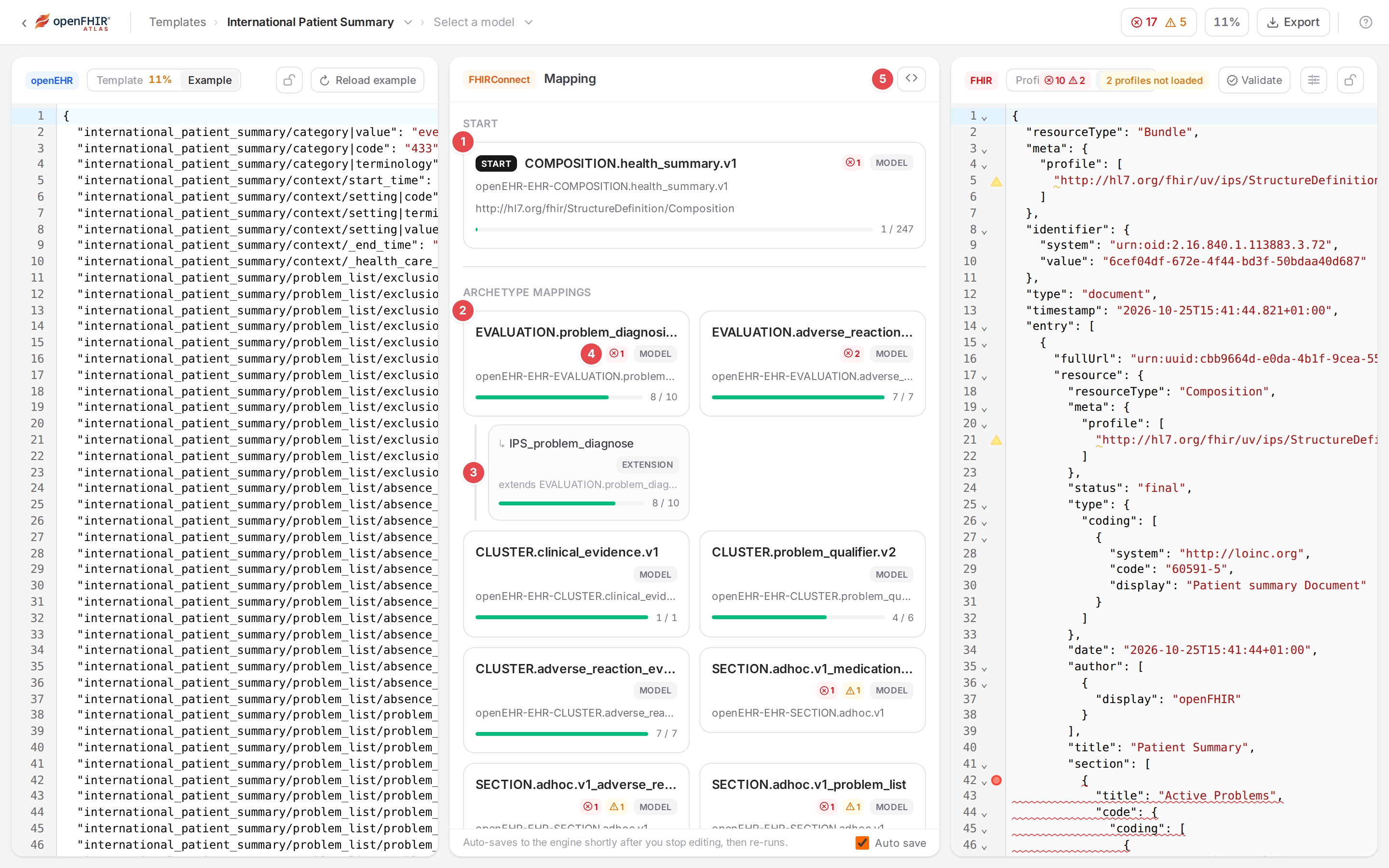
The overview of the International Patient Summary template in the Workspace.
Before you start
The template’s OPT is in the engine (Bring your material in).
If the FHIR side follows a profile (for example the IPS), load its IG package first (Use FHIR profiles and IG packages), so you can pick the profile in the wizard. You can also add a profile from inside the wizard.
Key ideas in plain words explains template, context mapper, start archetype, model and slot.
Steps
Open the template
Click Open Workspace in the sidebar, then the template’s card under Select a template to start mapping. From Engine state you can also select the template and click Open in workspace.
The middle pane shows the template’s overview:
The start model 1, a model of an archetype 2, an extension model 3, a model’s problem count 4, and the context mapper button 5.
- START 1
The start model, marked START: the model the engine begins every conversion with. Its card names the archetype and the FHIR type it maps.
- ARCHETYPE MAPPINGS 2
Every other model of the template, with its archetype. The bar at the bottom of each card shows how many of the archetype’s elements it maps (
8 / 10).- Extension models 3
An extension model sits under the model it extends, marked ↳, EXTENSION and
extends <model>.- Problem count 4
The model’s errors and warnings. See Fix problems.
- <> 5
Opens the template’s context mapper as YAML (Connect models: slots, links, references).
- NOT YET MAPPED
The template’s archetypes no model maps yet, one Add mapping card each. This section only shows while there are some.
Click a model’s card to open it in the editor (Edit mappings in the Workspace). The model crumb in the top bar (Select a model with its ▾) switches between the template’s models too.
Create the context mapper
A template you uploaded without a context mapper (the OPT alone) can’t be mapped yet. Instead of the overview, the middle pane shows New context mapper:
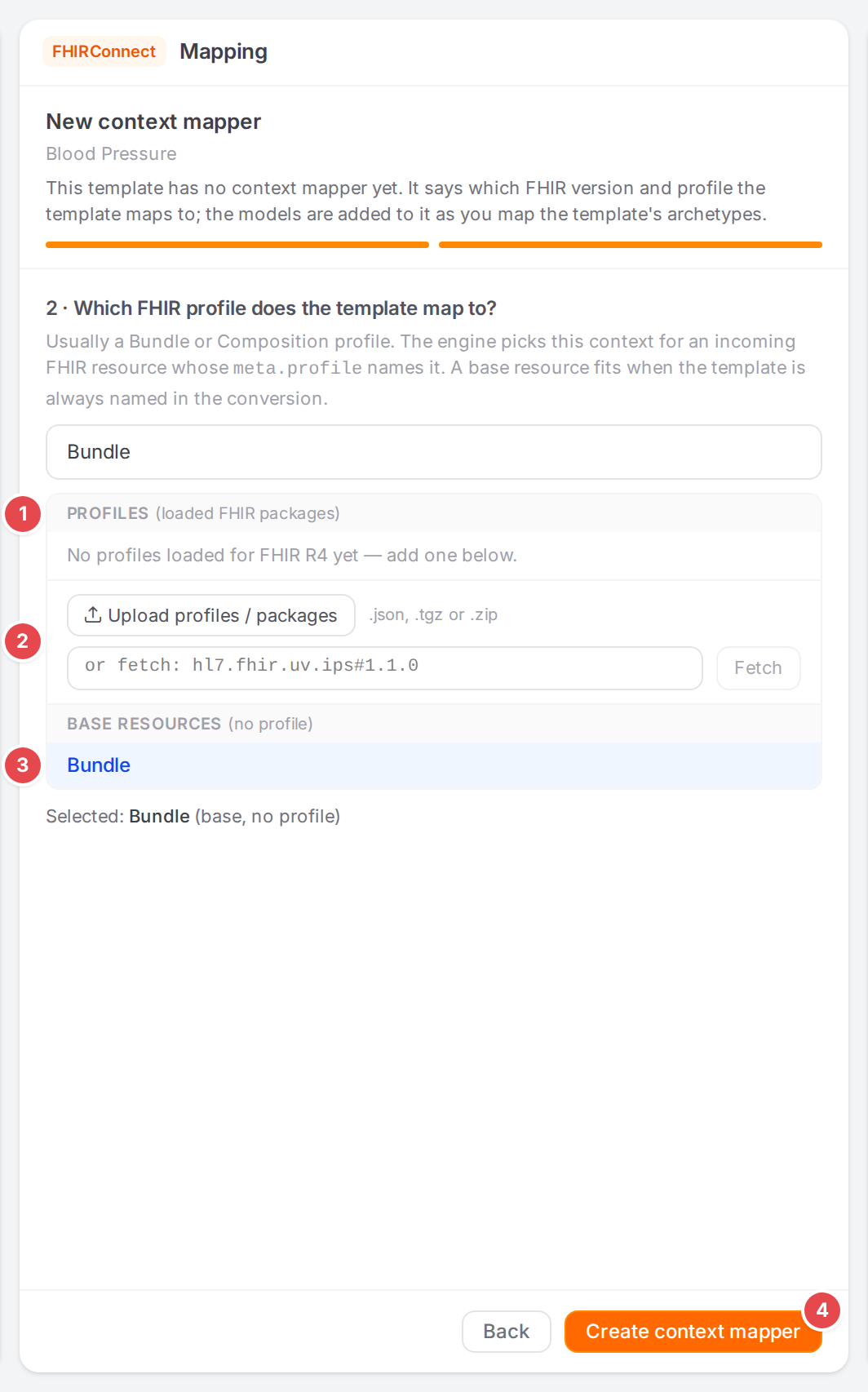
The loaded profiles 1, adding one 2, a base resource 3 and Create context mapper 4.
1 · Select the FHIR version the template maps to (R4 unless you change it), then click Next.
2 · Which FHIR profile does the template map to? Pick a profile from the loaded FHIR packages 1, add one by uploading a StructureDefinition or package or fetching one from the registry 2, or pick a base resource such as Bundle 3. Only profiles on resources are offered. The engine picks this context for an incoming FHIR resource whose
meta.profilenames the profile; a base resource fits when every conversion names the template.Click Create context mapper 4. Atlas names the context mapper after the template and fills in the template id. It lists no models and has no start yet: the overview appears, and the next steps add both.
Choose the start archetype
A freshly uploaded template has no start. The START section then shows Choose a start archetype for this template 1.
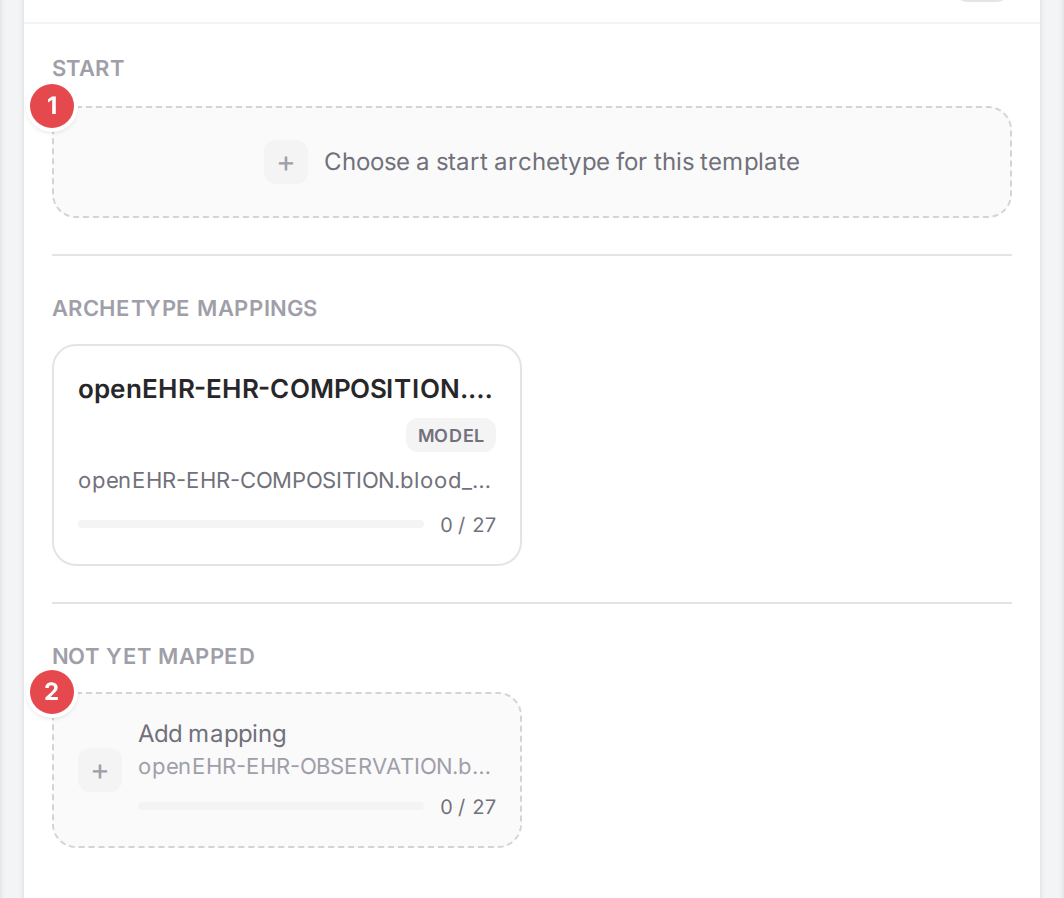
No start yet 1; one archetype is not yet mapped 2.
Click Choose a start archetype for this template. The Choose a start archetype dialog lists:
Mapped: the template’s models. Click one to make it the start.
Not yet mapped: the archetypes no model maps. Click one to add a model for it, which becomes the start (the steps below, without a slot: nothing slots in the start).
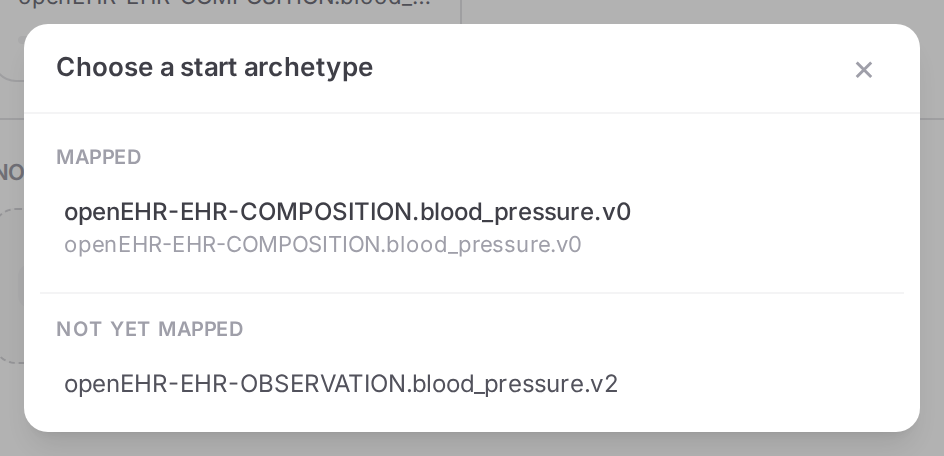
One mapped model and one archetype not yet mapped.
Usually the start is the template’s COMPOSITION archetype. Atlas writes your choice into
context.startof the context mapper and keeps the rest of the file as written.
Add a model for an archetype
Under NOT YET MAPPED, click the Add mapping card of the archetype.
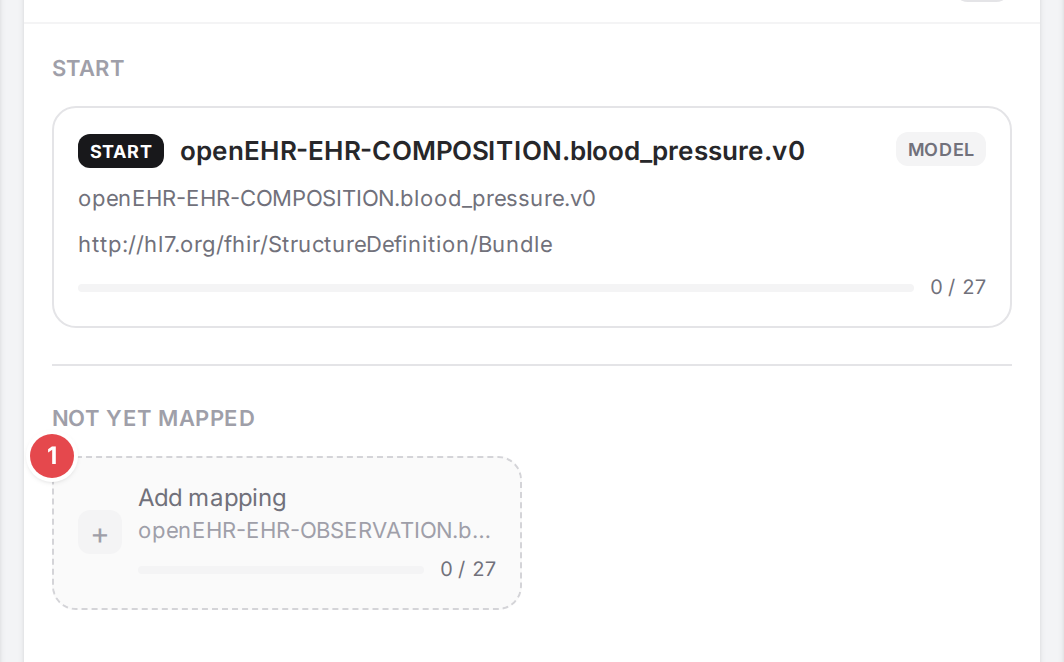
The observation archetype has no model in this template yet.
If a model for this archetype already exists in the engine (in another template), Atlas asks Use an existing mapping? + Slot in the template coverage opens the same dialog, with its occurrence chosen; it also lists this template’s own models of the archetype, under In this template, before those In other templates.
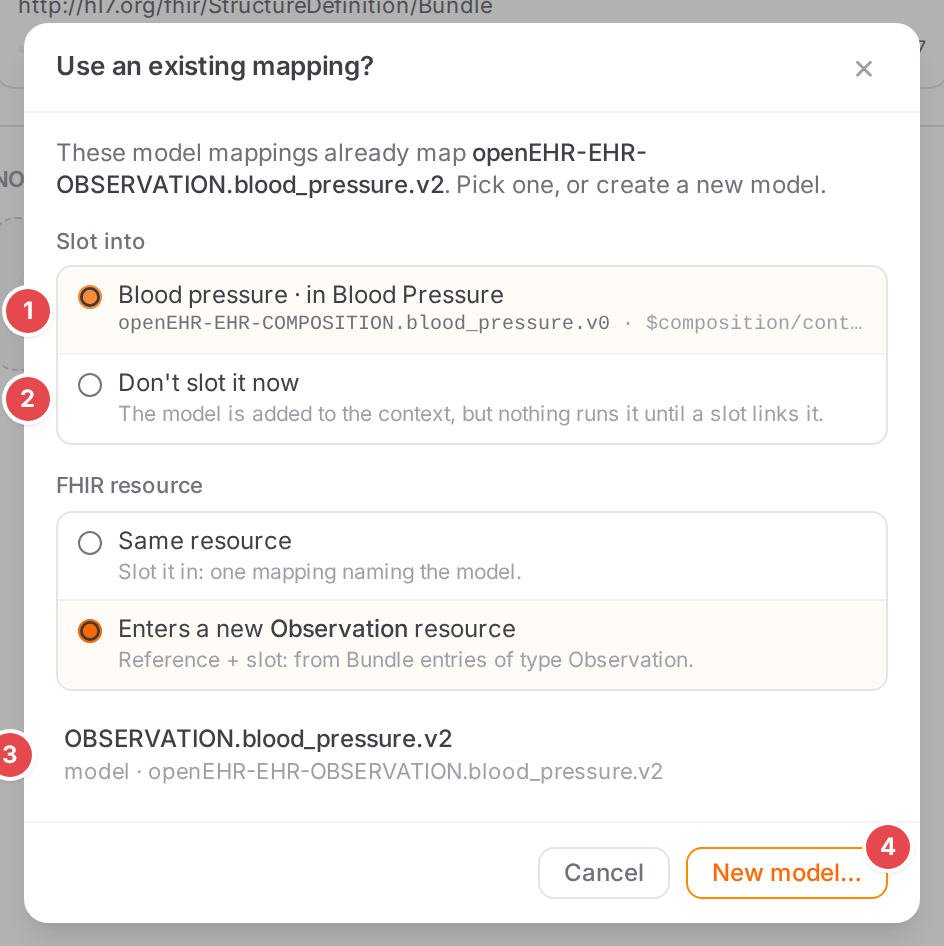
Where it is slotted in 1, or not yet 2; a model to reuse 3; or New model… 4.
Slot into 1 lists every place in the template where this archetype occurs, with the model that will hold the slot mapping and its openEHR path. The first usable place is chosen for you; see Connect models: slots, links, references for how slotting works.
Don’t slot it now 2 adds the model to the context only.
With a place chosen, FHIR resource asks whether the model maps the same resource as the enclosing model or enters a new one (Slot a model that maps another resource). The default follows each model’s type.
Click a model 3 to reference it into this template. With a place chosen, Atlas also adds the slot mapping to the enclosing model and opens that model on the new mapping. Without one, it opens the reused model.
New model… 4 goes on to the next step.
While you slot the model in, extension models aren’t offered: an extension merges into its core model, so nothing can slot it.
Name the new model. The dialog (titled Add mapping when it offers a place to slot the model in, Name the mapping otherwise) asks for the Model name (metadata.name).
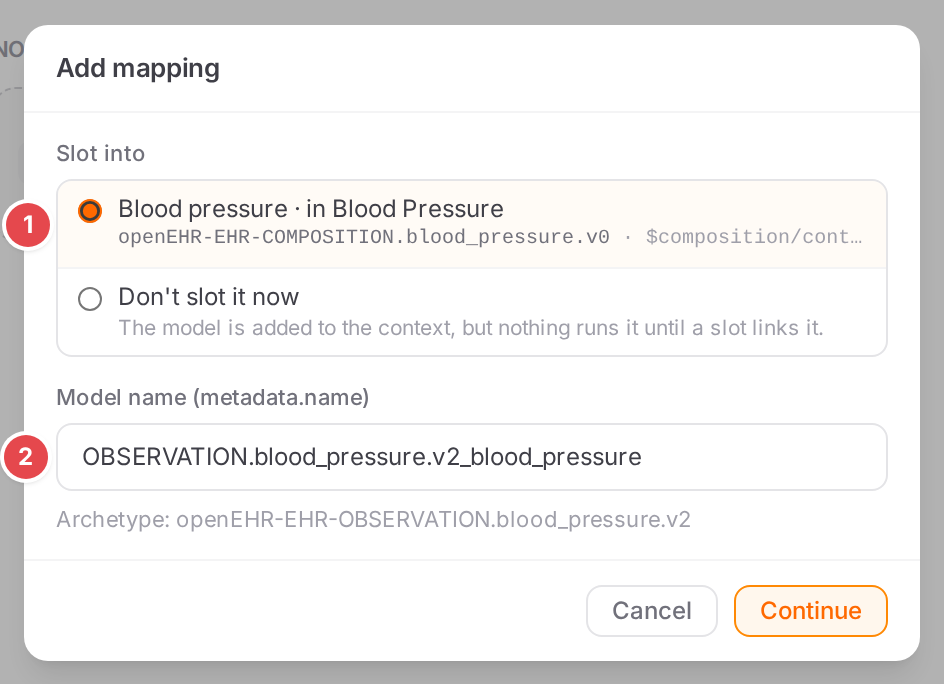
Where it is slotted in 1 and the model’s name 2.
The name is filled in from the chosen place (made unique if a model of that name exists), or from the archetype id. It follows your choice of place until you type your own. Click Continue (or press Enter).
Create the model with the wizard
The New model mapping wizard opens in the middle pane. Its header names the archetype and,
when the model will be slotted in, where: Will be slotted into <model> at <path> 1.
Once you pick what the model maps (step 2), the header also asks under FHIR resource whether
it maps the same resource as that model or enters a new one; the default follows the two types
(Slot a model that maps another resource).
1 · Select the FHIR version: STU3, R4 (the default) or R5 2. Click Next.
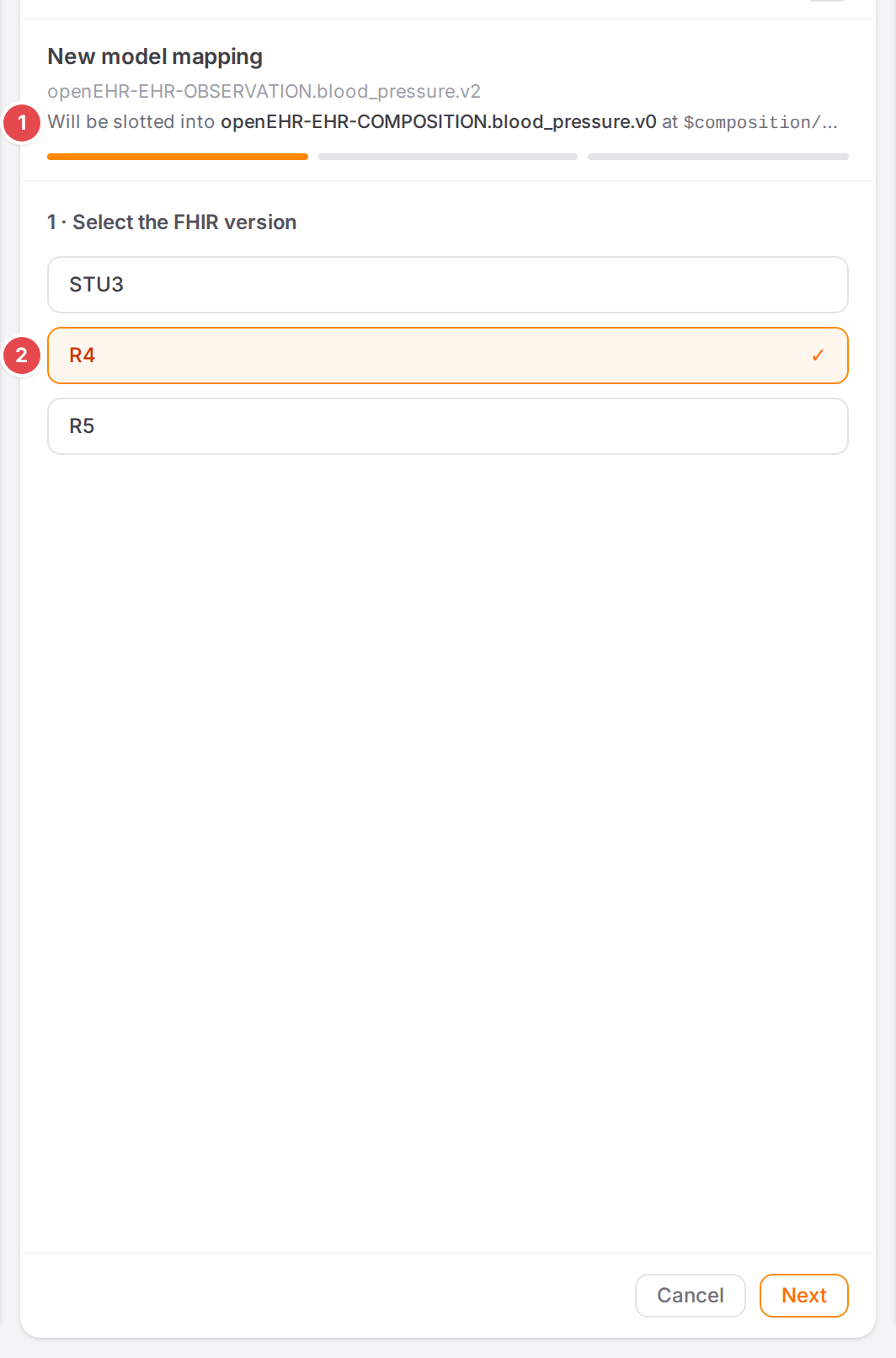
Where the model will be slotted in 1, and the FHIR version 2.
2 · What does this model map to? Choose a profile, a base resource or a data type.
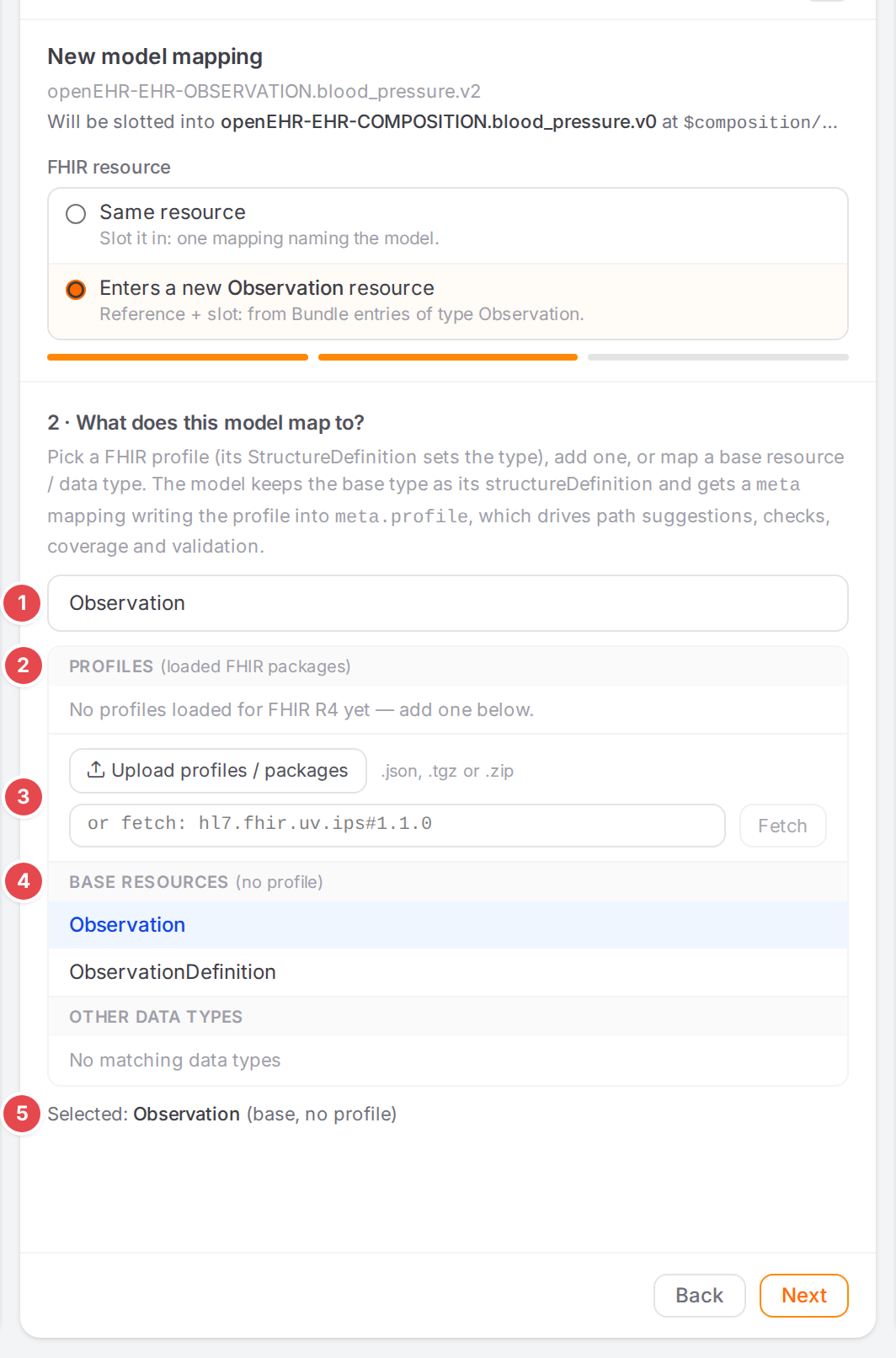
Search 1, profiles of the loaded packages 2, add a profile 3, base resources 4, and the choice 5.
Type in Search profiles, resources and data types… 1 to narrow all three lists.
Profiles (loaded FHIR packages) 2 lists the profiles of the packages loaded for this FHIR version. Picking a profile also picks its type (shown next to it). With none loaded, the list says
No profiles loaded for FHIR <version> yet — add one below.To add a profile on the spot 3, click Upload profiles / packages, pick one or more files (StructureDefinition
.json,.tgzpackages up to 15 MB, or a.zipof them) and click Upload N files, the same as on FHIR packages (Use FHIR profiles and IG packages). Or type a package asname#versionin or fetch: hl7.fhir.uv.ips#1.1.0 and click Fetch. Atlas loads it into the FHIR packages and, when the added packages hold a single profile (or a single resource profile), selects it for you:Added <package>#<version>: selected <profile> (<type>).Base resources (no profile) 4 and Other data types map the plain FHIR type.
The line at the bottom 5 says what you picked:
Selected: <profile> (profile on <type>)orSelected: <type> (base, no profile).
Click Next.
3 · Extends (optional): to make an extension model, pick the model it extends. The list holds the engine’s models for the same archetype. Leave None to start fresh.
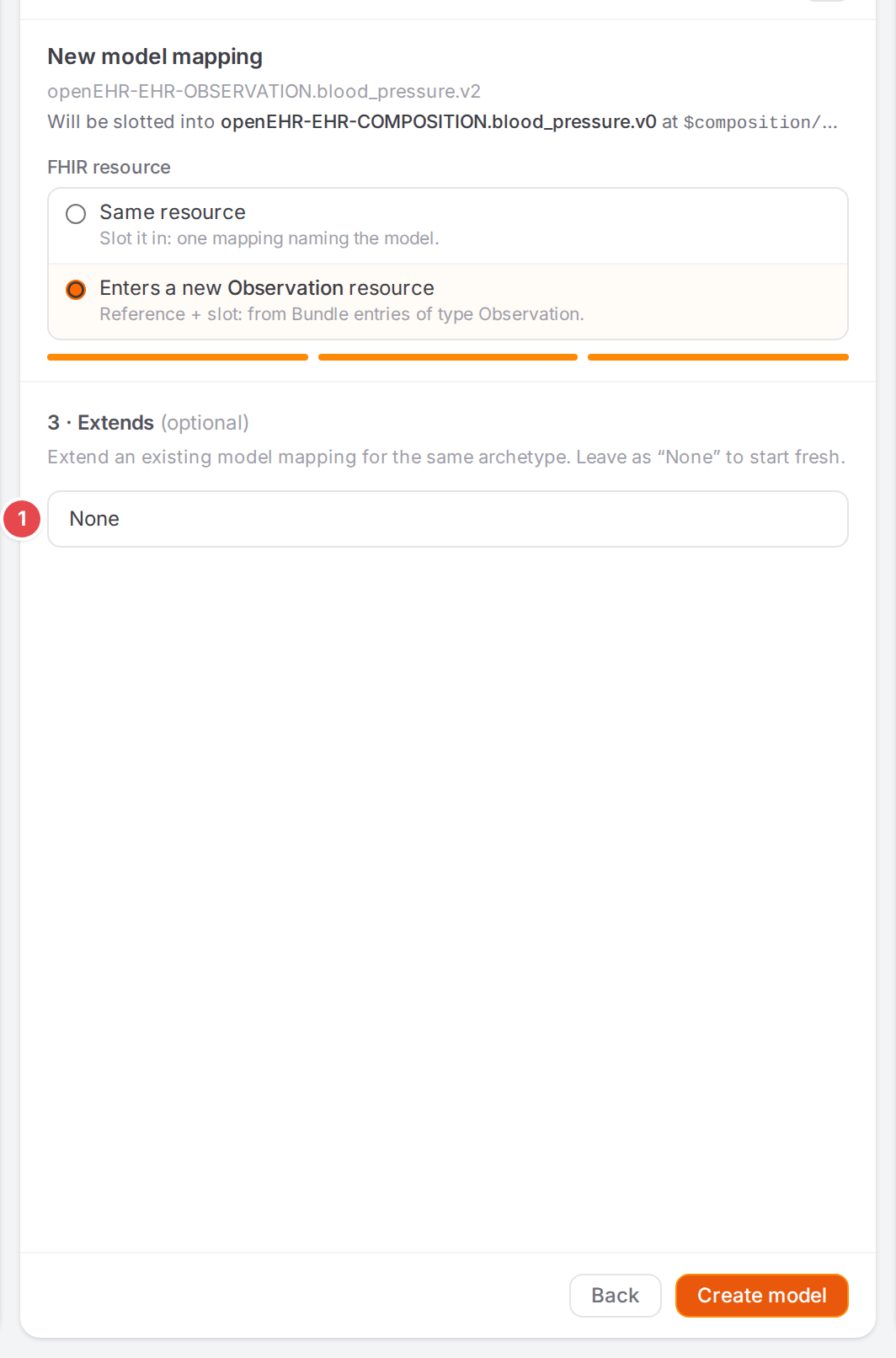
Extends 1: None, or a model of the same archetype.
Click Create model. Back returns to the previous step; on the first step it is Cancel.
Atlas creates the model and adds it to the template’s context (and sets it as the start when you came from Choose a start archetype). With a place chosen, it adds the slot mapping to the enclosing model and opens that model on it, with the FHIR path focused: fill in where the slotted resource goes in FHIR. Otherwise the new, empty model opens.
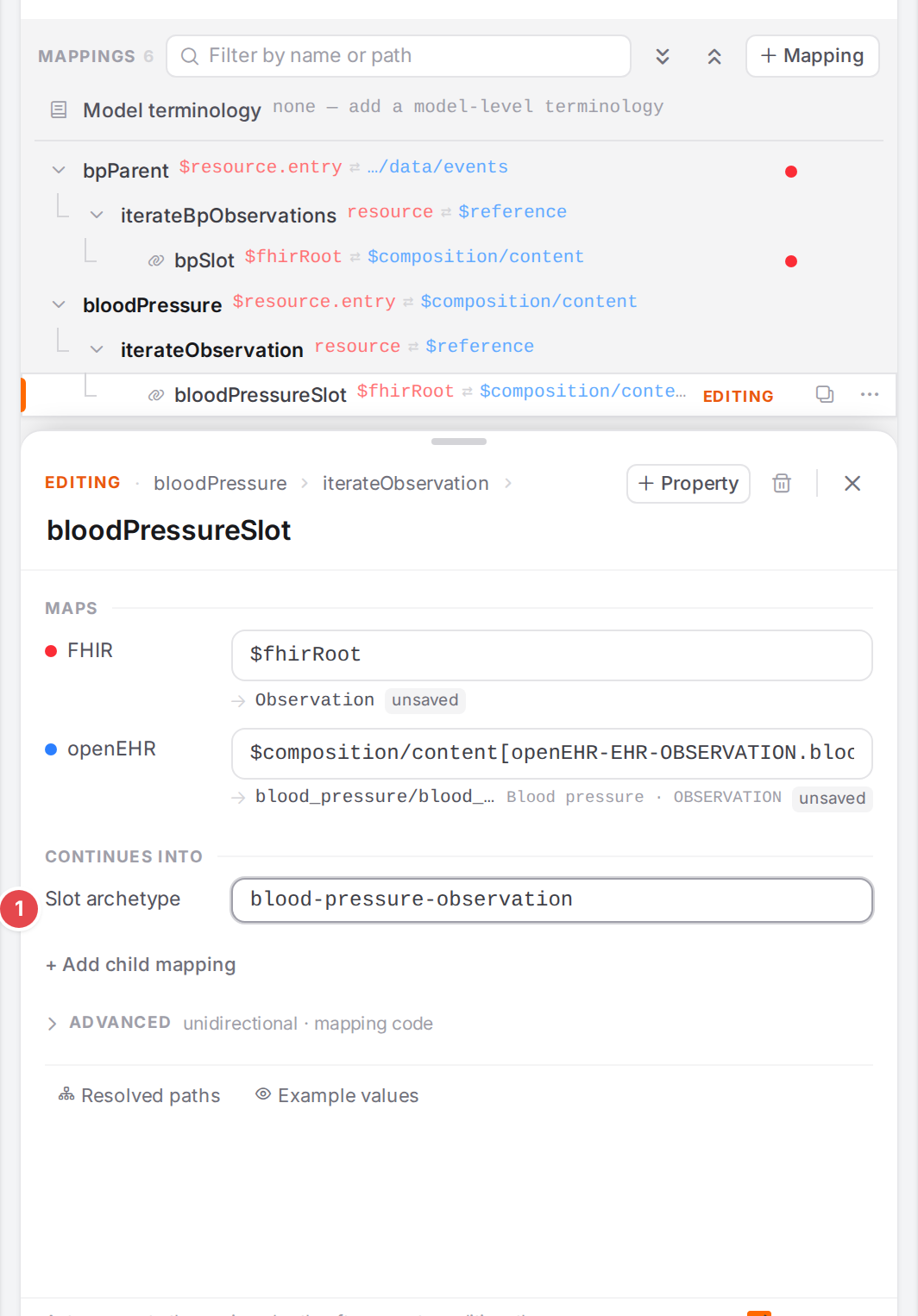
The new slot mapping in the enclosing model: its Slot archetype 1 names the new model; the FHIR path is still to fill in.
Check it worked
The overview shows the new model under ARCHETYPE MAPPINGS (or as START), and its archetype is gone from NOT YET MAPPED.
A model you slotted in has no Not linked strip on its card (Connect models: slots, links, references).
The coverage chip in the top bar and the Template tab show what is still unmapped (Find what isn’t mapped yet).
Tips
Tip
Pick the profile rather than the base type when you have one. The model then keeps the base
type as its structureDefinition and gets a meta mapping that writes the profile into
meta.profile. That profile drives the path suggestions, the checks, profile coverage and
validation (Validate against FHIR profiles).
Tip
Reuse a model when the same archetype is mapped the same way in another template. Reusing keeps one model for both, so a fix applies to both.
Tip
To map a slightly different variant of an existing model, create an extension model (step 9) rather than a copy. See Fixed values, codes and manual pairs for what an extension model’s mappings can do.
Watch out
Warning
A model you add with Don’t slot it now is in the context, but no conversion runs it until a slot links it. Its card shows Not linked; see Connect models: slots, links, references.
Warning
Reusing a model shares it: editing it later changes it for every template that uses it.
If something goes wrong
What you see |
What it means and what to do |
|---|---|
|
The engine didn’t store the context mapper. |
|
The context mapper couldn’t be read or saved. Open it with <> and fix the YAML (Connect models: slots, links, references). |
|
The context mapper lacks its |
|
The engine refused to add the model to this context. The rest of the message is its reason. |
|
The archetype that encloses this place has no model yet. Choose a start, or map the enclosing archetype first. |
|
The enclosing model maps this occurrence inline. Keep those mappings and choose Don’t slot it now or another place, or remove the inline mappings first. |
|
Atlas is still reading the template; the places appear once it is done. |
|
The FHIR type list couldn’t be loaded. Go back to step 1, pick another FHIR version and then yours again: the list is loaded again. |
|
The file is too big to add here. |
|
The StructureDefinition or package couldn’t be stored or fetched. See Use FHIR profiles and IG packages. |
|
The package is stored but no profile of it shows yet. Wait a moment and search again, or check the package’s FHIR version. |
|
The model couldn’t be created, for example because its name is taken. Go Back to step 1, click Cancel, and add the mapping again with another name. |
After the model exists, the Problems dock may show the start names no model, a model nothing reaches or a model without mappings. Other notices are listed in Messages and notices A–Z.