Engine state
Engine state (/state) lists what the openFHIR engine holds: the operational templates (OPTs),
their context mappers, the model mappers with their mappings, and counts of ConceptMaps and FHIR
packages. From here you upload material, open a template in the Workspace, export it, replace or
delete it, and read or edit a single mapping without leaving the page.
The page has three levels. Each level is a URL, so the browser’s back button and a shared link return to the same place (see Links you can share):
The overview: every template and every model mapper.
A template selected: its actions and only its model mappers.
A model mapper opened: its mappings, with the selected mapping in a detail panel.
The overview
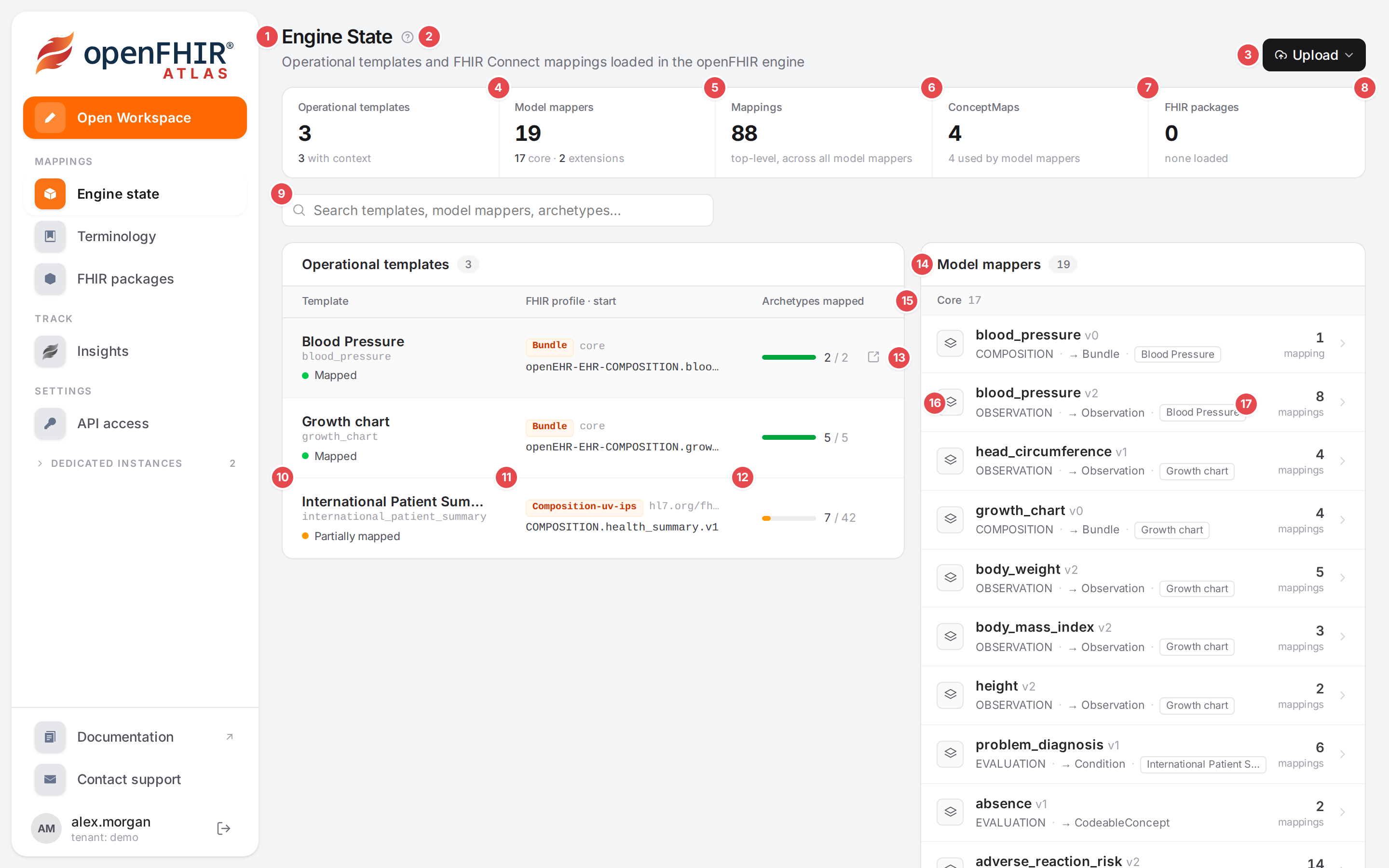
The overview after Load demo mappings.
- 1 Engine State
The page title. When the engine holds no template yet, the page shows a Welcome card instead of the lists, with Load demo mappings (see Your first mapping in 15 minutes). When versioning is set up and the git remote has commits the engine hasn’t pulled, a notice above it offers Import from the remote (The engine is empty, but its git remote may not be), and loading the demo asks first.
- 2 Help
Opens this page.
- 3 Upload
Opens and closes the Upload mappings panel (see Upload panel below).
- 4 Operational templates
How many templates the engine holds, how many have a context mapper (”3 with context”), and, in amber, how many have none (”1 without”).
- 5 Model mappers
All model mappers, split into core models and extensions (“17 core · 2 extensions”).
- 6 Mappings
The number of top-level mappings across all model mappers. Nested mappings (followed-by, reference) aren’t counted.
- 7 ConceptMaps
The ConceptMaps in the terminology store and how many of them a model uses. Click the tile to open Terminology.
- 8 FHIR packages
The loaded IG packages (“none loaded”, or the first package with “+N” more). Click the tile to open FHIR packages. A tile shows — when its count couldn’t be read.
- 9 Search
Filters both lists at once by template id, model mapper name, archetype or extended model. Press Esc or the ✕ to clear it.
- 10 Template
The template’s name and id, and its status:
Mapped: a context mapper exists and every archetype of the template has a model.
Partially mapped: some archetypes have no model yet.
No context: the template has no context mapper. A Start mapping → link opens it in the Workspace, which creates the context mapper first (see Start mapping a template).
Click the row (or press Enter on it) to select the template.
- 11 FHIR profile · start
The FHIR profile of the context mapper (the resource type as a chip, then core for a core FHIR profile or the profile’s canonical URL) and, below it, the start archetype. A template without a context mapper shows No context mapper yet.
- 12 Archetypes mapped
How many of the template’s archetypes a model maps, out of all archetypes in the OPT. The bar is green when every archetype is mapped, amber otherwise.
- 13 Open in workspace
Shows when you point at a template that has a context mapper; opens the template in the Workspace.
- 14 Model mappers
The list of model mappers with their count. While you search, the count reads “N of M”.
- 15 Core and Extensions
With more than one template, the list is split into core models and extension models.
- 16 Model mapper row
The model’s name and version, its openEHR RM class and the FHIR type it produces (“OBSERVATION · → Observation”); an extension shows “extends core model” instead. On the right, the number of mappings. Click the row to open the model mapper.
- 17 Template tag
Which template uses the model (with “+N” when several do). Shown when the list is wide enough.
When some templates have no context mapper, a filter appears next to the search: All, With context and No context, each with its count.
A template selected
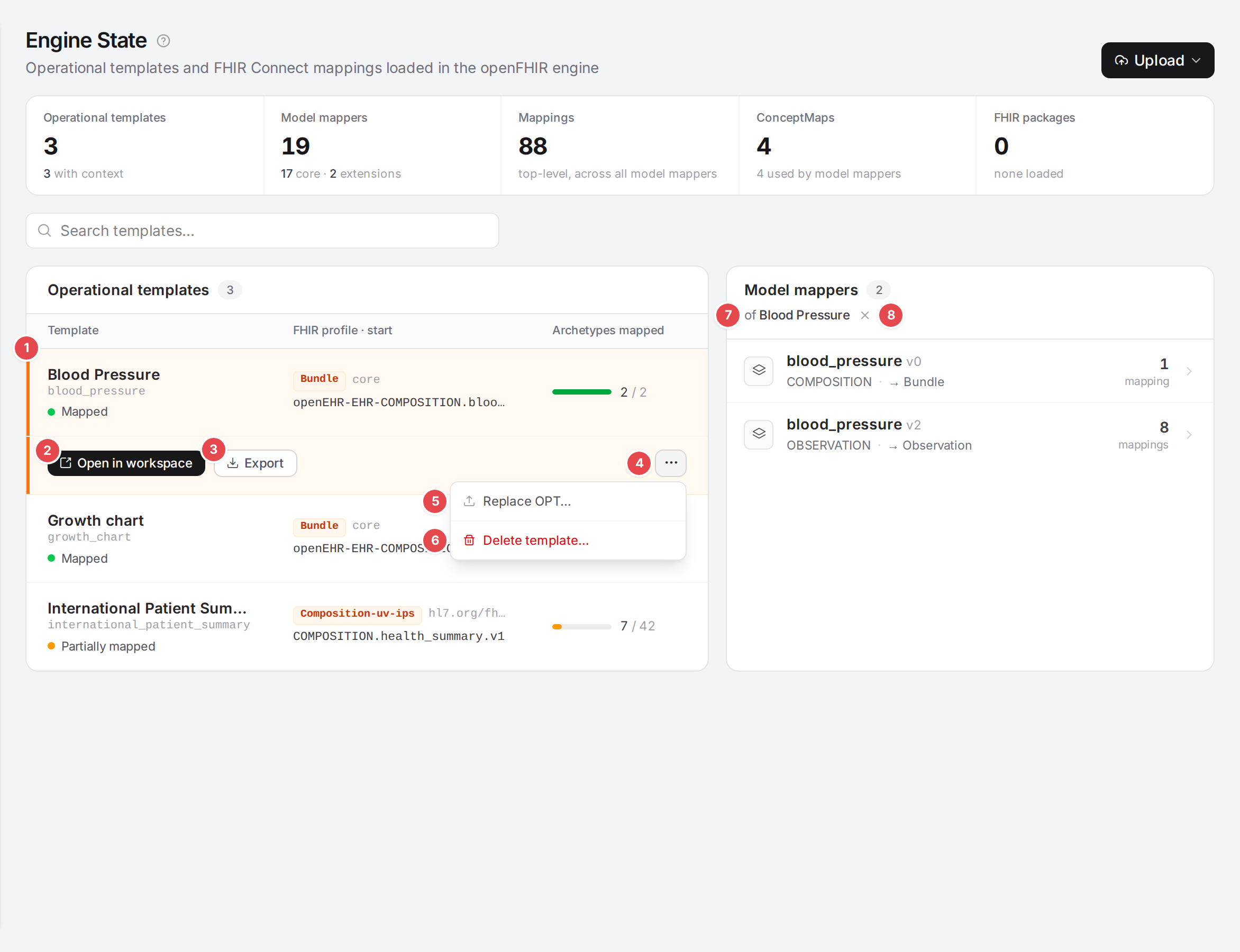
Blood Pressure selected, with the ⋯ menu open.
- 1 Selected template
Marked with an orange bar. The row below it holds the template’s actions.
- 2 Open in workspace
Opens the template in the Workspace.
- 3 Export
Opens Export template: download the template’s FHIR Connect mappings, the OPT, the linked FHIR packages and ConceptMaps as one ZIP. See Export and move mappings.
- 4 More actions (⋯)
The rarely used and destructive actions.
- 5 Replace OPT…
Upload a new
.optfile for this template (Update operational template). See Bring your material in.- 6 Delete template…
Asks Delete operational template? and can delete the template’s model mappers with it. See Bring your material in.
- 7 Scope
The model mapper list shows only this template’s models (“of Blood Pressure”). The search doesn’t filter this list.
- 8 ✕ (Show all model mappers)
Clears the selection and returns to the overview.
With versioning
When the engine versions the mappings, the page has three more entry points (see When is versioning available):
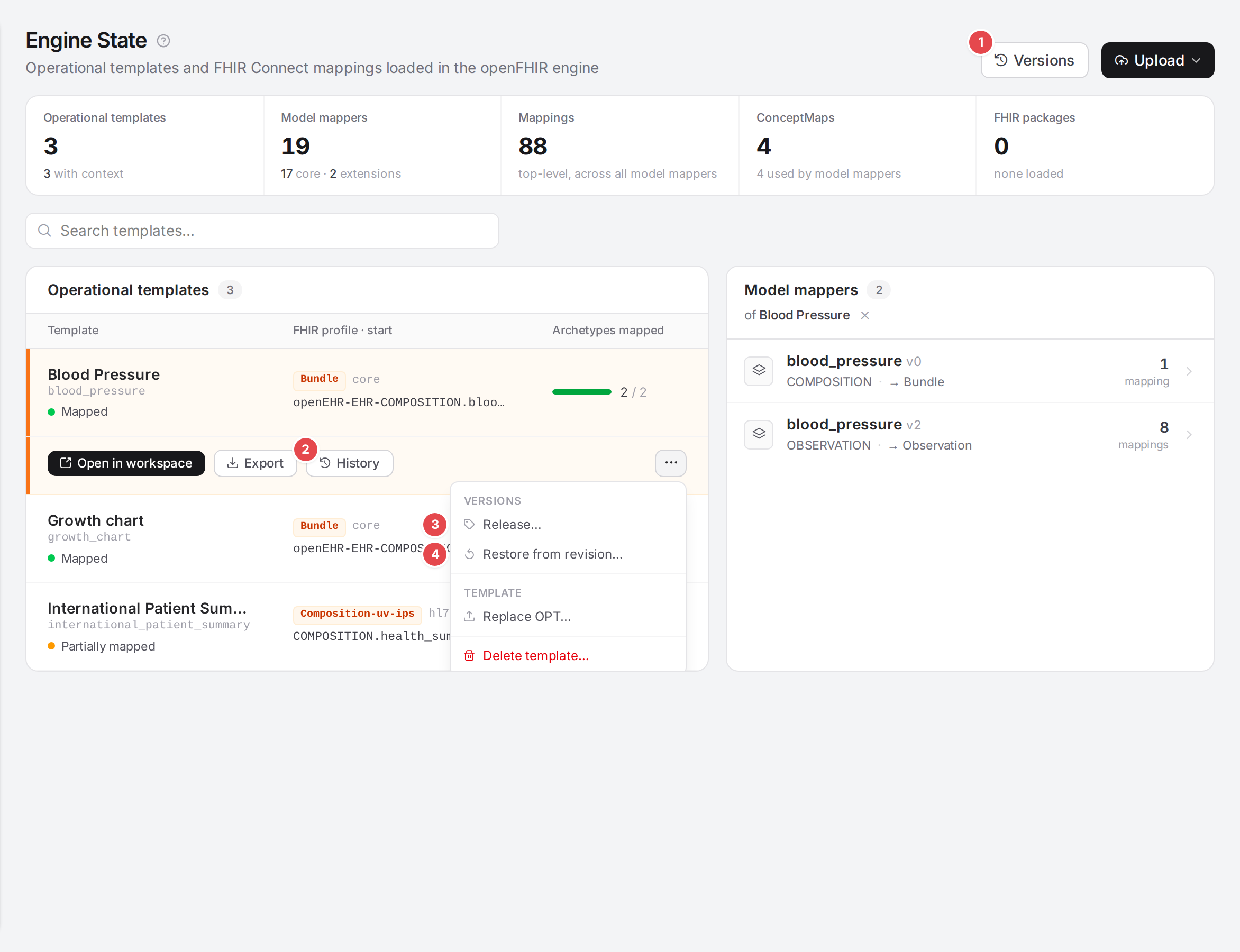
The versioning entry points on the Engine state page.
- 1 Versions
Opens Versioning.
- 2 History
Opens History · template: what changed in the template’s OPT, context and models, by whom. See History, blame and restoring.
- 3 Release…
Tags a release of the template. See Release a template.
- 4 Restore from revision…
Brings the template back as it was in a release, commit or branch. See History, blame and restoring.
A model mapper opened
Click a model mapper to see its mappings. Click a mapping row to open it in the detail panel on the right.
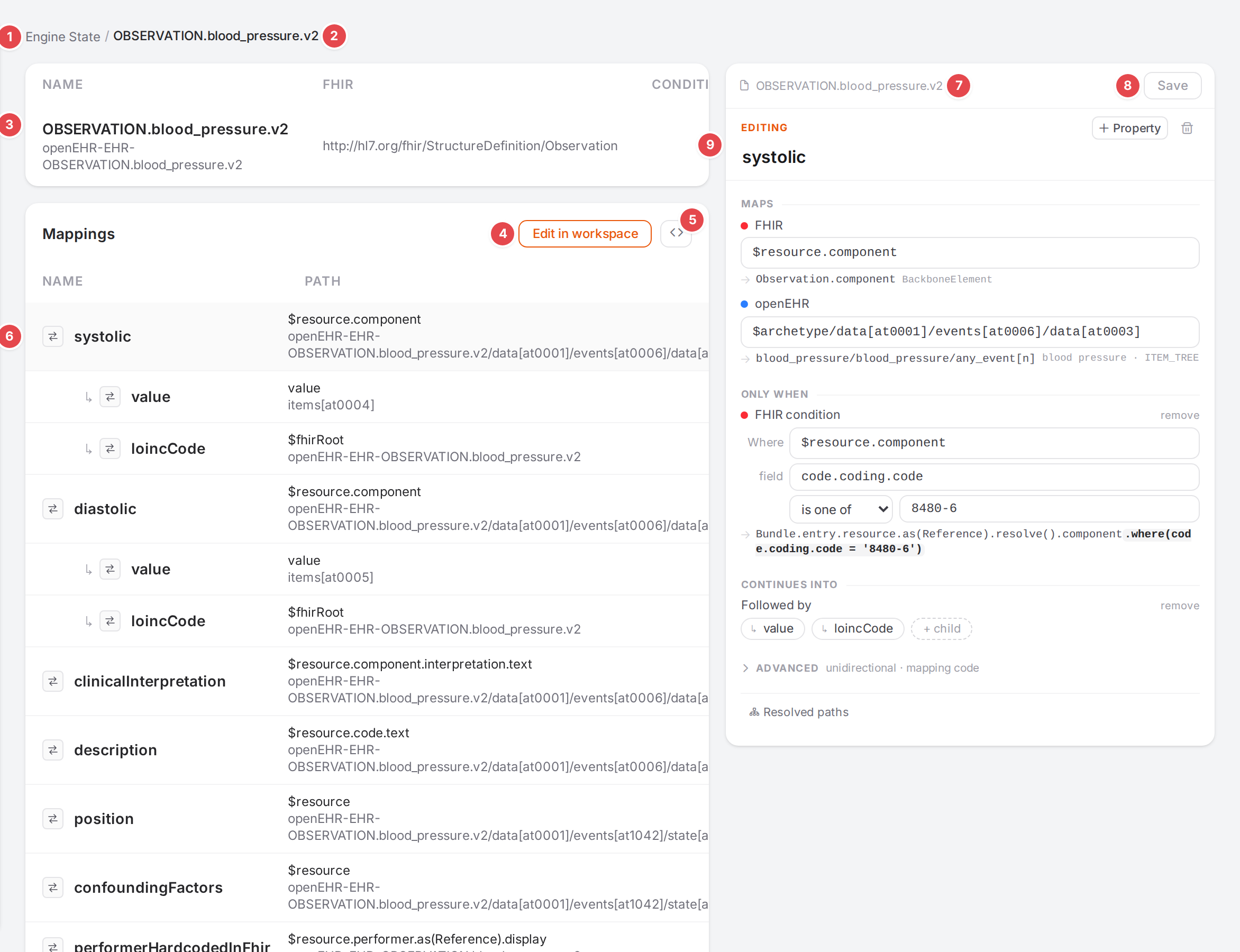
The systolic mapping of the blood pressure model.
- 1 Engine State (breadcrumb)
Back to the template (or to the overview, when you opened the model from the overview).
- 2 Current model
The model you are looking at. When you follow a slot into another model, the breadcrumb grows by one level per model; click an earlier name to go back to it.
- 3 Model summary
Name (the model name and its archetype), FHIR (its structure definition) and Condition (the model’s own FHIR conditions, when it has any).
- 4 Edit in workspace
Opens the template in the Workspace with this model open. Shown when you came through a template.
- 5 Raw editing
Opens Raw editing — model: the whole model as YAML, saved in one go.
- 6 Mapping row
The mapping’s name and type, its FHIR path and its openEHR path. Child mappings are indented under their parent with ↳. The selected row is shaded.
- 7 Model name
The model the detail panel edits.
- 8 Save
Writes the whole model to the engine. It is enabled once you have changed something; then Unsaved changes and a Discard button appear next to it. If the save fails, the reason shows in red in the same place.
- 9 Mapping inspector
The same editor as the Workspace’s editing sheet: Maps, Only when, Values, Continues into, Advanced and the resolved paths, with path suggestions and live checks. Every part is explained in the Workspace’s editing sheet. Its status chip opens a Problems list at the top of the panel.
Your edits are kept per model while you click through rows and models, until you save or discard them. Leaving the page with unsaved edits asks Leave without saving?: “You have unsaved mapping changes to models. If you leave now they will be lost. Leave anyway?” (Leave / Stay).
The detail panel can also say:
““name” comes from the core model core; this extension doesn’t override it.” with an Open core button.
““name” isn’t in this model’s YAML.” (or “isn’t in the edited YAML (renamed or deleted in unsaved changes?)”).
“Couldn’t parse the model’s YAML — use raw editing to fix it.” followed by the parser’s message.
A mapping that hands over to another model through a slot shows that model’s name as a link in its row. Click it to open that model:
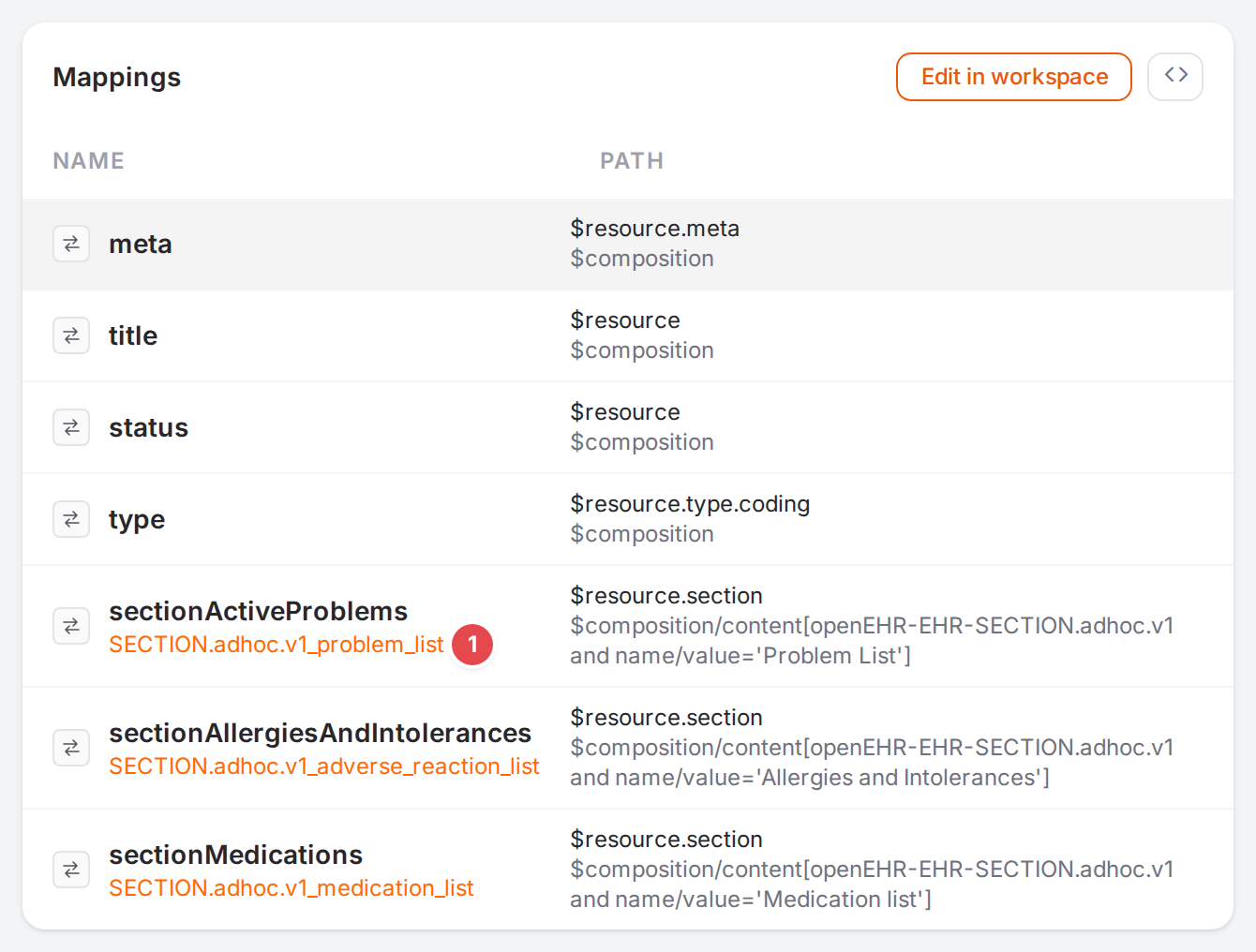
1 The slot link of sectionActiveProblems.
See Connect models: slots, links, references for slots, and Edit mappings in the Workspace for editing mappings.
Upload panel
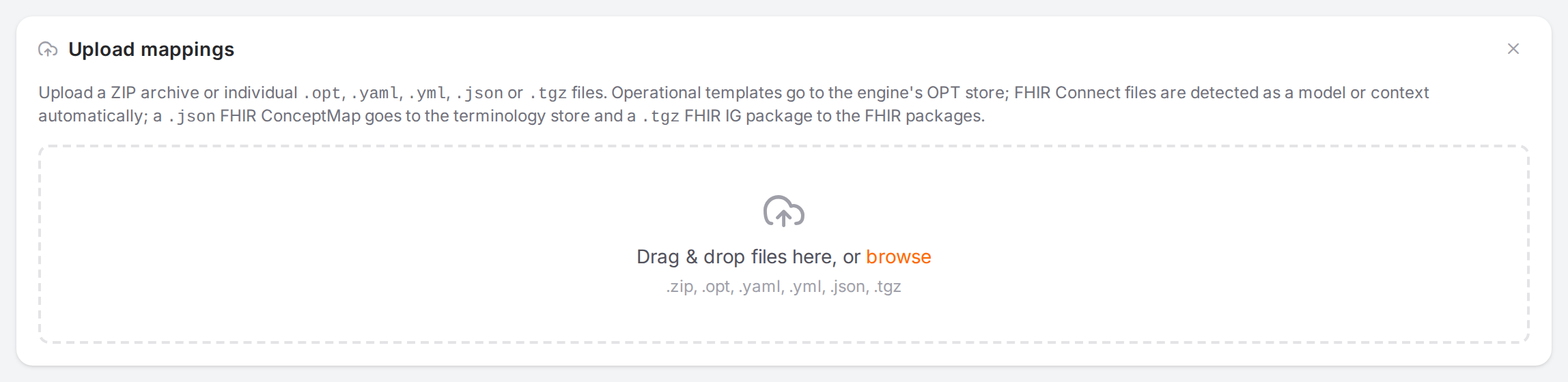
Upload mappings, opened with Upload.
Drop files on the panel or click browse. It accepts a ZIP archive and .opt, .yaml, .yml,
.json and .tgz files: OPTs go to the engine’s template store, FHIR Connect files are recognised
as a model or context, a .json ConceptMap goes to the terminology store and a .tgz IG package to
the FHIR packages. On engines that can import atomically, Atlas shows a Preview first, with
Merge or Mirror and Apply. The results read “N uploaded · N skipped · N failed”.
The whole flow, with the traps of Mirror, is in Bring your material in.